
HOME
Shop
  • English
  • 简体中文
HOME
Shop
  • English
  • 简体中文
  • Product Series

    • FPGA+ARM

      • GM-3568JHF

        • 1. Introduction

          • About GM-3568JHF
        • 2. Quick Start

          • 00 Introduction
          • 01 Environment Setup
          • 02 Compilation Instructions
          • 03 Flashing Guide
          • 04 Debug Tools
          • 05 Software Update
          • 06 View Information
          • 07 Test Commands
          • 08 App Compilation
          • 09 Source Code Acquisition
        • 3. Peripherals and Interfaces

          • 01 USB
          • 02 Display and Touch
          • 03 Ethernet
          • 04 WIFI
          • 05 Bluetooth
          • 06 TF-Card
          • 07 Audio
          • 08 Serial Port
          • 09 CAN
          • 10 RTC
        • 4. Application Development

          • 01 UART read and write case
          • 02 Key detection case
          • 03 LED light flashing case
          • 04 MIPI screen detection case
          • 05 Read USB device information example
          • 06 FAN Detection Case
          • 07 FPGA FSPI Communication Case
          • 08 FPGA DMA read and write case
          • 09 GPS debugging case
          • 10 Ethernet Test Cases
          • 11 RS485 reading and writing examples
          • 12 FPGA IIC read and write examples
          • 13 PN532 NFC card reader case
          • 14 TF card reading and writing case
        • 5. QT Development

          • 01 ARM64 cross compiler environment construction
          • 02 QT program added automatic startup service
        • 6. RKNN_NPU Development

          • 01 RK3568 NPU Overview
          • 02 Development Environment Setup
          • Run Official YOLOv5 Example
          • Model Conversion Detailed Explanation
          • Run Custom Model on Board
        • 7. FPGA Development

          • ARM and FPGA Communication
          • /fpga-arm/GM-3568JHF/FPGA/ch02-FPGA-Development-Manual.html
        • 8. Others

          • 01 Modification of the root directory file system
          • 02 System auto-start service
        • 9. Download

          • Download Resources
    • ShimetaPi

      • M4-R1

        • 1. Introduction

          • 1.1 About M4-R1
        • 2. Quick Start

          • 2.1 OpenHarmony Overview
          • 2.2 Image Burning
          • 2.3 Development Environment Preparation
          • 2.4 Hello World Application
        • 3. Application Development

          • 3.1 Getting Started

            • 3.1.1 ArkTS Language Overview
            • 3.1.2 UI Components (Part 1)
            • 3.1.3 UI Components (Part 2)
            • 3.1.4 UI Components (Part 3)
          • 3.2 Advanced

            • 3.2.1 Getting Started Guide
            • 3.2.2 Usage of Third Party Libraries
            • 3.2.3 Deployment of the Application
            • 3.2.4 Factory Reset
            • 3.2.5 System Debug
            • 3.2.6 APP Stability Testing
            • 3.2.7 Application Testing
          • 3.3 Getting Docs

            • 3.3.1 Official Website Information
          • 3.4 Development Instructions

            • 3.4.1 Full SDK
            • 3.4.2 Introduction of Third Party Libraries
            • 3.4.3 Introduction of HDC Tool
            • 3.4.4 Restore Factory Mode
            • 3.4.5 Update System API
          • 3.5 First Application

            • 3.5.1 First ArkTS App
          • 3.6 Application Demo

            • 3.6.1 UART Tool
            • 3.6.2 Graphics Tablet
            • 3.6.3 Digital Clock
            • 3.6.4 WIFI Tool
        • 4. Device Development

          • 4.1 Ubuntu Environment Development

            • 4.1.1 Environment Setup
            • 4.1.2 Download Source Code
            • 4.1.3 Compile Source Code
          • 4.2 Using DevEco Device Tool

            • 4.2.1 Tool Introduction
            • 4.2.2 Environment Construction
            • 4.2.3 Import SDK
            • 4.2.4 Function Introduction
        • 5. Peripherals and Interfaces

          • 5.1 Raspberry Pi Interfaces
          • 5.2 GPIO Interface
          • 5.3 I2C Interface
          • 5.4 SPI Communication
          • 5.5 PWM Control
          • 5.6 Serial Port Communication
          • 5.7 TF Card Slot
          • 5.8 Display Screen
          • 5.9 Touch Screen
          • 5.10 Audio
          • 5.11 RTC
          • 5.12 Ethernet
          • 5.13 M.2
          • 5.14 MINI PCIE
          • 5.15 Camera
          • 5.16 WIFI BT
          • 5.17 HAT
        • 6. FAQ

          • 6.1 Download Link
      • M5-R1

        • 1. Introduction

          • M5-R1 Development Documentation
        • 2. Quick Start

          • OpenHarmony Overview
          • Image Burning
          • Development Environment Preparation
          • Hello World Application and Deployment
        • 3. Peripherals and Interfaces

          • 3.1 Raspberry Pi Interfaces
          • 3.2 GPIO Interface
          • 3.3 I2C Interface
          • 3.4 SPI Communication
          • 3.5 PWM Control
          • 3.6 Serial Port Communication
          • 3.7 TF Card Slot
          • 3.8 Display Screen
          • 3.9 Touch Screen
          • 3.10 Audio
          • 3.11 RTC
          • 3.12 Ethernet
          • 3.13 M.2
          • 3.14 MINI PCIE
          • 3.15 Camera
          • 3.16 WIFI BT
          • 3.17 HAT
        • 4. Application Development

          • 4.1 Getting Started

            • 4.1.1 ArkTS Language Overview
            • 4.1.2 UI Components (Part 1)
            • 4.1.3 UI Components (Part 2)
            • 4.1.4 UI Components (Part 3)
          • 4.2 Advanced

            • 4.2.1 Getting Started Guide
            • 4.2.2 Usage of Third Party Libraries
            • 4.2.3 Deployment of the Application
            • 4.2.4 Factory Reset
            • 4.2.5 System Debug
            • 4.2.6 APP Stability Testing
            • 4.2.7 Application Testing
        • 5. Device Development

          • 5.1 Environment Setup
          • 5.2 Download Source Code
          • 5.3 Compile Source Code
        • 6. Download

          • Data Download
    • OpenHarmony

      • SC-3568HA

        • 1. Introduction

          • 1.1 About SC-3568HA
        • 2. Quick Start

          • 2.1 OpenHarmony Overview
          • 2.2 Image Burning
          • 2.3 Development Environment Preparation
          • 2.4 Hello World Application
        • 3. Application Development

          • 3.1 ArkUI

            • 3.1.1 ArkTS Language Overview
            • 3.1.2 UI Components (Part 1)
            • 3.1.3 UI Components (Part 2)
            • 3.1.4 UI Components (Part 3)
          • 3.2 Advanced

            • 3.2.1 Getting Started Guide
            • 3.2.2 Usage of Third Party Libraries
            • 3.2.3 Deployment of the Application
            • 3.2.4 Factory Reset
            • 3.2.5 System Debug
            • 3.2.6 APP Stability Testing
            • 3.2.7 Application Testing
        • 4. Device Development

          • 4.1 Environment Setup
          • 4.2 Download Source Code
          • 4.3 Compile Source Code
        • 5. Peripherals and Interfaces

          • 5.1 Raspberry Pi Interfaces
          • 5.2 GPIO Interface
          • 5.3 I2C Interface
          • 5.4 SPI Communication
          • 5.5 PWM Control
          • 5.6 Serial Port Communication
          • 5.7 TF Card Slot
          • 5.8 Display Screen
          • 5.9 Touch Screen
          • 5.10 Audio
          • 5.11 RTC
          • 5.12 Ethernet
          • 5.13 M.2
          • 5.14 MINI PCIE
          • 5.15 Camera
          • 5.16 WIFI BT
          • 5.17 HAT
        • 6. FAQ

          • 6.1 Download Link
      • M-K1HSE

        • 1. Introduction

          • 1.1 Product Introduction
        • 2. Quick Start

          • 2.1 Debug Tool Installation
          • 2.2 Development Environment Setup
          • 2.3 Source Code Download
          • 2.4 Build Instructions
          • 2.5 Flashing Guide
          • 2.6 APT Update Sources
          • 2.7 View Board Info
          • 2.8 CLI LED and Key Test
          • 2.9 GCC Build Programs
        • 3. Application Development

          • 3.1 Basic Application Development

            • 3.1.1 Development Environment Preparation
            • 3.1.2 First Application HelloWorld
            • 3.1.3 Develop HAR Package
          • 3.2 Peripheral Application Cases

            • 3.2.1 UART Read/Write
            • 3.2.2 Key Demo
            • 3.2.3 LED Flash
        • 4. Peripherals and Interfaces

          • 4.1 Standard Peripherals

            • 4.1.1 USB
            • 4.1.2 Display and Touch
            • 4.1.3 Ethernet
            • 4.1.4 WIFI
            • 4.1.5 Bluetooth
            • 4.1.6 TF Card
            • 4.1.7 Audio
            • 4.1.8 Serial Port
            • 4.1.9 CAN
            • 4.1.10 RTC
          • 4.2 Interfaces

            • 4.2.1 Audio
            • 4.2.2 RS485
            • 4.2.3 Display
            • 4.2.4 Touch
        • 5. System Customization Development

          • 5.1 System Porting
          • 5.2 System Customization
          • 5.3 Driver Development
          • 5.4 System Debugging
          • 5.5 OTA Upgrade
        • 6. Download

          • 6.1 Download
    • EVS-Camera

      • CF-NRS1

        • 1. Introduction

          • 1.1 About CF-NRS1
          • 1.2 Event-Based Concepts
          • 1.3 Quick Start
          • 1.4 Resources
        • 2. Development

          • 2.1 Development Overview

            • 2.1.1 Shimetapi Hybrid Camera SDK Introduction
          • 2.2 Environment & API

            • 2.2.1 Environment Overview
            • 2.2.2 Development API Overview
          • 2.3 Linux Development

            • 2.3.1 Linux SDK Introduction
            • 2.3.2 Linux SDK API
            • 2.3.3 Linux Algorithm
            • 2.3.4 Linux Algorithm API
          • 2.4 Service & Web

            • 2.4.1 EVS Server
            • 2.4.2 Time Server
            • 2.4.3 EVS Web
        • 3. Download

          • 3.1 Download
        • 4. Common Problems

          • 4.1 Common Problems
      • CF-CRA2

        • 1. Introduction

          • 1.1 About CF-CRA2
        • 2. Download

          • 2.1 Download
      • EVS Module

        • 1. Related Concepts
        • 2. Hardware Preparation and Environment Configuration
        • 3. Example Program User Guide
        • Resources Download
    • AI-model

      • 1684XB-32T

        • 1. Introduction

          • AIBOX-1684XB-32 Introduction
        • 2. Quick Start

          • First time use
          • Network Configuration
          • Disk usage
          • Memory allocation
          • Fan Strategy
          • Firmware Upgrade
          • Cross-Compilation
          • Model Quantization
        • 3. Application Development

          • 3.1 Development Introduction

            • Sophgo SDK Development
            • SOPHON-DEMO Introduction
          • 3.2 Large Language Models

            • Deploying Llama3 Example
            • /ai-model/AIBOX-1684XB-32/application-development/LLM/Sophon_LLM_api_server-Development-AIBOX-1684XB-32.html
            • /ai-model/AIBOX-1684XB-32/application-development/LLM/MiniCPM-V-2_6-AIBOX-1684XB-32.html
            • /ai-model/AIBOX-1684XB-32/application-development/LLM/Qwen-2-5-VL-demo-Development-AIBOX-1684XB-32.html
            • /ai-model/AIBOX-1684XB-32/application-development/LLM/Qwen-3-chat-demo-Development-AIBOX-1684XB-32.html
            • /ai-model/AIBOX-1684XB-32/application-development/LLM/Qwen3-Qwen Agent-MCP.html
            • /ai-model/AIBOX-1684XB-32/application-development/LLM/Qwen3-langchain-AI Agent.html
          • 3.3 Deep Learning

            • ResNet (Image Classification)
            • LPRNet (License Plate Recognition)
            • SAM (Universal Image Segmentation Foundation Model)
            • YOLOv5 (Object Detection)
            • OpenPose (Human Keypoint Detection)
            • PP-OCR (Optical Character Recognition)
        • 4. Download

          • Resource Download
      • 1684X-416T

        • 1. Introduction

          • AIBOX-1684X-416 Introduction
        • 2. Demo Simple Operation Guide

          • Simple instructions for using shimeta smart monitoring demo
      • RDK-X5

        • 1. Introduction

          • RDK-X5 Hardware Introduction
        • 2. Quick Start

          • RDK-X5 Quick Start
        • 3. Application Development

          • 3.1 AI Online Model Development

            • AI Online Development - Experiment01
            • AI Online Development - Experiment02
            • AI Online Development - Experiment03
            • AI Online Development - Experiment04
            • AI Online Development - Experiment05
            • AI Online Development - Experiment06
          • 3.2 Large Language Models (Voice)

            • Voice LLM Application - Experiment01
            • Voice LLM Application - Experiment02
            • Voice LLM Application - Experiment03
            • Voice LLM Application - Experiment04
            • Voice LLM Application - Experiment05
            • Voice LLM Application - Experiment06
          • 3.3 40pin-IO Development

            • 40pin IO Development - Experiment01
            • 40pin IO Development - Experiment02
            • 40pin IO Development - Experiment03
            • 40pin IO Development - Experiment04
            • 40pin IO Development - Experiment05
            • 40pin IO Development - Experiment06
            • 40pin IO Development - Experiment07
          • 3.4 USB Module Development

            • USB Module Usage - Experiment01
            • USB Module Usage - Experiment02
          • 3.5 Machine Vision

            • Machine Vision Technology Development - Experiment01
            • Machine Vision Technology Development - Experiment02
            • Machine Vision Technology Development - Experiment03
            • Machine Vision Technology Development - Experiment04
          • 3.6 ROS2 Base Development

            • ROS2 Basic Development - Experiment01
            • ROS2 Basic Development - Experiment02
            • ROS2 Basic Development - Experiment03
            • ROS2 Basic Development - Experiment04
      • RDK-S100

        • 1. Introduction

          • 1.1 About RDK-S100
        • 2. Quick Start

          • 2.1 First Use
        • 3. Application Development

          • 3.1 AI Online Model Development

            • 3.1.1 Volcano Engine Doubao AI
            • 3.1.2 Image Analysis
            • 3.1.3 Multimodal Visual Analysis
            • 3.1.4 Multimodal Image Comparison
            • 3.1.5 Multimodal Document Analysis
            • 3.1.6 Camera AI Vision Analysis
          • 3.2 Large Language Models

            • 3.2.1 Speech Recognition
            • 3.2.2 Voice Conversation
            • 3.2.3 Multimodal Image Analysis
            • 3.2.4 Multimodal Image Comparison
            • 3.2.5 Multimodal Document Analysis
            • 3.2.6 Multimodal Vision Application
          • 3.3 40pin-IO Development

            • 3.3.1 GPIO Output LED Blink
            • 3.3.2 GPIO Input
            • 3.3.3 Key Control LED
            • 3.3.4 PWM Output
            • 3.3.5 Serial Output
            • 3.3.6 I2C Experiment
          • 3.4 USB Module Development

            • 3.4.1 USB Voice Module
            • 3.4.2 Sound Source Localization
          • 3.5 Machine Vision

            • 3.5.1 USB Camera
            • 3.5.2 Image Processing Basics
            • 3.5.3 Object Detection
            • 3.5.4 Image Segmentation
          • 3.6 ROS2 Base Development

            • 3.6.1 Environment Setup
            • 3.6.2 Create and Build Workspace
            • 3.6.3 ROS2 Topic Communication
            • 3.6.4 ROS2 Camera Application
    • Core-Board

      • C-3568BQ

        • 1. Introduction

          • C-3568BQ Introduction
      • C-3588LQ

        • 1. Introduction

          • C-3588LQ Introduction
      • GC-3568JBAF

        • 1. Introduction

          • GC-3568JBAF Introduction
      • C-K1BA

        • 1. Introduction

          • C-K1BA Introduction

07 Audio

1 Audio System Overview

GM-3568JHF development board is equipped with a complete audio processing system, based on the integrated audio controller of RK3568J processor and external ES8388 audio codec chip, providing multiple audio input and output interfaces, supporting high-quality audio recording and playback functions.

1.1 Audio System Architecture

RK3568J I2S/PCM ←→ ES8388 Codec ←→ Audio Interface
     ↓
   HDMI Audio ←→ HDMI Interface

1.2 Technical Specifications

ComponentSpecification
Main Control AudioRK3568J integrated audio controller
Audio CodecES8388 high-performance audio codec
Digital InterfaceI2S, PCM, SPDIF
Sampling Rate8kHz ~ 192kHz
Bit Depth16bit, 24bit, 32bit
Signal-to-Noise Ratio>90dB (ES8388)
THD + N<0.1% @ 1kHz

2 Audio Interface Configuration

The development board provides multiple audio interfaces to meet different application needs:

Audio Input Interface

  • Onboard MIC: Built-in omnidirectional microphone, suitable for voice recording
  • Headphone MIC: 3.5mm headphone jack integrated microphone input
  • Line Input: Supports external audio device input

Audio Output Interface

  • Headphone Output: 3.5mm standard headphone jack, supports stereo output
  • Speaker Output: Onboard speaker interface, supports mono output
  • HDMI Audio: Digital audio output via HDMI interface
AUDIO

3 Sound Card Devices

3.1 Get Recording Devices

root@linaro-alip:/# arecord -l
**** List of CAPTURE Hardware Devices ****
card 0: rockchipes8388 [rockchip-es8388], device 0: dailink-multicodecs ES8388 HiFi-0 [dailink-multicodecs ES8388 HiFi-0]
  Subdevices: 0/1
  Subdevice #0: subdevice #0
  • card 0: Onboard audio processing chip rockchip-es8388, this chip leads out two recording interfaces, one is the onboard MIC, and the other is the headphone MIC.
  • card 0 is a device registered in Linux, and we can call these interfaces through applications.

3.2 Get Playback Devices

root@linaro-alip:/# aplay -l
**** List of PLAYBACK Hardware Devices ****
card 0: rockchipes8388 [rockchip-es8388], device 0: dailink-multicodecs ES8388 HiFi-0 [dailink-multicodecs ES8388 HiFi-0]
  Subdevices: 1/1
  Subdevice #0: subdevice #0
card 1: rockchiphdmi [rockchip,hdmi], device 0: rockchip,hdmi i2s-hifi-0 [rockchip,hdmi i2s-hifi-0]
  Subdevices: 1/1
  Subdevice #0: subdevice #0
  • card 0 : Onboard audio processing chip rockchip-es8388
  • card 1 : HDMI sound output

card 0 and card 1 are devices registered in Linux, and we can call these interfaces through applications.

3.3 Sound Card Driver Directory

View sound card driver directory

root@linaro-alip:/# ls -l /dev/snd/
total 0
drwxr-xr-x  2 root root       80 Oct 10 17:40 by-path
crw-rw----+ 1 root audio 116,  4 Oct 10 17:40 controlC0
crw-rw----+ 1 root audio 116,  6 Oct 10 17:40 controlC1
crw-rw----+ 1 root audio 116,  3 Oct 10 17:40 pcmC0D0c
crw-rw----+ 1 root audio 116,  2 Oct 10 17:40 pcmC0D0p
crw-rw----+ 1 root audio 116,  5 Oct 10 17:40 pcmC1D0p
crw-rw----+ 1 root audio 116,  1 Oct 10 17:40 seq
crw-rw----+ 1 root audio 116, 33 Oct 10 17:40 timer
  • controlC0: Used for sound card control, C0 means sound card 0, corresponding to the onboard audio processing chip rockchip-es8388 mentioned above.
  • controlC1: Used for sound card control, C1 means sound card 1, corresponding to the HDMI sound output mentioned above.
  • pcmC0D0p: PCM device used for playback, the last "p" is the abbreviation of playback.
  • pcmC0D0c: PCM device used for recording, the last "c" is the abbreviation of capture.
  • pcmC1D0p: PCM device used for playback, the last "p" is the abbreviation of playback.
  • timer: Timer device, used for time synchronization of audio playback and recording.
  • by-path: Saves the correspondence of devices.
root@lubancat:~# ls -l /dev/snd/by-path/
total 0
lrwxrwxrwx 1 root root 12 Feb 14 18:11 platform-fd880000.usb-usb-0:1.4:1.2 -> ../controlC2
lrwxrwxrwx 1 root root 12 Feb 14 18:11 platform-hdmi-sound -> ../controlC0
lrwxrwxrwx 1 root root 12 Feb 14 18:11 platform-rk809-sound -> ../controlC1
root@lubancat:~#
  • You can see that there is a correspondence between each control, and these correspondences exactly correspond to card 0 and card 1 mentioned above.

4 Recording and Playback

4.1 Command Line

Recording

Recording uses the arecord command, an example is as follows:

# Get recording devices
arecord -l
# Record 10s audio with sound card 0
arecord -d 10 -D hw:0,0 -r 48000 -c 2 -f S16_LE -t wav /data/test_device.wav

Parameter details:

  • -d 10 : Set recording duration to 10 seconds.
  • -D hw:0,0 : Specify the audio device, hw:0,0 means using the first device (0) of the first sound card (0).
  • -r 48000 : Set sampling rate to 48000 Hz (i.e. 48 kHz).
  • -c 2 : Set the number of audio channels to 2 (stereo).
  • -f S16_LE : Set audio format to 16-bit signed little endian.
  • -t wav : Set output file format to WAV.
  • /data/test_device.wav : Specify the path and name of the output file.

Audio Playback

# Get playback devices
aplay -l
# Play audio for 5s with sound card 0
aplay -Dhw:1,0 -d5 /data/test_device.wav

Parameter details:

  • -D hw:0,0 : Specify the audio device, meaning using the first device (0) of the first sound card (0).
  • -d 5 : Set playback duration to 5 seconds.
  • /data/test_device.wav : Specify the path of the audio file to be played.

Recording while Playing

Use arecord and aplay tools.

# Record with card 0 and play with card 0
arecord -f cd -Dhw:0 | aplay -Dhw:0

4.2 Desktop

Recording

After ensuring the network is connected, install the recording software.

# Install software
sudo apt install gnome-sound-recorder

Open the software.
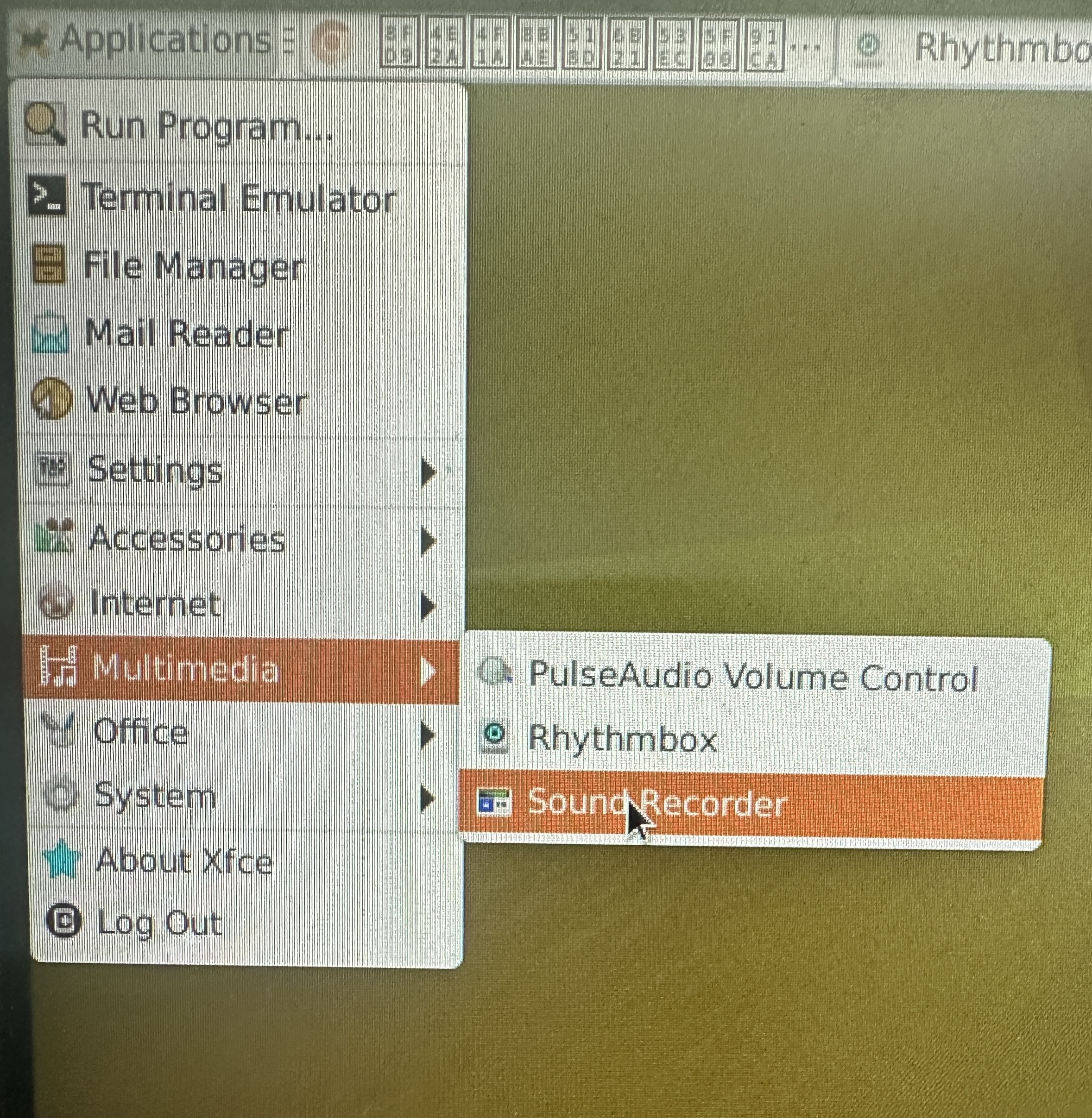
AUDIO_2

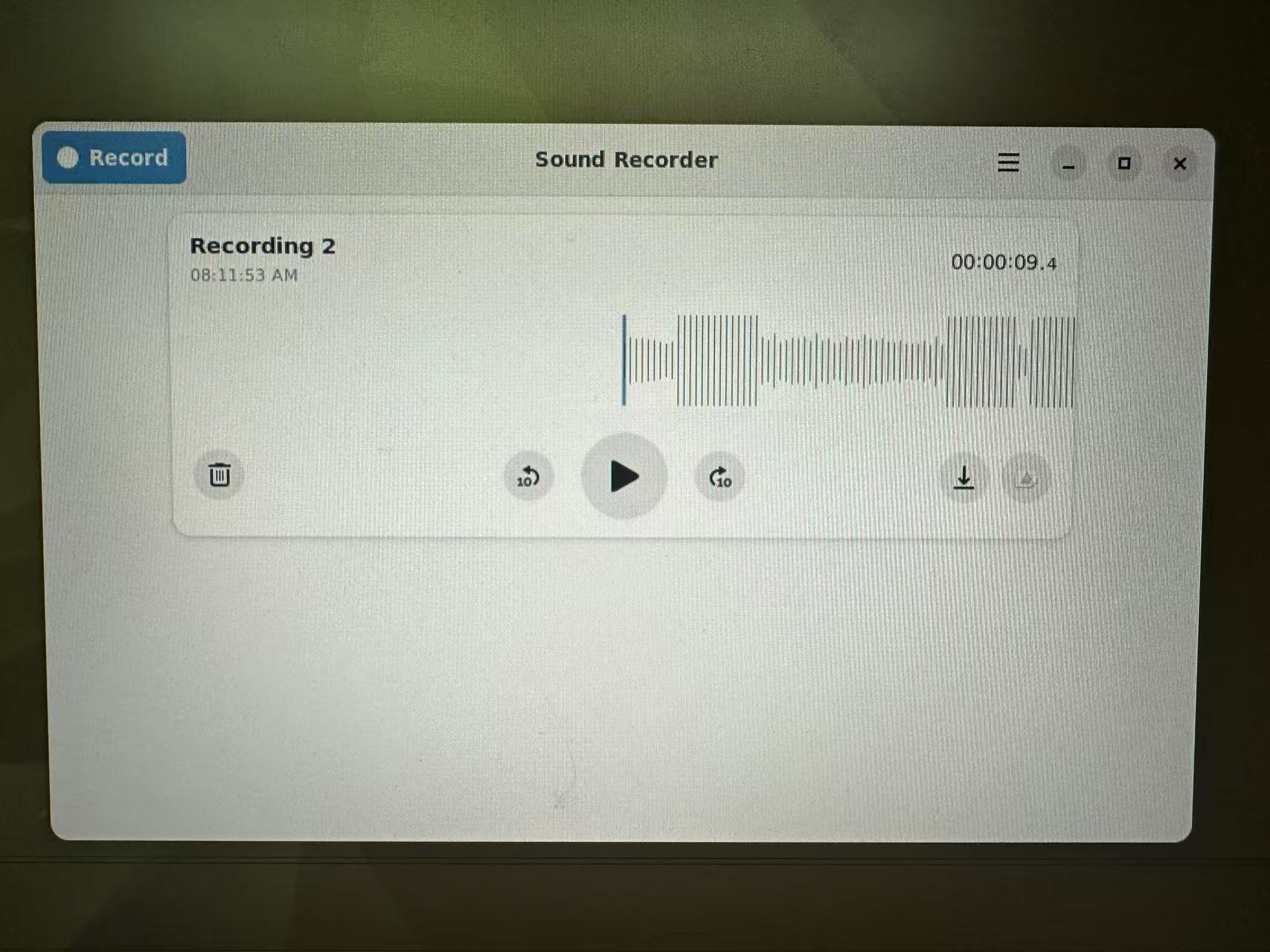
Click the record button in the upper left corner of the application to start recording, press done to end recording. The recording path is /home/linaro/.local/share/org.gnome.SoundRecorder/. If there is nothing in the waveform diagram during recording, check whether the headset is plugged in properly.
AUDIO_3

Playing Music

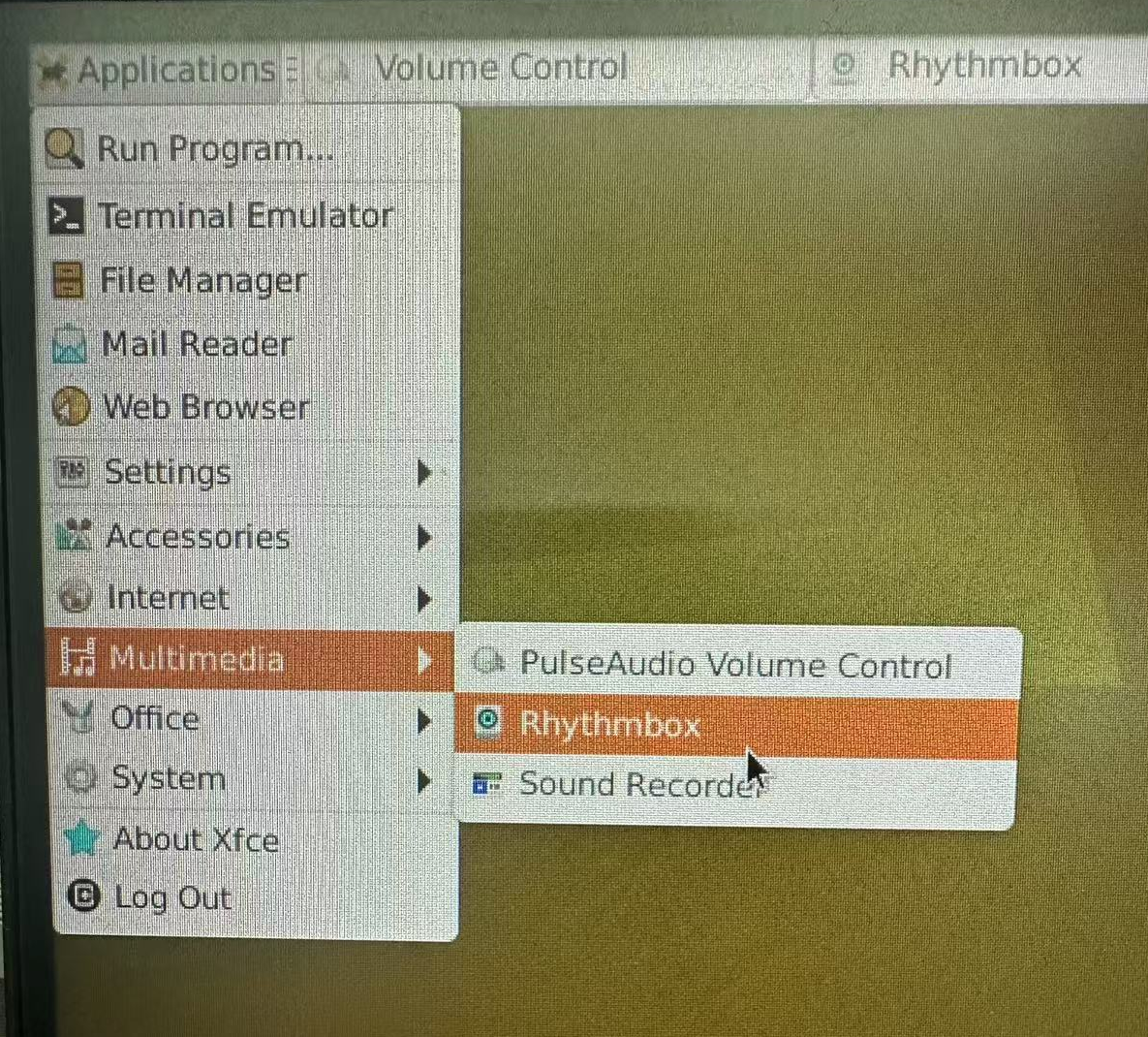
The system comes with Rhythmbox software. If you need other players, you can download them yourself.
AUDIO_5

After opening, you need to import the audio, as shown in the figure:

AUDIO_6

5 ALSA Advanced Configuration

View detailed audio device information

# View all audio devices
cat /proc/asound/cards

# View device detailed information
cat /proc/asound/card0/id
cat /proc/asound/card1/id

# View PCM device information
cat /proc/asound/pcm

# View audio controller information
amixer -c 0 info
amixer -c 1 info

Audio Control and Mixing

# View all audio controls
amixer -c 0 controls

# View volume controls
amixer -c 0 scontrols

# Set master volume
amixer -c 0 sset 'Master' 80%

# Set headphone volume
amixer -c 0 sset 'Headphone' 70%

# Set microphone gain
amixer -c 0 sset 'Mic' 60%

# Mute/Unmute
amixer -c 0 sset 'Master' mute
amixer -c 0 sset 'Master' unmute

6 Common Troubleshooting

6.1 No Sound Output

Check Steps:

# Check audio devices
aplay -l
lsmod | grep snd

# Check volume settings
amixer -c 0 scontrols
amixer -c 0 sget Master

# Test audio output
speaker-test -c 2 -t wav

# Check audio service
pulseaudio --check -v

6.2 Recording No Sound or Noise

Solution:

# Check recording devices
arecord -l

# Adjust microphone gain
amixer -c 0 sset 'Mic' 70%
amixer -c 0 sset 'Capture' 80%

# Test recording
arecord -D hw:0,0 -f cd test.wav

6.3 Audio Latency Issues

Optimization Configuration:

# Reduce buffer size
echo 'defaults.pcm.dmix.period_size 512' >> ~/.asoundrc
echo 'defaults.pcm.dmix.periods 2' >> ~/.asoundrc

# Use low latency kernel
sudo apt-get install linux-lowlatency

6.4 HDMI Audio No Output

Check and Fix:

# Check HDMI audio device
aplay -l | grep HDMI

# Switch to HDMI audio output
pactl set-default-sink alsa_output.platform-hdmi-sound.stereo-fallback

# Test HDMI audio
aplay -D hw:1,0 test.wav
Edit this page on GitHub
Last Updated:
Contributors: ZSL
Prev
06 TF-Card
Next
08 Serial Port