
3. Example Program User Guide
4 Example Program User Guide & Function Demonstration
4.1 Real-time Preview and Recording (evs_live_player)
4.1.1 Function Description
evs_live_player is the most basic example program, providing two core functions:
- Real-time Preview: Display the image captured by the event camera on the screen.
- Data Recording: Save event data as RAW8 format files.
4.1.2 Preparation Before Use
Ensure:
- ✓ EVS camera is correctly connected.
- ✓ Monitor is connected (for preview).
4.1.3 Instructions
First enter the project directory, grant the program executable permissions, and then check the available sensors:
cd /app/cdev_demo/sample_evs/evs_mode_release/sample/01_evs_live_player/
chmod +x evs_live_player.RAW8
sudo ./evs_live_player -s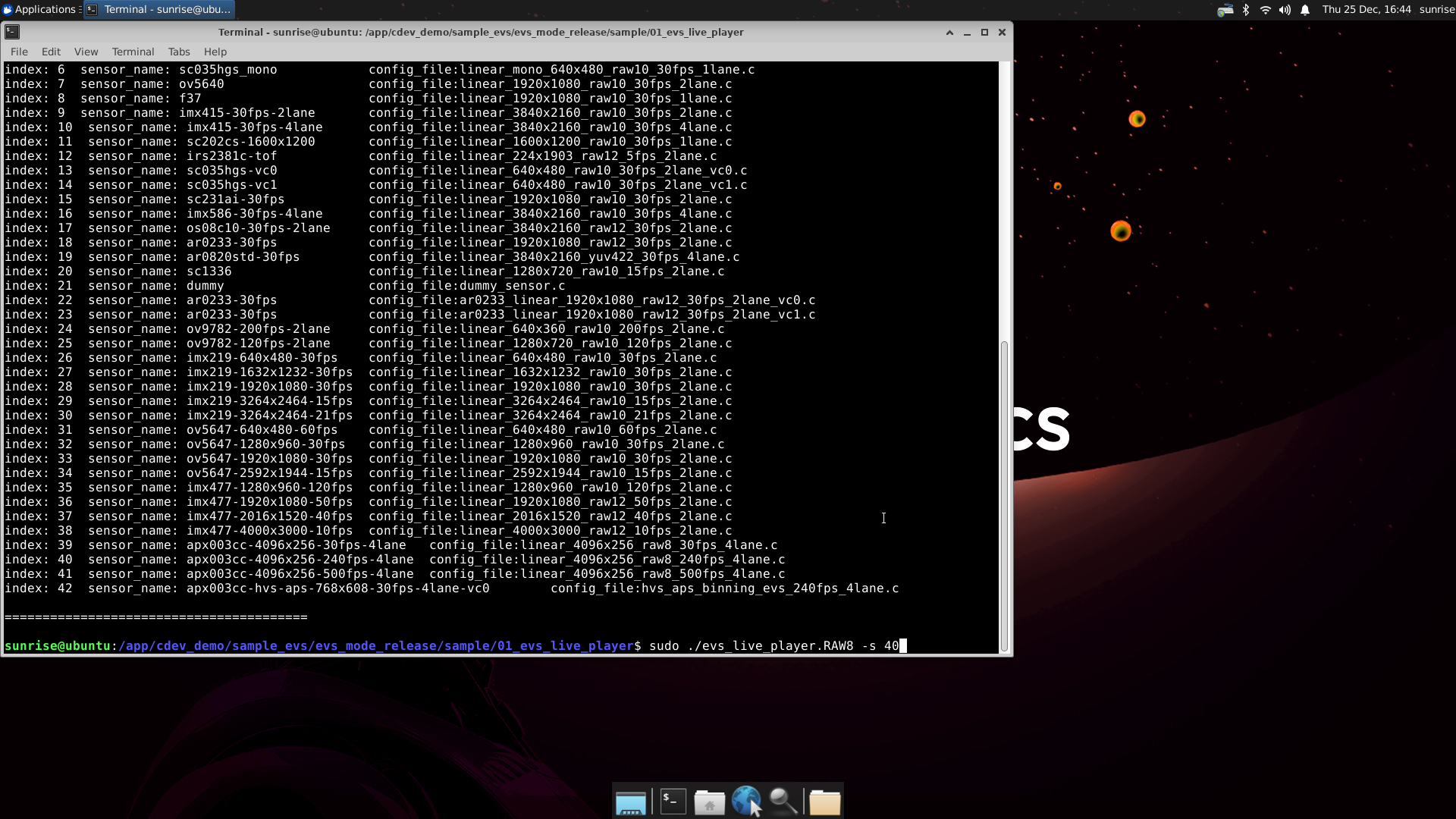
Note that currently only the configuration file apx003c-4096x256-240fps-4line is adapted. Select index 40 to execute here.
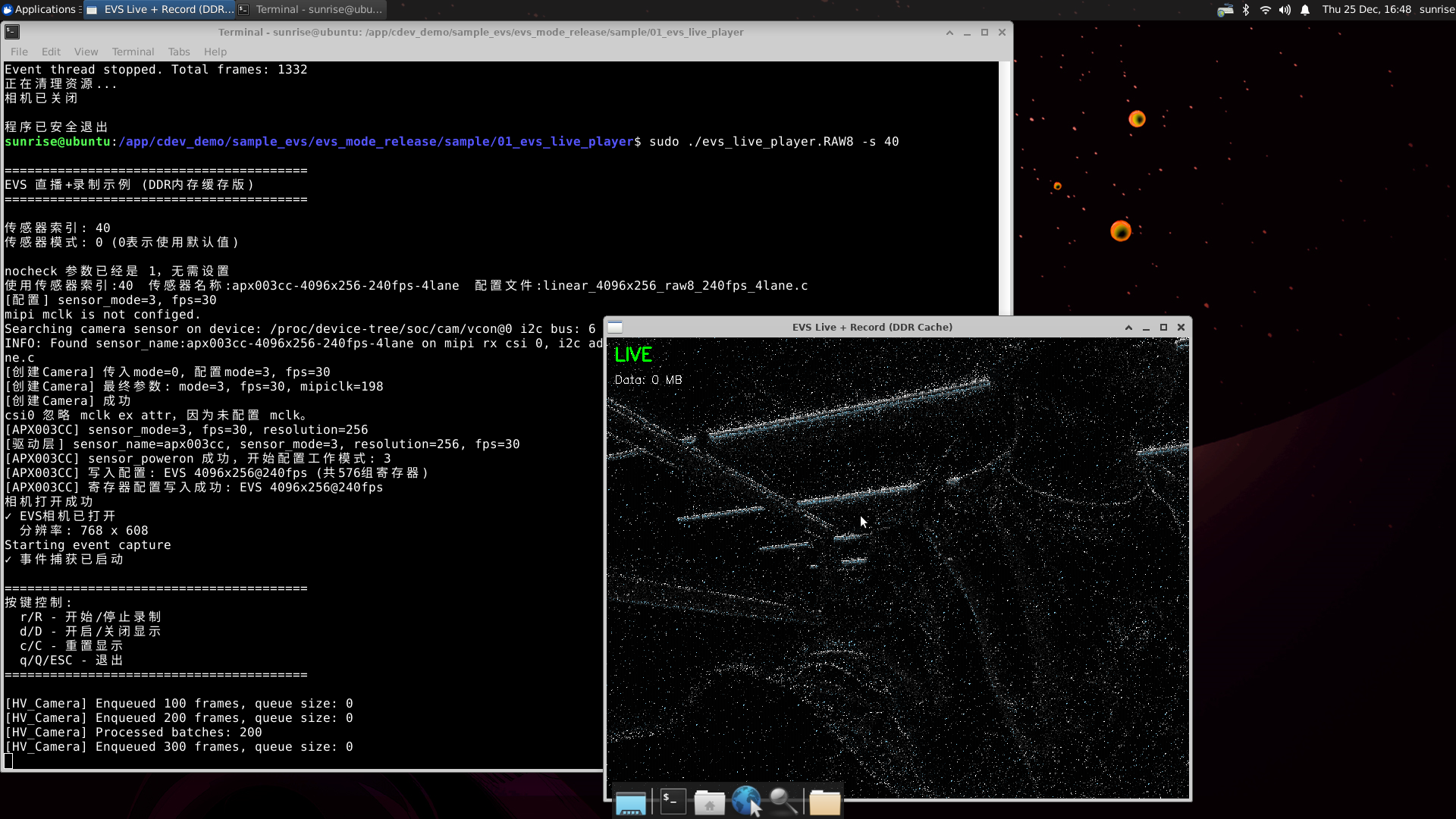
After execution:
- The program starts and opens the camera.
- A preview window pops up to display the real-time image.
If you need to record, you can toggle the recording switch by pressing the shortcut key r. The data will be written to the memory, and written to the SD card after recording ends.
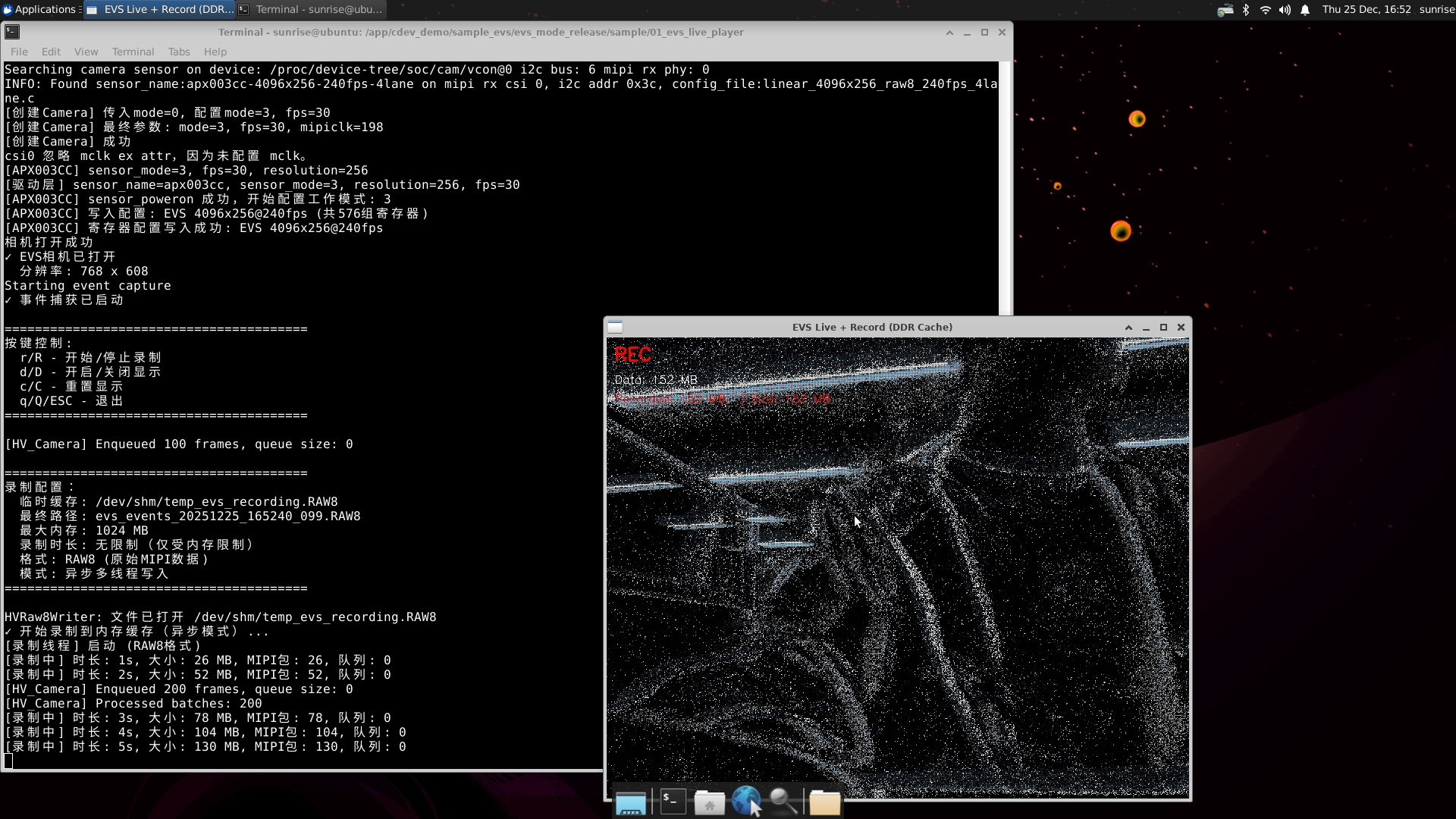
After recording ends, the file will be automatically named and saved to the current directory.
Warning
The module integrates an encryption chip. This program is only applicable to shimeta's evs module.
4.1.4 FAQ
Here is an explanation of why data needs to be written to memory first:
Although RDKX5 claims to have 10T of computing power, this computing power is mainly concentrated in the BPU, while our decoding mainly uses CPU resources. After actual testing, when decoding the original mipi data packets and displaying them in real time, the CPU cannot complete such a large amount of calculation. When the frame rate is greater than 120FPS, the screen freezes significantly. For real-time display, we only decode and display the first complete frame of each mipi packet. When recording, the remaining raw data is directly saved to memory for subsequent decoding.
We also tested the read and write speeds of the SD card and the board's onboard DDR. The test results of the SD card used by the author are as follows:
SD card write test (12MB/S):
dd if=/dev/zero of=/tmp/test_write bs=1M count=256 conv=fdatasyncSD card read test (24MB/S):
fio --name=read_test --ioengine=sync --rw=read --bs=1M --size=256M --numjobs=1 --filename=/tmp/test_write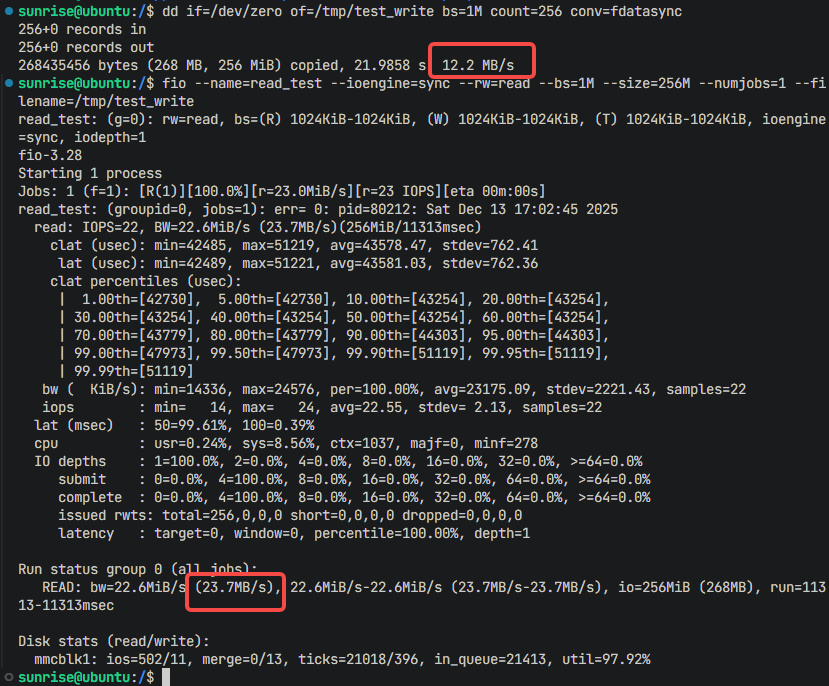
Memory read/write speed test (Write 765MB/S; Read 1.7GB/S)
Write test:
dd if=/dev/zero of=/dev/shm/memtest bs=1M count=1024 conv=fdatasyncRead test:
dd if=/dev/shm/memtest of=/dev/null bs=1M count=1024
Actual tests found that the speed difference between the two is almost 100 times! When recording at high frame rates, the read and write speed of the SD card is obviously struggling, so temporarily storing data in memory is a necessary move.
4.2 Format Conversion Tools
4.2.1 RAW8 to EVT2 (raw8_to_evt2)
Why need conversion?
Why not analyze the raw data packets directly, but convert them to EVT2 format first? EVT2 format is the Metavision SDK standard format, which can be compatible with our Windows host software and the complete algorithm library on Ubuntu. Therefore, an intermediate process of converting the saved raw data into EVT2 format is provided.
Usage:
cd /app/cdev_demo/sample_evs/evs_mode_release/sample/02_raw8_to_evt2/
chmod +x raw8_to_evt2

# The converted file is generated directly in the current directory
./raw8_to_evt2 /userdata/hand_wave.RAW8

# Specify the converted file to a specific directory
./raw8_to_evt2 /userdata/hand_wave.RAW8 /userdata/output.raw
Conversion process:
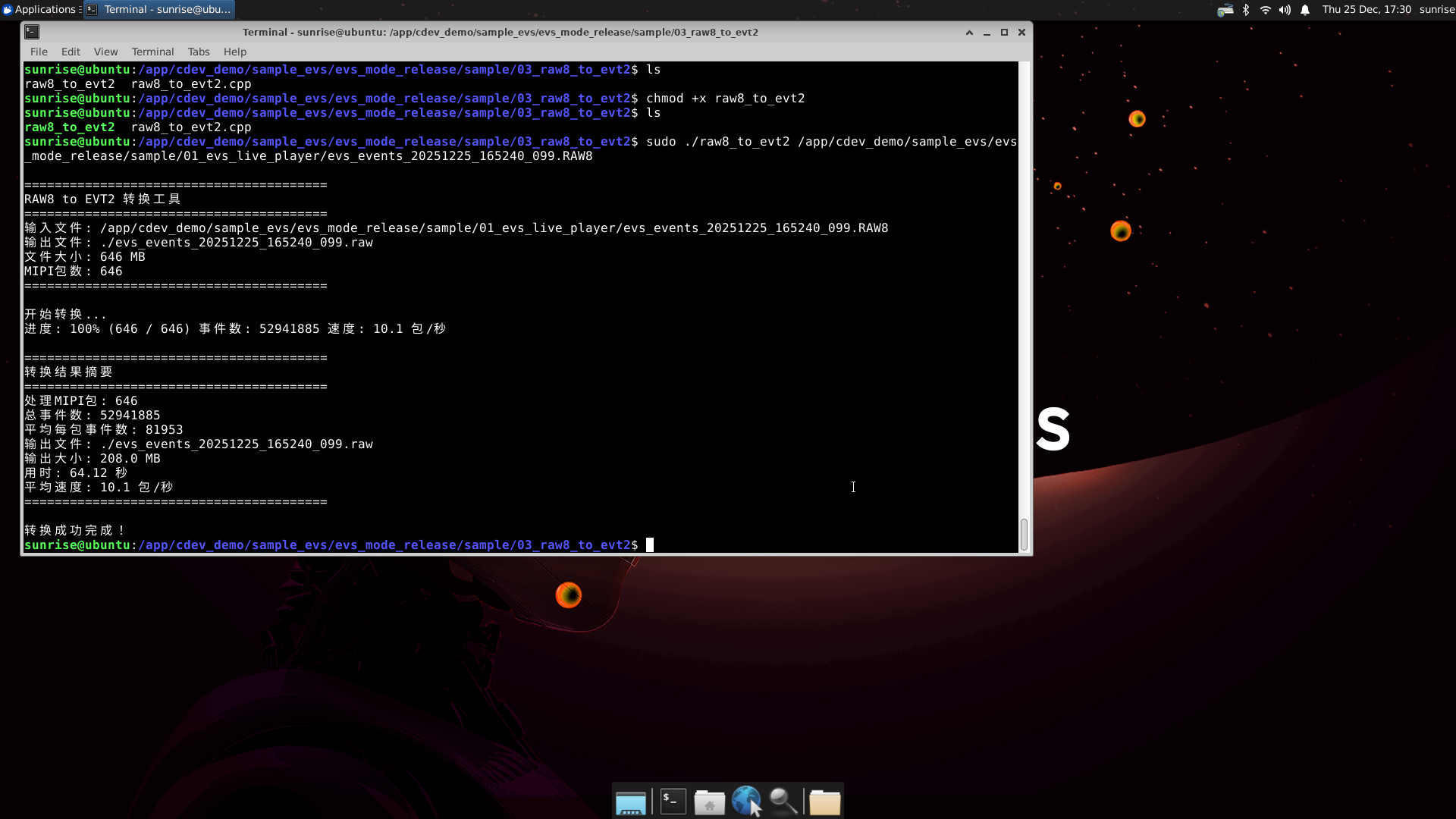
4.2.2 EVT2 to CSV (evt2_to_csv)
Why convert to CSV?
CSV is a general table format, which is convenient for:
- Viewing and analyzing in Excel
- Data processing using Python/MATLAB
- Drawing with visualization tools
CSV File Format:
x,y,polarity,timestamp
352,240,1,1234567890
120,180,0,1234567920
425,305,1,1234568100
...| Column Name | Meaning | Value Range |
|---|---|---|
| x | Abscissa | 0-767 |
| y | Ordinate | 0-607 |
| polarity | Polarity | 0 (Darker) or 1 (Brighter) |
| timestamp | Timestamp | Microsecond |
Usage:
cd /app/cdev_demo/sample_evs/evs_mode_release/sample/02_evt2_to_csv
chmod +x evt2_to_csv

# The converted file is generated directly in the current directory
./evt2_to_csv /userdata/hand_wave.raw

# Specify the converted file to a specific directory
./evt2_to_csv /userdata/hand_wave.raw /userdata/events.csv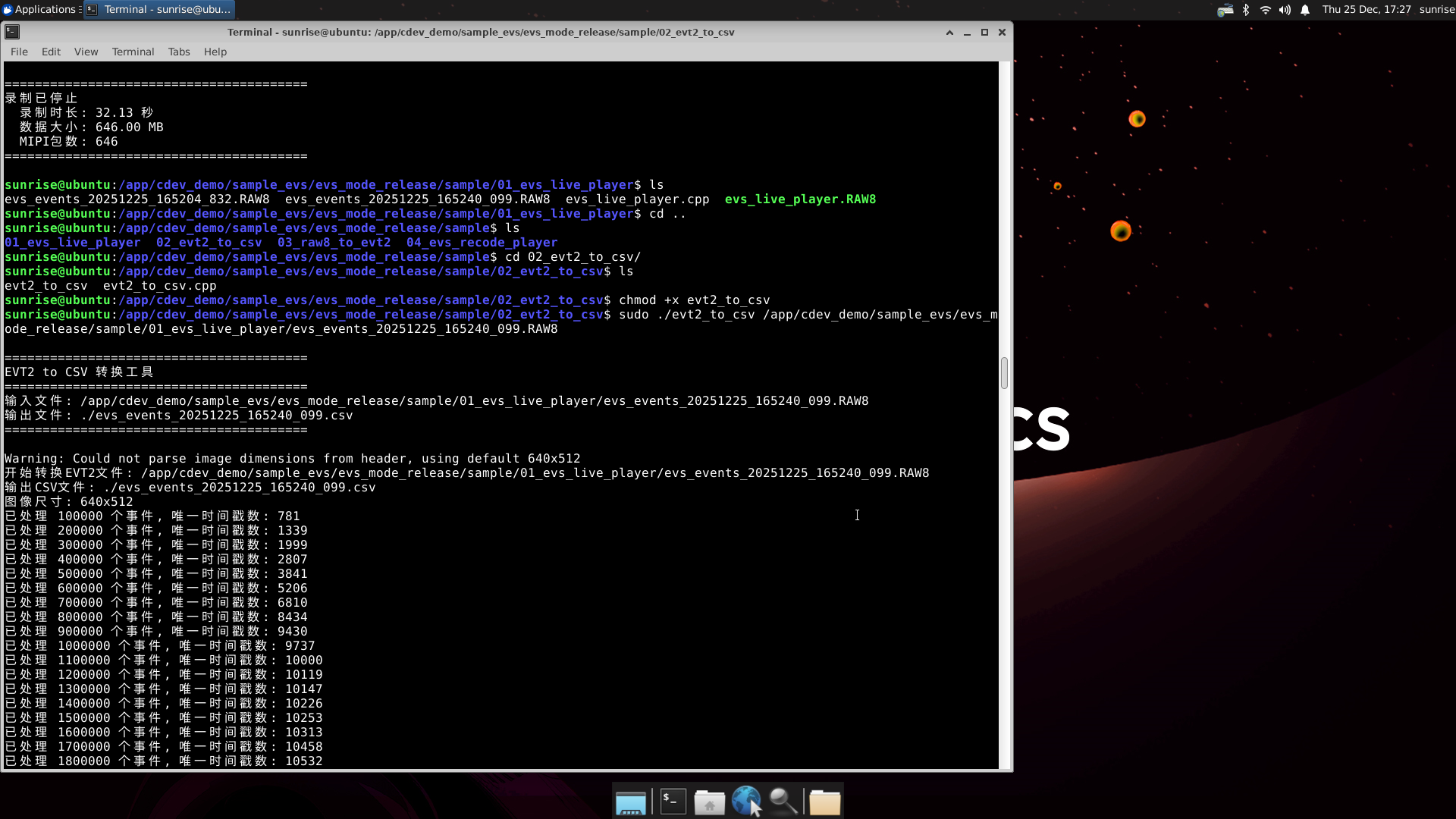
The converted text file can be opened directly for viewing.
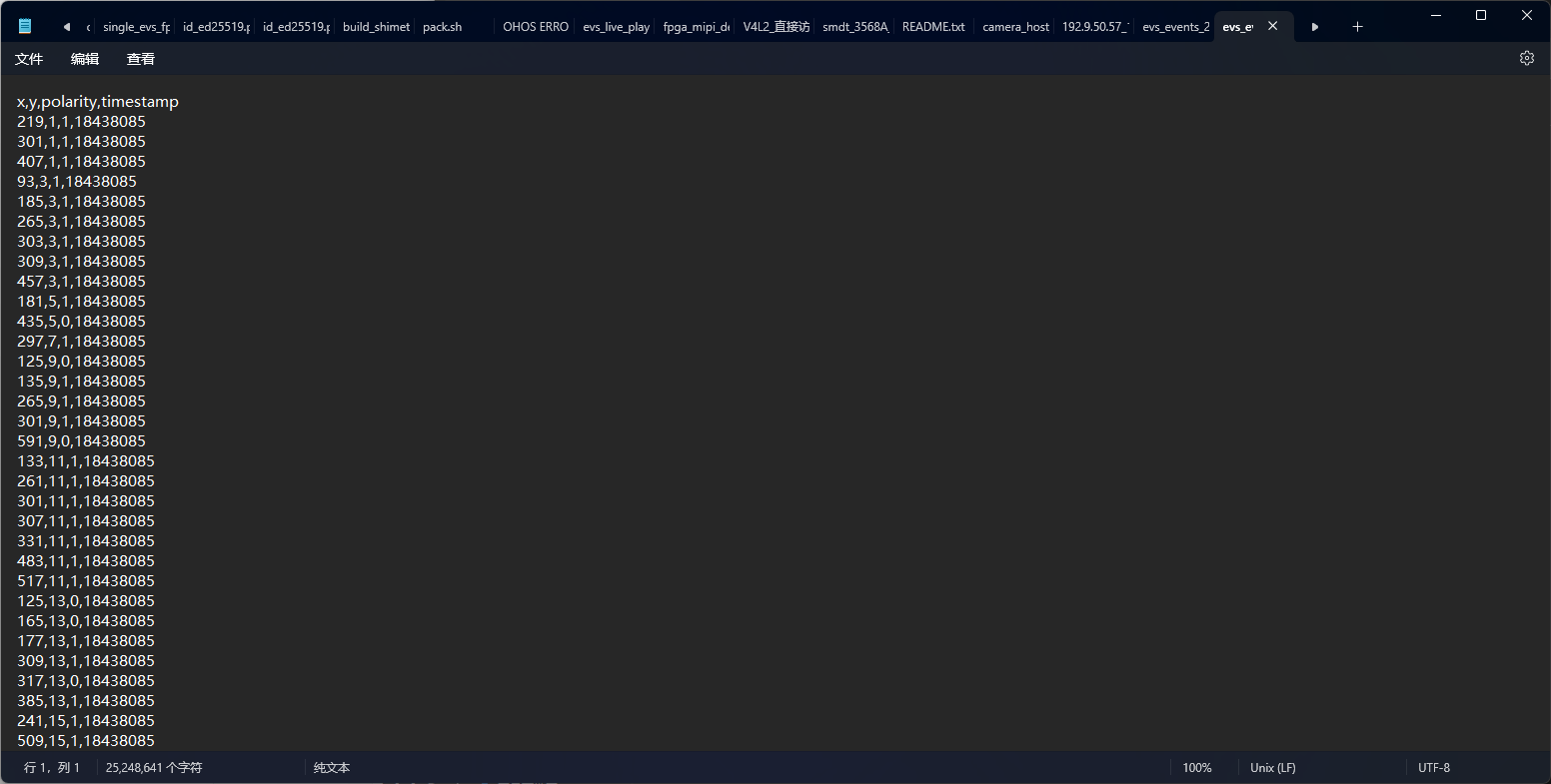
Note: Do not easily open conversion files recorded for a long time. Pure txt files of several hundred MBs will likely cause the computer to crash if it is not good enough.
4.3 Recorded File Playback (evs_recode_player)
4.3.1 Function Description
evs_recode_player is used to play back recorded event data, supporting variable speed playback (x1, x1/2, x1/8).
4.3.2 Usage
cd /app/cdev_demo/sample_evs/evs_mode_release/sample/04_evs_recode_player

# Play EVT2 format file
./evs_recode_player /userdata/hand_wave.raw
4.3.3 Instructions
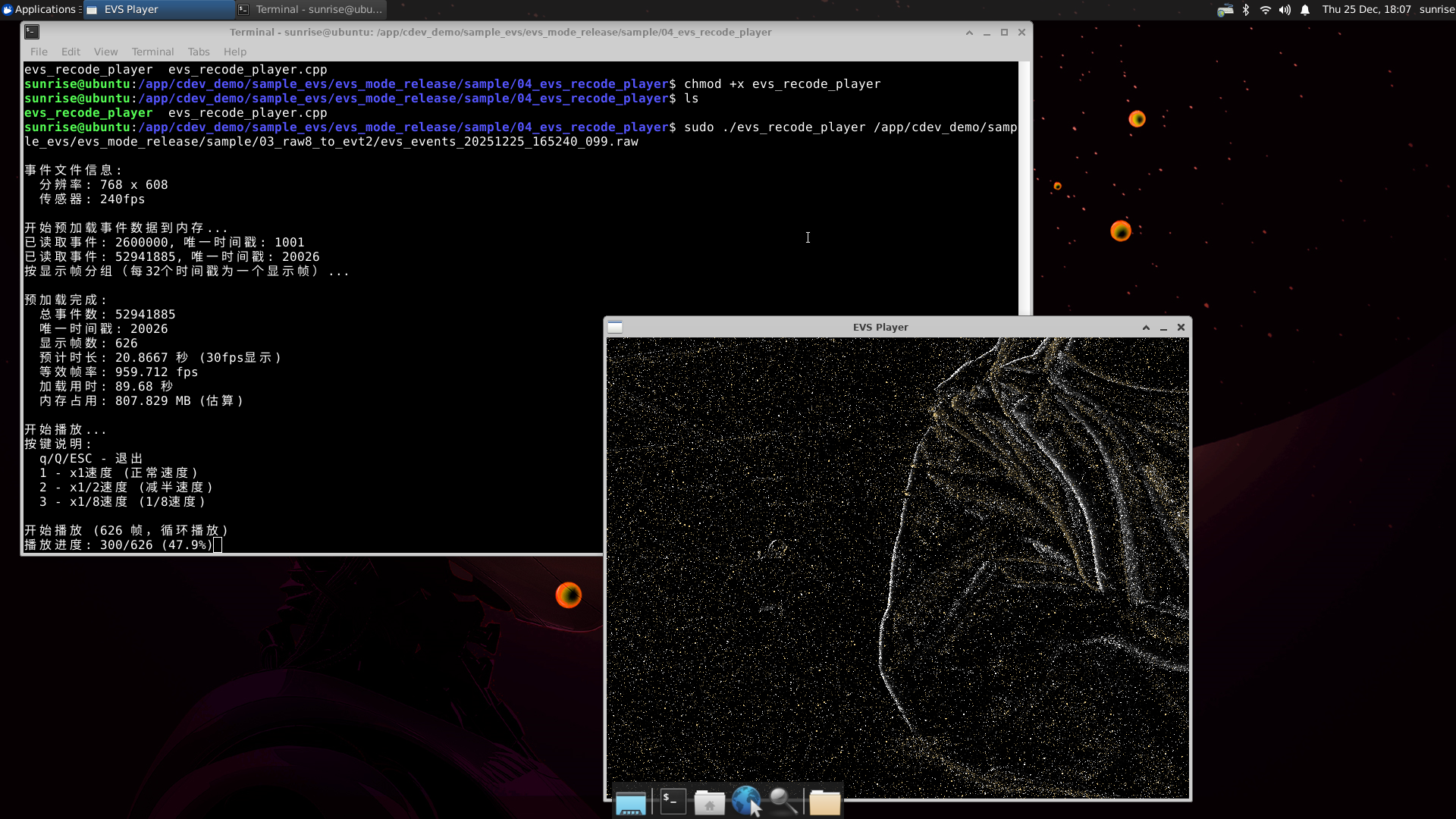
The screen plays in a loop. Press shortcut key 1 to play at normal speed, 2 to play at 1/2 speed, and 3 to play at 1/8 speed.