Upgrade App to System Permission
Calling system-related APIs, such as power.reboot('reboot_test'), requires system permission. The information is relatively scattered, and you may even encounter some issues. The following are the steps to configure system permission.
Upgrading an APP to system permission requires modifying two locations: first, adding requestPermissions in DevEco Studio; second, configuring it as system in the OpenHarmony SDK. Below we use the reboot interface power.reboot('reboot_test'); as an example.
A. Use the interface in the relevant business code in DevEco Studio:
try {
  console.info('onPageShow reboot start.')
  // @ts-ignore
  power.reboot('reboot_test')
} catch (err) {
  console.error('reboot failed, err: ' + err)
}
B. Add the permission ohos.permission.REBOOT in module.json5.
  "module": {
    -----
    "requestPermissions":[
      {
      "name" : "ohos.permission.REBOOT"
      }
    ]
    ----
  }
C. Modify the UnsgnedReleasedProfileTemplate.json file in the OpenHarmony SDK. For example, the file path here is:
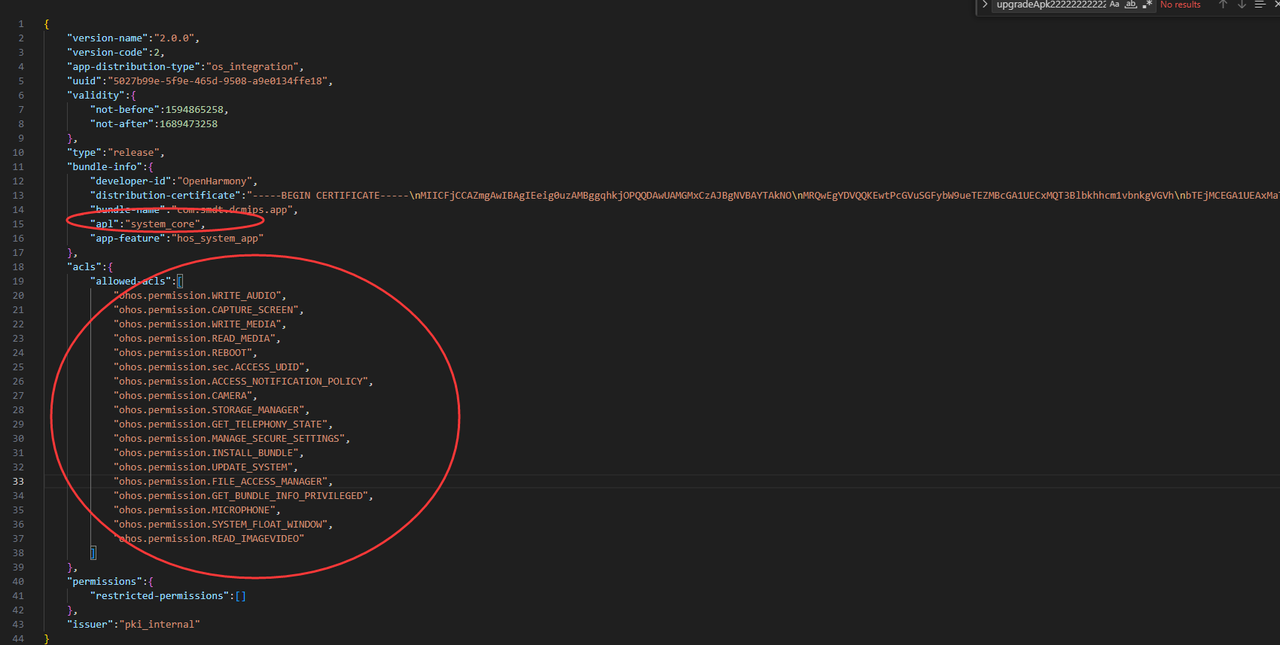
D:\SDKs\OpenHarmony\sdk\10\toolchains\libModify "bundle-name" to your application package name, and apl to "system_core".
  "bundle-name":"com.smdt.ostools.agingtest",
  "apl":"system_core",
  "app-feature":"hos_system_app"
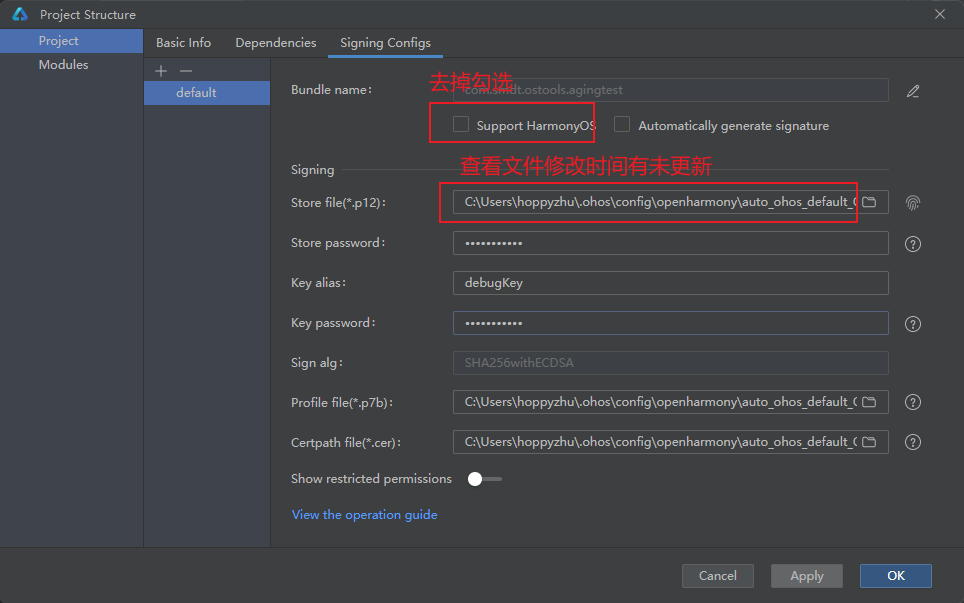
D. Regenerate the key: DevEco Studio --> Project Structure -> project -> Signing Configs. Note here that you must uncheck Support HarmonyOS. Enter the relevant folder and check the modification time of the newly generated key to confirm whether it was regenerated. If it was not regenerated, delete the old key first, then regenerate it.
F. Run the APP. If the installation succeeds and "reboot failed, err" is not printed, the reboot succeeded and the System permission upgrade is complete.
G. System signing
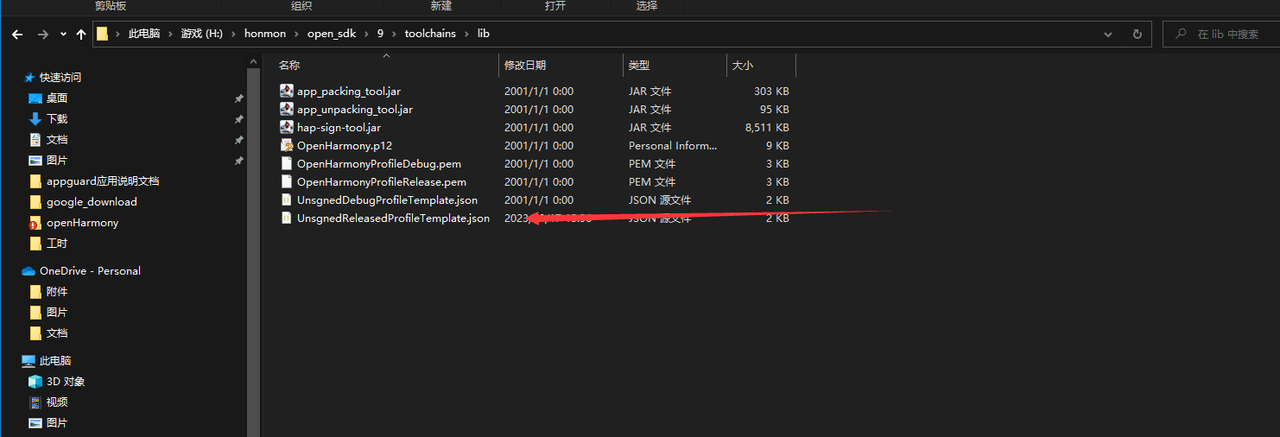
Find the above file in the SDK directory and modify it as follows.