06 View Information
The content introduced in this chapter applies not only to the board but also mostly to the Ubuntu system in the development host. Please try to execute relevant commands on both platforms to view information and compare differences.
1 Explore /proc Directory
Linux does not provide a Task Manager like Windows, but it records system running information in files under the /proc directory. Users can obtain corresponding system information by accessing files in this directory.
Please execute the following command in the board terminal to view the contents of the /proc directory:
# Execute the following command in the board terminal
ls /proc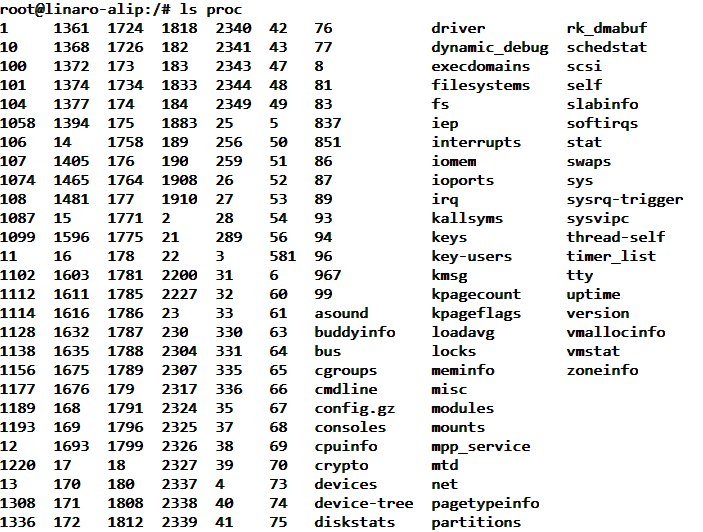
The information contained in each file in this directory is shown in the table below.
Table: /proc file structure
| Filename | Function |
|---|---|
| pid* | Usually a number representing the PID of the process. Each running process in the system has a corresponding directory (such as /proc/1234) to record all information about the process. The operating system treats each application as a process. |
| self | Symbolic link pointing to the current process directory. Accessing /proc/self/ allows direct acquisition of current process information without manually querying PID. |
| thread-self | Symbolic link pointing to the current thread. Accessing this file is equivalent to accessing the content of current process PID/task/current thread TID. A process can contain multiple threads, which jointly support process operation. |
| version | Records the currently running kernel version, which can be viewed via uname –r command. |
| cpuinfo | Records CPU provider, model, number of cores, frequency, and other configuration information in the system. |
| modules | Records information about currently loaded kernel modules in the system. |
| meminfo | Records system memory usage (such as free/used memory). The free command obtains data by reading this file. |
| filesystems | Records filesystem types supported by the kernel. When mounting a device, if no filesystem is specified, mount will try the types listed in this file (excluding filesystems marked with nodev). |
By accessing the contents of the /proc folder, we can get the system information we want.
2 View CPU Information
The /proc/cpuinfo file stores CPU information, which can be viewed via the following command:
cat /proc/cpuinfo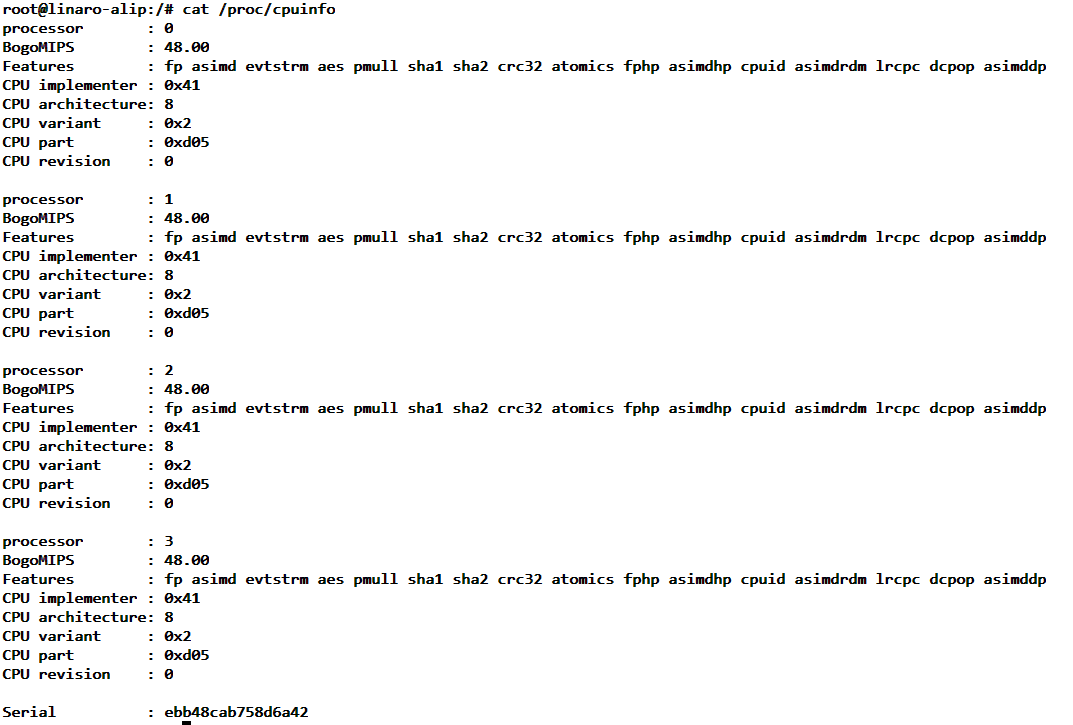
3 View Kernel Version
The /proc/version file saves the kernel version information, which we can obtain via the following command.
cat /proc/version
From the figure above, we can see that the currently used kernel version is 6.1.99.
It can also be obtained via the following command:
uname -a
4 View Memory Information
The kernel records memory usage in the /proc/meminfo file. We can understand our memory usage by reading the content of this file:
The following is for the case of 2GB memory:
cat /proc/meminfo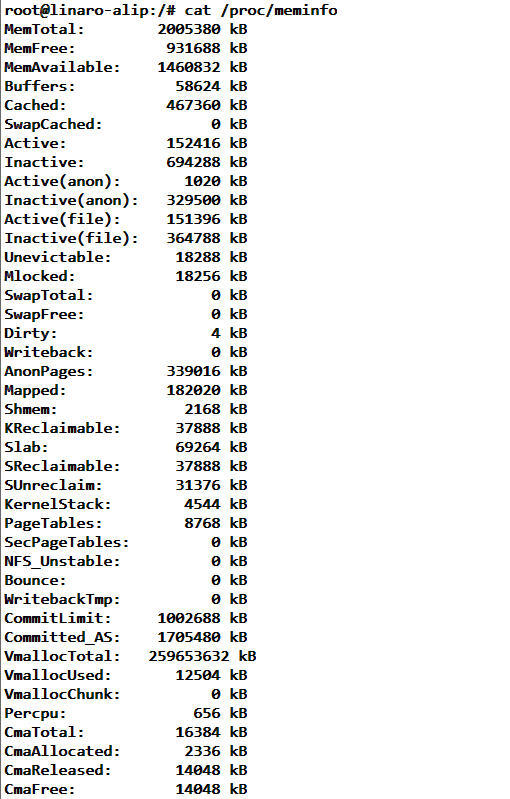
In practical applications, we generally do not read the content of this file directly, but use the following command to obtain memory-related information.
View system memory size via free command:
free
5 View Storage Capacity
The /proc/partitions file contains partition information of the memory. Viewing partition information helps understand the capacity of the onboard FLASH memory.
Use the following command to view:
cat /proc/partitionsThe figure below shows the command output information using a 32GB eMMC board.
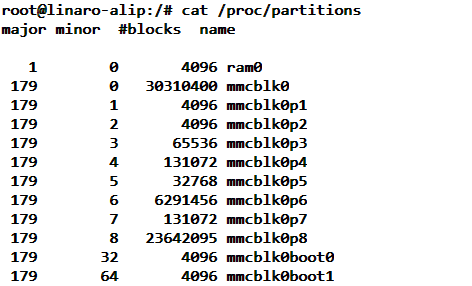
Those starting with mmcblk belong to data blocks of eMMC memory.
6 View Task Processes
Under the /proc folder, there are many folders named with numbers. These folders are used to record the status of currently running processes. The folder name is their PID number. Each process corresponds to a PID number for identification. The contents contained in these process folders are basically the same. Use the ls command to view the contents of the folder with PID 1, as shown in the figure below. Among them, fd records the file description used by the current process, mountinfo records mount information, and mem records the memory usage of the process, etc.
ls /proc/1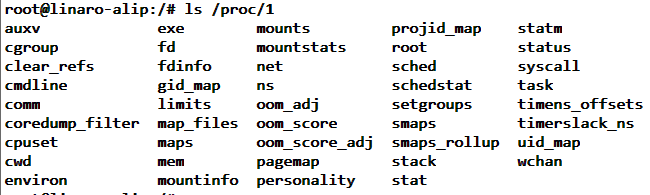
In addition to the method used above, the top command is also commonly used. The function of this command is similar to the Task Manager in Windows. The execution effect is shown in the figure above (referring to typical top output, though image shows PROC_9). This command can update the usage of each process in real time. Press the "q" key or "Ctrl + C" to exit this command.
top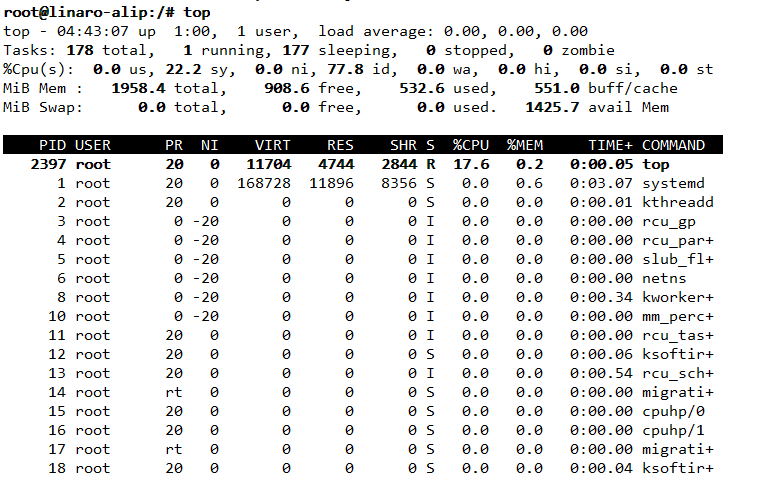
7 View Supported Filesystems
/proc/filesystems can be used to view the filesystem types supported by the kernel, as shown in the figure above. Some filesystems in the figure have the "nodev" flag, indicating that these filesystems do not need to mount block devices, such as network filesystem nfs/nfs4, pseudo filesystem sysfs, etc.
cat /proc/filesystems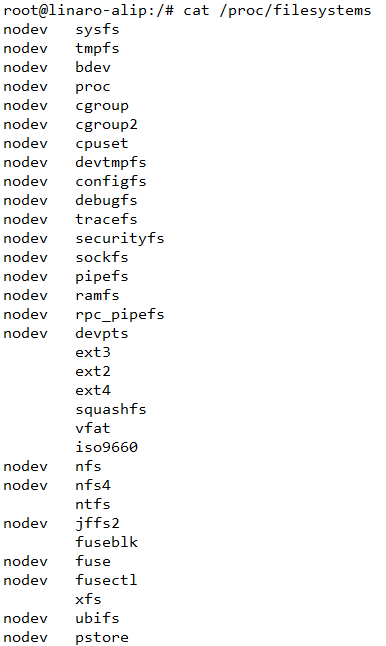
8 View CPU Current Frequency
In addition to the /proc directory, some system-related information can also be viewed in the /sys directory. For example, the file /sys/devices/system/cpu/cpu0/cpufreq/cpuinfo_cur_freq contains the current main frequency information of CPU0. If the file exists in the system, you can output its content to view:
cat /sys/devices/system/cpu/cpu0/cpufreq/cpuinfo_cur_freq
As shown in the output in the figure above, the current main frequency of CPU0 is 408MHz.
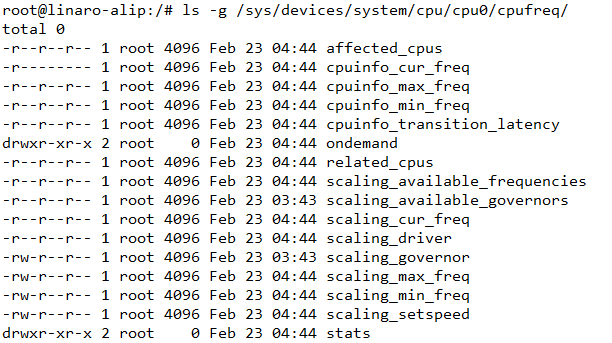
The CPU of LubanCat-RK3562/RK3566/RK3568 series boards has frequency scaling function. It automatically reduces frequency to save energy when load is low, and automatically increases frequency to improve performance when high load scenarios are needed.
ls -g /sys/devices/system/cpu/cpu0/cpufreq/