
Import the SDK
1 Develop with the ShimetaPi M4-R1 Companion SDK
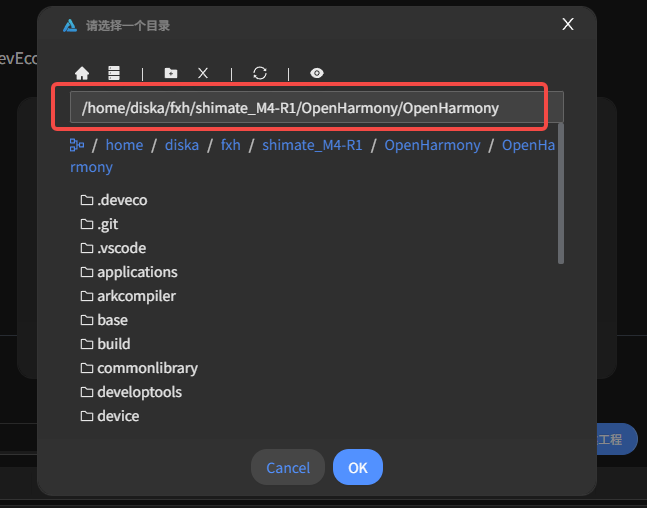
First, you need to save ShiMatePi's OpenHarmony source code to a directory under Ubuntu. For example, the SDK path in this example is as follows:

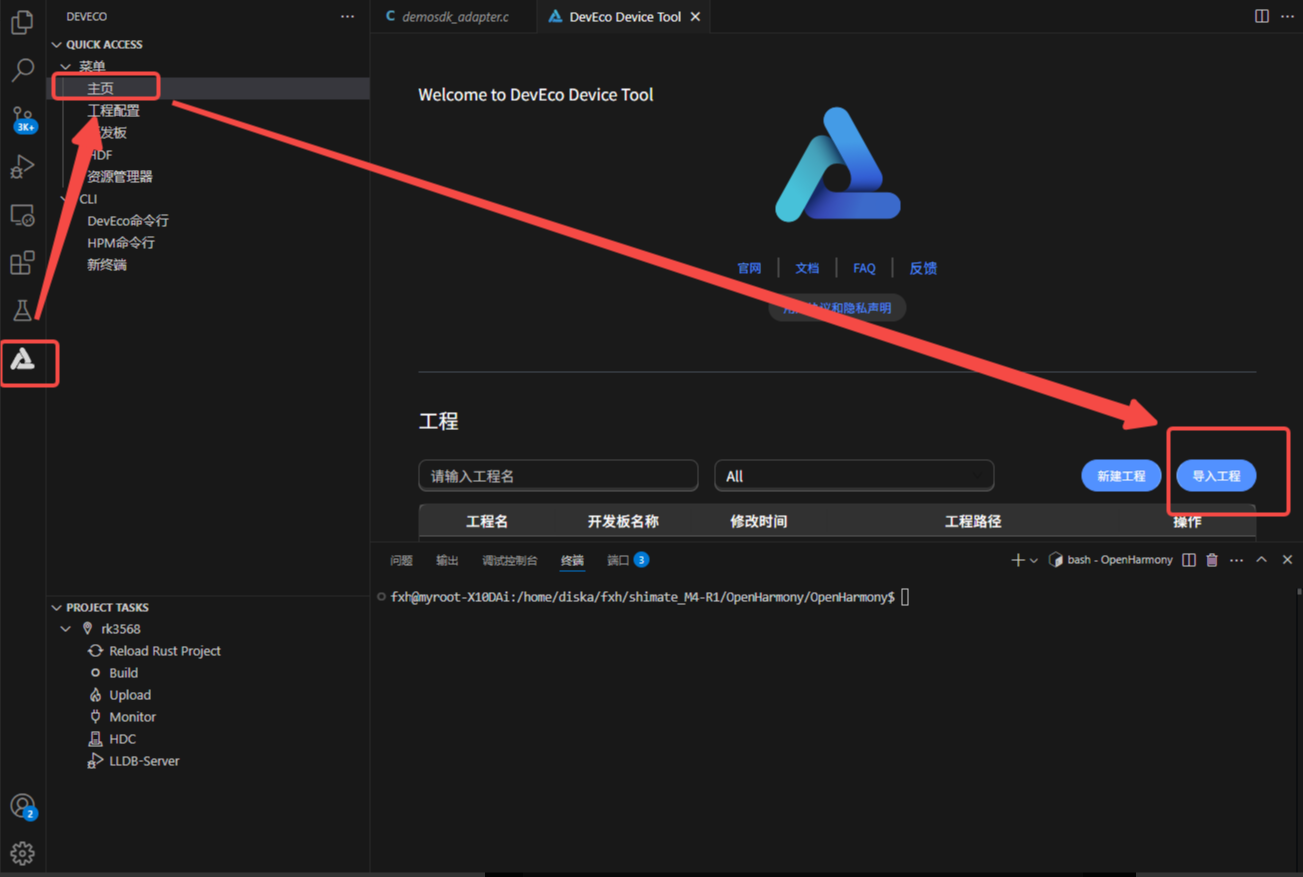
Open VSCode, open DevEco Device Tool, and on the home page click Import Project.
In the popup page, select the SDK location under your remote Ubuntu directory, and click Import.
At this point, the tool will automatically load the script for compilation. Wait for it to complete.
2 Develop with the Official Release Version
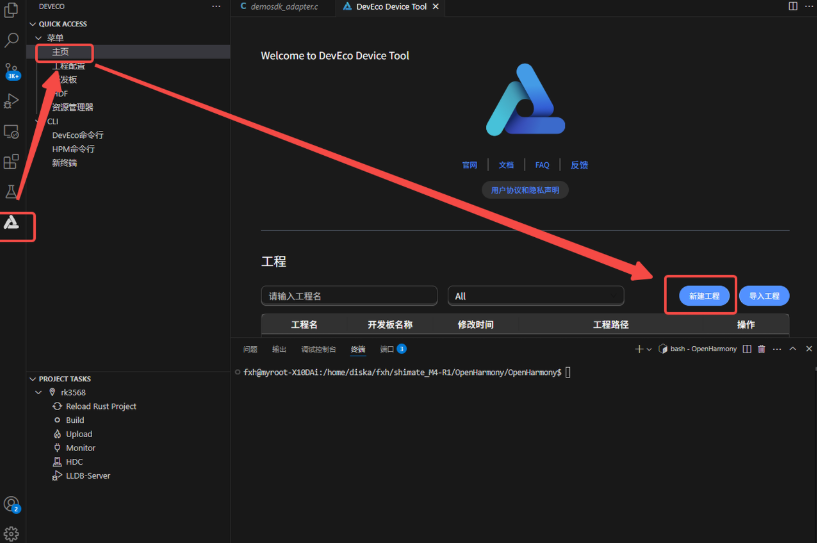
On the home page, click New Project.
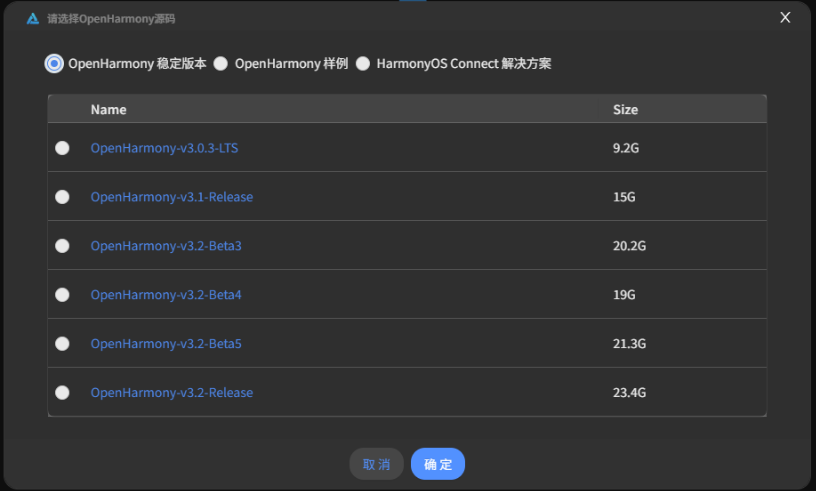
We can choose the source code or OpenHarmony samples already prepared in the software for development. Here we randomly pick a development board as an example.
The new project configuration wizard page configures project-related information, including:
- OpenHarmony Source Code: select the OpenHarmony source code to download. Please select the source code version under OpenHarmony Stable Version. OpenHarmony-v3.0.3-LTS, OpenHarmony-v3.1-Release, OpenHarmony-v3.2-Beta3, OpenHarmony-v3.2-Beta4, OpenHarmony-v3.2-Beta5, OpenHarmony-v3.2-Release, OpenHarmony-v4.0-Beta1, and OpenHarmony-v4.0-Beta2 versions are supported.
- Project Name: set the project name.
- Project Path: select the project file storage path.
- SOC: select the supported chip.
- Board: select the supported development board.
- Product: select the product.
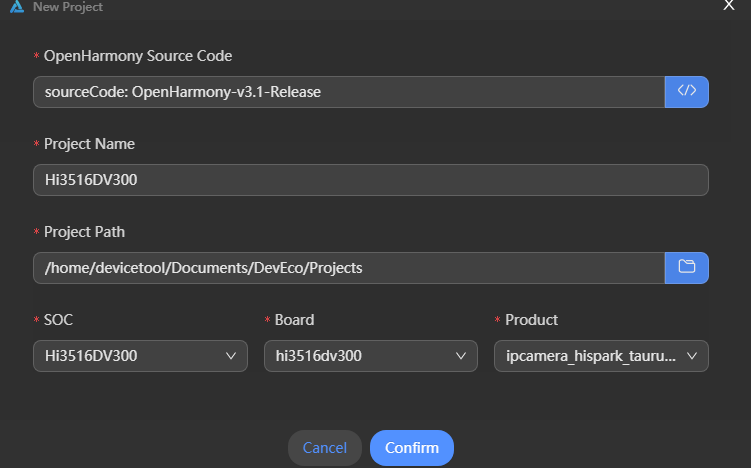
After the project configuration is complete, click Confirm, and DevEco Device Tool will automatically start downloading the OpenHarmony source code. Since the OpenHarmony stable-version source code package is large, please be patient while the source code download completes. You can see the download progress in the VSCode terminal tool.
