
02 Development Environment Setup
1 Environment Setup Overview
Before starting, let's understand the architecture of the entire development environment:
┌─────────────────┐    Network Conn    ┌─────────────────┐
│   Host Dev PC   │ ←----------→  │  GM-3568JHF     │
│                 │               │   Dev Board     │
│ • RKNN-Toolkit2 │               │ • RKNN Runtime  │
│ • Python        │               │ • NPU Driver    │
│ • Dev Tools     │               │ • Linux System  │
└─────────────────┘               └─────────────────┘
Development Process:
- Convert the model using RKNN-Toolkit2 on the PC side.
- Transfer the converted model to the development board.
- Run the model using RKNN Runtime on the development board.
2 Development Board Environment Preparation
2.1 Install Python and Conda
# Download and install Anaconda or Miniconda
# Create a Python 3.9 environment named 'rknn' (RKNN-Toolkit2 is usually compatible with Python 3.6-3.9)
conda create -n rknn python=3.9 -y
conda activate rknn

When (rknn) appears before the command line, it means the rknn environment is successfully activated.
2.2 Install Pytorch and YOLOv5 Dependencies
Install the CPU version of Pytorch (GPU is not needed for model conversion):
pip install torch torchvision torchaudio --index-url https://download.pytorch.org/whl/cpu
Clone the YOLOv5 repository and install its dependencies:
git clone https://github.com/ultralytics/yolov5.git
cd yolov5
pip install -r requirements.txt
Install other necessary libraries:
pip install opencv-python numpy onnx onnxsim onnxruntime
2.3 Install RKNN-Toolkit2
Step ①: Get the installation package
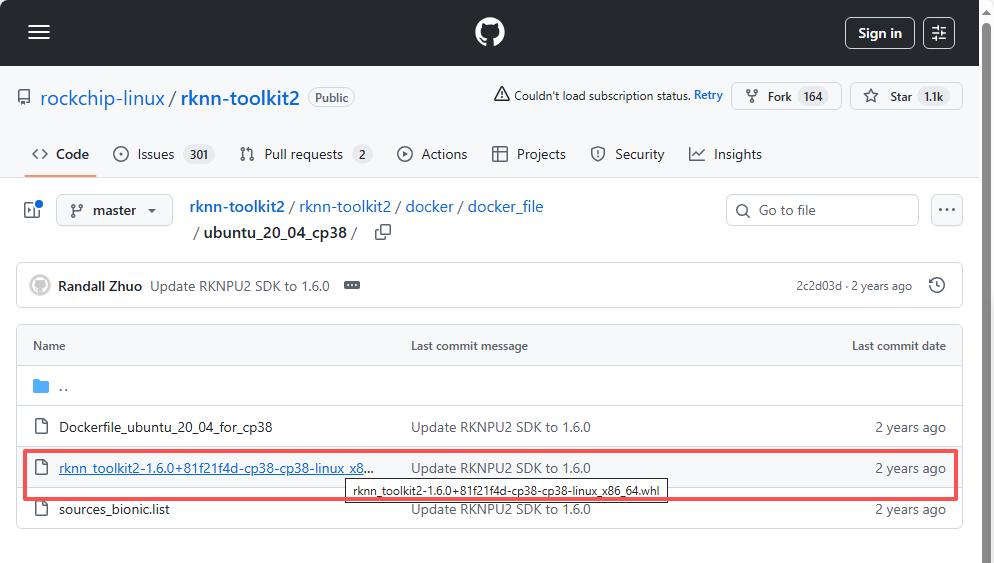
Visit https://github.com/rockchip-linux/rknn-toolkit2. Download the wheel file for Linux x86_64 in the rknn-toolkit2 / docker / docker_file /ubuntu_20_04_cp38 directory (rknn_toolkit2-1.6.0+81f21f4d-cp38-cp38-linux_x86_64.whl).
pip install rknn-toolkit2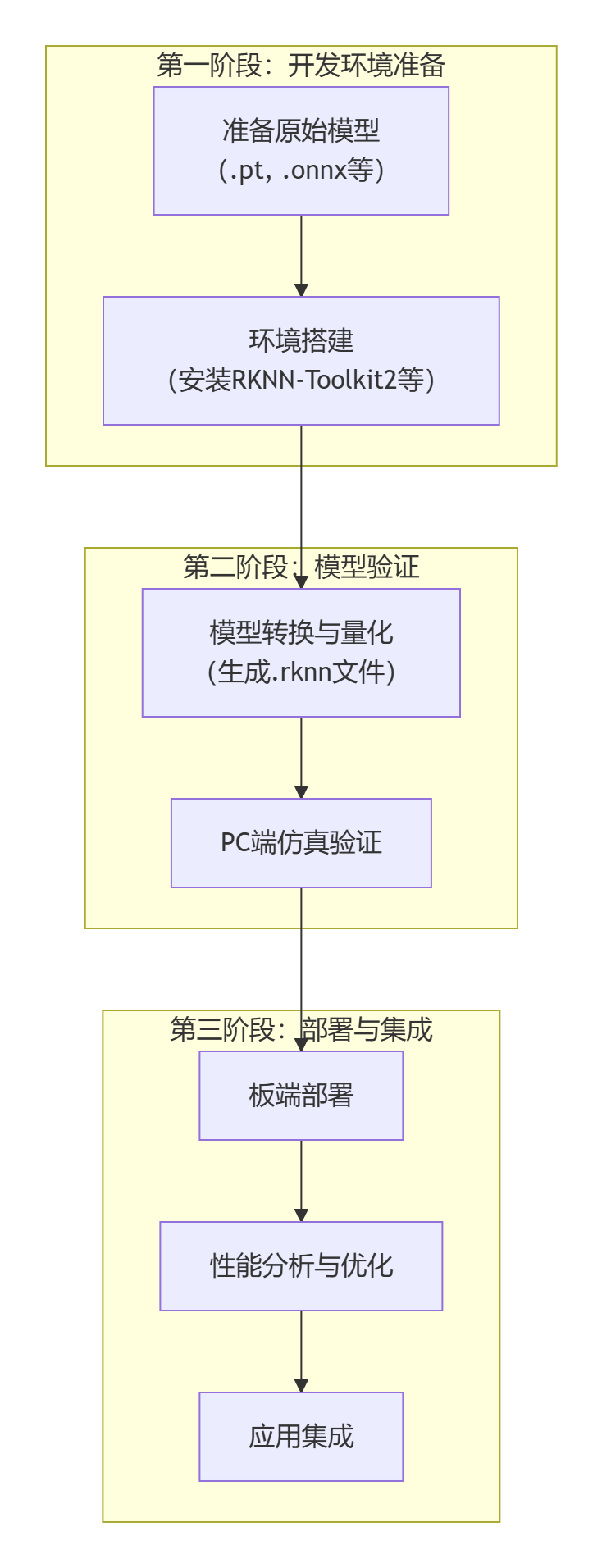
2.4 System Optimization Configuration
Why is system optimization needed?
Optimizing system configuration can improve NPU performance, reduce inference latency, and ensure stable model operation.
Memory Optimization
Step 1: Check current memory usage
# View memory usage
free -h

# View detailed memory information
cat /proc/meminfo | head -10
Step 2: Create Swap space (if memory is insufficient)
# Check if swap exists
swapon --show

# If memory is less than 4GB, it is recommended to create 2GB swap
sudo fallocate -l 2G /swapfile

# Set correct permissions
sudo chmod 600 /swapfile

# Create swap file system
sudo mkswap /swapfile

# Enable swap
sudo swapon /swapfile

# Verify swap is enabled
free -h
Step 3: Permanently enable Swap
# Add to fstab for automatic mounting on boot
echo '/swapfile none swap sw 0 0' | sudo tee -a /etc/fstab

# Verify fstab configuration
cat /etc/fstab | grep swap
Step 4: Adjust memory parameters
# Adjust swap usage tendency (reduce swap usage frequency)
echo 'vm.swappiness=10' | sudo tee -a /etc/sysctl.conf

# Adjust cache pressure
echo 'vm.vfs_cache_pressure=50' | sudo tee -a /etc/sysctl.conf

# Apply configuration (takes effect automatically after restart)
sudo sysctl -p
NPU Performance Optimization
Step 1: View NPU current status
# View NPU current frequency
cat /sys/class/devfreq/fdab0000.npu/cur_freq

# View NPU frequency scaling policy
cat /sys/class/devfreq/fdab0000.npu/governor

# View available frequency list
cat /sys/class/devfreq/fdab0000.npu/available_frequencies
Step 2: Set NPU performance mode
# Set to performance mode (highest performance)
echo performance | sudo tee /sys/class/devfreq/fdab0000.npu/governor

# Verify settings
cat /sys/class/devfreq/fdab0000.npu/governor
Step 3: Create performance optimization script
# Create optimization script
sudo nano /usr/local/bin/npu_performance.sh
Enter the following content:
#!/bin/bash
# NPU Performance Optimization Script

echo "Optimizing NPU performance..."

# Set NPU to performance mode
echo performance > /sys/class/devfreq/fdab0000.npu/governor

# Set CPU to performance mode (optional)
echo performance > /sys/devices/system/cpu/cpufreq/policy0/scaling_governor

# Disable CPU idle state (optional, will increase power consumption)
# echo 1 > /sys/devices/system/cpu/cpu0/cpuidle/state1/disable

echo "NPU performance optimization completed"
echo "Current NPU frequency: $(cat /sys/class/devfreq/fdab0000.npu/cur_freq)"
# Set execution permission
sudo chmod +x /usr/local/bin/npu_performance.sh
# Test script
sudo /usr/local/bin/npu_performance.sh3 PC Side Environment Setup
3.1 Confirm PC System Requirements
System Compatibility Check
Supported Operating Systems (Sorted by recommendation):
Ubuntu 20.04/22.04 LTS
- Best compatibility
- Main official test platform
- Simple package management
Windows 10/11 (x64)
- Most users
- Rich development tools
- Requires extra configuration
macOS 10.15+
- Good development experience
- Some functions may be limited
Hardware Requirements Check
Minimum Configuration:
- CPU: Intel i5 or AMD Ryzen 5
- Memory: 8GB RAM
- Storage: 20GB available space
- Network: Stable internet connection
Recommended Configuration:
- CPU: Intel i7 or AMD Ryzen 7
- Memory: 16GB+ RAM
- Storage: 50GB+ SSD
- Graphics Card: Independent graphics card (for large model training)
3.2 Install Python Environment
Why Choose Python?
Python is the main language for RKNN development, with a rich machine learning library ecosystem, low learning cost, and suitable for rapid prototyping.
Windows Environment Installation
Step 1: Download Python
- Visit Python Official Website
- Download Python 3.9.x (Recommended version, best compatibility)
- Important: Check "Add Python to PATH" during installation
Step 2: Verify Installation
# Open Command Prompt (Win+R, type cmd)
python --version
pip --version

# If the version number is displayed, the installation is successful
Step 3: Upgrade pip
# Upgrade pip to the latest version
python -m pip install --upgrade pip
Step 4: Create Virtual Environment
# Create project directory
mkdir C:\rknn_project
cd C:\rknn_project

# Create virtual environment
python -m venv rknn_env

# Activate virtual environment
rknn_env\Scripts\activate

# After activation, (rknn_env) will be displayed before the command prompt
Linux (Ubuntu) Environment Installation
Step 1: Update System
# Update package list
sudo apt update
sudo apt upgrade -y
Step 2: Install Python
# Install Python 3.9 and related tools
sudo apt install -y python3.9 python3.9-venv python3.9-dev python3-pip

# Set Python 3.9 as default python3
sudo update-alternatives --install /usr/bin/python3 python3 /usr/bin/python3.9 1
Step 3: Create Virtual Environment
# Create project directory
mkdir ~/rknn_project
cd ~/rknn_project

# Create virtual environment
python3 -m venv rknn_env

# Activate virtual environment
source rknn_env/bin/activate

# Upgrade pip
pip install --upgrade pip
3.3 Install RKNN-Toolkit2
What is RKNN-Toolkit2?
RKNN-Toolkit2 is a model conversion tool provided by Rockchip, which can convert models in formats such as TensorFlow, PyTorch, ONNX, etc. into RKNN format for running on the NPU of RK chips.
Install RKNN-Toolkit2
Step 1: Ensure virtual environment is activated
# Linux/macOS
source rknn_env/bin/activate

# Windows
rknn_env\Scripts\activate

# Confirm virtual environment is activated ((rknn_env) should be displayed before the command prompt)
Step 2: Install RKNN-Toolkit2
# Install RKNN-Toolkit2
pip install rknn-toolkit2

# If the network is slow, use a domestic mirror
pip install -i https://pypi.tuna.tsinghua.edu.cn/simple rknn-toolkit2
Step 3: Install Dependency Packages
# Install necessary dependency packages
pip install numpy>=1.19.0
pip install opencv-python>=4.5.0
pip install pillow>=8.0.0
pip install matplotlib>=3.3.0

# Install deep learning frameworks (optional)
pip install torch>=1.8.0 torchvision>=0.9.0
pip install onnx>=1.8.0

# Install other useful tools
pip install tqdm  # Progress bar
pip install paramiko  # SSH connection
Step 4: Verify Installation
# Create test script
cat > test_rknn_toolkit.py << 'EOF'
#!/usr/bin/env python3
"""
RKNN-Toolkit2 Installation Verification Script
"""

print("RKNN-Toolkit2 Environment Check")
print("=" * 40)

# Test RKNN-Toolkit2 import
try:
    from rknn.api import RKNN
    print("RKNN-Toolkit2: Import Successful")

    # Create RKNN object
    rknn = RKNN(verbose=False)
    print("RKNN Object: Creation Successful")

    # Display supported target platforms
    print("Supported Target Platforms:")
    platforms = ['rk3566', 'rk3568', 'rk3588']
    for platform in platforms:
        print(f" - {platform}")

except ImportError as e:
    print(f"RKNN-Toolkit2: Import Failed - {e}")
except Exception as e:
    print(f"RKNN Object: Creation Failed - {e}")

# Test other dependency packages
print("\nDependency Package Check:")
packages = {
    'numpy': 'NumPy',
    'cv2': 'OpenCV',
    'PIL': 'Pillow',
    'matplotlib': 'Matplotlib'
}

for module, name in packages.items():
    try:
        if module == 'cv2':
            import cv2
            print(f"{name}: {cv2.__version__}")
        elif module == 'PIL':
            import PIL
            print(f"{name}: {PIL.__version__}")
        else:
            imported = __import__(module)
            version = getattr(imported, '__version__', 'Installed')
            print(f"{name}: {version}")
    except ImportError:
        print(f"{name}: Not Installed")

print("\nEnvironment Check Completed!")
EOF

# Run test
python test_rknn_toolkit.py
3.4 Configure Development Board Connection
Why Configure Connection?
After configuring the connection from PC to the development board, you can:
- Transfer files remotely
- Execute commands remotely
- Debug programs remotely
- View running results in real-time
Test Connection
# Install paramiko (if not installed yet)
pip install paramiko pyyaml

# Run connection test
python src/utils/board_connection.py
Common Problem Solutions
Python Environment Problems
Problem 1: Slow pip installation
# Solution: Use domestic mirror source
pip install -i https://pypi.tuna.tsinghua.edu.cn/simple rknn-toolkit2

# Permanently configure mirror source
pip config set global.index-url https://pypi.tuna.tsinghua.edu.cn/simple
Problem 2: Permission issues (Linux/macOS)
# Solution: Use user installation mode
pip install --user rknn-toolkit2

# Or fix pip permissions
sudo chown -R $(whoami) ~/.local
Problem 3: Virtual environment issues
# Delete old virtual environment
rm -rf rknn_env

# Recreate
python3 -m venv rknn_env
source rknn_env/bin/activate
pip install --upgrade pip
RKNN Tool Problems
Problem 1: Failed to import RKNN
# Check Python version compatibility
python --version

# Ensure correct Python version (3.8-3.10)
# Reinstall RKNN-Toolkit2
pip uninstall rknn-toolkit2
pip install rknn-toolkit2
Problem 2: Model conversion failed
# Check model format and version
# Ensure model file is complete and correct format
# Update to latest version of RKNN-Toolkit2
pip install --upgrade rknn-toolkit2
Problem 3: Insufficient memory
# Increase virtual memory
sudo fallocate -l 4G /swapfile
sudo chmod 600 /swapfile
sudo mkswap /swapfile
sudo swapon /swapfile

# Or use smaller batch size for conversion
NPU Driver Problems
Problem 1: NPU device does not exist
# Check kernel module
lsmod | grep rknpu

# Manually load driver
sudo modprobe rknpu

# Check device tree configuration
cat /proc/device-tree/npu*/status
Problem 2: Insufficient permissions
# Check device permissions
ls -la /dev/rknpu*

# Fix permissions
sudo chmod 666 /dev/rknpu*

# Or add user to video group
sudo usermod -a -G video $USER
Newcomer Reminder: If you encounter problems during environment setup, don't worry. Read the error messages carefully, check the troubleshooting section, or seek help in the community. RKNN development requires a certain learning curve, but once mastered, you will be able to fully unleash the powerful performance of NPU!
In the next chapter, we will verify the correctness of the environment configuration by running the official YOLOv5 example and start your first RKNN project.