
HUAWEI DevEco Tool Function Introduction
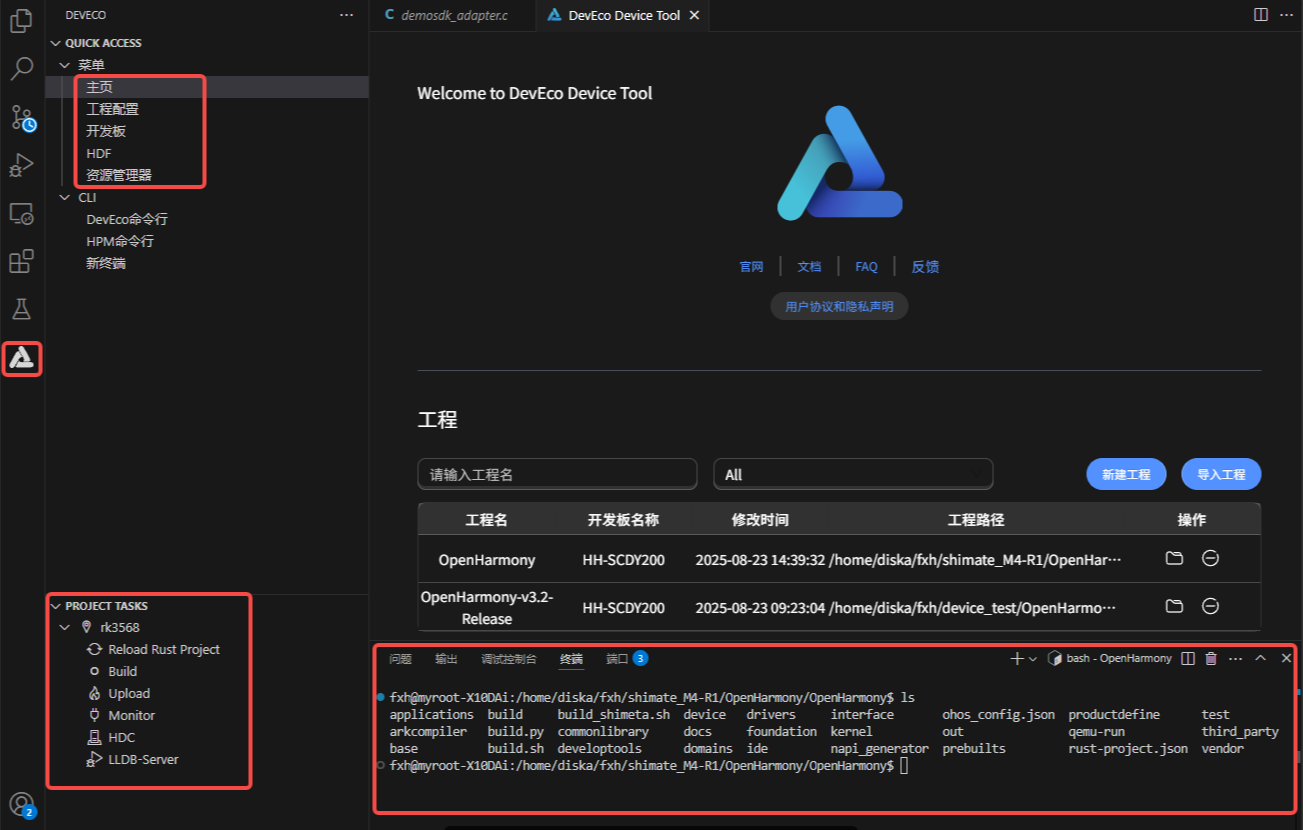
In the DevEco Device Tool menu options, you can create new products, perform HDF driver management, perform HCS visual management, and perform resource management.
In the PROJECT TASK option in the lower-left corner, you can one-click compile, burn, and monitor the code.
Below, each function will be introduced one by one.
1 Menu Bar Introduction
1.1 Project Configuration Option
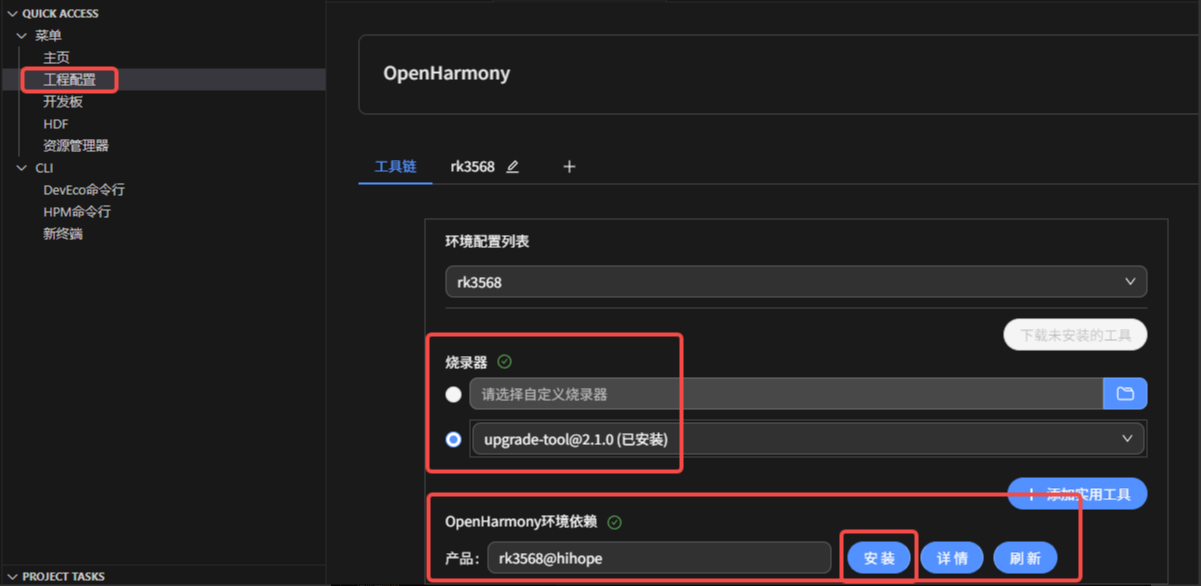
Click Project Configuration; the software will automatically execute a script to detect whether the current development environment tools are complete. If not, simply click "Install" to one-click install all the environment dependency tools. Note that the terminal may require an administrator password to obtain download permission.
1.2 Development Board Option
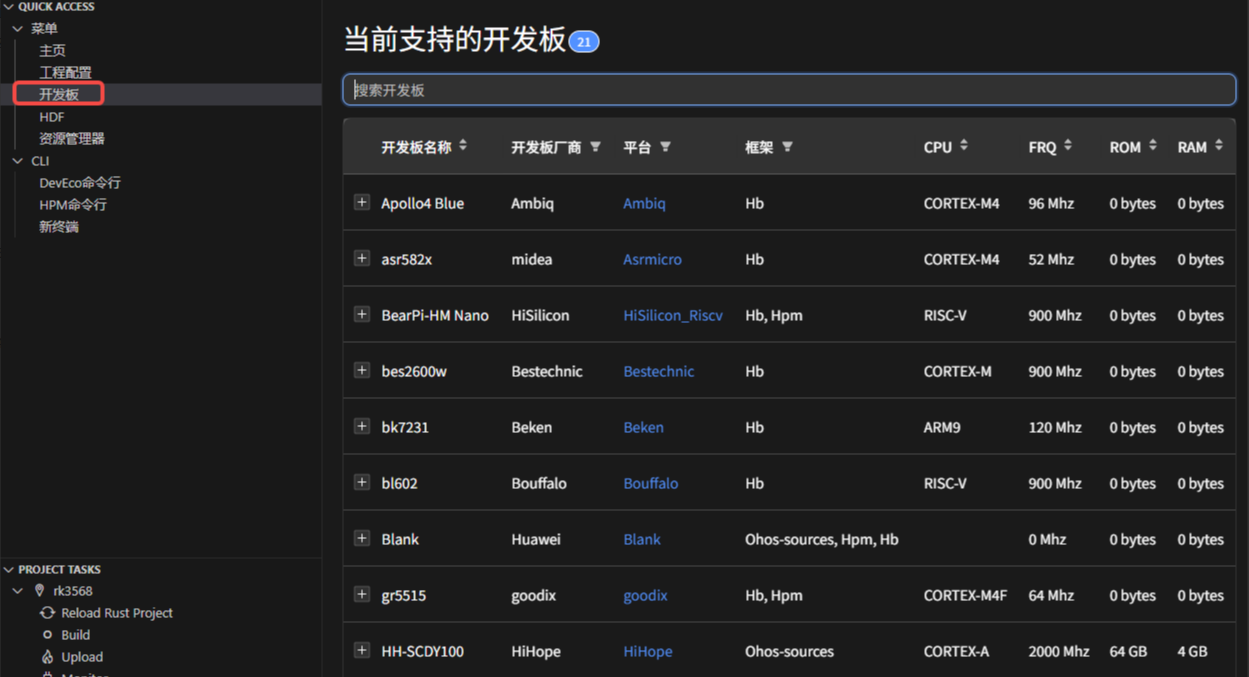
Click the development board option to see the development boards that the software has already adapted, from small-system to standard-system there are adapted development boards.
1.3 HDF Option
The HDF driver framework provides driver-framework capabilities for driver developers, including driver loading, driver service management, and a driver message mechanism. It aims to build a unified driver architecture system, provide driver developers with a more accurate and more efficient development environment, and strives to achieve develop once, deploy on multiple systems.
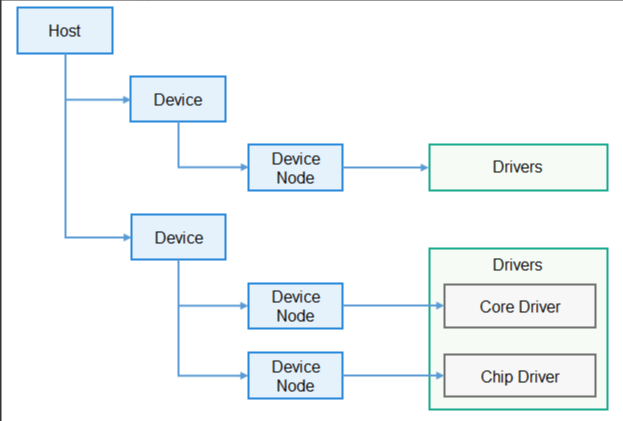
The HDF driver framework model is shown in the figure below. The HDF framework takes a componentized driver model as its core design idea, providing developers with more fine-grained driver management, and making driver development and deployment more standardized. The HDF framework places a class of device drivers in the same host; developers can also layer driver functions for independent development and deployment, and supports one driver with multiple nodes. For details, please refer to the HDF driver framework.
Developers can manage and add device drivers through the HDF function of DevEco Device Tool. When adding a driver, the tool will automatically generate the corresponding driver directory structure, initialize the driver template, code, and header files, and other information.
The HDF driver templates that DevEco Device Tool supports adding are divided into:
- Generic driver template: a driver template that is not specific to a particular module and is universally usable.
- Specific driver template: driver templates provided for the Sensor, Audio, Display, and Input modules. Supported products are hispark_taurus_standard, rk3568, hispark_taurus (liteos), and hispark_taurus_linux (linux).
DevEco Device Tool's support for HDF in various OpenHarmony versions is as follows:
- OpenHarmony Master branch and 3.2 Beta4 and above branches: supports adding generic and specific driver templates.
- OpenHarmony 3.2 Beta2 and 3.2 Beta3: not supported yet.
- OpenHarmony 3.0 LTS and 3.1 Release: supports adding generic driver templates.
Prerequisites
- Use a development board that supports the HDF function, such as the Hi3516DV300 development board, and obtain the OpenHarmony version source code that supports adding driver templates.
- In DevEco Device Tool, the OpenHarmony source code has already been opened.
1.4 Resource Management
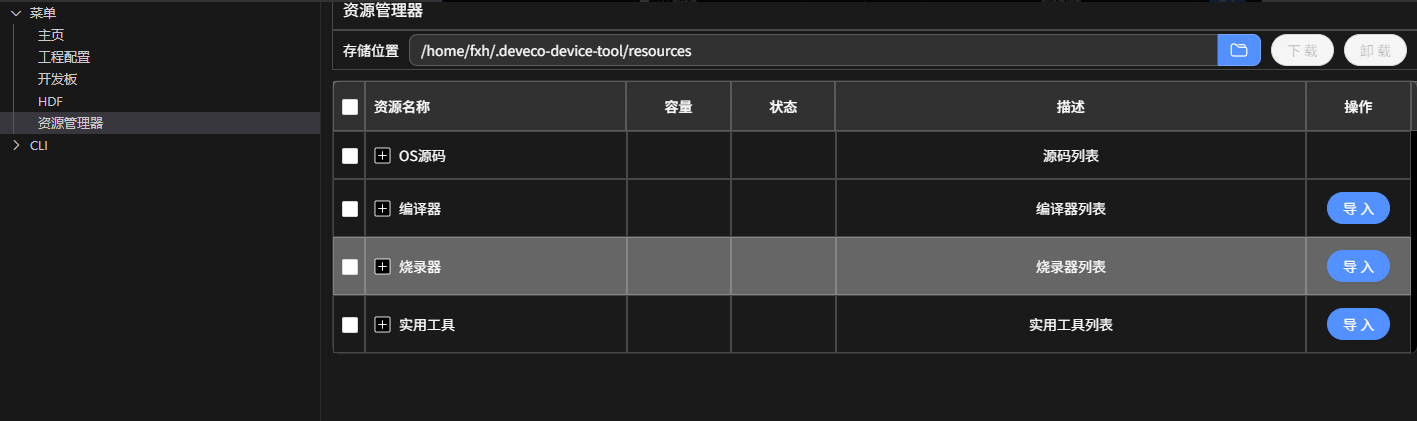
As the user base expands and the number of chip types increases, the differences in required tools and source code also gradually widen. As a development platform, DevEco Device Tool also needs to provide differentiated capabilities for different users. Starting from the 3.1 Release version, DevEco Device Tool provides independent resource-management capabilities, which can not only flexibly manage device resources and decouple the strong binding between chips and tools/source code, but also enhance the flexibility of DevEco Device Tool through customization capabilities.
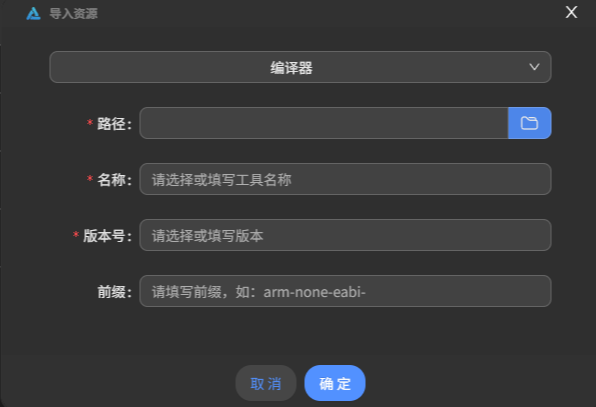
When using DevEco Device Tool for source-code compilation and burning, different development boards depend on different resources. Developers can view the installation status of currently required resources on the "Resource Manager" interface, and download or import uninstalled resources.
2 Code Editing
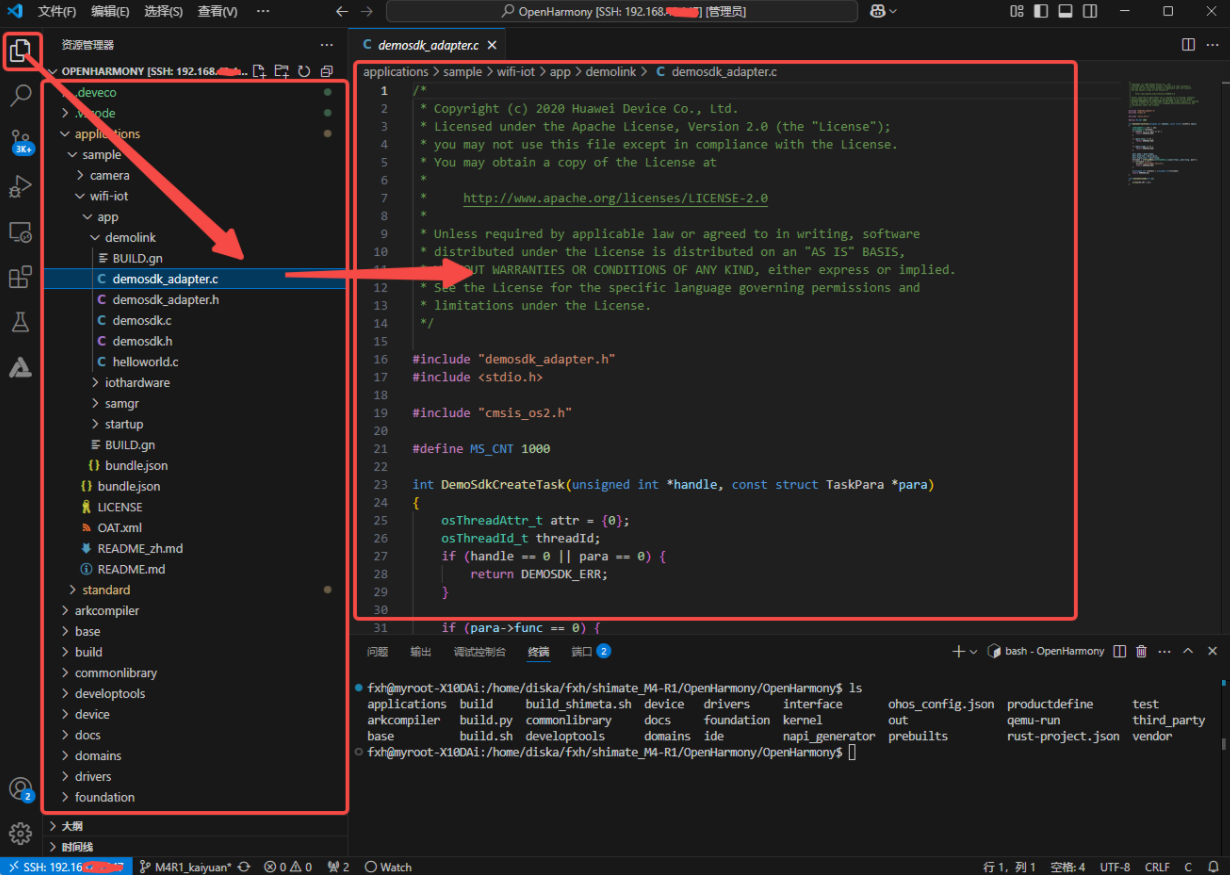
After installing the C/C++ plugin provided by Microsoft, DevEco Device Tool supports C/C++ code editing. Based on the C/C++ plugin, it supports functions such as code search, keyword highlighting, code auto-completion, code input hints, and code inspection.
After remotely connecting to the server, click the folder icon in the upper-left corner to view the SDK files in Ubuntu, and select the corresponding file to edit!
3 Compilation Toolbar Introduction
3.1 Compile
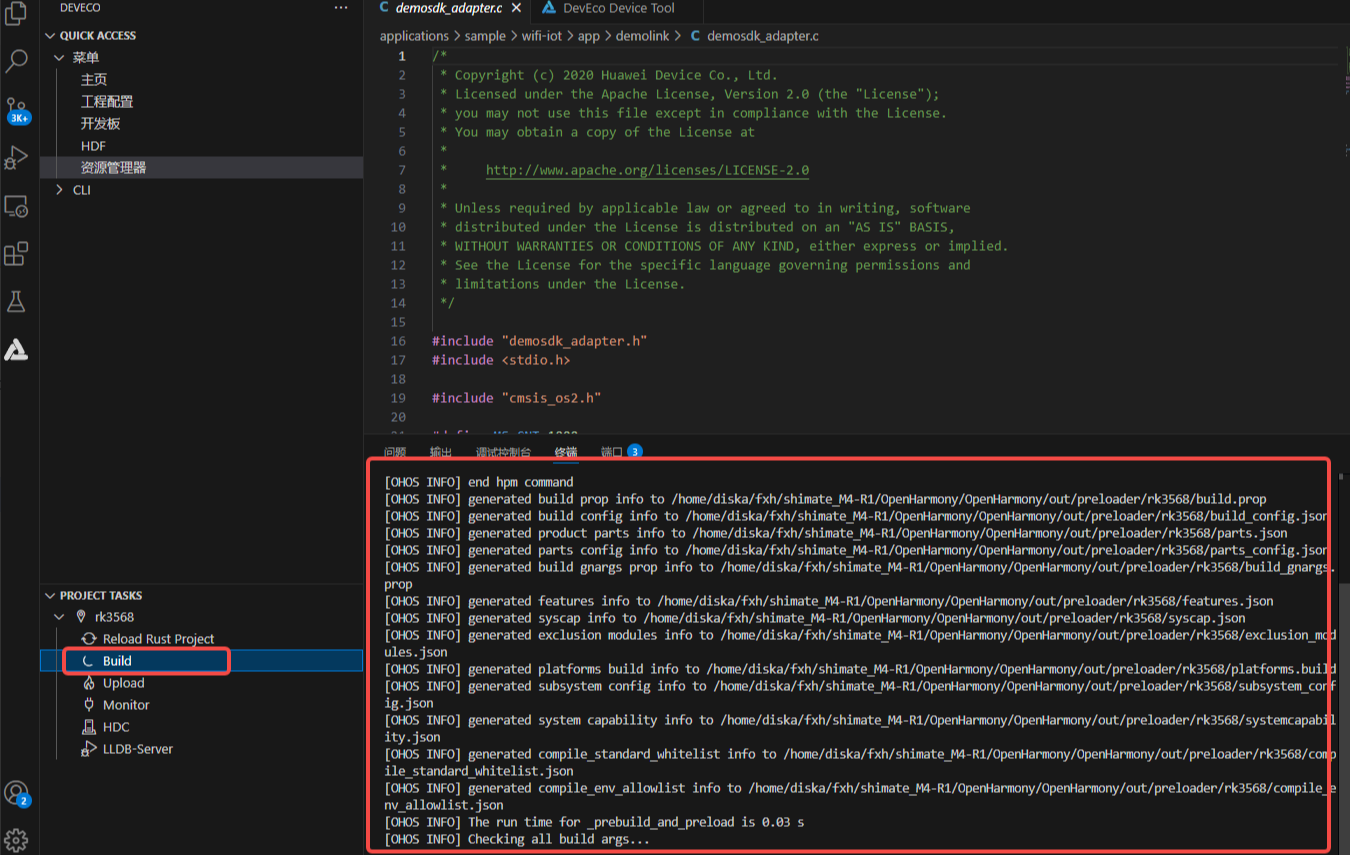
After installing the dependencies as above, you can one-click compile. Just wait for the compilation to complete. If it is a standard system, compilation will take a long time (a personal computer may take several hours).
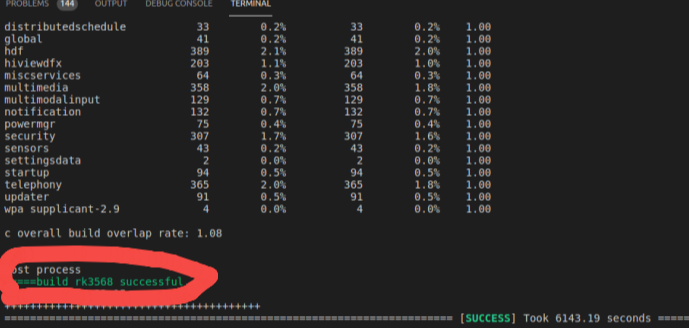
Just wait for the compilation-success prompt.
3.2 Burn
After the compilation is complete, connect the USB OTG port to the PC's USB. In PROJECT TASKS, click the Upload button under rk3568 to start burning.
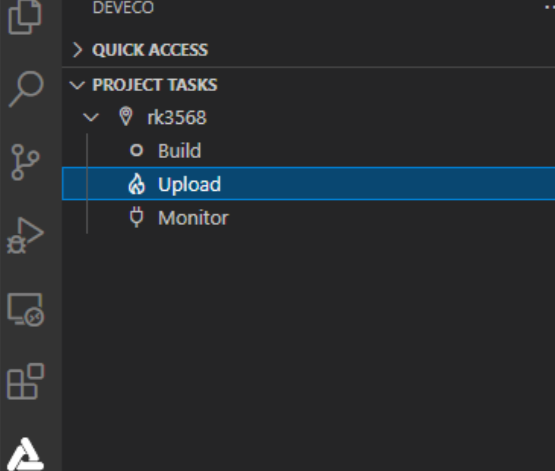
When the screen prompts "Operation paused, Please press Enter key to continue", press the Enter key to continue.
Note
If the development board is not in burn mode, the screen will prompt "The board is not in Loader mode.Please .........". At this point, press and hold the development board's update button, re-power the development board, and finally release the update button to make the development board enter burn mode. The script will then continue to execute until burning is complete.
The successful-burn prompt is as follows:

For those who have used the Rockchip burning tool RKDEVTool on Windows, you should find that the one-click burning process using the DevEco Device Tool takes a long time. This is because the compiled files are under the Ubuntu directory while the burning process takes place in the Windows environment. After launching the burn environment, the image files under Ubuntu must first be pulled to Windows; this process takes a long time!
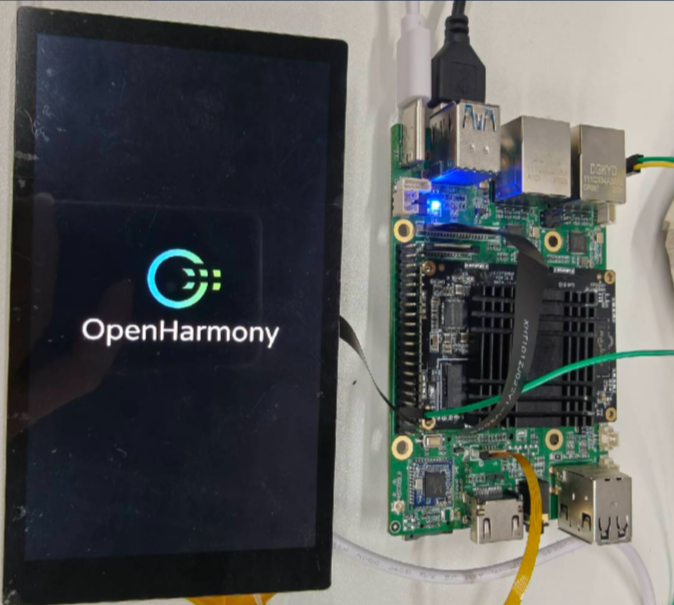
After burning is executed, the development board will automatically reboot into the system.