
ROS2 Basics
Experiment 04 - ROS2 Camera Application
Materials needed: an RDK-X5 board, a USB camera.
1. Experiment Steps
(1) Camera connection check
Connect the USB camera to the development board and run ls /dev/video* to check the camera connection.  ,
,  as shown, the camera is successfully connected. (This example uses
 video0.)
(2) Wake up the camera
- Run
cd ~/ros2_ws && colcon build --packages-select arm_demoto enter the ROS2 workspace and build thearm_demopackage.

- Then run
source ~/ros2_ws/install/setup.bash# Activate the workspace

- Finally run
ros2 launch arm_demo camera.launch.py# Run the camera.launch.py file (the camera uses the defaultvideo0here; to change it, modify the default value in the launch file at line 26 ofcamera.launch.py).
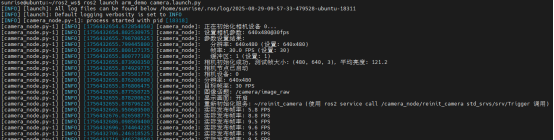
You will see the terminal print messages:

And a live feed window appears.
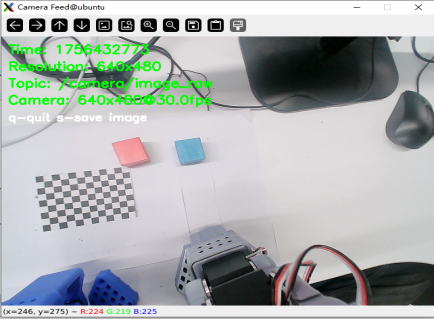
At this point, the camera has been successfully woken up!