Build Your First ArkTS Application - HelloWorld
1.1 DevEco Studio Create Project
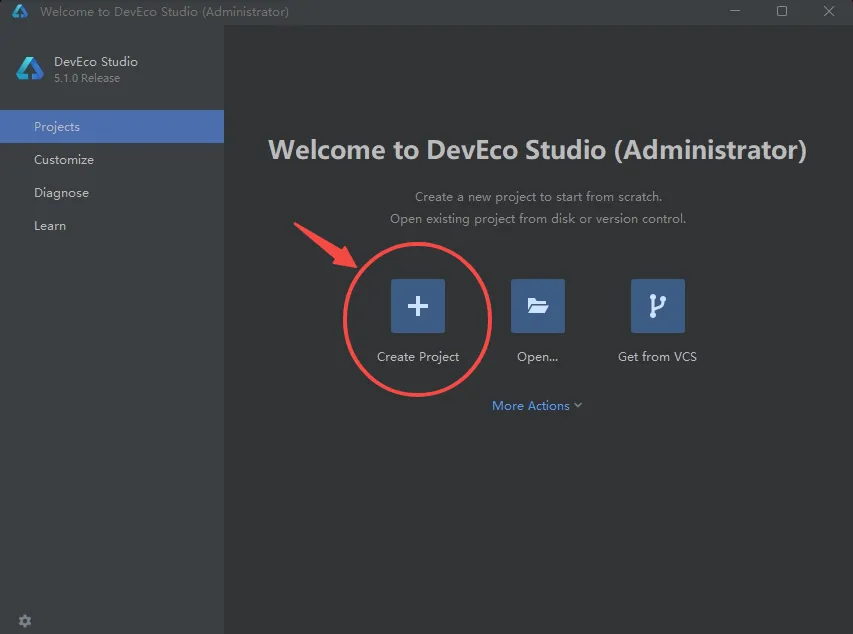
Double-click to open the DevEco Studio shortcut icon on the desktop.
Then you will enter the following interface. Create a project to enter the project interface.
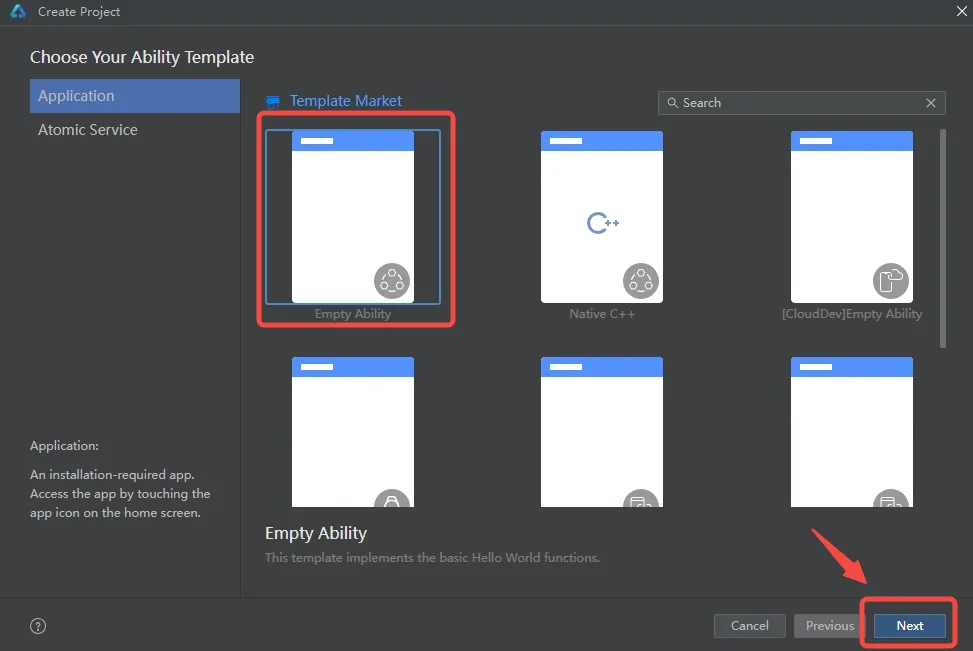
- Select Application for application development (this document uses application development as an example; Atomic Service corresponds to atomic-service development). Select the "Empty Ability" template and click Next to proceed with the next configuration.
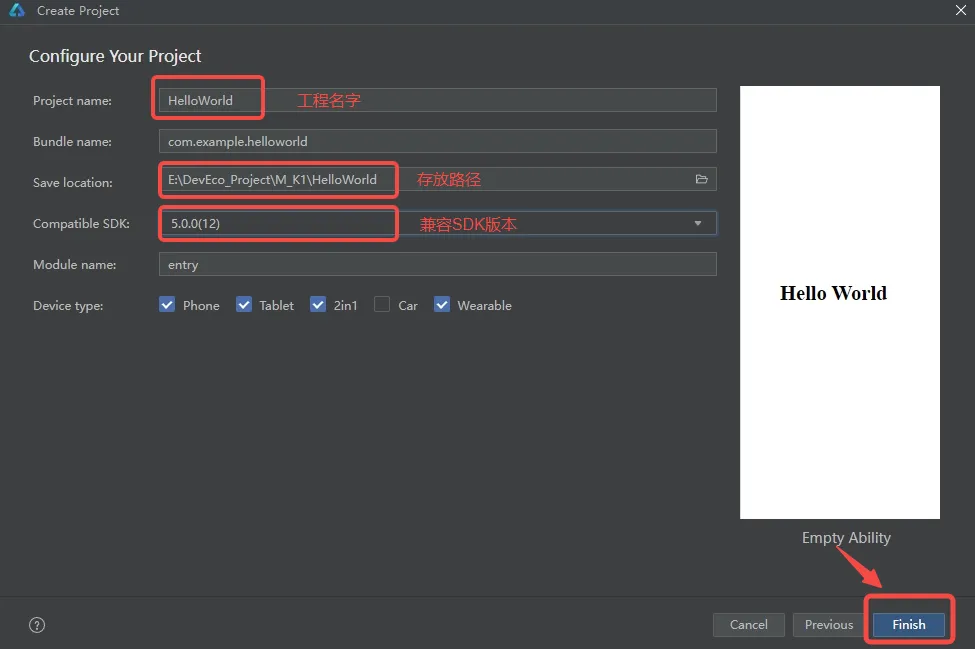
- Enter the project configuration interface. Modify the project storage path, project name, and compatible SDK version. Keep the other parameters as default. Click Finish to create the project. Note: The board-side API version of the M4-R1 development board is API 12, so select 5.0.0(12) for Compatible SDK.
- The project initialization interface is shown below. When the statement in the red box is output in the Build status bar at the bottom, initialization is complete:
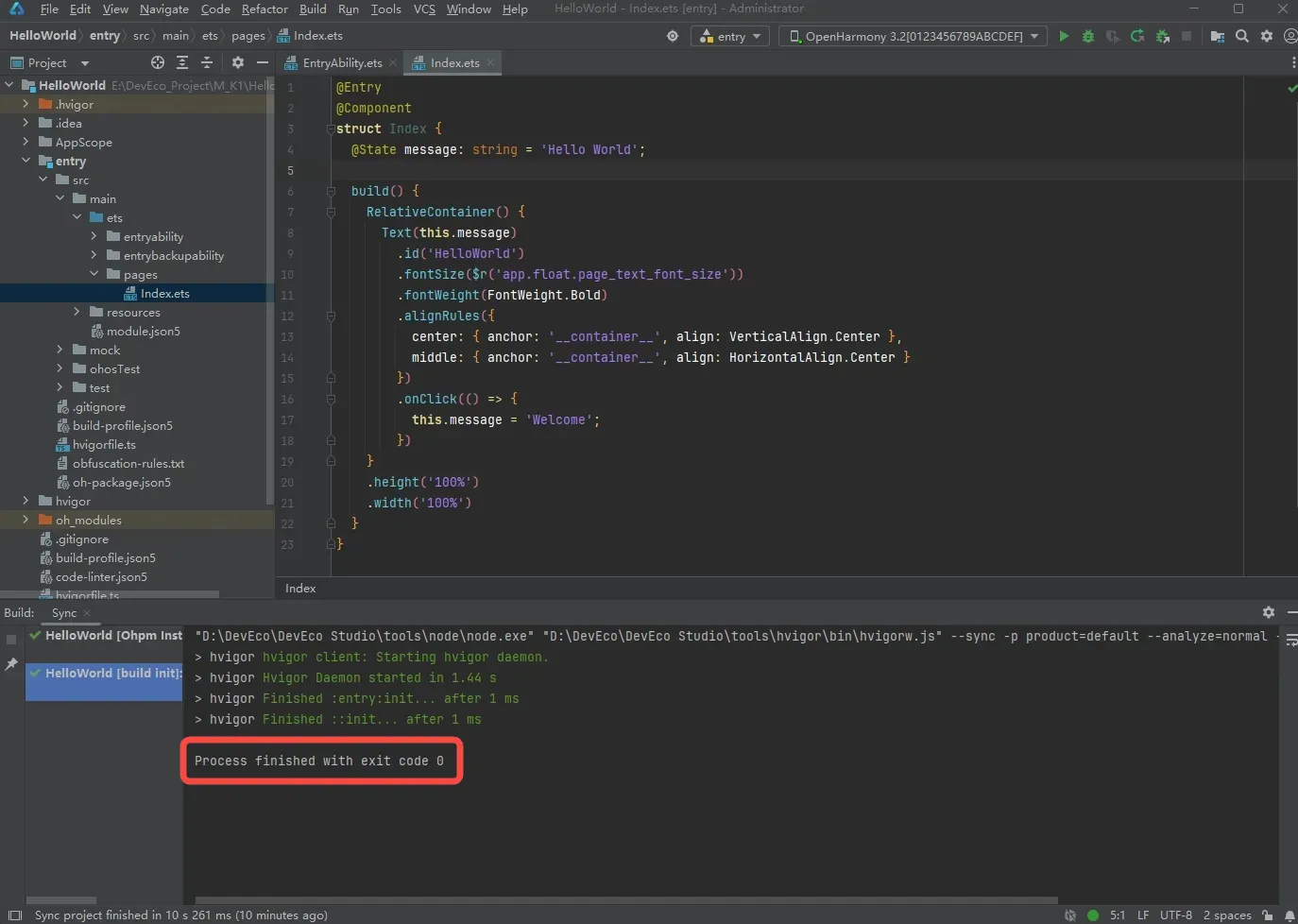
1.2 DevEco Studio Configure SDK
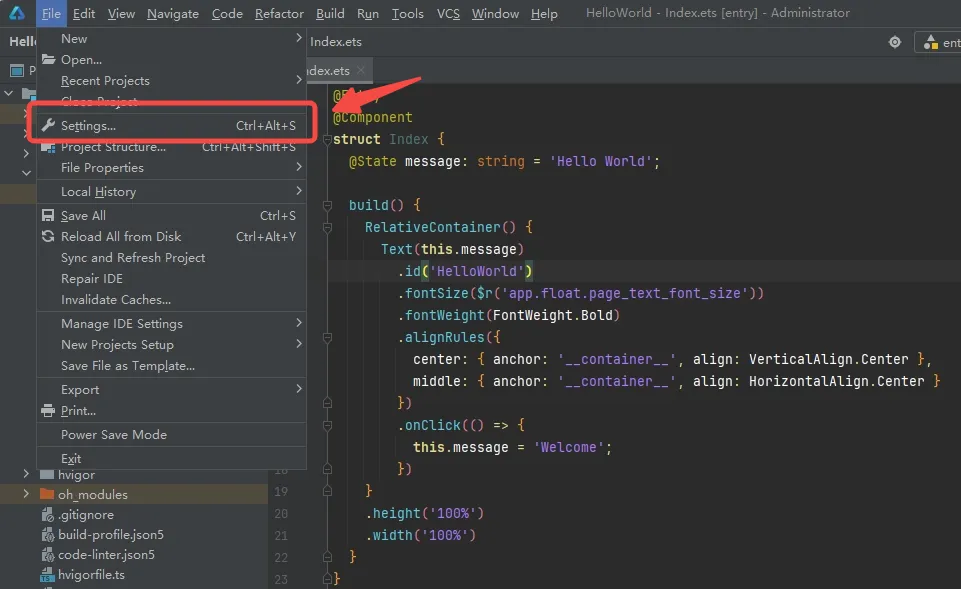
- Select File -> Settings from the menu bar.
- Enter the Settings window, select OpenHarmony SDK, select the SDK installation location, then check API Version 12 to download all the related content of API Version 12, and click [Apply] to download.
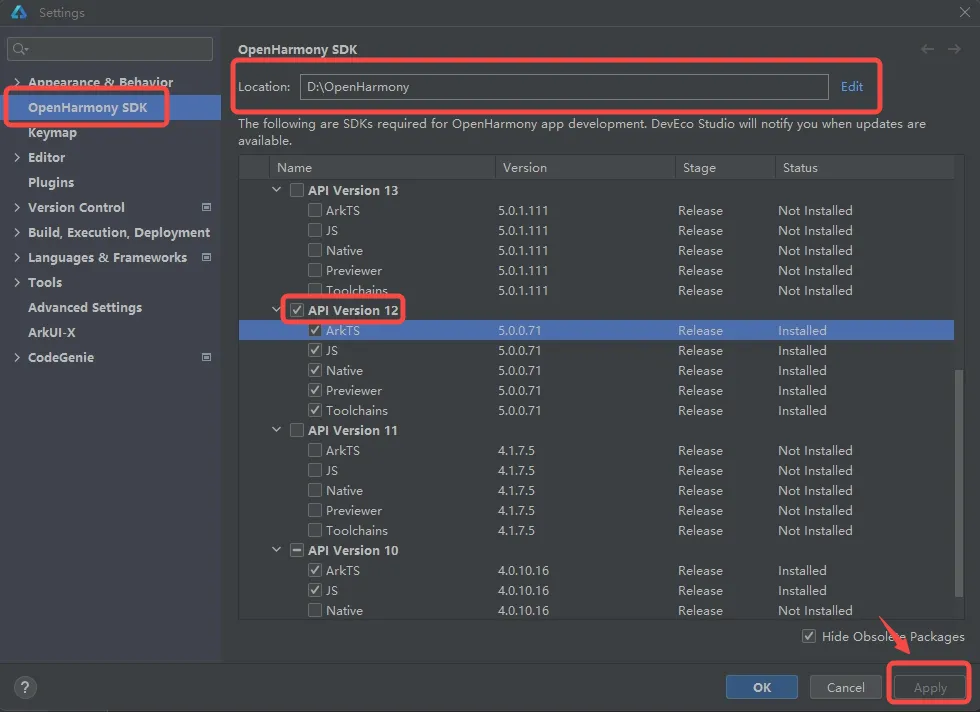
Because we have already downloaded API Version 12, we use API Version 11 as an example.
Note:
If API 12 has already been downloaded as in the interface above, you can skip the SDK configuration step.
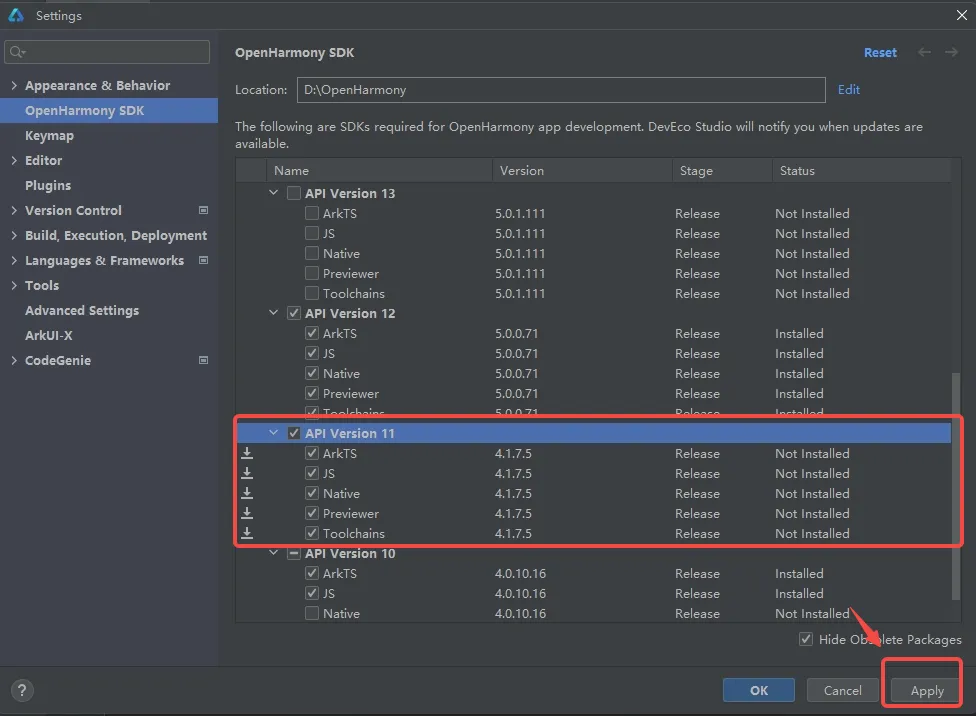
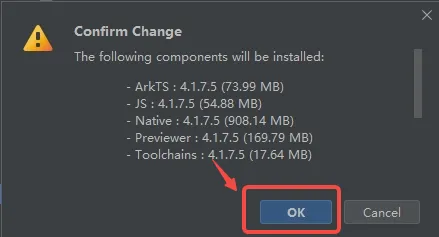
- After clicking [Apply], a Confirm Change popup will appear. Click [OK].
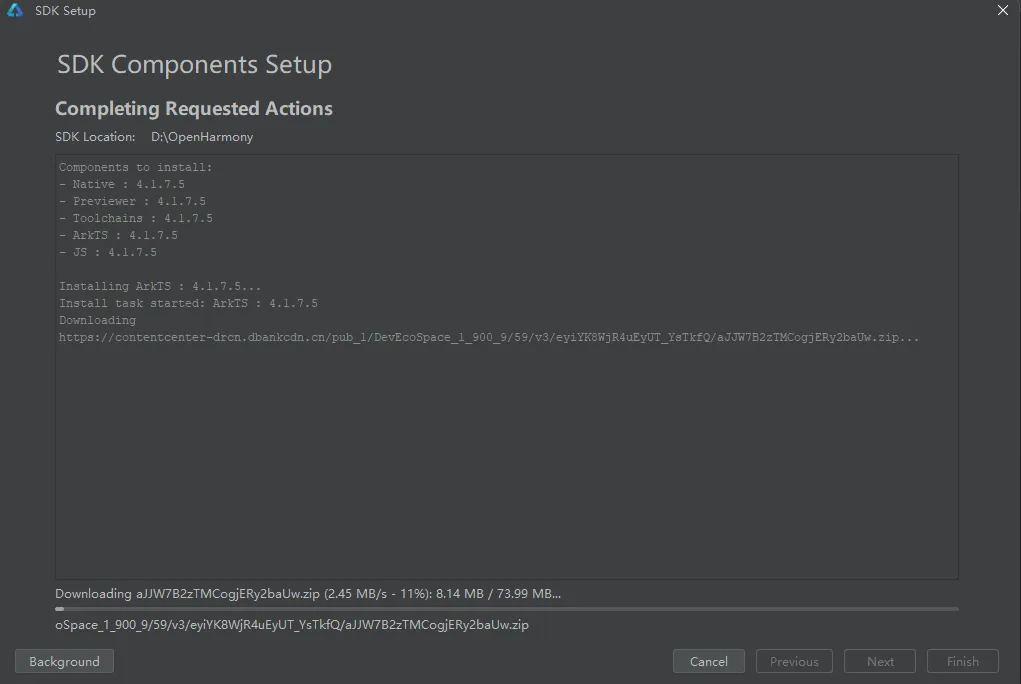
- Wait for the SDK download to complete.
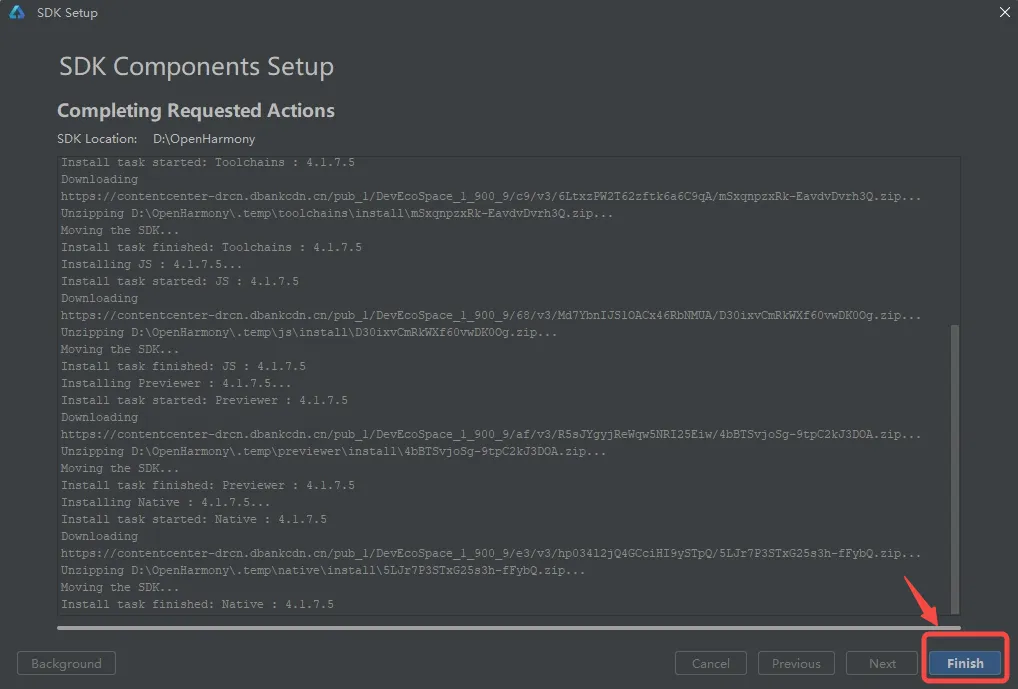
- When [Finish] becomes highlighted, the download is complete. Click [Finish].
1.3 Burn the Program to the Board
1.3.1 Default Program Function Introduction
After project synchronization is complete, in the "Project" window, click "entry > src > main > ets > pages" and open the "Index.ets" file. You can see that the default program page of the application project consists of Text components. The function implemented by this application: clicking the Hello World text component switches it to Welcome. The example of the "Index.ets" file is as follows:
@Entry
@Component
struct Index {
  @State message: string = 'Hello World';

  build() {
    RelativeContainer() {
      Text(this.message)
        .id('HelloWorld')
        .fontSize($r('app.float.page_text_font_size'))
        .fontWeight(FontWeight.Bold)
        .alignRules({
          center: { anchor: '__container__', align: VerticalAlign.Center },
          middle: { anchor: '__container__', align: HorizontalAlign.Center }
        })
        .onClick(() => {
          this.message = 'Welcome';
        })
    }
    .height('100%')
    .width('100%')
  }
}
1.3.2 Signature File Configuration
- Connect the real device M4-R1 running the OpenHarmony system to the PC via a USB-to-Type-C cable through the OTG port (the device defaults to debug mode). Viewing the tool interface will show the serial number of the connected device M4-R1, as shown in the figure below:

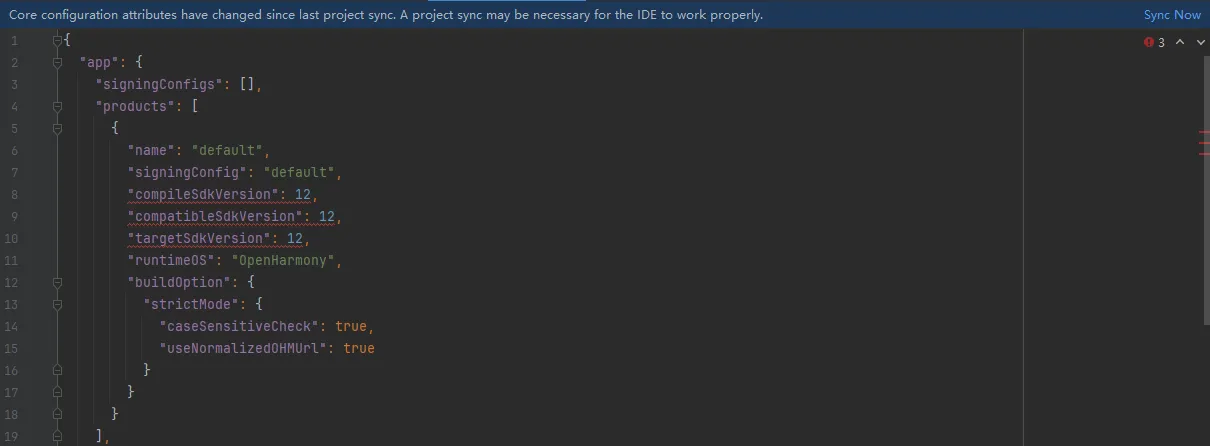
- Open the project-level build-profile.json5 and modify the products inside to the following code:
"products": [
  {
    "name": "default",
    "signingConfig": "default",
    "compileSdkVersion": 12,
    "compatibleSdkVersion": 12,
    "targetSdkVersion": 12,
    "runtimeOS": "OpenHarmony",
    "buildOption": {
      "strictMode": {
        "caseSensitiveCheck": true,
        "useNormalizedOHMUrl": true
      }
    }
  }
]
After modification, a blue prompt bar appears below. Click "Sync Now" in the prompt bar to sync the project.
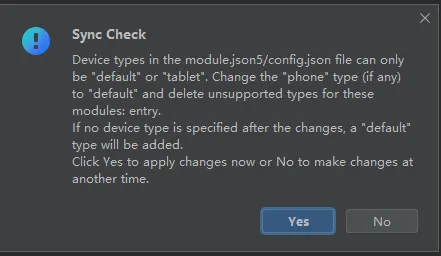
If you encounter the Sync Check popup shown below during synchronization, click Yes.
When Sync Now completes, the Build status bar at the bottom shows the following information.

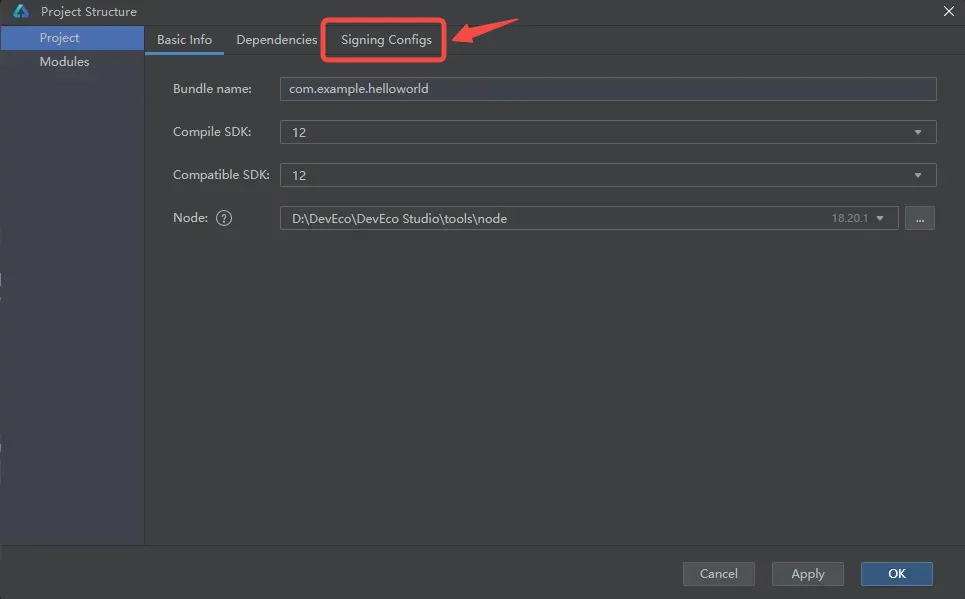
Select File > Project Structure from the menu bar. In the popup window select Signing Configs to perform signing.
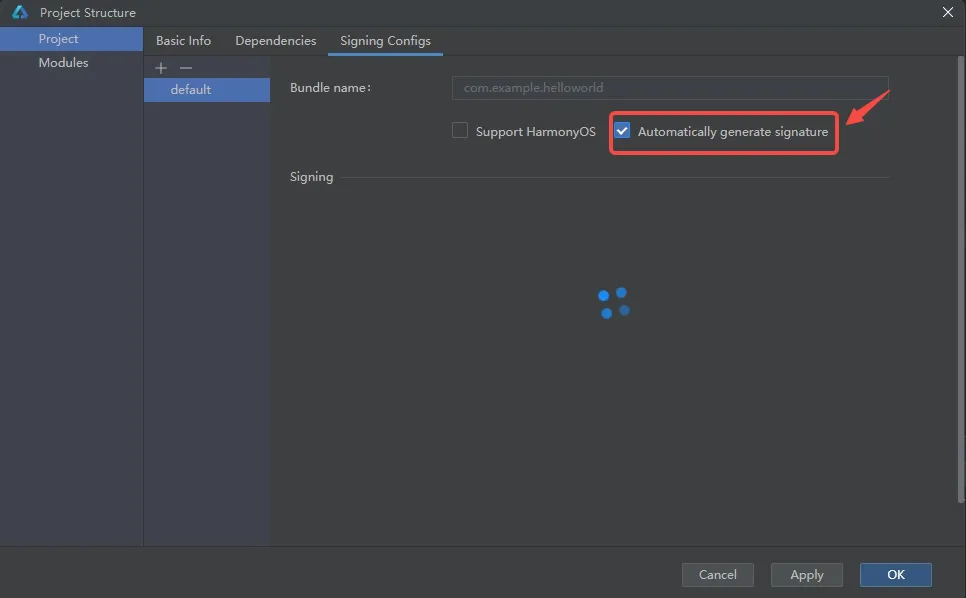
As shown, because the M4-R1 development board runs the OpenHarmony system, check Automatically generate signature and leave Support HarmonyOS unchecked to perform automatic signing.
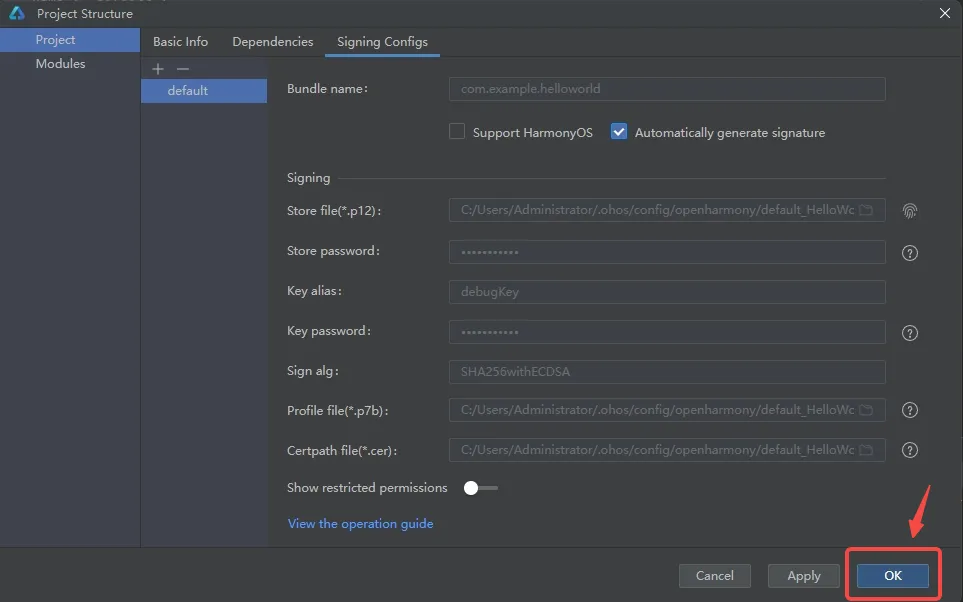
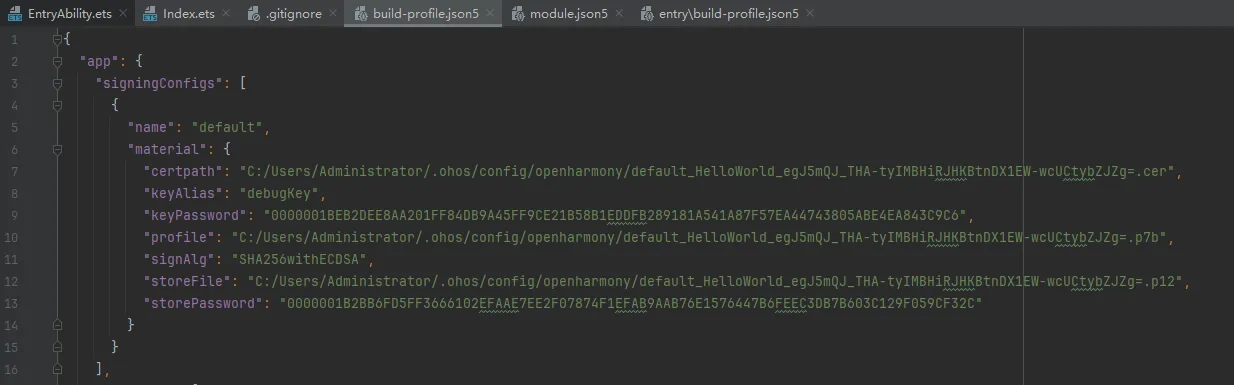
When the signing information appears as shown below, click OK. The signing content signingConfigs will be written into the project-level build-profile.json5.
Wait for synchronization to complete.
1.3.3 Run the Application
Return to the DevEco Studio project interface, click Run 'entry' on the toolbar to run the application on the development board.

The real-device effect on M-K1HSE is shown in the figure:
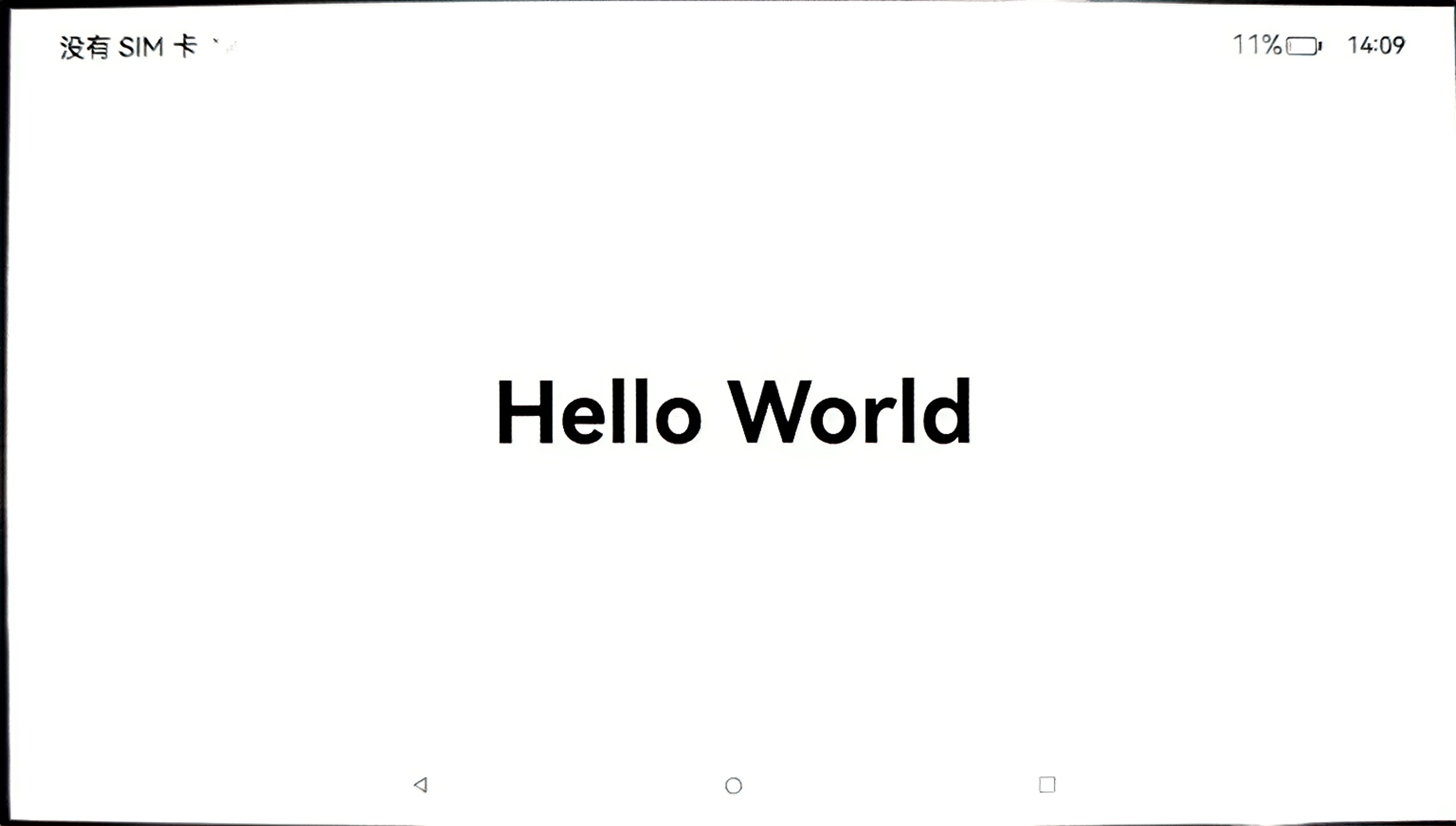
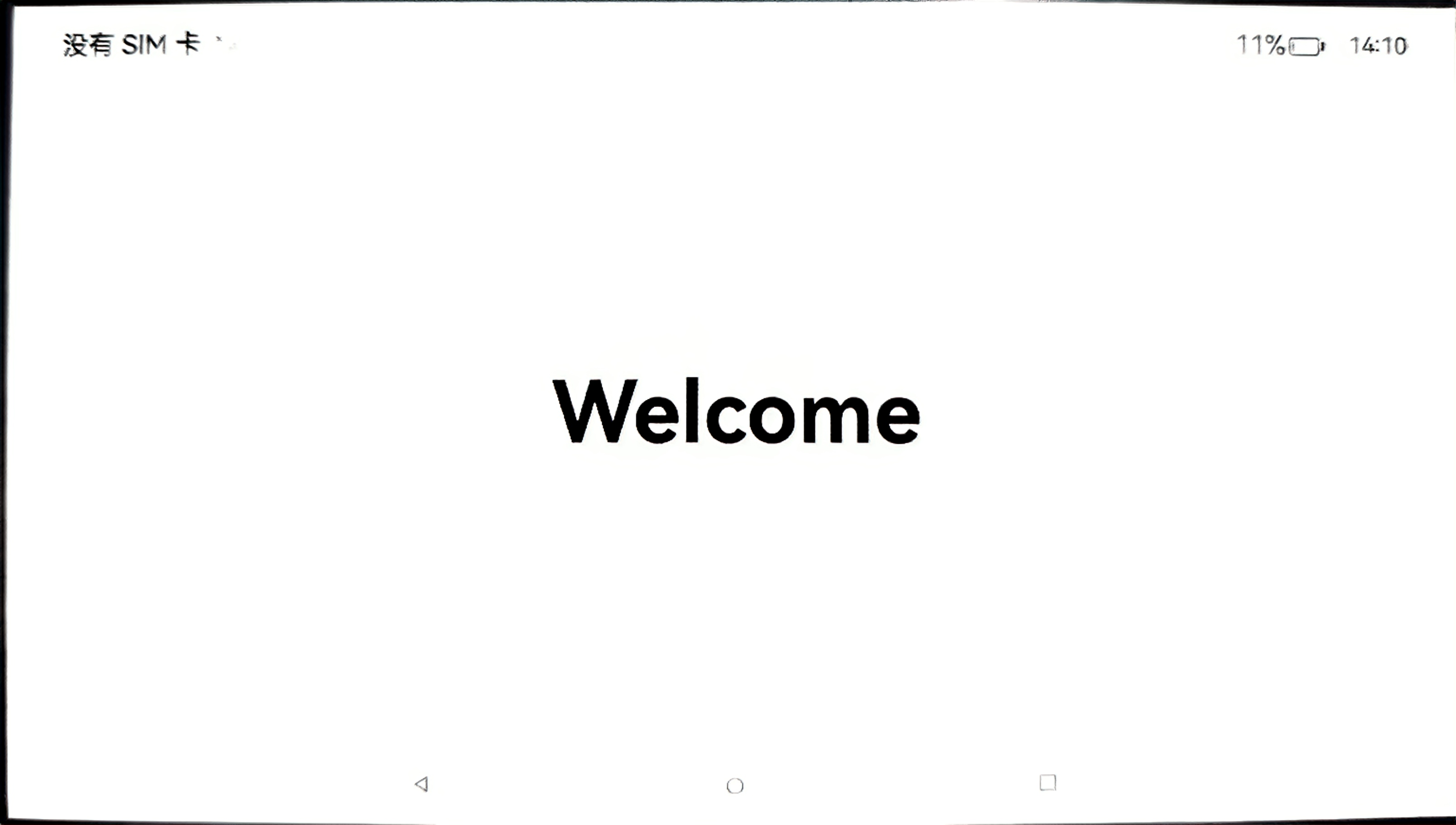
After clicking the Hello World text, the switched effect is shown in the figure: