
Development Environment Construction
At this stage, most OpenHarmony development boards do not yet support compiling source code in a Windows environment. For individual developers or students, a local Linux virtual machine such as Ubuntu is usually set up via VMware for compilation. For company developers or those who have their own server at home, a virtual machine environment is not needed, but the corresponding operations are exactly the same — only the compilation speed differs.
Using DevEco Device Tool is essentially setting up a Windows+Ubuntu hybrid development environment. The DevEco Device Tool visual interface on the Windows platform is used for related operations, and it connects to DevEco Device Tool under Ubuntu via remote connection (Visual Studio Code does not need to be installed under Ubuntu), and then operations such as development, compilation, and burning of the source code under Ubuntu are performed.
1 Download Development Tools
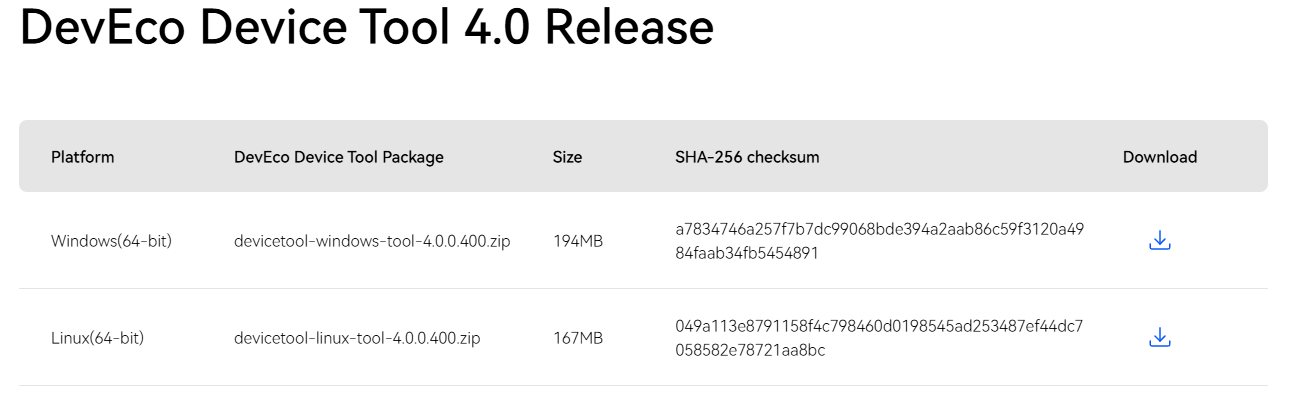
We first download the DevEco Device Tool installation packages for both Windows and Linux environments.
Download address: HUAWEI Integrated Development Environment IDE DevEco Device Tool download | HarmonyOS device development
2 Set Up the Linux Environment
Take Ubuntu 20.04 as an example.
(If you have not yet installed a virtual machine, please refer to the virtual machine installation tutorial: Ubuntu 20.04 Installation Guide and Initial Environment Configuration (super detailed) including [ROS Noetic, Terminator, Pycharm and other commonly used tool installations]_mt6701 network card Ubuntu-CSDN Blog)
For transferring files between Linux and Windows, the commonly-used free remote tool MobaXterm is recommended; its functions are extremely powerful. Since this article focuses on environment setup for the DevEco Device Tool, for detailed usage please refer to the MobaXterm detailed usage tutorial _ mobaxterm usage tutorial - CSDN Blog).
After configuring the virtual machine environment and being able to transfer files with Windows, perform the following operations:
2.1 Verify the Shell Environment
- Run the following command and verify that the output is bash.
ls -l /bin/sh
If the output is not bash, open a terminal tool and run the following command. Enter the password, then select No to change the Ubuntu shell from dash to bash.
sudo dpkg-reconfigure dash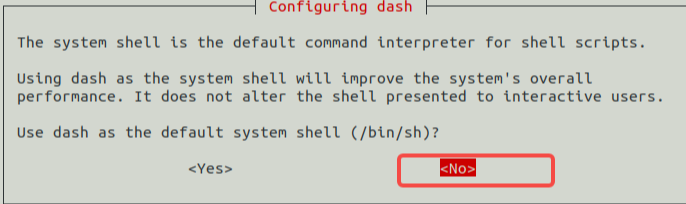
2.2 Install DevEco Device Tool
- Place the devicetool-linux-tool-4.0.0.400.zip file under Linux in your personal directory for software tool packages, and use the decompression command:
unzip devicetool-linux-tool-{Version}.zip
# {Version}为对应的版本号,如我这里输入:unzip devicetool-linux-tool-4.0.0.400.zip
- Enter the extracted folder and run the following command to grant executable permission to the installation file. Modify devicetool-linux-tool-{Version}.sh according to the actual situation.
chmod u+x devicetool-linux-tool-{Version}.sh- Run the following command to install DevEco Device Tool. Modify devicetool-linux-tool-{Version}.sh according to the actual situation.
sudo ./devicetool-linux-tool-{Version}.sh- On the user agreement and privacy statement signing interface, please read the user agreement and privacy statement in detail. You must sign and accept the user agreement and privacy statement to proceed to the next installation step. You can use the up and down keys on the keyboard to select.
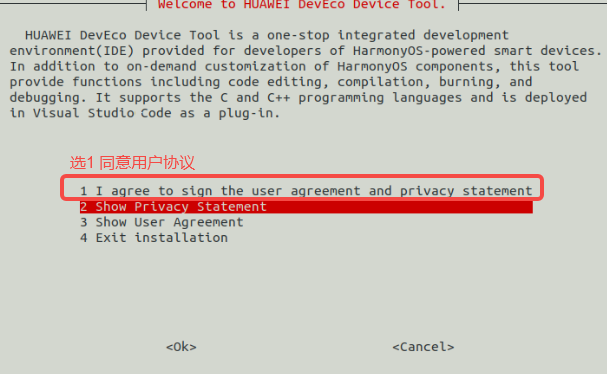
- After the installation is complete, when the interface outputs "DevEco Device Tool successfully installed.", it means that DevEco Device Tool was installed successfully.

3 Set Up the Windows Environment
Download the latest Windows version of the DevEco Device Tool software package.
Extract the DevEco Device Tool compressed package, double-click the installer program, and click Next to install.
Please review the user agreement and privacy statement. You must check "I accept the terms of the license agreement" before you can continue to the next installation step.
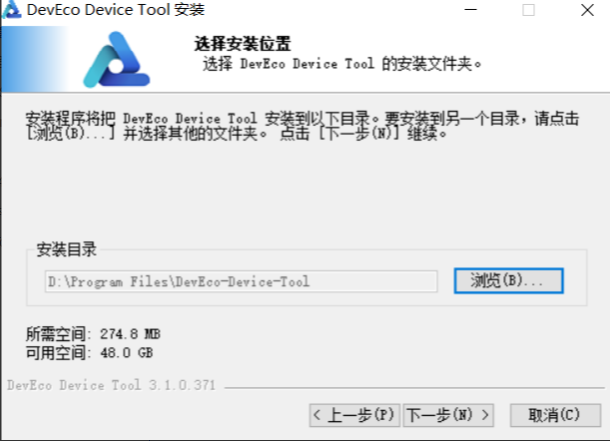
Set the DevEco Device Tool installation path. Note that the installation path cannot contain Chinese characters, and installing to the C drive is not recommended. Click Next.
- Follow the installation wizard prompts to install the dependent tools.
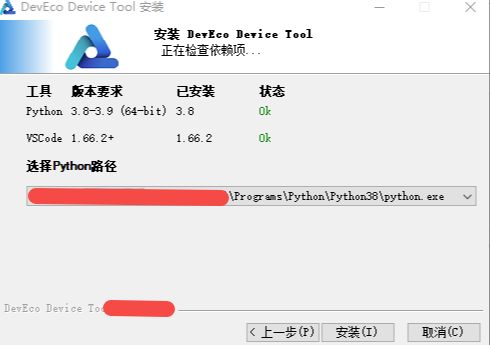
- Install: install directly with the default path and parameters.
- Custom Install: you can modify the installation path and other setting parameters before installation.
After installation is complete, the status of each software is shown as OK.
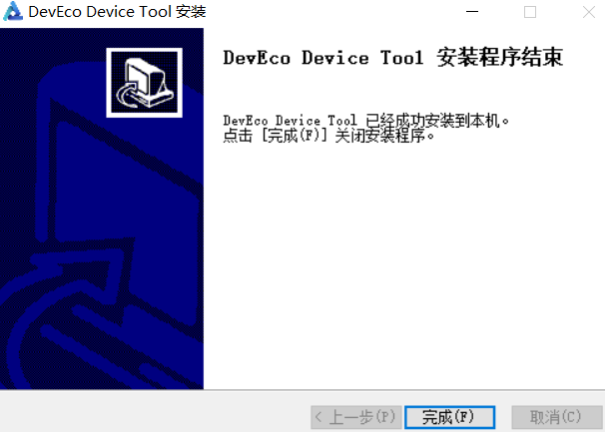
After the dependent tools are installed, click Install to begin installing DevEco Device Tool.
Continue to wait for the DevEco Device Tool installation wizard to automatically install the DevEco Device Tool plugin until the installation is complete. Click Finish to close the DevEco Device Tool installation wizard.
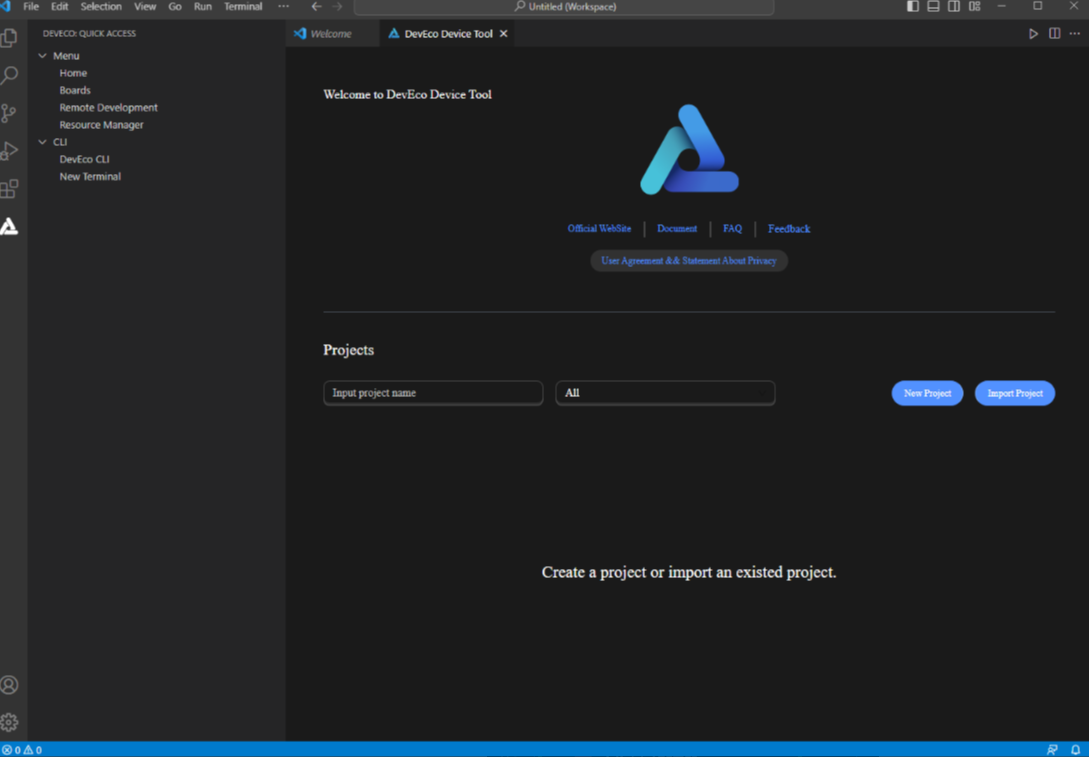
Open Visual Studio Code to enter the DevEco Device Tool interface. At this point, the DevEco Device Tool Windows development environment installation is complete.
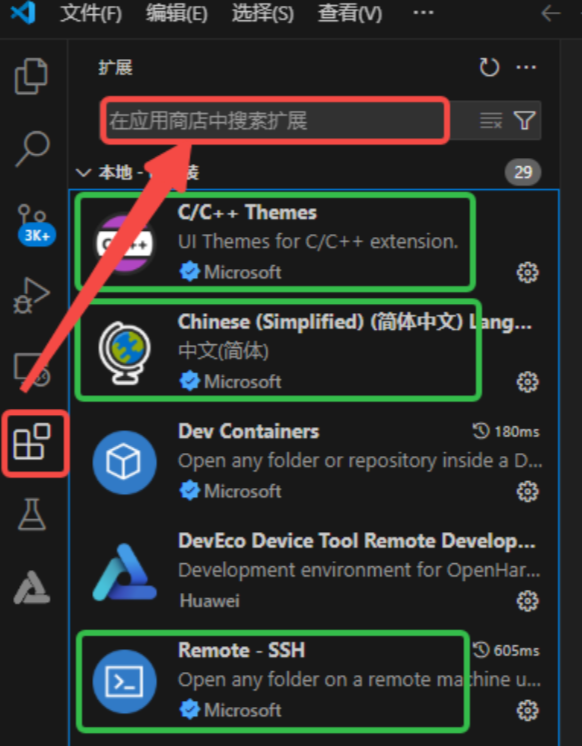
- After entering Visual Studio Code, click Extensions (or press Ctrl+Shift+X), search for the three plugins marked below, install them, and then restart.
4 Configure Windows to Remotely Access the Ubuntu Environment
4.1 Ubuntu Install SSH and Obtain the IP Address
- In the Ubuntu system, open a terminal tool and run the following commands to install and start the SSH service.
sudo apt-get install openssh-server
sudo systemctl start ssh- Run the following command to obtain the current user's IP address for the Windows system to remotely access the Ubuntu environment.
ifconfig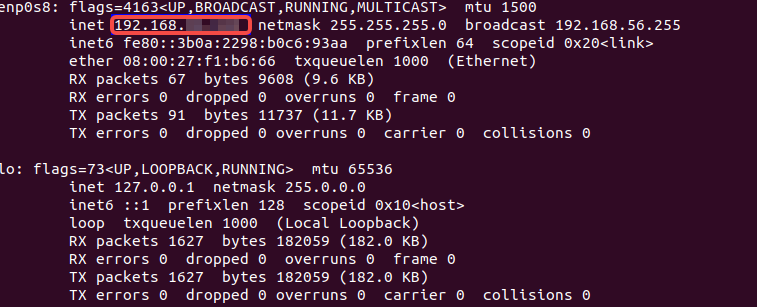
Note
If executing the ifconfig command prompts "command-not-found", please execute sudo apt-get install net-tools to install the network query tool, then query the IP address again.
4.2 Remotely Connect to Ubuntu
- Open Visual Studio Code on the Windows system, click the small TV icon on the left, and under SSH TARGETS, click +.
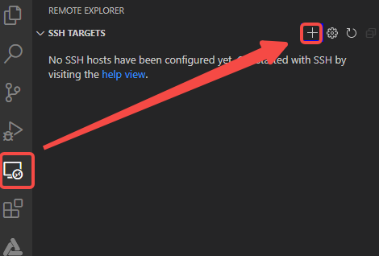
- In the popup SSH connection command input box, enter "ssh username@ip_address", where ip_address is the IP address of the remote computer to connect to, and username is the account to log into the remote computer (for example, ohos here).

- In the popup input box, select the SSH configuration file. Just select the default first option.
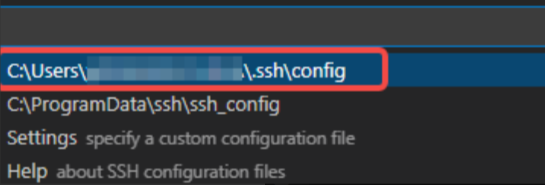
- In SSH TARGETS, find the remote computer and click the folder icon on the right to open the remote computer.

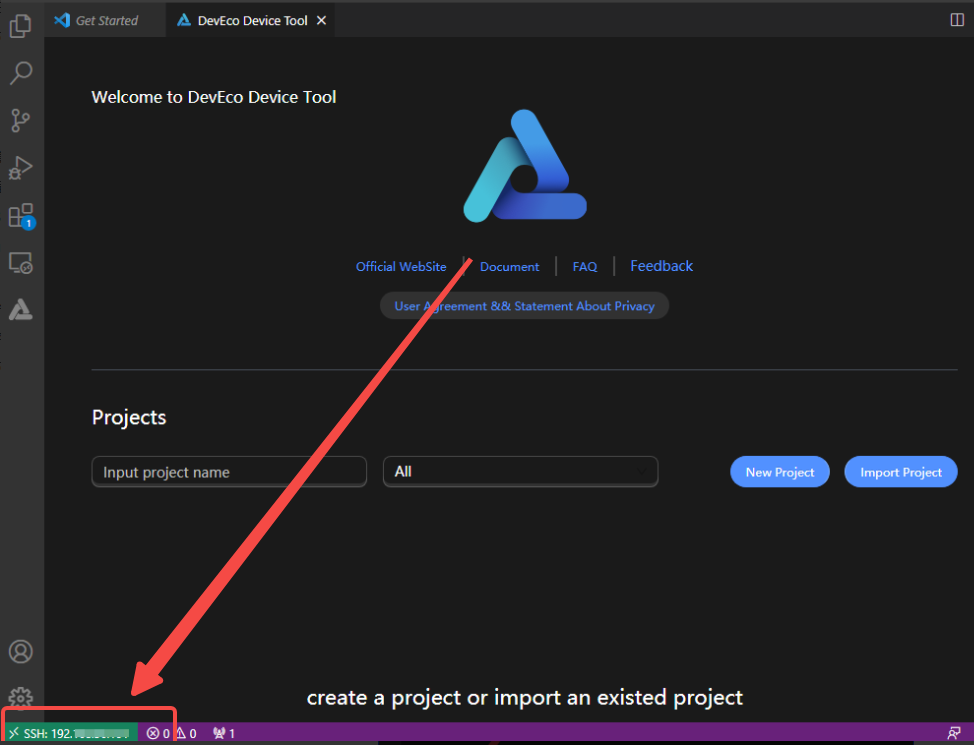
- When connecting for the first time, select Linux in the popup input box, then select Continue, and then enter the password for logging into the remote computer to connect to the remote computer.

At this point, the environment setup is complete.
 -->-->