
Common Problems Solution Guide
Preparation Stage
1-Use a Computer Supporting USB 3.0
Before use, you need to confirm that your device supports the USB 3.0 protocol. You can check it in the Device Manager.
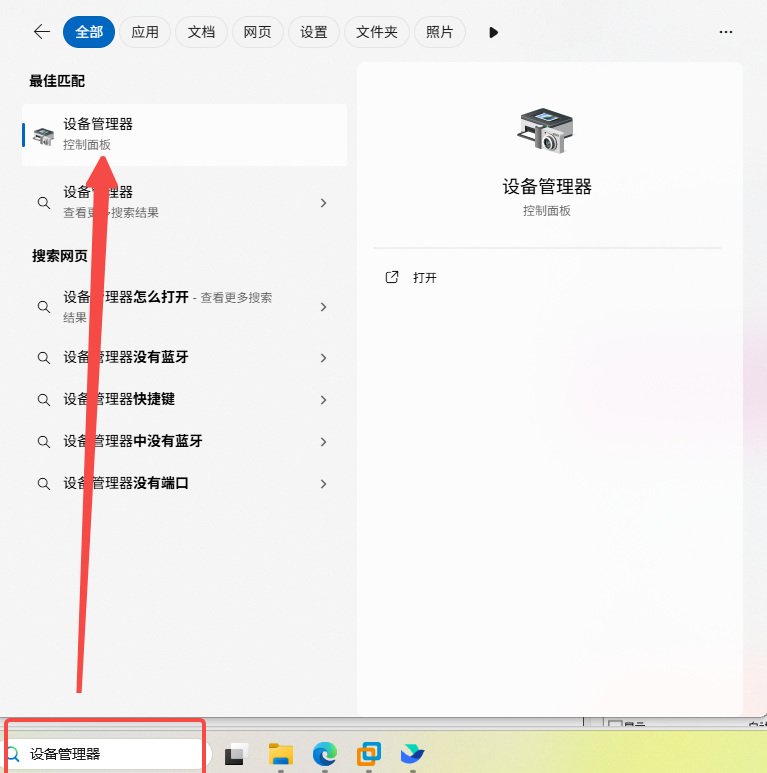
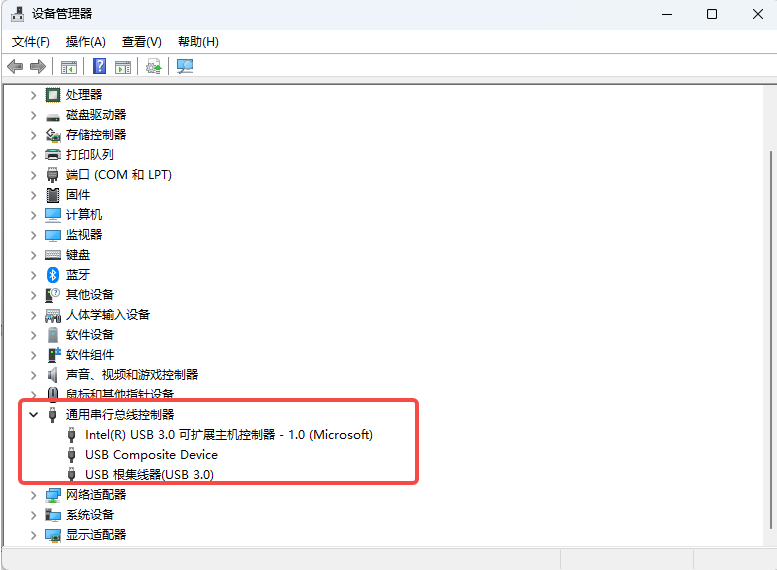
Tip
Common devices supporting USB 3.0 have blue interfaces or the "SS" ("super speed") mark, which can also be used for simple judgment.
2-Use a Cable Supporting USB 3.0
Please do not use ordinary cheap charging cables. Before use, please confirm that the cable used supports the USB 3.0 protocol!!!
When an ordinary charging cable is plugged in, the computer will not recognize it because it does not support the USB protocol.
If it is a cable that supports the USB protocol, you can find our camera device in the Device Manager after plugging it in.
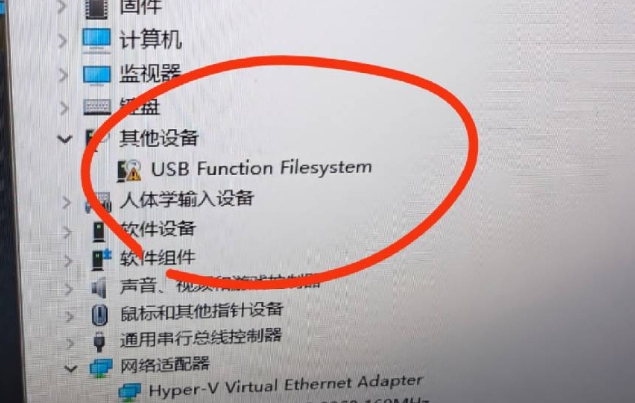
Tip
The warning sign is because the libusb driver under Windows has not been installed yet. After installation, it is shown as below)
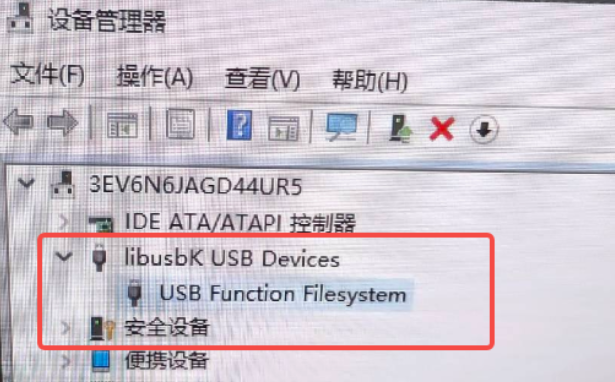
Ubuntu 22.04 Virtual Machine Users
For hosts that support USB 3.0, you first need to ensure that the USB compatibility in the virtual machine settings is set to 3.0 or higher, otherwise the virtual machine can only recognize the device as USB 2.0. (There is a big difference in speed between the two. When using USB 2.0 transmission, the video will be stuck and delayed due to insufficient bandwidth)
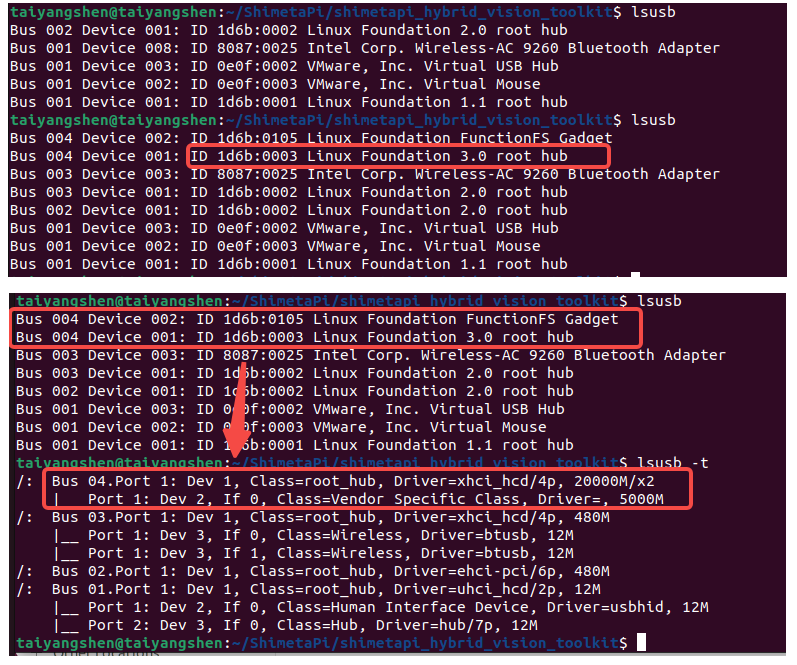
After connecting the device to the virtual machine, enter the command lsusb in the terminal to check whether the Linux Foundation of the device is recognized as USB 3.0. If USB 3.0 is not enabled, the terminal will display as follows:

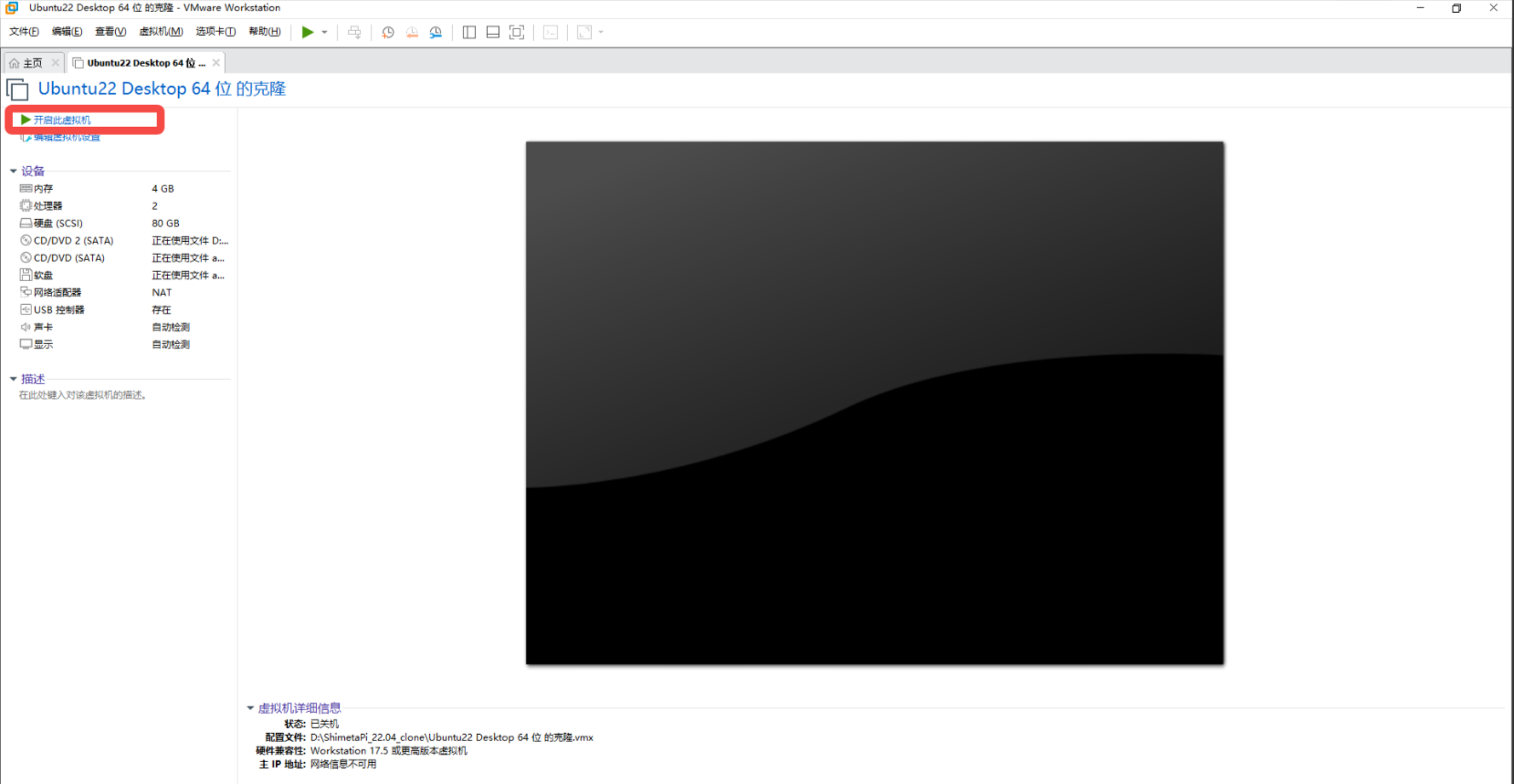
Select "Virtual Machine -> Settings -> USB Controller -> USB Compatibility -> USB 3.x" in the upper left corner of VMWare.
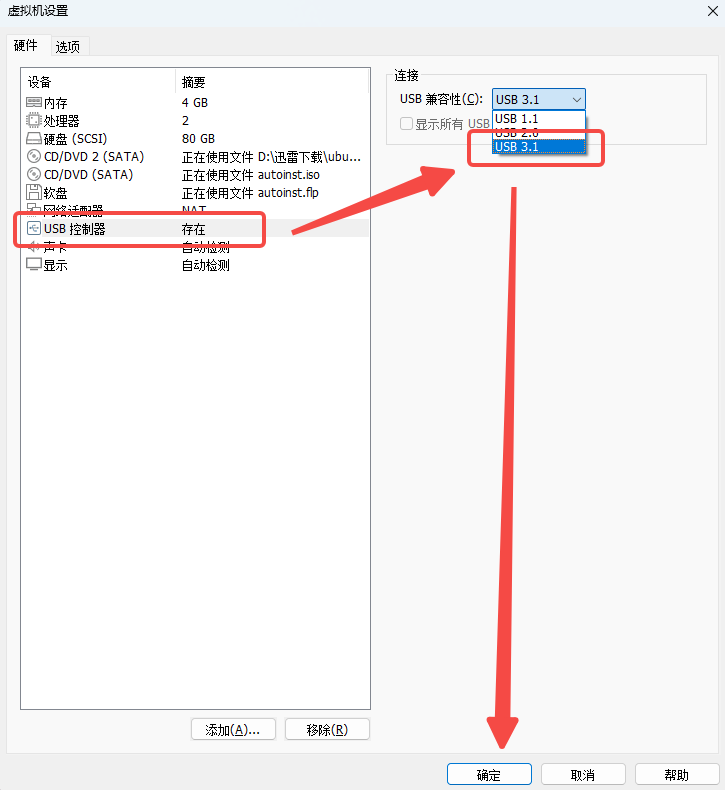
After successful setting, enter the command lsusb or lsusb -t again, and the device is successfully recognized as USB 3.0.
Virtual Machine Image Download
For friends who cannot build a virtual machine environment or cannot pull the SDK file due to network restrictions, we provide an Ubuntu 22.04 virtual machine image file with the SDK environment built. You can download it through the link:
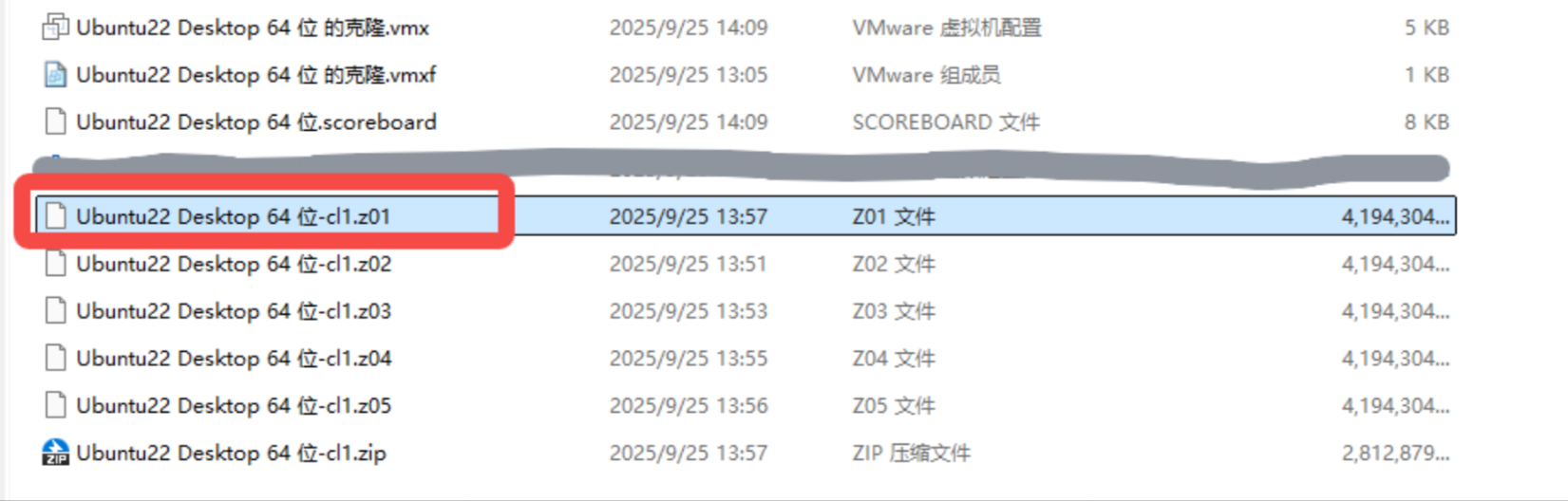
After downloading, unzip the Z01 file to get the system image file (because the system image source file is too large to be put directly into the network disk, so it is compressed in volumes, just unzip the first file).
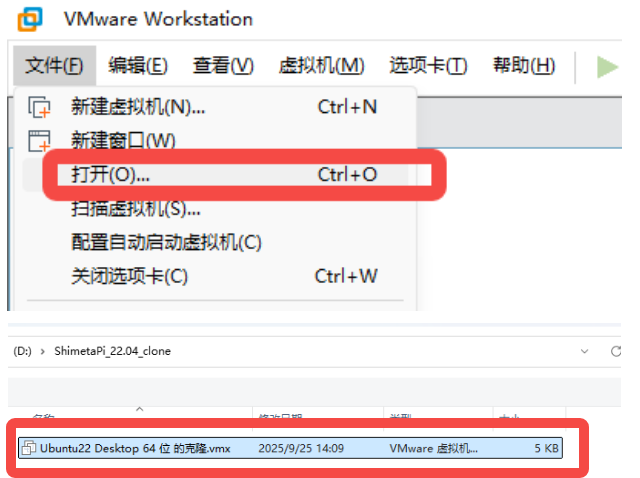
After unzipping, find the virtual machine in the unzipping path in VMWare software, and you can use it directly after importing.
Info
Username: taiyangshen
Password: abolo123
SDK files are located in /ShimetaPi
Common Problem 1:
The computer and the data cable used both support USB 3.0. After completing the work in the above preparation stage, the device is still recognized as USB 2.0.
If you are using a Type-A to Type-C cable, you may encounter this problem. You can try to plug the Type-C interface into the device end in reverse, and try the 2 insertion directions in the figure respectively.
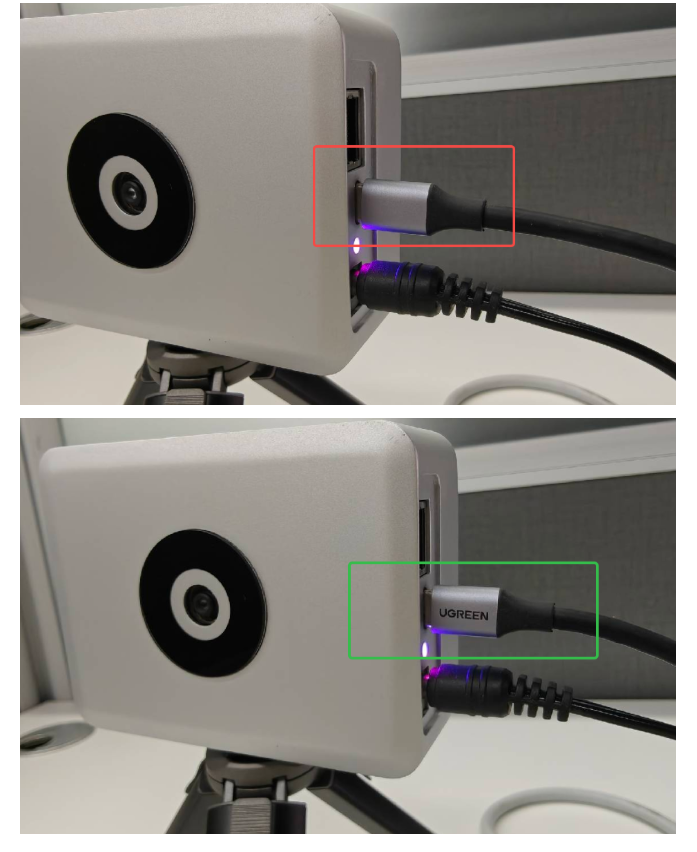
There is no such problem with USB cables using double-head Type-C interfaces. The author is not a practitioner in this field, but just encountered this problem during the development process. It is speculated that because the Type-C interface is completely corresponding at this time, while when using Type-A output, due to its asymmetric structure, some cables may only adapt to USB 3.0 for one side of the Type-C interface.