Model Quantization
Introduction
TPU-MLIR is the compiler project for Sophgo's deep learning processors. This project provides a complete toolchain that can convert pre-trained neural networks from different frameworks into bmodel files that can run efficiently on Sophgo's intelligent vision deep learning processors. The code has been open-sourced on github: https://github.com/sophgo/tpu-mlir .
The paper https://arxiv.org/abs/2210.15016 describes the overall design approach of TPU-MLIR.
The overall architecture of TPU-MLIR is as follows:
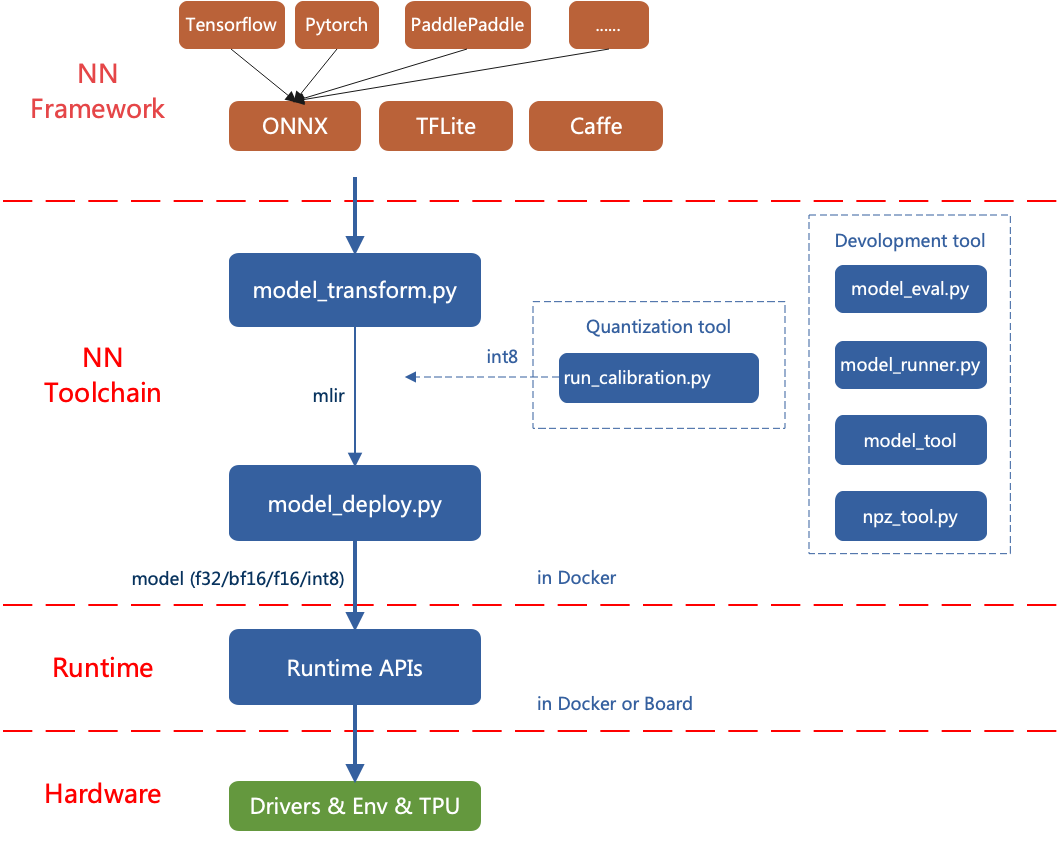
Currently, the directly supported frameworks are ONNX, Pytorch, Caffe, and TFLite. Models from other frameworks need to be converted to onnx format. For information on how to convert deep learning framework network models to onnx, please refer to the onnx official website: https://github.com/onnx/tutorials .
Model conversion needs to be executed in a specified docker. It mainly involves two steps: first, use model_transform.py to convert the original model to an mlir file, and second, use model_deploy.py to convert the mlir file to a bmodel.
If you want to convert an INT8 model, you need to call run_calibration.py to generate a calibration table and then pass it to model_deploy.py.
If the INT8 model does not meet the accuracy requirements, you can call run_qtable.py to generate a quantization table to determine which layers use floating-point calculation, and then pass it to model_deploy.py to generate a mixed-precision model.
1. Setting Up TPU-MLIR Environment
1.1 Basic Environment
To reduce storage pressure on the board side, use a non-BM1684X Linux system (using WSL as an example here) for model quantization and conversion; if your environment meets python >= 3.10 and ubuntu:22.04, you can skip the docker environment setup (this section).
Since the model conversion and quantization process can be affected by the libc version, the official image is used for environment setup. TPU-MLIR is developed in a Docker environment, and you can compile and run after configuring Docker.
If you are using Docker for the first time, execute the following commands to install and configure it (this operation is only required for the first time):
sudo apt install docker.io
sudo systemctl start docker
sudo systemctl enable docker
sudo groupadd docker
sudo usermod -aG docker $USER
newgrp docker
Pull the required image from dockerhub
docker pull sophgo/tpuc_dev:latestIf pulling fails, you can use wget to download the image directly to local
#Use wget to download the required image
wget https://sophon-assets.sophon.cn/sophon-prod-s3/drive/25/04/15/16/tpuc_dev_v3.4.tar.gz
#Load the image
docker load -i tpuc_dev_v3.4.tar.gz
Start the image environment
#First time creating the tpumlir environment, use the following command, --name tpumlir can be customized
docker run --privileged --name tpumlir -v $PWD:/workspace -it sophgo/tpuc_dev:latest
#If not the first time, just use the following command
docker run -v $PWD:/workspace -it sophgo/tpuc_dev:latest
1.2 Installing TPU-MLIR
TPU-MLIR provides three installation methods:
(1) Download and install directly from pypi (recommended):
pip install tpu_mlir -i https://pypi.tuna.tsinghua.edu.cn/simple(2) Download the latest tpu_mlir-*-py3-none-any.whl from TPU-MLIR Github, then install using pip:
pip install tpu_mlir-*-py3-none-any.whlTips
TPU-MLIR requires different dependencies for processing models from different frameworks. For models generated from onnx or torch, install additional dependency environments using the following commands:
pip install tpu_mlir[onnx] -i https://pypi.tuna.tsinghua.edu.cn/simple
pip install tpu_mlir[torch] -i https://pypi.tuna.tsinghua.edu.cn/simple
Currently, five configurations are supported: onnx, torch, tensorflow, caffe, paddle. You can use one command to install multiple configurations, or install all dependency environments directly:
pip install tpu_mlir[onnx,torch,caffe] -i https://pypi.tuna.tsinghua.edu.cn/simple
pip install tpu_mlir[all] -i https://pypi.tuna.tsinghua.edu.cn/simple
(3) If you obtained a release package in the format tpu-mlir_${version}-${hash}-${date}.tar.gz, you can find this package by downloading sophon-SDK and checking the subdirectory (generally in the SDK-23.09-LTS-SP4\tpu-mlir_20231116_054500 directory). You can configure it this way:
#You can choose to download the SDK using the following command
wget https://sophon-assets.sophon.cn/sophon-prod-s3/drive/24/12/31/10/SDK-23.09-LTS-SP4.zip
#If you have previously installed mlir via pip, you need to uninstall it
pip uninstall tpu_mlir
#Extract and install the release package
tar xvf tpu-mlir_${version}-${hash}-${date}.tar.gz
cd tpu-mlir_${version}-${hash}-${date}
source envsetup.sh #Configure environment variables
It is recommended to use the TPU-MLIR image only for compiling and quantizing models, and program compilation and execution should be done in the development and runtime environment. For more TPU-MLIR tutorials, refer to the related webpage.
2. Compiling Models
This section uses yolov5s.onnx as an example to introduce how to compile and migrate an onnx model to run on the BM1684X platform. For other models, refer to the related examples.
2.1 Setting Up the Project Directory
Please download tpu-mlir-resource.tar from Assets on Github and extract it. After extraction, rename the folder to tpu_mlir_resource:
#You can download manually, or use wget to download as recommended
wget https://github.com/sophgo/tpu-mlir/releases/download/v1.20/tpu-mlir-resource.tar
#Extract the project directory
tar -xvf tpu-mlir-resource.tar
#Modify the file name
mv regression/ tpu_mlir-resource/
Tips
tpu-mlir-resource.tar is a sample resource file. If you want to convert your own model, this file is not required. Related configurations can be found in the Development Manual.
Create a model_yolov5s_onnx directory and put both the model file and image file into it:
mkdir model_yolov5s_onnx && cd model_yolov5s_onnx
wget https://github.com/ultralytics/yolov5/releases/download/v6.0/yolov5s.onnx
cp -rf tpu_mlir_resource/dataset/COCO2017 .
cp -rf tpu_mlir_resource/image .
mkdir workspace && cd workspace
2.2 Converting ONNX to MLIR
If the model uses image input, we need to understand the model's preprocessing before converting the model. If the model uses preprocessed npz files as input, preprocessing does not need to be considered.
The preprocessing process is expressed by the formula below (x represents the input):
$$ y=(x-mean)*scale $$
The official yolov5 images are in rgb format, each value is multiplied by 1/255, converted to mean and scale as 0.0,0.0,0.0 and 0.0039216,0.0039216,0.0039216.
The model conversion command is as follows:
$ model_transform \
    --model_name yolov5s \
    --model_def ../yolov5s.onnx \
    --input_shapes [[1,3,640,640]] \
    --mean 0.0,0.0,0.0 \
    --scale 0.0039216,0.0039216,0.0039216 \
    --keep_aspect_ratio \
    --pixel_format rgb \
    --output_names 350,498,646 \
    --test_input ../image/dog.jpg \
    --test_result yolov5s_top_outputs.npz \
    --mlir yolov5s.mlir
The main parameters of model_transform are as follows (for complete introduction, see the TPU-MLIR Development Reference Manual User Interface chapter):
| Parameter Name | Required | Description |
|---|---|---|
| model_name | Yes | Specify the model name |
| model_def | Yes | Specify the model definition file, such as .onnx or .tflite or .prototxt file |
| input_shapes | No | Specify the input shape, for example [[1,3,640,640]]; a two-dimensional array, can support multiple inputs |
| input_types | No | Specify the input type, for example int32; multiple inputs are separated by commas; defaults to float32 if not specified |
| resize_dims | No | The size to resize the original image to; if not specified, resize to the model's input size |
| keep_aspect_ratio | No | Whether to maintain aspect ratio during resize, defaults to false; if set, padding with 0 will be applied to insufficient parts |
| mean | No | The mean value of each channel of the image, defaults to 0.0,0.0,0.0 |
| scale | No | The scale value of each channel of the image, defaults to 1.0,1.0,1.0 |
| pixel_format | No | Image type, can be rgb, bgr, gray, rgbd, defaults to bgr |
| channel_format | No | Channel type, for image input can be nhwc or nchw, for non-image input is none, defaults to nchw |
| output_names | No | Specify the output names; if not specified, use the model's outputs; if specified, use the given names |
| test_input | No | Specify the input file for verification, can be image or npy or npz; if not specified, correctness verification will not be performed |
| test_result | No | Specify the output file after verification |
| excepts | No | Specify the names of network layers to exclude from verification, multiple separated by commas |
| mlir | Yes | Specify the output mlir file name and path |
After converting to an mlir file, a ${model_name}_in_f32.npz file will be generated, which is the input file for the model.
2.3 Converting MLIR to F16 Model
To convert the mlir file to an f16 bmodel, use the following method:
model_deploy \
    --mlir yolov5s.mlir \
    --quantize F16 \
    --processor bm1684x \
    --test_input yolov5s_in_f32.npz \
    --test_reference yolov5s_top_outputs.npz \
    --model yolov5s_1684x_f16.bmodel
After compilation completes, a file named yolov5s_1684x_f16.bmodel will be generated.
The main parameters of model_deploy are as follows (for complete introduction, see the TPU-MLIR Development Reference Manual User Interface chapter):
| Parameter Name | Required | Description |
|---|---|---|
| mlir | Yes | Specify the mlir file |
| quantize | Yes | Specify the default quantization type, supports F32/F16/BF16/INT8 |
| processor | Yes | Specify the platform the model will run on, supports bm1690, bm1688, bm1684x, bm1684, cv186x, cv183x, cv182x, cv181x, cv180x |
| calibration_table | No | Specify the calibration table path, required when INT8 quantization exists |
| tolerance | No | The error tolerance for similarity between MLIR quantized results and MLIR fp32 inference results |
| test_input | No | Specify the input file for verification, can be image or npy or npz; if not specified, correctness verification will not be performed |
| test_reference | No | Reference data for verifying model correctness (in npz format). It is the calculation result of each operator |
| compare_all | No | Whether to compare all intermediate results during correctness verification, intermediate results are not compared by default |
| excepts | No | Specify the names of network layers to exclude from verification, multiple separated by commas |
| op_divide | No | cv183x/cv182x/cv181x/cv180x only, try to split larger ops into multiple smaller ops to save ion memory, suitable for a few specific models |
| model | Yes | Specify the output model file name and path |
| num_core | No | When target is bm1688, used to select the number of TPU cores for parallel computation, default is 1 TPU core |
| skip_validation | No | Skip bmodel correctness verification to improve deployment efficiency, bmodel verification is executed by default |
2.5 Converting MLIR to INT8 Model
2.5.1 Generating Calibration Table
Before converting to INT8 model, you need to run calibration to get the calibration table; prepare about 100~1000 images as input data depending on the situation.
Then use the calibration table to generate symmetric or asymmetric bmodel. If symmetric meets your requirements, it is generally not recommended to use asymmetric, because asymmetric performance is slightly worse than symmetric models.
Here we use 100 existing images from COCO2017 as an example to run calibration:
run_calibration yolov5s.mlir \
    --dataset ../COCO2017 \
    --input_num 100 \
    -o yolov5s_cali_table
After execution completes, a file named yolov5s_cali_table will be generated, which is used as the input file for compiling the subsequent INT8 model.
2.5.2 Compiling to INT8 Symmetric Quantization Model
To convert to INT8 symmetric quantization model, execute the following command:
model_deploy \
    --mlir yolov5s.mlir \
    --quantize INT8 \
    --calibration_table yolov5s_cali_table \
    --processor bm1684x \
    --test_input yolov5s_in_f32.npz \
    --test_reference yolov5s_top_outputs.npz \
    --tolerance 0.85,0.45 \
    --model yolov5s_1684x_int8_sym.bmodel
After compilation completes, a file named yolov5s_1684x_int8_sym.bmodel will be generated.
2.6 Effect Comparison
This release package contains a yolov5 use case written in Python, using the detect_yolov5 command, which is used for object detection in images.
The source code path for this command is {package/path/to/tpu_mlir}/python/samples/detect_yolov5.py.
Reading this code can help understand how the model is used: first preprocess to get the model input, then perform inference to get the output, and finally do post-processing.
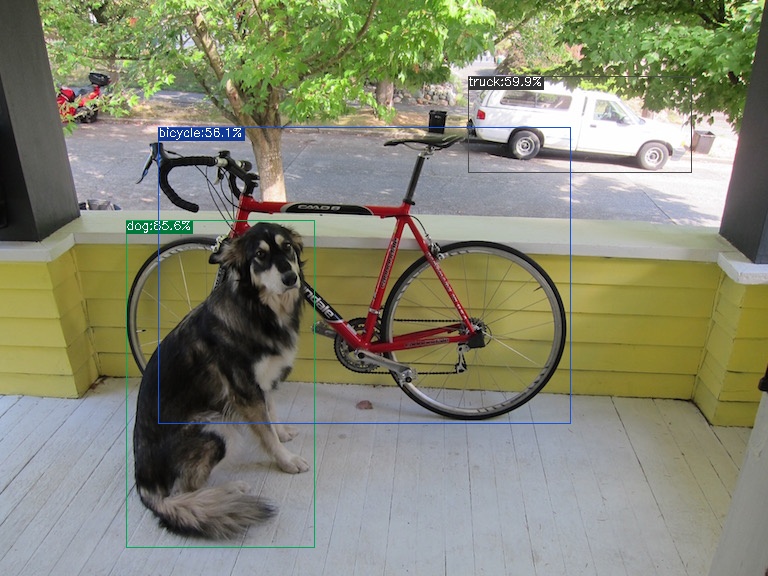
Use the following code to verify the execution results of onnx/f16/int8 respectively.
The execution method for onnx model is as follows, resulting in dog_onnx.jpg:
detect_yolov5 \
    --input ../image/dog.jpg \
    --model ../yolov5s.onnx \
    --output dog_onnx.jpg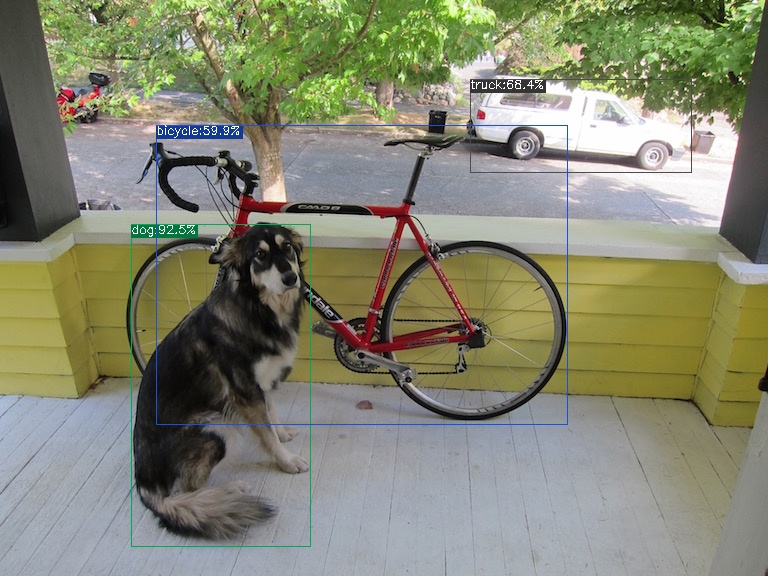
The execution method for f16 bmodel is as follows, resulting in dog_f16.jpg:
detect_yolov5 \
    --input ../image/dog.jpg \
    --model yolov5s_1684x_f16.bmodel \
    --output dog_f16.jpg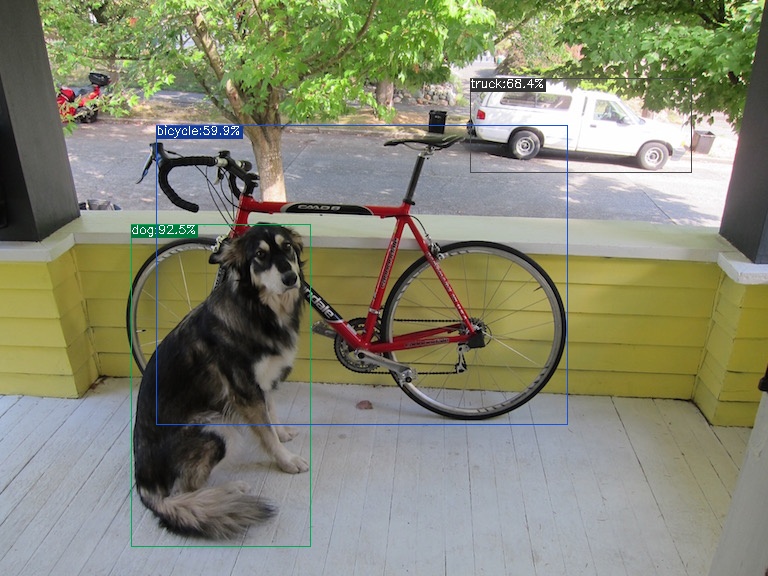
The execution method for int8 symmetric bmodel is as follows, resulting in dog_int8_sym.jpg:
detect_yolov5 \
    --input ../image/dog.jpg \
    --model yolov5s_1684x_int8_sym.bmodel \
    --output dog_int8_sym.jpg