HOME
Shop
  • English
  • 简体中文
HOME
Shop
  • English
  • 简体中文
  • Product Series

    • FPGA+ARM

      • GM-3568JHF

        • 1. Introduction

          • About GM-3568JHF
        • 2. Quick Start

          • 00 Introduction
          • 01 Environment Setup
          • 02 Compilation Instructions
          • 03 Flashing Guide
          • 04 Debug Tools
          • 05 Software Update
          • 06 View Information
          • 07 Test Commands
          • 08 App Compilation
          • 09 Source Code Acquisition
        • 3. Peripherals and Interfaces

          • 01 USB
          • 02 Display and Touch
          • 03 Ethernet
          • 04 WIFI
          • 05 Bluetooth
          • 06 TF-Card
          • 07 Audio
          • 08 Serial Port
          • 09 CAN
          • 10 RTC
        • 4. Application Development

          • 01 UART read and write case
          • 02 Key detection case
          • 03 LED light flashing case
          • 04 MIPI screen detection case
          • 05 Read USB device information example
          • 06 FAN Detection Case
          • 07 FPGA FSPI Communication Case
          • 08 FPGA DMA read and write case
          • 09 GPS debugging case
          • 10 Ethernet Test Cases
          • 11 RS485 reading and writing examples
          • 12 FPGA IIC read and write examples
          • 13 PN532 NFC card reader case
          • 14 TF card reading and writing case
        • 5. QT Development

          • 01 ARM64 cross compiler environment construction
          • 02 QT program added automatic startup service
        • 6. RKNN_NPU Development

          • 01 RK3568 NPU Overview
          • 02 Development Environment Setup
          • Run Official YOLOv5 Example
          • Model Conversion Detailed Explanation
          • Run Custom Model on Board
        • 7. FPGA Development

          • ARM and FPGA Communication
          • /fpga-arm/GM-3568JHF/FPGA/ch02-FPGA-Development-Manual.html
        • 8. Others

          • 01 Modification of the root directory file system
          • 02 System auto-start service
        • 9. Download

          • Download Resources
    • ShimetaPi

      • M4-R1

        • 1. Introduction

          • 1.1 About M4-R1
        • 2. Quick Start

          • 2.1 OpenHarmony Overview
          • 2.2 Image Burning
          • 2.3 Development Environment Preparation
          • 2.4 Hello World Application
        • 3. Application Development

          • 3.1 Getting Started

            • 3.1.1 ArkTS Language Overview
            • 3.1.2 UI Components (Part 1)
            • 3.1.3 UI Components (Part 2)
            • 3.1.4 UI Components (Part 3)
          • 3.2 Advanced

            • 3.2.1 Getting Started Guide
            • 3.2.2 Usage of Third Party Libraries
            • 3.2.3 Deployment of the Application
            • 3.2.4 Factory Reset
            • 3.2.5 System Debug
            • 3.2.6 APP Stability Testing
            • 3.2.7 Application Testing
          • 3.3 Getting Docs

            • 3.3.1 Official Website Information
          • 3.4 Development Instructions

            • 3.4.1 Full SDK
            • 3.4.2 Introduction of Third Party Libraries
            • 3.4.3 Introduction of HDC Tool
            • 3.4.4 Restore Factory Mode
            • 3.4.5 Update System API
          • 3.5 First Application

            • 3.5.1 First ArkTS App
          • 3.6 Application Demo

            • 3.6.1 UART Tool
            • 3.6.2 Graphics Tablet
            • 3.6.3 Digital Clock
            • 3.6.4 WIFI Tool
        • 4. Device Development

          • 4.1 Ubuntu Environment Development

            • 4.1.1 Environment Setup
            • 4.1.2 Download Source Code
            • 4.1.3 Compile Source Code
          • 4.2 Using DevEco Device Tool

            • 4.2.1 Tool Introduction
            • 4.2.2 Environment Construction
            • 4.2.3 Import SDK
            • 4.2.4 Function Introduction
        • 5. Peripherals and Interfaces

          • 5.1 Raspberry Pi Interfaces
          • 5.2 GPIO Interface
          • 5.3 I2C Interface
          • 5.4 SPI Communication
          • 5.5 PWM Control
          • 5.6 Serial Port Communication
          • 5.7 TF Card Slot
          • 5.8 Display Screen
          • 5.9 Touch Screen
          • 5.10 Audio
          • 5.11 RTC
          • 5.12 Ethernet
          • 5.13 M.2
          • 5.14 MINI PCIE
          • 5.15 Camera
          • 5.16 WIFI BT
          • 5.17 HAT
        • 6. FAQ

          • 6.1 Download Link
      • M5-R1

        • 1. Introduction

          • M5-R1 Development Documentation
        • 2. Quick Start

          • OpenHarmony Overview
          • Image Burning
          • Development Environment Preparation
          • Hello World Application and Deployment
        • 3. Peripherals and Interfaces

          • 3.1 Raspberry Pi Interfaces
          • 3.2 GPIO Interface
          • 3.3 I2C Interface
          • 3.4 SPI Communication
          • 3.5 PWM Control
          • 3.6 Serial Port Communication
          • 3.7 TF Card Slot
          • 3.8 Display Screen
          • 3.9 Touch Screen
          • 3.10 Audio
          • 3.11 RTC
          • 3.12 Ethernet
          • 3.13 M.2
          • 3.14 MINI PCIE
          • 3.15 Camera
          • 3.16 WIFI BT
          • 3.17 HAT
        • 4. Application Development

          • 4.1 Getting Started

            • 4.1.1 ArkTS Language Overview
            • 4.1.2 UI Components (Part 1)
            • 4.1.3 UI Components (Part 2)
            • 4.1.4 UI Components (Part 3)
          • 4.2 Advanced

            • 4.2.1 Getting Started Guide
            • 4.2.2 Usage of Third Party Libraries
            • 4.2.3 Deployment of the Application
            • 4.2.4 Factory Reset
            • 4.2.5 System Debug
            • 4.2.6 APP Stability Testing
            • 4.2.7 Application Testing
        • 5. Device Development

          • 5.1 Environment Setup
          • 5.2 Download Source Code
          • 5.3 Compile Source Code
        • 6. Download

          • Data Download
    • OpenHarmony

      • SC-3568HA

        • 1. Introduction

          • 1.1 About SC-3568HA
        • 2. Quick Start

          • 2.1 OpenHarmony Overview
          • 2.2 Image Burning
          • 2.3 Development Environment Preparation
          • 2.4 Hello World Application
        • 3. Application Development

          • 3.1 ArkUI

            • 3.1.1 ArkTS Language Overview
            • 3.1.2 UI Components (Part 1)
            • 3.1.3 UI Components (Part 2)
            • 3.1.4 UI Components (Part 3)
          • 3.2 Advanced

            • 3.2.1 Getting Started Guide
            • 3.2.2 Usage of Third Party Libraries
            • 3.2.3 Deployment of the Application
            • 3.2.4 Factory Reset
            • 3.2.5 System Debug
            • 3.2.6 APP Stability Testing
            • 3.2.7 Application Testing
        • 4. Device Development

          • 4.1 Environment Setup
          • 4.2 Download Source Code
          • 4.3 Compile Source Code
        • 5. Peripherals and Interfaces

          • 5.1 Raspberry Pi Interfaces
          • 5.2 GPIO Interface
          • 5.3 I2C Interface
          • 5.4 SPI Communication
          • 5.5 PWM Control
          • 5.6 Serial Port Communication
          • 5.7 TF Card Slot
          • 5.8 Display Screen
          • 5.9 Touch Screen
          • 5.10 Audio
          • 5.11 RTC
          • 5.12 Ethernet
          • 5.13 M.2
          • 5.14 MINI PCIE
          • 5.15 Camera
          • 5.16 WIFI BT
          • 5.17 HAT
        • 6. FAQ

          • 6.1 Download Link
      • M-K1HSE

        • 1. Introduction

          • 1.1 Product Introduction
        • 2. Quick Start

          • 2.1 Debug Tool Installation
          • 2.2 Development Environment Setup
          • 2.3 Source Code Download
          • 2.4 Build Instructions
          • 2.5 Flashing Guide
          • 2.6 APT Update Sources
          • 2.7 View Board Info
          • 2.8 CLI LED and Key Test
          • 2.9 GCC Build Programs
        • 3. Application Development

          • 3.1 Basic Application Development

            • 3.1.1 Development Environment Preparation
            • 3.1.2 First Application HelloWorld
            • 3.1.3 Develop HAR Package
          • 3.2 Peripheral Application Cases

            • 3.2.1 UART Read/Write
            • 3.2.2 Key Demo
            • 3.2.3 LED Flash
        • 4. Peripherals and Interfaces

          • 4.1 Standard Peripherals

            • 4.1.1 USB
            • 4.1.2 Display and Touch
            • 4.1.3 Ethernet
            • 4.1.4 WIFI
            • 4.1.5 Bluetooth
            • 4.1.6 TF Card
            • 4.1.7 Audio
            • 4.1.8 Serial Port
            • 4.1.9 CAN
            • 4.1.10 RTC
          • 4.2 Interfaces

            • 4.2.1 Audio
            • 4.2.2 RS485
            • 4.2.3 Display
            • 4.2.4 Touch
        • 5. System Customization Development

          • 5.1 System Porting
          • 5.2 System Customization
          • 5.3 Driver Development
          • 5.4 System Debugging
          • 5.5 OTA Upgrade
        • 6. Download

          • 6.1 Download
    • EVS-Camera

      • CF-NRS1

        • 1. Introduction

          • 1.1 About CF-NRS1
          • 1.2 Event-Based Concepts
          • 1.3 Quick Start
          • 1.4 Resources
        • 2. Development

          • 2.1 Development Overview

            • 2.1.1 Shimetapi Hybrid Camera SDK Introduction
          • 2.2 Environment & API

            • 2.2.1 Environment Overview
            • 2.2.2 Development API Overview
          • 2.3 Linux Development

            • 2.3.1 Linux SDK Introduction
            • 2.3.2 Linux SDK API
            • 2.3.3 Linux Algorithm
            • 2.3.4 Linux Algorithm API
          • 2.4 Service & Web

            • 2.4.1 EVS Server
            • 2.4.2 Time Server
            • 2.4.3 EVS Web
        • 3. Download

          • 3.1 Download
        • 4. Common Problems

          • 4.1 Common Problems
      • CF-CRA2

        • 1. Introduction

          • 1.1 About CF-CRA2
        • 2. Download

          • 2.1 Download
      • EVS Module

        • 1. Related Concepts
        • 2. Hardware Preparation and Environment Configuration
        • 3. Example Program User Guide
        • Resources Download
    • AI-model

      • 1684XB-32T

        • 1. Introduction

          • AIBOX-1684XB-32 Introduction
        • 2. Quick Start

          • First time use
          • Network Configuration
          • Disk usage
          • Memory allocation
          • Fan Strategy
          • Firmware Upgrade
          • Cross-Compilation
          • Model Quantization
        • 3. Application Development

          • 3.1 Development Introduction

            • Sophgo SDK Development
            • SOPHON-DEMO Introduction
          • 3.2 Large Language Models

            • Deploying Llama3 Example
            • /ai-model/AIBOX-1684XB-32/application-development/LLM/Sophon_LLM_api_server-Development-AIBOX-1684XB-32.html
            • /ai-model/AIBOX-1684XB-32/application-development/LLM/MiniCPM-V-2_6-AIBOX-1684XB-32.html
            • /ai-model/AIBOX-1684XB-32/application-development/LLM/Qwen-2-5-VL-demo-Development-AIBOX-1684XB-32.html
            • /ai-model/AIBOX-1684XB-32/application-development/LLM/Qwen-3-chat-demo-Development-AIBOX-1684XB-32.html
            • /ai-model/AIBOX-1684XB-32/application-development/LLM/Qwen3-Qwen Agent-MCP.html
            • /ai-model/AIBOX-1684XB-32/application-development/LLM/Qwen3-langchain-AI Agent.html
          • 3.3 Deep Learning

            • ResNet (Image Classification)
            • LPRNet (License Plate Recognition)
            • SAM (Universal Image Segmentation Foundation Model)
            • YOLOv5 (Object Detection)
            • OpenPose (Human Keypoint Detection)
            • PP-OCR (Optical Character Recognition)
        • 4. Download

          • Resource Download
      • 1684X-416T

        • 1. Introduction

          • AIBOX-1684X-416 Introduction
        • 2. Demo Simple Operation Guide

          • Simple instructions for using shimeta smart monitoring demo
      • RDK-X5

        • 1. Introduction

          • RDK-X5 Hardware Introduction
        • 2. Quick Start

          • RDK-X5 Quick Start
        • 3. Application Development

          • 3.1 AI Online Model Development

            • AI Online Development - Experiment01
            • AI Online Development - Experiment02
            • AI Online Development - Experiment03
            • AI Online Development - Experiment04
            • AI Online Development - Experiment05
            • AI Online Development - Experiment06
          • 3.2 Large Language Models (Voice)

            • Voice LLM Application - Experiment01
            • Voice LLM Application - Experiment02
            • Voice LLM Application - Experiment03
            • Voice LLM Application - Experiment04
            • Voice LLM Application - Experiment05
            • Voice LLM Application - Experiment06
          • 3.3 40pin-IO Development

            • 40pin IO Development - Experiment01
            • 40pin IO Development - Experiment02
            • 40pin IO Development - Experiment03
            • 40pin IO Development - Experiment04
            • 40pin IO Development - Experiment05
            • 40pin IO Development - Experiment06
            • 40pin IO Development - Experiment07
          • 3.4 USB Module Development

            • USB Module Usage - Experiment01
            • USB Module Usage - Experiment02
          • 3.5 Machine Vision

            • Machine Vision Technology Development - Experiment01
            • Machine Vision Technology Development - Experiment02
            • Machine Vision Technology Development - Experiment03
            • Machine Vision Technology Development - Experiment04
          • 3.6 ROS2 Base Development

            • ROS2 Basic Development - Experiment01
            • ROS2 Basic Development - Experiment02
            • ROS2 Basic Development - Experiment03
            • ROS2 Basic Development - Experiment04
      • RDK-S100

        • 1. Introduction

          • 1.1 About RDK-S100
        • 2. Quick Start

          • 2.1 First Use
        • 3. Application Development

          • 3.1 AI Online Model Development

            • 3.1.1 Volcano Engine Doubao AI
            • 3.1.2 Image Analysis
            • 3.1.3 Multimodal Visual Analysis
            • 3.1.4 Multimodal Image Comparison
            • 3.1.5 Multimodal Document Analysis
            • 3.1.6 Camera AI Vision Analysis
          • 3.2 Large Language Models

            • 3.2.1 Speech Recognition
            • 3.2.2 Voice Conversation
            • 3.2.3 Multimodal Image Analysis
            • 3.2.4 Multimodal Image Comparison
            • 3.2.5 Multimodal Document Analysis
            • 3.2.6 Multimodal Vision Application
          • 3.3 40pin-IO Development

            • 3.3.1 GPIO Output LED Blink
            • 3.3.2 GPIO Input
            • 3.3.3 Key Control LED
            • 3.3.4 PWM Output
            • 3.3.5 Serial Output
            • 3.3.6 I2C Experiment
          • 3.4 USB Module Development

            • 3.4.1 USB Voice Module
            • 3.4.2 Sound Source Localization
          • 3.5 Machine Vision

            • 3.5.1 USB Camera
            • 3.5.2 Image Processing Basics
            • 3.5.3 Object Detection
            • 3.5.4 Image Segmentation
          • 3.6 ROS2 Base Development

            • 3.6.1 Environment Setup
            • 3.6.2 Create and Build Workspace
            • 3.6.3 ROS2 Topic Communication
            • 3.6.4 ROS2 Camera Application
    • Core-Board

      • C-3568BQ

        • 1. Introduction

          • C-3568BQ Introduction
      • C-3588LQ

        • 1. Introduction

          • C-3588LQ Introduction
      • GC-3568JBAF

        • 1. Introduction

          • GC-3568JBAF Introduction
      • C-K1BA

        • 1. Introduction

          • C-K1BA Introduction

WIFI&BT

1. WIFI&BT模块介绍

以M4-R1为例,该板卡带有WIFI&蓝牙模块,使用的是RTL8723DS模组(SDIO接口)
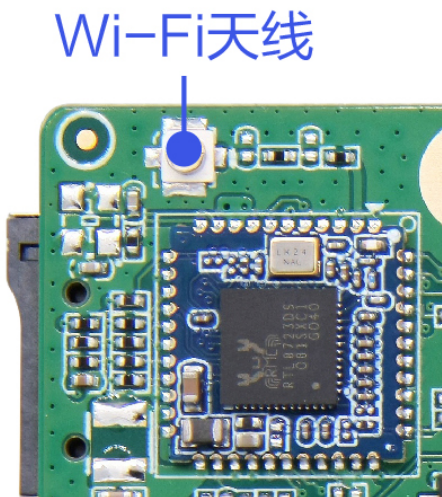
TOOL

‌RTL8723DS是一款基于RTL8723DS芯片的SDIO接口单频单通道蓝牙WiFi二合一模块,主要用于智能家居、物联网设备和其他需要蓝牙和WiFi功能的嵌入式系统设计‌‌。该模块继承了RTL8723BS蓝牙模块的优秀特性,并进行了升级,符合BT4.2标准,适用于多种无线通信应用场景‌。

2. WIFI连接测试

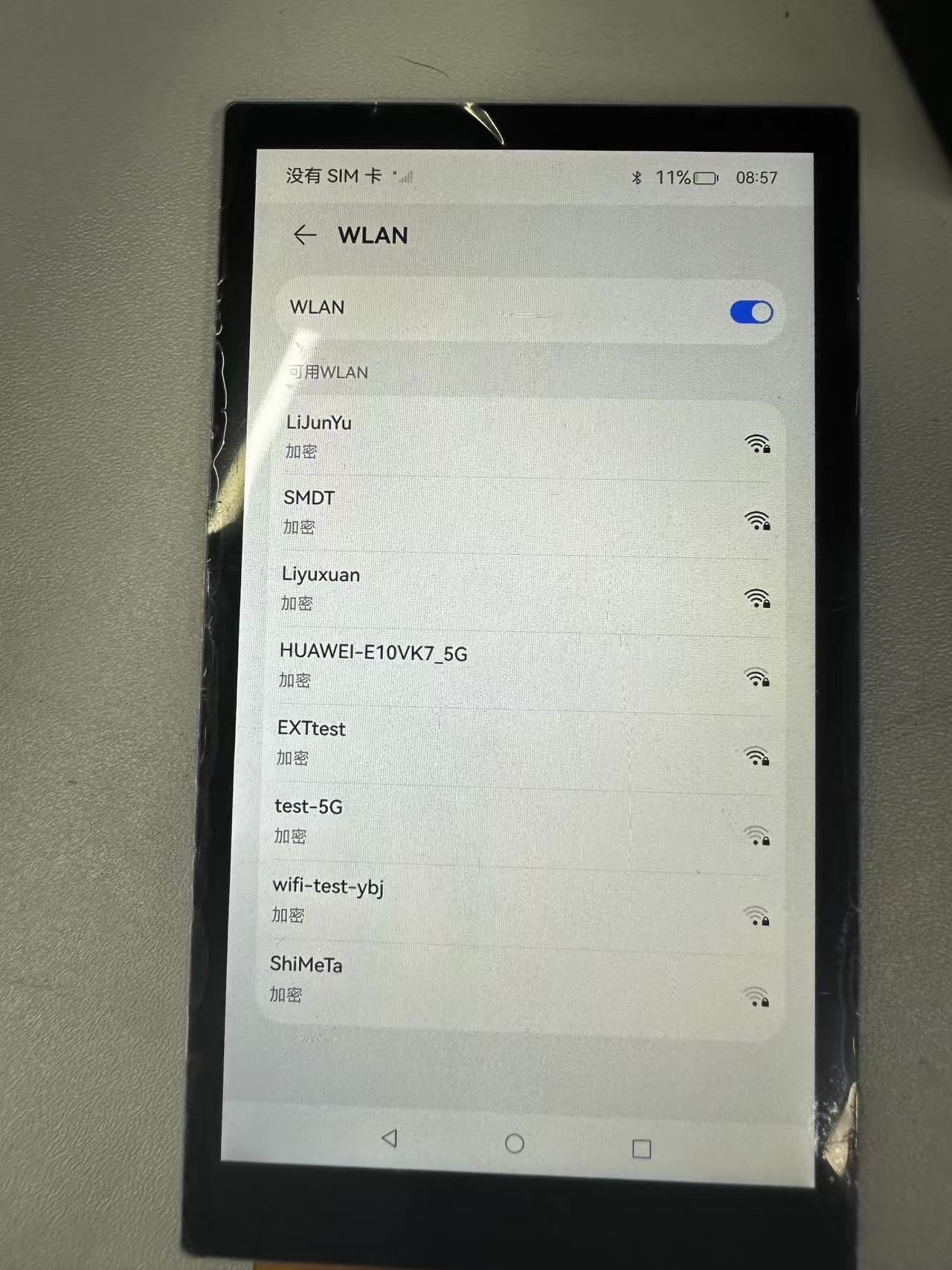
进入系统设置——>WLAN——>打开WIFI

TOOL

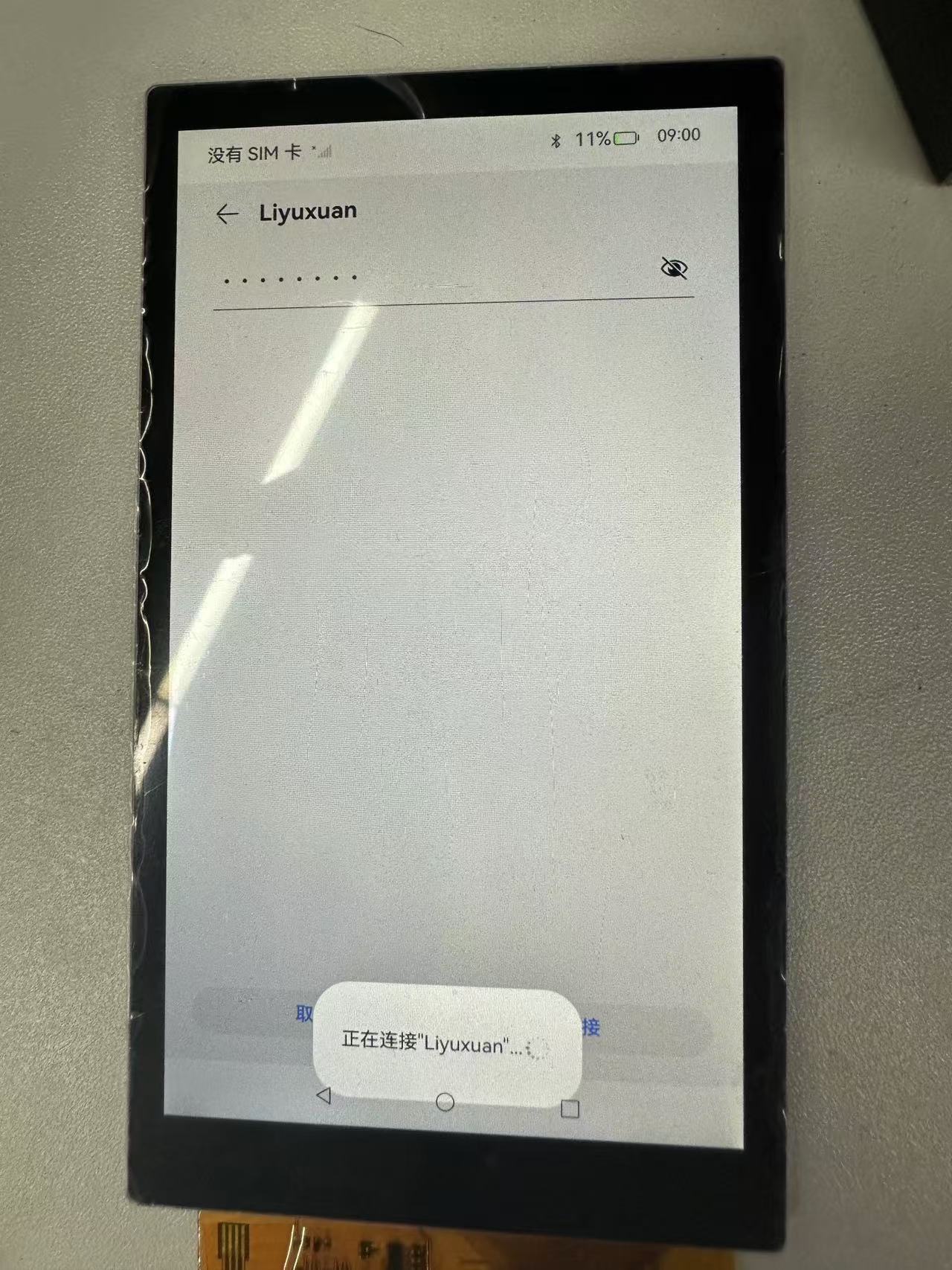
输入密码连接

TOOL

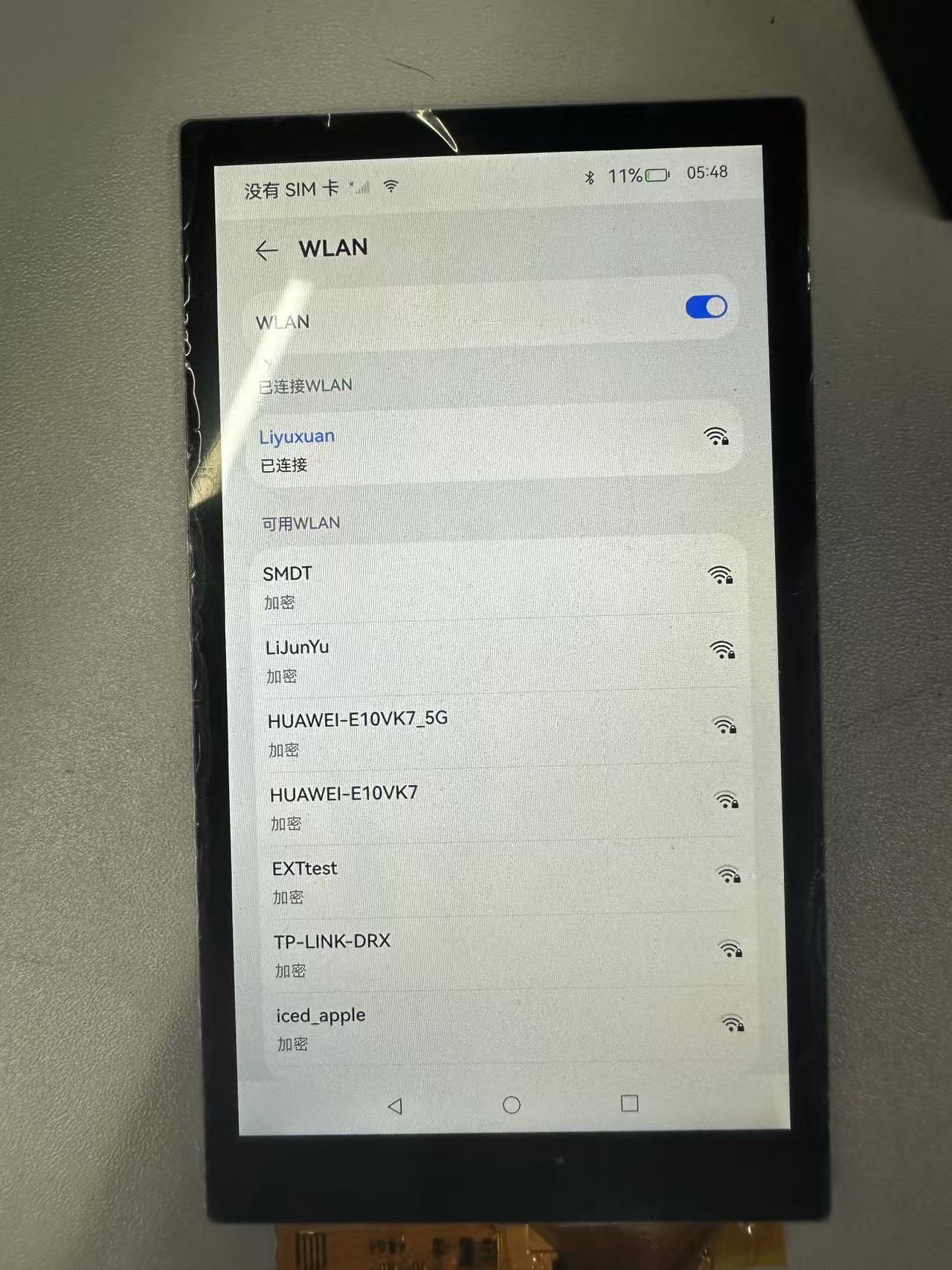
连接成功

TOOL

通过命令可以查询WIFI的IP地址等信息

    ~# ifconfig wlan0
    wlan0     Link encap:Ethernet  HWaddr 50:41:1c:0f:1d:e6  Driver bcmsdh_sdmmc
            inet addr:192.168.137.192  Bcast:192.168.137.255  Mask:255.255.255.0
            inet6 addr: fe80::5241:1cff:fe0f:1de6/64 Scope: Link
            UP BROADCAST RUNNING MULTICAST  MTU:1500  Metric:1
            RX packets:106 errors:0 dropped:0 overruns:0 frame:0
            TX packets:121 errors:0 dropped:0 overruns:0 carrier:0
            collisions:0 txqueuelen:1000
            RX bytes:27235 TX bytes:12641

3. 蓝牙连接测试

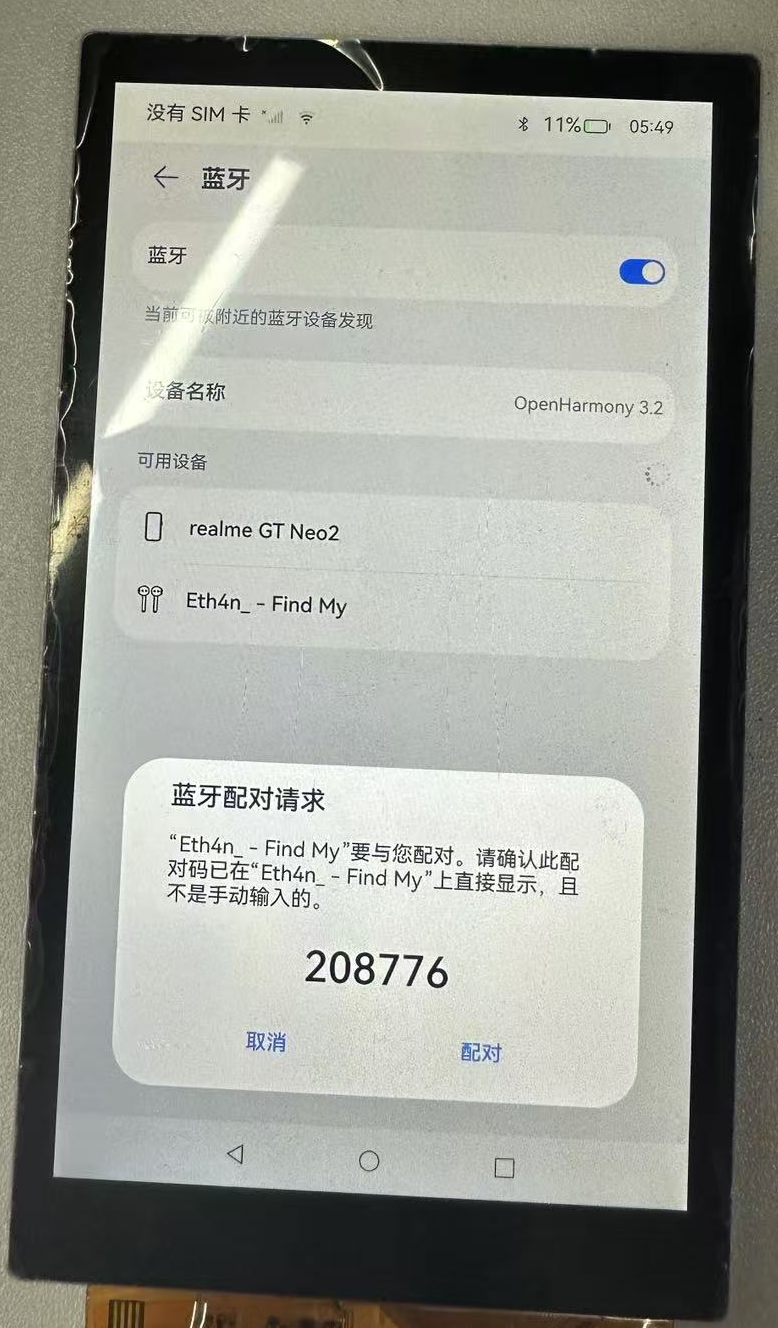
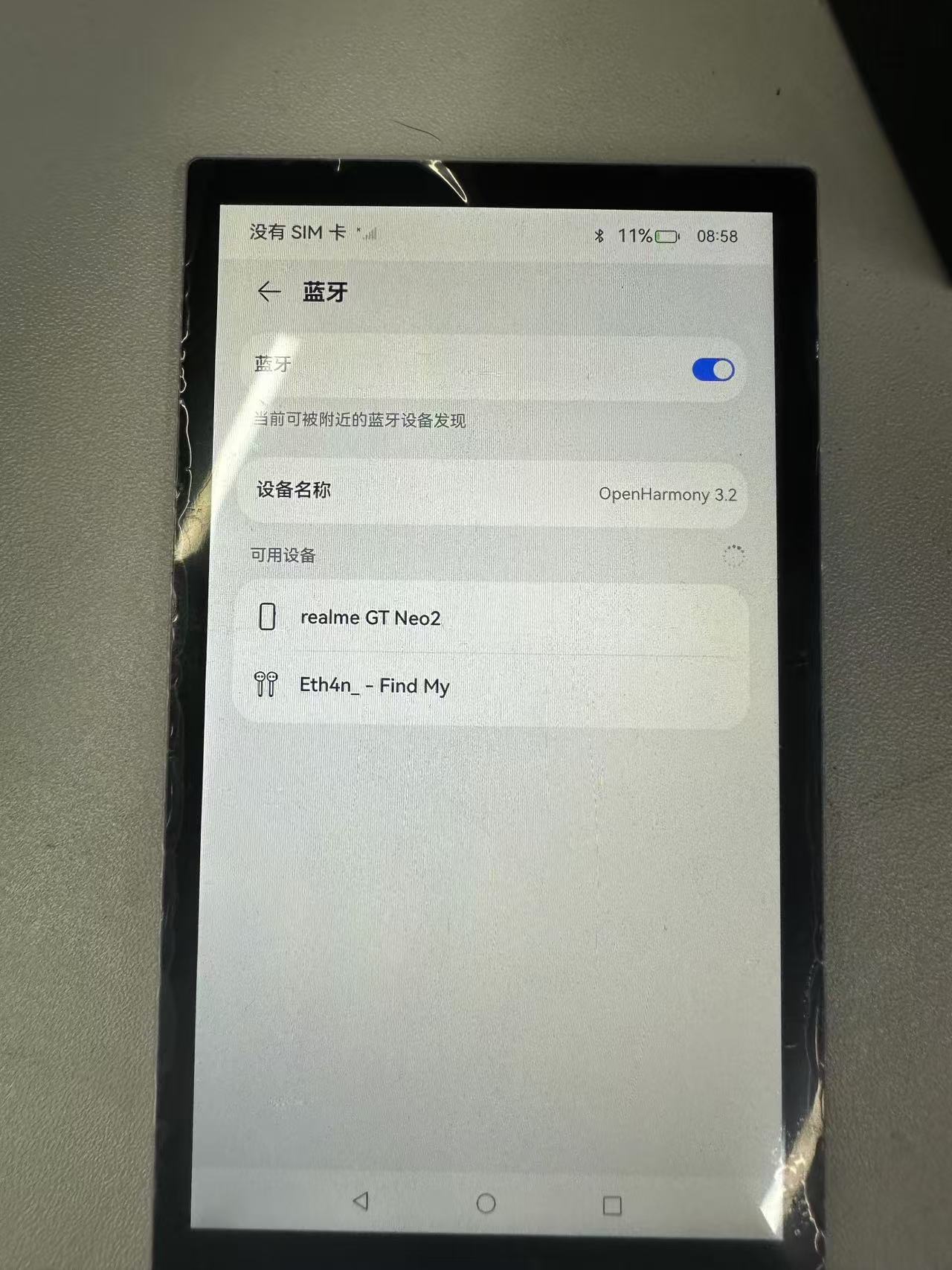
进入系统设置——>蓝牙——>打开蓝牙
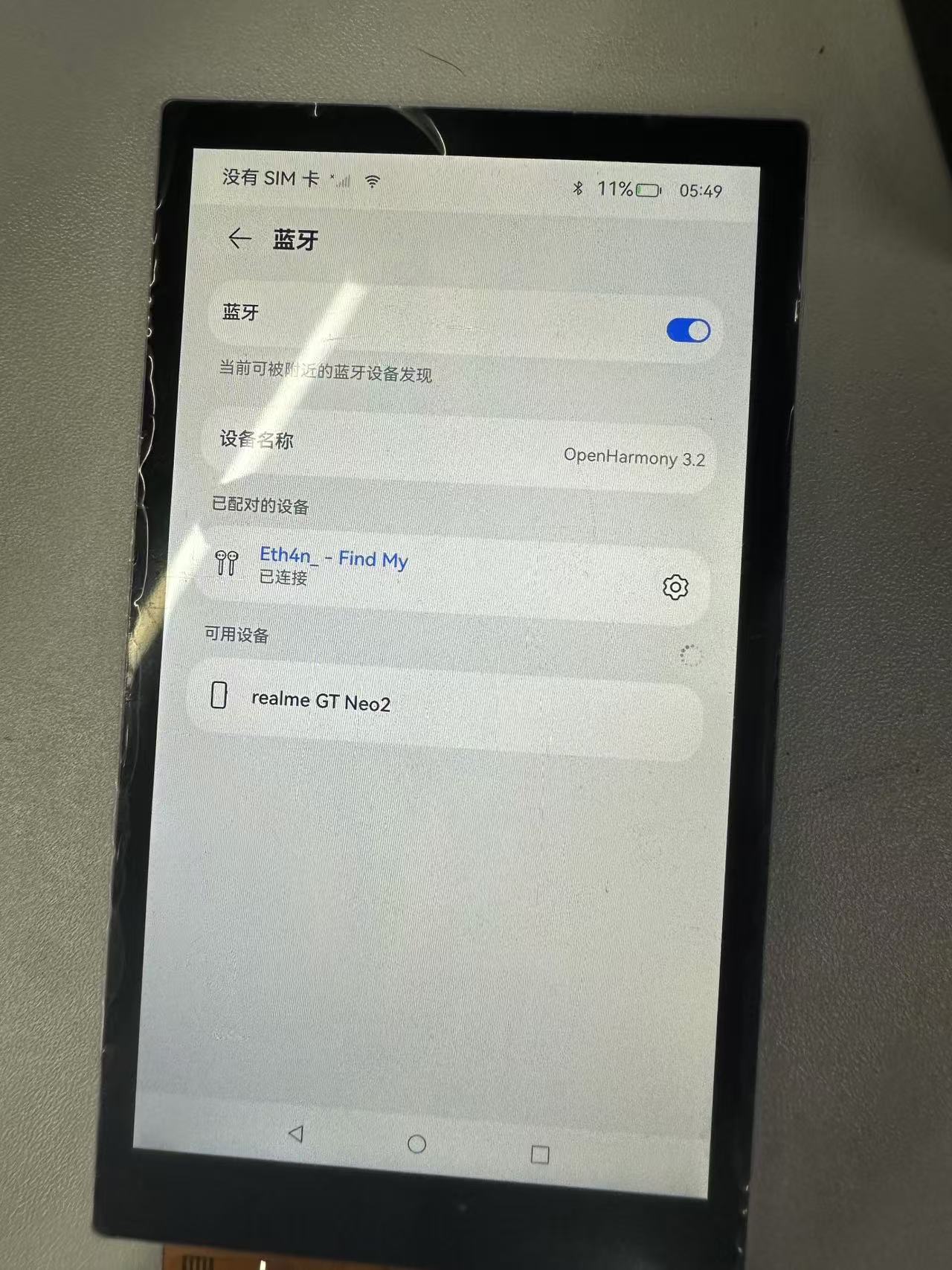
TOOL

选择配对的设备

TOOL

配对成功

TOOL

4. 蓝牙API使用与实践

4.1 标准API使用方法

备注

本模块提供了对蓝牙操作和管理的方,首批接口从API version 10开始支持。后续版本的新增接口,采用 上角标单独标记接口的起始版本。

  • 蓝牙标准接口

使用蓝牙相关API开发时候,需要先了解熟悉第一个open Harmony工程的创建,相关文档: Hello World应用以及部署

在使用一个API时,需要注意以下几点:

API权限说明
API的参数与返回值
API调用错误的时候,参考API错误码和通用错误码
API示例的正确使用

如下图所示,即为标准API文档

TOOL
  • 官方标准开发文档

蓝牙官方标准API开发文档

4.2 社区Demo

  • 简介

为了帮助开发者更快速的使用板子开发和学习,我们在gitee上提供了一个蓝牙相关的使用示例,每一个项目都是独立的DevEco Studio工程,开发者可以将工程导入到DevEco Studio中即可,通过浏览代码、编译工程、安装和运行应用示例来了解应用示例中涉及API的使用方法。

gitee蓝牙示例

Warning

在导入社区Demo工程的时候,需要开发者需要注意本地的开发环境是否与项目的一致,即本地SDK是否与 项目SDK一致。

  • 导入模块

在使用蓝牙标准API的时候,最重要的一步是导入蓝牙的模块,才能使用蓝牙相应的API接口。通常模块导入是在文件头导入,导入模块如下:

import blueToothManager from '@ohos.bluetooth.ble'

  • API 介绍

社区Demo的实现引用以下API,实现如何打开蓝牙、蓝牙扫描,以及蓝牙的连接的基本实现。

备注

以下介绍均为简单介绍API的系统能力以及对应函数,请结合 gitee蓝牙示例 和 蓝牙官方标准API开发文档 去熟悉开发

  • ble.createGattServer(创建GattServer实例)
    createGattServer(): GattServer
  • ble.createGattClientDevice(创建一个可使用的GattClientDevice实例)
    createGattClientDevice(deviceId: string): GattClientDevice
  • ble.getConnectedBLEDevices(获取和当前设备连接的BLE设备)
    getConnectedBLEDevices(): Array<string>
	需要权限:ohos.permission.ACCESS_BLUETOOTH
  • ble.startBLEScan(发起BLE扫描流程)
    startBLEScan(filters: Array<ScanFilter>, options?: ScanOptions): void
	需要权限:ohos.permission.ACCESS_BLUETOOTH
  • ble.stopBLEScan(停止BLE扫描流程)
    stopBLEScan(): void
	需要权限:ohos.permission.ACCESS_BLUETOOTH
  • ble.startAdvertising(开始发送BLE广播)
    startAdvertising(setting: AdvertiseSetting, advData: AdvertiseData, advResponse?: AdvertiseData): void
	需要权限:ohos.permission.ACCESS_BLUETOOTH
  • ble.stopAdvertising(开始发送BLE广播)
    stopAdvertising(): void
	需要权限:ohos.permission.ACCESS_BLUETOOTH
  • Demo主要实现源码

  • BT.ets

	import ble from "@ohos.bluetooth.ble"
	import { BusinessError } from '@ohos.base'
	// import access from '@ohos.bluetooth.access';

	const minRssi = -100
	@Entry
	@Component
	struct Index {
	@State message: string = 'Hello BLE'
	@State availableDevices: Array<ble.ScanResult> = [];

	addData(data:ble.ScanResult):void {
	   let bFind = false
	   this.availableDevices.forEach(element => {
		  if (!bFind && element.deviceId == data.deviceId) {
		  console.info('BLE scan update ' + data.deviceId + ' rssi:' + element.rssi +' ==> '+ data.rssi)
		  element.rssi = data.rssi
		  bFind = true
		  }
	   })
	   if (!bFind) {
		  console.info('BLE scan add ' + data.deviceId + ' count:' + this.availableDevices.length)
		  this.availableDevices.push(data)
		  this.message='BLE count:' + this.availableDevices.length
	   }
	}

	dataToString(data:ArrayBuffer) :String {
	   let str = ''
	   let v = new Uint8Array(data);
	   v.forEach(element => {
		  let s = ''
		  s =  element.toString(16)
		  if (s.length == 1) {
		  s = '0'+s
		  }
		  str+=s+' '
	   });
	   return str
	}

	openBle():void {
	   try {
		  ble.on("BLEDeviceFind", (data:Array<ble.ScanResult>) => {
		  // console.info('BLE scan device find result = '+ JSON.stringify(data));
		  let i = 0
		  data.forEach(element => {
			 console.info('BLE scan device[' + i + '] deviceId = '+ element["deviceId"] +
				' name = ' + element["deviceName"]  +
				' rssi = ' + element["rssi"] +
				' data['+element["data"].byteLength+'] = ' +
			 this.dataToString(element["data"]))
			 if (element.rssi > minRssi && element.deviceName != '' ) {
				this.addData(element)
			 }
			 i++
		  });
		  });

		  ble.startBLEScan(
		  null,
		  {
			 interval: 500,
			 dutyMode: ble.ScanDuty.SCAN_MODE_LOW_POWER,
			 matchMode: ble.MatchMode.MATCH_MODE_AGGRESSIVE,
		  }
		  );
	   } catch (err) {
		  console.error("ble errCode:" + (err as BusinessError).code + ",errMessage:" + (err as BusinessError).message);
	   }

	}

	//   onAccessEvent(data: access.BluetoothState):void {
	//   console.info('bluetooth state = '+ JSON.stringify(data));
	//   if (data == access.BluetoothState.STATE_ON) {
	//     this.openBle()
	//   }
	// }

	build() {
	   Row() {
		  Column() {

		  Text(this.message)
			 .fontSize(30)
			 .fontWeight(FontWeight.Bold)

		  // 添加按钮,开启ble扫描
		  Button() {
			 Text('ble start')
				.fontSize(30)
				.fontWeight(FontWeight.Bold)
		  }
		  .type(ButtonType.Capsule)
		  .margin({
			 top: 20
		  })
		  .backgroundColor('#0D9FFB')
		  .width('30%')
		  .height('10%')
		  // 跳转按钮绑定onClick事件,点击时跳转到第二页
		  .onClick(() => {
			 console.info("onClick")
			 try {
				this.openBle()
				// }
			 } catch (err) {
				console.error('ble errCode: ' + (err as BusinessError).code + ', errMessage: ' + (err as BusinessError).message);
			 }
		  })

		  // 添加按钮,停止ble扫描
		  Button() {
			 Text('ble stop')
				.fontSize(30)
				.fontWeight(FontWeight.Bold)
		  }
		  .type(ButtonType.Capsule)
		  .margin({
			 top: 20
		  })
		  .backgroundColor('#0D9FFB')
		  .width('30%')
		  .height('10%')
		  .onClick(() => {
			 this.availableDevices = []
			 this.message = 'Hello BLE'
			 // AppStorage.setOrCreate('bluetoothAvailableDevices', this.availableDevices);
			 try {
				ble.off('BLEDeviceFind')
				ble.stopBLEScan();
			 } catch (err) {
				console.error("ble errCode:" + (err as BusinessError).code + ",errMessage:" + (err as BusinessError).message);
			 }
		  })

		  List({ space: "4vp", initialIndex: 0 }) {
			 ForEach(this.availableDevices, (item: ble.ScanResult, index: number) => {
				ListItemGroup() {
				ListItem() {
				   Text('['+index.toString(10) +"]" + item.deviceId)
					  .textAlign(TextAlign.Center)
					  .fontSize(30)
					  .backgroundColor(Color.Yellow)
					  .width('100%')
				}
				ListItem() {
				   Text('    name:' + item.deviceName)
					  .textAlign(TextAlign.Start)
					  .fontSize(30)
					  .backgroundColor(Color.Orange)
					  .width('100%')
				}

				ListItem() {
				   Text('    rssi:' + item.rssi.toString(10))
					  .textAlign(TextAlign.Start)
					  .fontSize(30)
					  .backgroundColor(Color.Orange)
					  .width('100%')
				}

				ListItem() {
				   Text('    connectable:' + item.connectable)
					  .textAlign(TextAlign.Start)
					  .fontSize(30)
					  .backgroundColor(Color.Orange)
					  .width('100%')
				}

				ListItem() {
				   Text('    data:' + this.dataToString(item.data))
					  .textAlign(TextAlign.Start)
					  .fontSize(30)
					  .backgroundColor(Color.Orange)
					  .width('100%')
				}


				}


			 })
		  }
		  .layoutWeight(10)
		  .backgroundColor(0xDCDCDC)
		  .height('50%')
		  .width('60%')
		  .margin({
			 top: 20
		  })
		  }
		  .width('100%')
	   }
	   .height('100%')
	   }
	}

4.3 代码编译

Tips

代码编译详细流程可见:Hello World应用以及部署 中的第二部分(构建第一个页面部分内容)

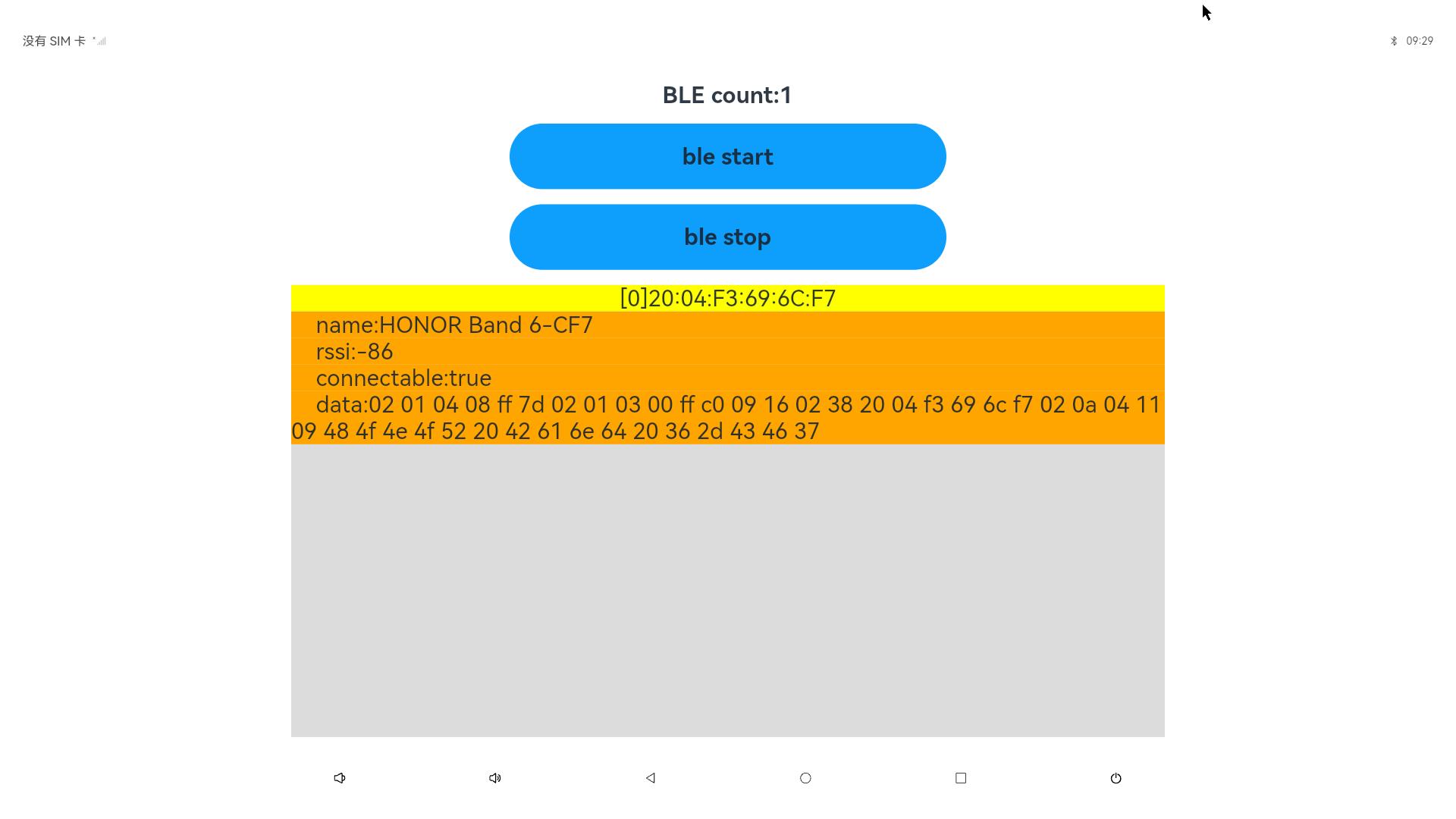
4.4 代码运行效果

用以上标准API接口实现蓝牙 Demo,如下图所示:
TOOL

5. WIFI API使用与实践

5.1 HDC相关指令

hdc指令可以用于查询WiFi的信息以及连接状态

    hdc shell ifconfig

5.2 标准API使用方法

Warning

本模块提供企业设备WiFi管理能力,包括查询WiFi开启状态等。首批接口从API version 10开始支持,接口 仅可在Stage模型下使用。

  • WLAN标准接口

@ohos.wifiManager (WLAN)

  • API使用说明

使用WIFI相关API开发时候,需要先了解熟悉第一个open Harmony工程的创建,相关文档: Hello World应用以及部署

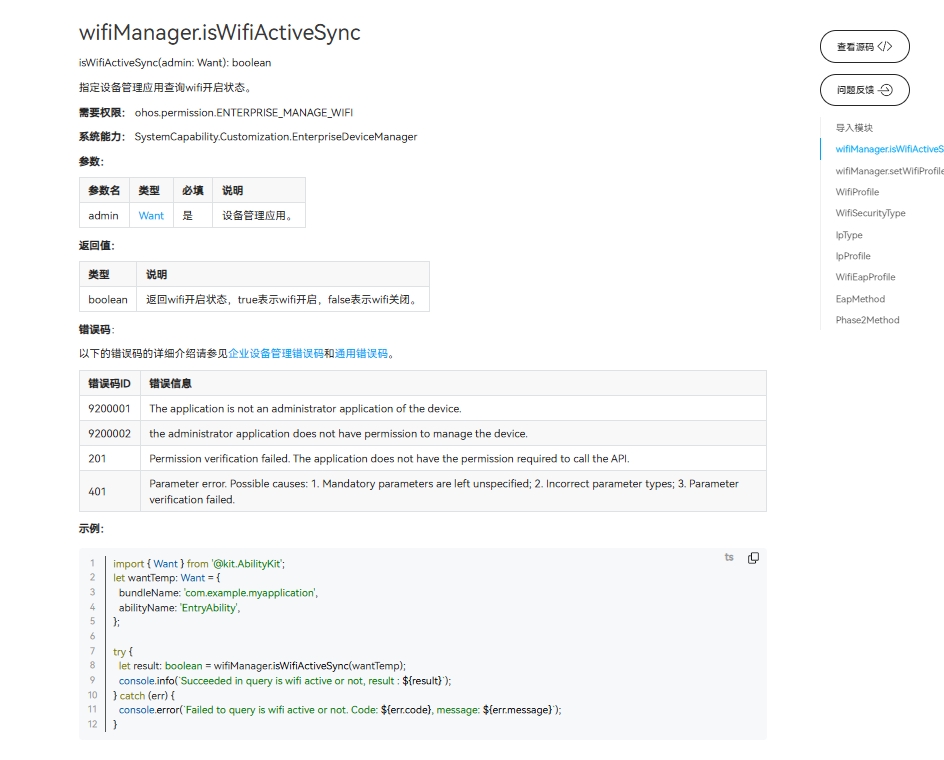
在使用一个API时,需要注意以下几点:

API权限说明
API的参数与返回值
API调用错误的时候,参考API错误码和通用错误码
API示例的正确使用

如下图所示,即为标准API文档
TOOL
  • 官方标准开发文档

WIFI官方标准API开发文档

5.3 社区Demo

  • 简介

为了帮助开发者更快速的使用板子开发和学习,我们在gitee上提供了一个WiFi相关的使用示例,每一个项目都是独立的DevEco Studio工程,开发者可以将工程导入到DevEco Studio中即可,通过浏览代码、编译工程、安装和运行应用示例来了解应用示例中涉及API的使用方法。
giteeWIFI示例

注意事项:

在导入社区Demo工程的时候,需要开发者需要注意本地的开发环境是否与项目的一致,即本地SDK是否与 项目SDK一致。

  • 导入模块

在使用WIFI标准API的时候,最重要的一步是导入WIFI的模块,才能使用WIFI相应的API接口。通常模块导入是在文件头导入,导入模块如下:

import wifiManager from '@ohos.wifiManager'

  • API 介绍

社区Demo的实现引用以下API,实现如何打开WIFI、WIFI扫描,以及WIFI的连接的基本实现。

备注

以下介绍均以为简单介绍API的系统能力以及对应函数,请结合 giteeWIFI示例 和 WIFI官方标准API开发文档 去熟悉开发

  • wifiManager.enableWifi(使能WLAN)
    isWifiActive(): boolean
	需要权限: ohos.permission.SET_WIFI_INFO 和 ohos.permission.MANAGE_WIFI_CONNECTION 仅系统应用可用。
  • wifiManager.disableWifi(去使能WLAN)
    isWifiActive(): boolean
	需要权限: ohos.permission.SET_WIFI_INFO 和 ohos.permission.MANAGE_WIFI_CONNECTION 仅系统应用可用。
  • wifiManager.startScan(启动WLAN扫描)
    startScan(): void
  • wifiManager.getScanInfoList(获取扫描结果)
    getScanInfoList(): Array<WifiScanInfo>
	需要权限: ohos.permission.GET_WIFI_INFO
  • wifiManager.isWifiActive(查询WLAN是否已使能)
    isWifiActive(): boolean
	需要权限: ohos.permission.GET_WIFI_INFO
  • wifiManager.connectToDevice(连接指定网络)
    connectToDevice(config: WifiDeviceConfig): void
	需要权限: ohos.permission.SET_WIFI_INFO 和 ohos.permission.SET_WIFI_CONFIG 和 ohos.permission.MANAGE_WIFI_CONNECTION,仅系统应用可用。
  • Demo主要实现源码

  • wifi.ets

	import wifiManager from '@ohos.wifiManager';
	import { MyDivider } from './MyDivider';

	@Entry
	@Component
	struct Index {
	@State message: string = 'WiFi示例'
	private TAG: string = 'ShiMetaWifi'
	@State wifiStatus: string = 'null'
	@State wifiInfoList: string = ''
	@State passWord: string = ''
	@State account: string = ''

	build() {
		Row() {
		Column() {
			Text(this.message)
			.fontSize(50)
			.fontWeight(FontWeight.Bold)


			Row() {
			Text('WIFI开关')
				.fontSize(50)
				.fontWeight(FontWeight.Bold)
			Toggle({ type: ToggleType.Switch, isOn: false })
				.width(50)
				.height(50)
				.selectedColor('#007DFF')
				.switchPointColor('#FFFFFF')
				.onChange((isOn: boolean) => {
				if (isOn) {
					try {
					wifiManager.enableWifi();
					} catch (error) {
					console.error("failed:" + JSON.stringify(error));
					}
				} else {
					try {
					wifiManager.disableWifi();
					} catch (error) {
					console.error("failed:" + JSON.stringify(error));
					}
				}
				})
			}
			.width('100%')
			.justifyContent(FlexAlign.SpaceAround)
			.padding(10)
			MyDivider();


			Row() {
			Button('点击查询WIFI是否打开')
				.onClick(() => {
				let isWifiActive = wifiManager.isWifiActive();
				if (isWifiActive) {
					this.wifiStatus = 'On'
				} else {
					this.wifiStatus = 'Off'
				}
				console.log(this.TAG, 'isWifiActive' + isWifiActive);
				})
			Text(this.wifiStatus)
				.fontSize(50)
				.fontWeight(FontWeight.Bold)
			}
			.width('100%')
			.justifyContent(FlexAlign.SpaceAround)
			.padding(10)
			MyDivider();

			Row() {
			Button('点击开始扫描')
				.onClick(() => {
				wifiManager.startScan()
				})
			}.padding(10)

			Row() {
			Button('点击获取扫面结果')
				.onClick(() => {
				let scanInfoList = wifiManager.getScanInfoList();
				this.wifiInfoList = JSON.stringify(scanInfoList)
				console.info("scanInfoList:" + JSON.stringify(scanInfoList));
				})
			}.padding(10)

			Row() {
			Button('点击清空')
				.onClick(() => {
				this.wifiInfoList = ''
				})
			}.padding(10)

			Text(this.wifiInfoList)
			Column() {
			Row() {
				TextInput({ placeholder: '输入账号' })
				.onChange((value: string) => {
					this.account = value;
					console.log(this.TAG, 'account :' + this.account)
				})
			}.padding(10)

			Row() {
				TextInput({ placeholder: '输入密码' })
				.onChange((value: string) => {
					this.passWord = value;
					console.log(this.TAG, 'passWord :' + this.passWord)
				})
			}.padding(10)

			Button('连接WiFi')
				.onClick(() => {
				try {
					let config: wifiManager.WifiDeviceConfig = {
					ssid: this.account,
					preSharedKey: this.passWord,
					securityType: 3
					}
					wifiManager.connectToDevice(config);
				} catch (error) {
					console.error("failed:" + JSON.stringify(error));
				}
				})

			}.width(500)
		}
		.width('100%')
		}
		.height('100%')
	  }
	}

5.4 代码编译

Tips

代码编译详细流程可见:Hello World应用以及部署 中的第二部分(构建第一个页面部分内容)

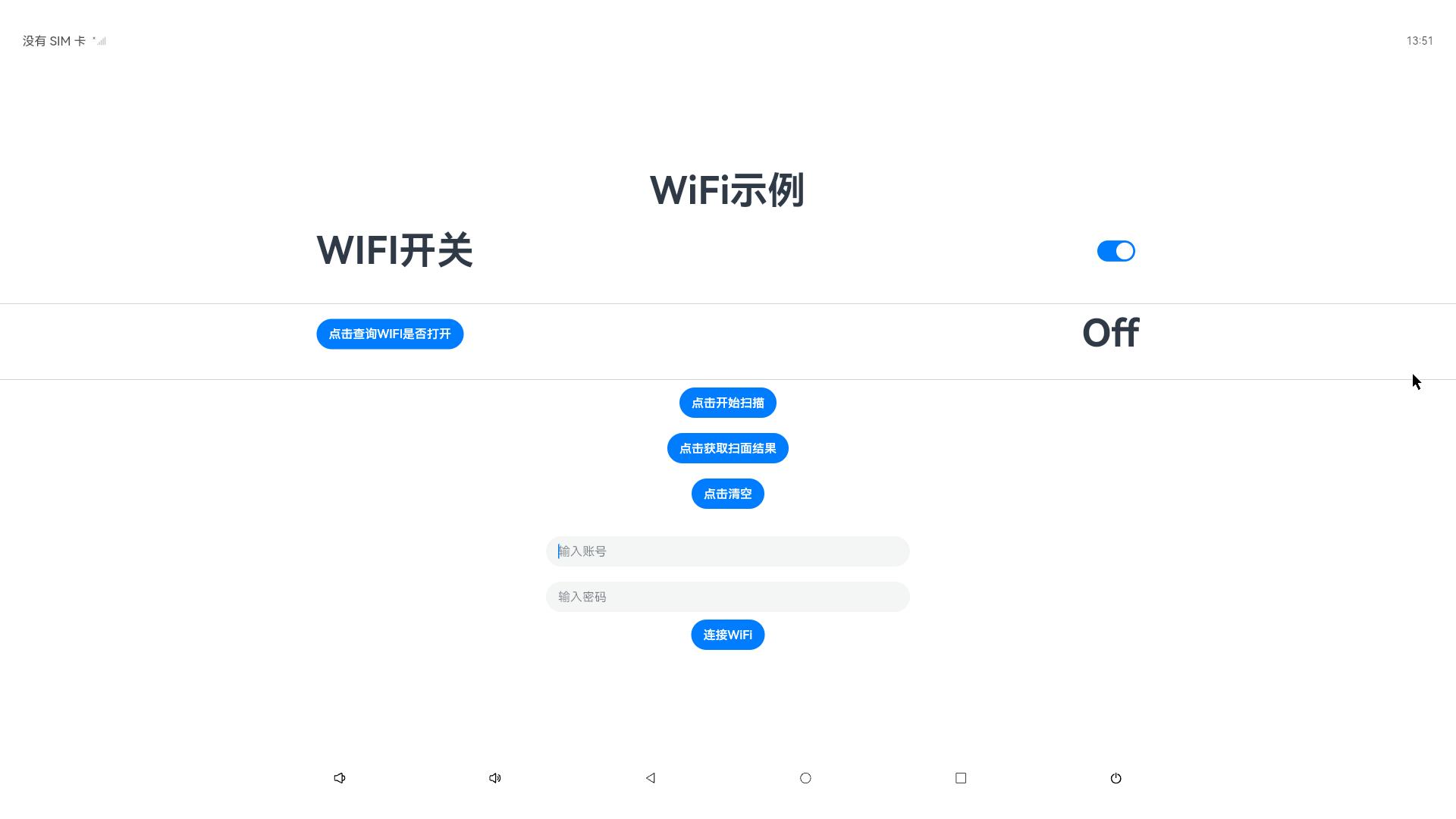
5.5 代码运行效果

用以上标准API接口实现WIFI Demo,如下图所示:
TOOL
Edit this page on GitHub
Last Updated:
Contributors: zwhuang
Prev
5.15 Camera
Next
5.17 HAT