
PWM Control
1. PWM Pins
Taking M5-R1 as an example, three GPIOs on the 40-pin header have PWM capability. PWM0 (PIN33) is already occupied by the MIPI0 display backlight.
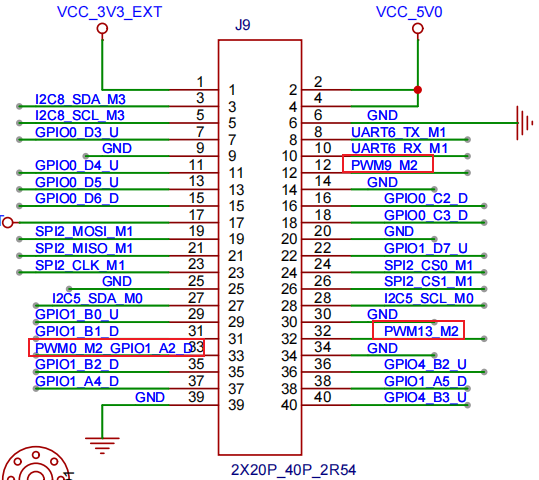
| Board | pin12 | pin32 | pin33 |
|---|---|---|---|
| M5-R1 | pwm9 | pwm13 | pwm0 |
2. Checking the PWM Device
Run the following command in the terminal to check whether PWM is enabled.
ls -l /sys/class/pwm/As shown:

pwmchip0 and pwmchip1 are display backlights, enabled by the system by default. When multiple PWM device-tree entries are enabled, the smaller the PWM controller value, the smaller the pwmchip number the system assigns.
    For example, if pwm0, pwm5, and pwm14 are enabled at the same time, the following mappings appear:

    pwm0->pwmchip0
    pwm5->pwmchip1
    pwm14->pwmchip2
3. PWM Control
The following example uses PWM2.
    # First, enable pwm2 in the device tree
    &pwm2 {
        status = "okay";
    };

    # Export pwm2 to user space
    echo 0 > /sys/class/pwm/pwmchip2/export

    # Set the PWM period, in ns
    echo 1000000 > /sys/class/pwm/pwmchip2/pwm0/period

    # Set the duty cycle
    echo 500000 > /sys/class/pwm/pwmchip2/pwm0/duty_cycle

    # Set the PWM polarity
    echo "normal" > /sys/class/pwm/pwmchip2/pwm0/polarity

    # Enable the PWM
    echo 1 > /sys/class/pwm/pwmchip2/pwm0/enable

    # Unexport pwm14 from user space
    echo 0 > /sys/class/pwm/pwmchip2/unexport
Tips
When setting period and duty_cycle values, note that under all conditions the period value must be greater than or equal to the duty_cycle value.