HOME
Shop
  • English
  • 简体中文
HOME
Shop
  • English
  • 简体中文
  • Product Series

    • FPGA+ARM

      • GM-3568JHF

        • 1. Introduction

          • About GM-3568JHF
        • 2. Quick Start

          • 00 Introduction
          • 01 Environment Setup
          • 02 Compilation Instructions
          • 03 Flashing Guide
          • 04 Debug Tools
          • 05 Software Update
          • 06 View Information
          • 07 Test Commands
          • 08 App Compilation
          • 09 Source Code Acquisition
        • 3. Peripherals and Interfaces

          • 01 USB
          • 02 Display and Touch
          • 03 Ethernet
          • 04 WIFI
          • 05 Bluetooth
          • 06 TF-Card
          • 07 Audio
          • 08 Serial Port
          • 09 CAN
          • 10 RTC
        • 4. Application Development

          • 01 UART read and write case
          • 02 Key detection case
          • 03 LED light flashing case
          • 04 MIPI screen detection case
          • 05 Read USB device information example
          • 06 FAN Detection Case
          • 07 FPGA FSPI Communication Case
          • 08 FPGA DMA read and write case
          • 09 GPS debugging case
          • 10 Ethernet Test Cases
          • 11 RS485 reading and writing examples
          • 12 FPGA IIC read and write examples
          • 13 PN532 NFC card reader case
          • 14 TF card reading and writing case
        • 5. QT Development

          • 01 ARM64 cross compiler environment construction
          • 02 QT program added automatic startup service
        • 6. RKNN_NPU Development

          • 01 RK3568 NPU Overview
          • 02 Development Environment Setup
          • Run Official YOLOv5 Example
          • Model Conversion Detailed Explanation
          • Run Custom Model on Board
        • 7. FPGA Development

          • ARM and FPGA Communication
          • /fpga-arm/GM-3568JHF/FPGA/ch02-FPGA-Development-Manual.html
        • 8. Others

          • 01 Modification of the root directory file system
          • 02 System auto-start service
        • 9. Download

          • Download Resources
    • ShimetaPi

      • M4-R1

        • 1. Introduction

          • 1.1 About M4-R1
        • 2. Quick Start

          • 2.1 OpenHarmony Overview
          • 2.2 Image Burning
          • 2.3 Development Environment Preparation
          • 2.4 Hello World Application
        • 3. Application Development

          • 3.1 Getting Started

            • 3.1.1 ArkTS Language Overview
            • 3.1.2 UI Components (Part 1)
            • 3.1.3 UI Components (Part 2)
            • 3.1.4 UI Components (Part 3)
          • 3.2 Advanced

            • 3.2.1 Getting Started Guide
            • 3.2.2 Usage of Third Party Libraries
            • 3.2.3 Deployment of the Application
            • 3.2.4 Factory Reset
            • 3.2.5 System Debug
            • 3.2.6 APP Stability Testing
            • 3.2.7 Application Testing
          • 3.3 Getting Docs

            • 3.3.1 Official Website Information
          • 3.4 Development Instructions

            • 3.4.1 Full SDK
            • 3.4.2 Introduction of Third Party Libraries
            • 3.4.3 Introduction of HDC Tool
            • 3.4.4 Restore Factory Mode
            • 3.4.5 Update System API
          • 3.5 First Application

            • 3.5.1 First ArkTS App
          • 3.6 Application Demo

            • 3.6.1 UART Tool
            • 3.6.2 Graphics Tablet
            • 3.6.3 Digital Clock
            • 3.6.4 WIFI Tool
        • 4. Device Development

          • 4.1 Ubuntu Environment Development

            • 4.1.1 Environment Setup
            • 4.1.2 Download Source Code
            • 4.1.3 Compile Source Code
          • 4.2 Using DevEco Device Tool

            • 4.2.1 Tool Introduction
            • 4.2.2 Environment Construction
            • 4.2.3 Import SDK
            • 4.2.4 Function Introduction
        • 5. Peripherals and Interfaces

          • 5.1 Raspberry Pi Interfaces
          • 5.2 GPIO Interface
          • 5.3 I2C Interface
          • 5.4 SPI Communication
          • 5.5 PWM Control
          • 5.6 Serial Port Communication
          • 5.7 TF Card Slot
          • 5.8 Display Screen
          • 5.9 Touch Screen
          • 5.10 Audio
          • 5.11 RTC
          • 5.12 Ethernet
          • 5.13 M.2
          • 5.14 MINI PCIE
          • 5.15 Camera
          • 5.16 WIFI BT
          • 5.17 HAT
        • 6. FAQ

          • 6.1 Download Link
      • M5-R1

        • 1. Introduction

          • M5-R1 Development Documentation
        • 2. Quick Start

          • OpenHarmony Overview
          • Image Burning
          • Development Environment Preparation
          • Hello World Application and Deployment
        • 3. Peripherals and Interfaces

          • 3.1 Raspberry Pi Interfaces
          • 3.2 GPIO Interface
          • 3.3 I2C Interface
          • 3.4 SPI Communication
          • 3.5 PWM Control
          • 3.6 Serial Port Communication
          • 3.7 TF Card Slot
          • 3.8 Display Screen
          • 3.9 Touch Screen
          • 3.10 Audio
          • 3.11 RTC
          • 3.12 Ethernet
          • 3.13 M.2
          • 3.14 MINI PCIE
          • 3.15 Camera
          • 3.16 WIFI BT
          • 3.17 HAT
        • 4. Application Development

          • 4.1 Getting Started

            • 4.1.1 ArkTS Language Overview
            • 4.1.2 UI Components (Part 1)
            • 4.1.3 UI Components (Part 2)
            • 4.1.4 UI Components (Part 3)
          • 4.2 Advanced

            • 4.2.1 Getting Started Guide
            • 4.2.2 Usage of Third Party Libraries
            • 4.2.3 Deployment of the Application
            • 4.2.4 Factory Reset
            • 4.2.5 System Debug
            • 4.2.6 APP Stability Testing
            • 4.2.7 Application Testing
        • 5. Device Development

          • 5.1 Environment Setup
          • 5.2 Download Source Code
          • 5.3 Compile Source Code
        • 6. Download

          • Data Download
    • OpenHarmony

      • SC-3568HA

        • 1. Introduction

          • 1.1 About SC-3568HA
        • 2. Quick Start

          • 2.1 OpenHarmony Overview
          • 2.2 Image Burning
          • 2.3 Development Environment Preparation
          • 2.4 Hello World Application
        • 3. Application Development

          • 3.1 ArkUI

            • 3.1.1 ArkTS Language Overview
            • 3.1.2 UI Components (Part 1)
            • 3.1.3 UI Components (Part 2)
            • 3.1.4 UI Components (Part 3)
          • 3.2 Advanced

            • 3.2.1 Getting Started Guide
            • 3.2.2 Usage of Third Party Libraries
            • 3.2.3 Deployment of the Application
            • 3.2.4 Factory Reset
            • 3.2.5 System Debug
            • 3.2.6 APP Stability Testing
            • 3.2.7 Application Testing
        • 4. Device Development

          • 4.1 Environment Setup
          • 4.2 Download Source Code
          • 4.3 Compile Source Code
        • 5. Peripherals and Interfaces

          • 5.1 Raspberry Pi Interfaces
          • 5.2 GPIO Interface
          • 5.3 I2C Interface
          • 5.4 SPI Communication
          • 5.5 PWM Control
          • 5.6 Serial Port Communication
          • 5.7 TF Card Slot
          • 5.8 Display Screen
          • 5.9 Touch Screen
          • 5.10 Audio
          • 5.11 RTC
          • 5.12 Ethernet
          • 5.13 M.2
          • 5.14 MINI PCIE
          • 5.15 Camera
          • 5.16 WIFI BT
          • 5.17 HAT
        • 6. FAQ

          • 6.1 Download Link
      • M-K1HSE

        • 1. Introduction

          • 1.1 Product Introduction
        • 2. Quick Start

          • 2.1 Debug Tool Installation
          • 2.2 Development Environment Setup
          • 2.3 Source Code Download
          • 2.4 Build Instructions
          • 2.5 Flashing Guide
          • 2.6 APT Update Sources
          • 2.7 View Board Info
          • 2.8 CLI LED and Key Test
          • 2.9 GCC Build Programs
        • 3. Application Development

          • 3.1 Basic Application Development

            • 3.1.1 Development Environment Preparation
            • 3.1.2 First Application HelloWorld
            • 3.1.3 Develop HAR Package
          • 3.2 Peripheral Application Cases

            • 3.2.1 UART Read/Write
            • 3.2.2 Key Demo
            • 3.2.3 LED Flash
        • 4. Peripherals and Interfaces

          • 4.1 Standard Peripherals

            • 4.1.1 USB
            • 4.1.2 Display and Touch
            • 4.1.3 Ethernet
            • 4.1.4 WIFI
            • 4.1.5 Bluetooth
            • 4.1.6 TF Card
            • 4.1.7 Audio
            • 4.1.8 Serial Port
            • 4.1.9 CAN
            • 4.1.10 RTC
          • 4.2 Interfaces

            • 4.2.1 Audio
            • 4.2.2 RS485
            • 4.2.3 Display
            • 4.2.4 Touch
        • 5. System Customization Development

          • 5.1 System Porting
          • 5.2 System Customization
          • 5.3 Driver Development
          • 5.4 System Debugging
          • 5.5 OTA Upgrade
        • 6. Download

          • 6.1 Download
    • EVS-Camera

      • CF-NRS1

        • 1. Introduction

          • 1.1 About CF-NRS1
          • 1.2 Event-Based Concepts
          • 1.3 Quick Start
          • 1.4 Resources
        • 2. Development

          • 2.1 Development Overview

            • 2.1.1 Shimetapi Hybrid Camera SDK Introduction
          • 2.2 Environment & API

            • 2.2.1 Environment Overview
            • 2.2.2 Development API Overview
          • 2.3 Linux Development

            • 2.3.1 Linux SDK Introduction
            • 2.3.2 Linux SDK API
            • 2.3.3 Linux Algorithm
            • 2.3.4 Linux Algorithm API
          • 2.4 Service & Web

            • 2.4.1 EVS Server
            • 2.4.2 Time Server
            • 2.4.3 EVS Web
        • 3. Download

          • 3.1 Download
        • 4. Common Problems

          • 4.1 Common Problems
      • CF-CRA2

        • 1. Introduction

          • 1.1 About CF-CRA2
        • 2. Download

          • 2.1 Download
      • EVS Module

        • 1. Related Concepts
        • 2. Hardware Preparation and Environment Configuration
        • 3. Example Program User Guide
        • Resources Download
    • AI-model

      • 1684XB-32T

        • 1. Introduction

          • AIBOX-1684XB-32 Introduction
        • 2. Quick Start

          • First time use
          • Network Configuration
          • Disk usage
          • Memory allocation
          • Fan Strategy
          • Firmware Upgrade
          • Cross-Compilation
          • Model Quantization
        • 3. Application Development

          • 3.1 Development Introduction

            • Sophgo SDK Development
            • SOPHON-DEMO Introduction
          • 3.2 Large Language Models

            • Deploying Llama3 Example
            • /ai-model/AIBOX-1684XB-32/application-development/LLM/Sophon_LLM_api_server-Development-AIBOX-1684XB-32.html
            • /ai-model/AIBOX-1684XB-32/application-development/LLM/MiniCPM-V-2_6-AIBOX-1684XB-32.html
            • /ai-model/AIBOX-1684XB-32/application-development/LLM/Qwen-2-5-VL-demo-Development-AIBOX-1684XB-32.html
            • /ai-model/AIBOX-1684XB-32/application-development/LLM/Qwen-3-chat-demo-Development-AIBOX-1684XB-32.html
            • /ai-model/AIBOX-1684XB-32/application-development/LLM/Qwen3-Qwen Agent-MCP.html
            • /ai-model/AIBOX-1684XB-32/application-development/LLM/Qwen3-langchain-AI Agent.html
          • 3.3 Deep Learning

            • ResNet (Image Classification)
            • LPRNet (License Plate Recognition)
            • SAM (Universal Image Segmentation Foundation Model)
            • YOLOv5 (Object Detection)
            • OpenPose (Human Keypoint Detection)
            • PP-OCR (Optical Character Recognition)
        • 4. Download

          • Resource Download
      • 1684X-416T

        • 1. Introduction

          • AIBOX-1684X-416 Introduction
        • 2. Demo Simple Operation Guide

          • Simple instructions for using shimeta smart monitoring demo
      • RDK-X5

        • 1. Introduction

          • RDK-X5 Hardware Introduction
        • 2. Quick Start

          • RDK-X5 Quick Start
        • 3. Application Development

          • 3.1 AI Online Model Development

            • AI Online Development - Experiment01
            • AI Online Development - Experiment02
            • AI Online Development - Experiment03
            • AI Online Development - Experiment04
            • AI Online Development - Experiment05
            • AI Online Development - Experiment06
          • 3.2 Large Language Models (Voice)

            • Voice LLM Application - Experiment01
            • Voice LLM Application - Experiment02
            • Voice LLM Application - Experiment03
            • Voice LLM Application - Experiment04
            • Voice LLM Application - Experiment05
            • Voice LLM Application - Experiment06
          • 3.3 40pin-IO Development

            • 40pin IO Development - Experiment01
            • 40pin IO Development - Experiment02
            • 40pin IO Development - Experiment03
            • 40pin IO Development - Experiment04
            • 40pin IO Development - Experiment05
            • 40pin IO Development - Experiment06
            • 40pin IO Development - Experiment07
          • 3.4 USB Module Development

            • USB Module Usage - Experiment01
            • USB Module Usage - Experiment02
          • 3.5 Machine Vision

            • Machine Vision Technology Development - Experiment01
            • Machine Vision Technology Development - Experiment02
            • Machine Vision Technology Development - Experiment03
            • Machine Vision Technology Development - Experiment04
          • 3.6 ROS2 Base Development

            • ROS2 Basic Development - Experiment01
            • ROS2 Basic Development - Experiment02
            • ROS2 Basic Development - Experiment03
            • ROS2 Basic Development - Experiment04
      • RDK-S100

        • 1. Introduction

          • 1.1 About RDK-S100
        • 2. Quick Start

          • 2.1 First Use
        • 3. Application Development

          • 3.1 AI Online Model Development

            • 3.1.1 Volcano Engine Doubao AI
            • 3.1.2 Image Analysis
            • 3.1.3 Multimodal Visual Analysis
            • 3.1.4 Multimodal Image Comparison
            • 3.1.5 Multimodal Document Analysis
            • 3.1.6 Camera AI Vision Analysis
          • 3.2 Large Language Models

            • 3.2.1 Speech Recognition
            • 3.2.2 Voice Conversation
            • 3.2.3 Multimodal Image Analysis
            • 3.2.4 Multimodal Image Comparison
            • 3.2.5 Multimodal Document Analysis
            • 3.2.6 Multimodal Vision Application
          • 3.3 40pin-IO Development

            • 3.3.1 GPIO Output LED Blink
            • 3.3.2 GPIO Input
            • 3.3.3 Key Control LED
            • 3.3.4 PWM Output
            • 3.3.5 Serial Output
            • 3.3.6 I2C Experiment
          • 3.4 USB Module Development

            • 3.4.1 USB Voice Module
            • 3.4.2 Sound Source Localization
          • 3.5 Machine Vision

            • 3.5.1 USB Camera
            • 3.5.2 Image Processing Basics
            • 3.5.3 Object Detection
            • 3.5.4 Image Segmentation
          • 3.6 ROS2 Base Development

            • 3.6.1 Environment Setup
            • 3.6.2 Create and Build Workspace
            • 3.6.3 ROS2 Topic Communication
            • 3.6.4 ROS2 Camera Application
    • Core-Board

      • C-3568BQ

        • 1. Introduction

          • C-3568BQ Introduction
      • C-3588LQ

        • 1. Introduction

          • C-3588LQ Introduction
      • GC-3568JBAF

        • 1. Introduction

          • GC-3568JBAF Introduction
      • C-K1BA

        • 1. Introduction

          • C-K1BA Introduction

Ethernet

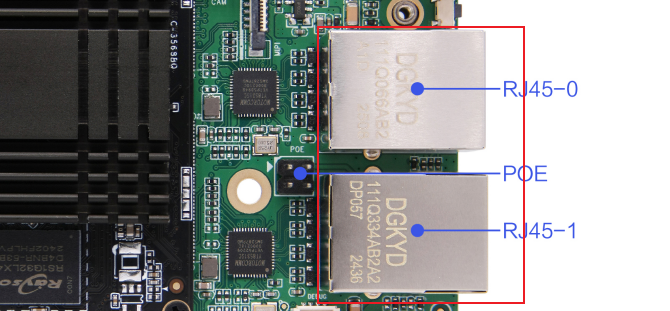
以M4-R1为例,板卡上有双以太网网口
TOOL

1. dts配置

  • arch/arm64/boot/dts/rockchip/rk3568-toybrick-x0.dtsi
    &gmac0 {
        phy-mode = "rgmii";
        clock_in_out = "output";

        snps,reset-gpio = <&gpio2 RK_PD3 GPIO_ACTIVE_LOW>;
        snps,reset-active-low;
        /* Reset time is 20ms, 100ms for rtl8211f */
        snps,reset-delays-us = <0 20000 100000>;

        assigned-clocks = <&cru SCLK_GMAC0_RX_TX>, <&cru SCLK_GMAC0>;
        assigned-clock-parents = <&cru SCLK_GMAC0_RGMII_SPEED>, <&cru CLK_MAC0_2TOP>;
        assigned-clock-rates = <0>, <125000000>;

        pinctrl-names = "default";
        pinctrl-0 = <&gmac0_miim
                &gmac0_tx_bus2
                &gmac0_rx_bus2
                &gmac0_rgmii_clk
                &gmac0_rgmii_bus>;

        tx_delay = <0x2d>;
        rx_delay = <0x13>;

        phy-handle = <&rgmii_phy0>;
        status = "okay";
    };

    &gmac1 {
        phy-mode = "rgmii";
        clock_in_out = "output";

        snps,reset-gpio = <&gpio2 RK_PD1 GPIO_ACTIVE_LOW>;
        snps,reset-active-low;
        /* Reset time is 20ms, 100ms for rtl8211f */
        snps,reset-delays-us = <0 20000 100000>;

        assigned-clocks = <&cru SCLK_GMAC1_RX_TX>, <&cru SCLK_GMAC1>;
        assigned-clock-parents = <&cru SCLK_GMAC1_RGMII_SPEED>, <&cru CLK_MAC1_2TOP>;
        assigned-clock-rates = <0>, <125000000>;

        pinctrl-names = "default";
        pinctrl-0 = <&gmac1m1_miim
                &gmac1m1_tx_bus2
                &gmac1m1_rx_bus2
                &gmac1m1_rgmii_clk
                &gmac1m1_rgmii_bus>;

        tx_delay = <0x37>;
        rx_delay = <0x0f>;

        phy-handle = <&rgmii_phy1>;
        status = "okay";
    };

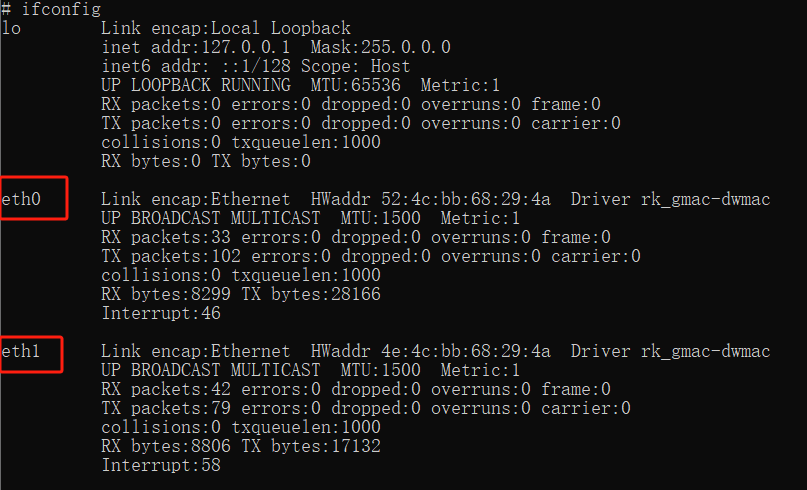
2. 检查eth接口

使用ifconfig命令检查是否生成ethX节点:
TOOL

3. 连通性测试

使用以下命令测试网口

  • eth0:
    ~# ping -I eth0 -c 10 www.baidu.com
    Ping www.baidu.com (183.2.172.42) from eth0 (192.168.49.35): 56(84) bytes.
    64 bytes from 183.2.172.42: icmp_seq=1 ttl=50 time=12 ms
    64 bytes from 183.2.172.42: icmp_seq=2 ttl=50 time=10 ms
    64 bytes from 183.2.172.42: icmp_seq=3 ttl=50 time=10 ms
    64 bytes from 183.2.172.42: icmp_seq=4 ttl=50 time=10 ms
    64 bytes from 183.2.172.42: icmp_seq=5 ttl=50 time=17 ms
    64 bytes from 183.2.172.42: icmp_seq=6 ttl=50 time=8 ms
    64 bytes from 183.2.172.42: icmp_seq=7 ttl=50 time=9 ms
    64 bytes from 183.2.172.42: icmp_seq=8 ttl=50 time=8 ms
    64 bytes from 183.2.172.42: icmp_seq=9 ttl=50 time=10 ms
    64 bytes from 183.2.172.42: icmp_seq=10 ttl=50 time=9 ms

    --- 183.2.172.42 ping statistics ---
    10 packets transmitted, 10 received, 0% packet loss
    round-trip min/avg/max = 8/10/17 ms
  • eth1:
    ~# ping -I eth1 -c 10 www.baidu.com
    Ping www.baidu.com (183.2.172.185) from eth1 (192.168.49.241): 56(84) bytes.
    64 bytes from 183.2.172.185: icmp_seq=1 ttl=50 time=9 ms
    64 bytes from 183.2.172.185: icmp_seq=2 ttl=50 time=9 ms
    64 bytes from 183.2.172.185: icmp_seq=3 ttl=50 time=9 ms
    64 bytes from 183.2.172.185: icmp_seq=4 ttl=50 time=9 ms
    64 bytes from 183.2.172.185: icmp_seq=5 ttl=50 time=8 ms
    64 bytes from 183.2.172.185: icmp_seq=6 ttl=50 time=8 ms
    64 bytes from 183.2.172.185: icmp_seq=7 ttl=50 time=9 ms
    64 bytes from 183.2.172.185: icmp_seq=8 ttl=50 time=8 ms
    64 bytes from 183.2.172.185: icmp_seq=9 ttl=50 time=8 ms
    64 bytes from 183.2.172.185: icmp_seq=10 ttl=50 time=9 ms

    --- 183.2.172.185 ping statistics ---
    10 packets transmitted, 10 received, 0% packet loss
    round-trip min/avg/max = 8/8/9 ms

4. 以太网API使用与实践

4.1 HDC相关指令

hdc指令可以用于查询以太网的信息以及连接状态

    hdc shell ifconfig

关闭/打开以太网 hdc命令:

    ifconfig eth0 X.X.X.X up
    ifconfig eth0 X.X.X.X down
    注:x.x.x.x 为网卡地址。

4.2 标准API使用方法

备注

以太网连接管理主要提供有线网络能力,提供设置有线网络的IP地址,子网掩码,网关,DNS,代理等信息 本模块首批接口从API version 9开始支持。后续版本的新增接口,采用上角标单独标记接口的起始版本。 本模块为系统接口。

  • 以太网标准接口

    @ohos.net.ethernet (以太网连接管理)(系统接口)

  • API使用说明

    使用以太网相关API开发时候,需要先了解熟悉第一个open Harmony工程的创建,相关文档:
    

    Hello World应用以及部署

在使用一个API时,需要注意以下几点:

  • API权限说明
  • API的参数与返回值
  • API调用错误的时候,参考API错误码和通用错误码
  • API示例的正确使用

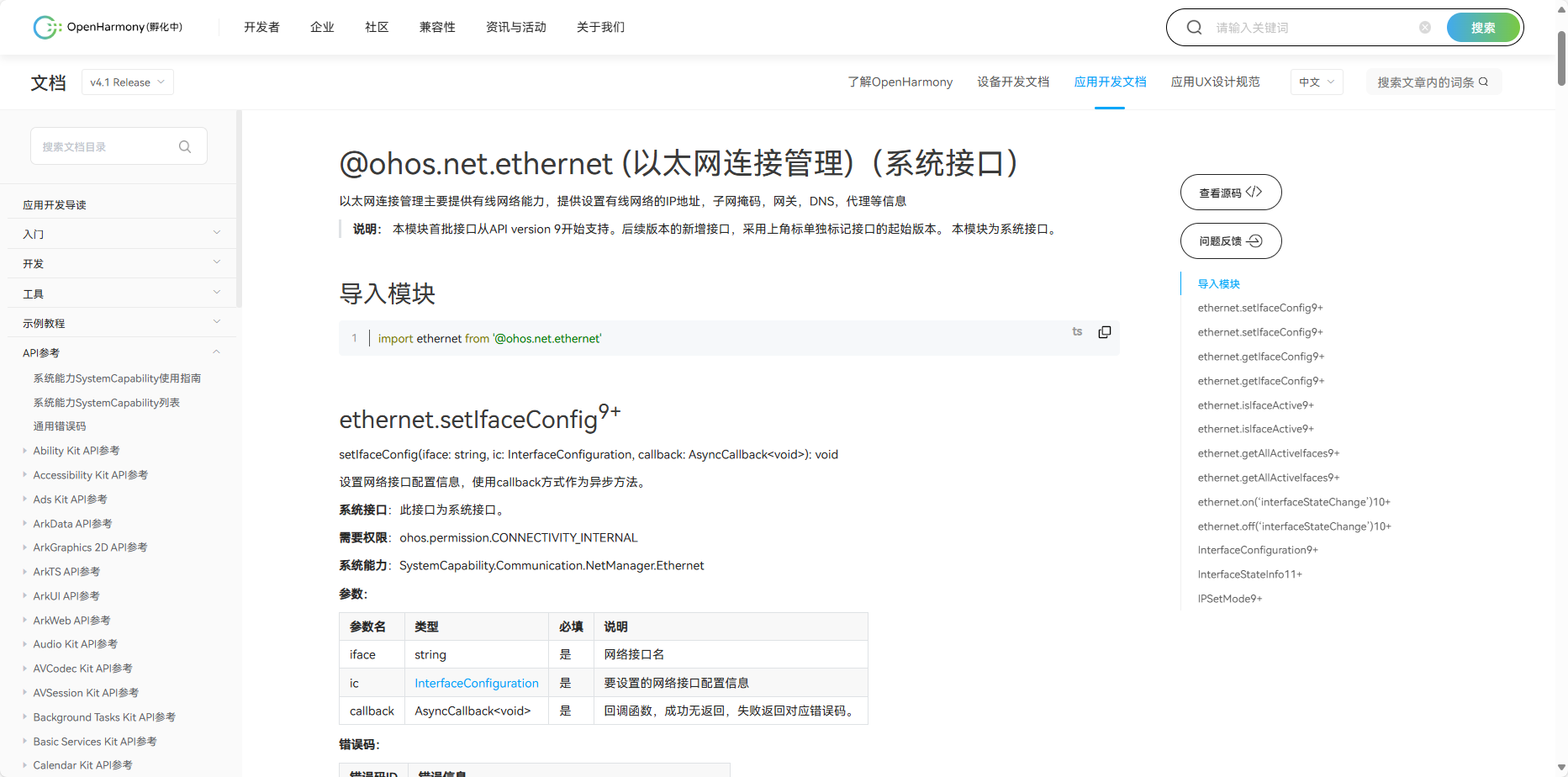
如下图所示,即为标准API文档

TOOL

官方标准开发文档

以太网官方标准API开发文档

4.3 社区Demo

  • 简介

为了帮助开发者更快速的使用板子开发和学习,我们在gitee上提供了一个以太网相关的使用示例,每一个项目都是独立的DevEco Studio工程,开发者可以将工程导入到DevEco Studio中即可,通过浏览代码、编译工程、安装和运行应用示例来了解应用示例中涉及API的使用方法。

giteeWIFI示例

Tips

在导入社区Demo工程的时候,需要开发者需要注意本地的开发环境是否与项目的一致,即本地SDK是否与项目SDK一致。

  • 导入模块

在使用以太网标准API的时候,最重要的一步是导入以太网的模块,才能使用以太网相应的API接口。通常模块导入是在文件头导入

导入模块如下:

import ethernet from '@ohos.net.ethernet'

  • API 介绍

社区Demo的实现引用以下API,实现如何打开获取以太网信息,设置静动态,以及以太网的连接的基本实现。

注意

以下介绍均以为简单介绍API的系统能力以及对应函数,请结合 gitee以太网示例 和 以太网官方标准API开发文档去熟悉开发

  • ethernet.setIfaceConfig(设置网络接口配置信息)
	setIfaceConfig(iface: string, ic: InterfaceConfiguration): Promise<void>
	需要权限: ohos.permission.CONNECTIVITY_INTERNAL 。
  • ethernet.getIfaceConfig(获取指定网络接口信息,)
	getIfaceConfig(iface: string): Promise<InterfaceConfiguration>
	需要权限: ohos.permission.GET_NETWORK_INFO 。
  • ethernet.isIfaceActive(判断接口是否已激活)
	isIfaceActive(iface: string): Promise<number>
	需要权限: ohos.permission.GET_NETWORK_INFO 。
  • ethernet.getAllActiveIfaces(获取活动的网络接口)
	getAllActiveIfaces(): Promise<Array<string>>
	需要权限: ohos.permission.GET_NETWORK_INFO 。
  • ethernet.on(‘interfaceStateChange’)(注册网卡热插拔事件)
	getAllActiveIfaces(): Promise<Array<string>>
	需要权限: ohos.permission.GET_NETWORK_INFO 。
  • Demo主要实现源码

  • ent.ets

  import ethernet from '@ohos.net.ethernet'
  import { BusinessError } from '@ohos.base';

  @Entry
  @Component
  struct Index {
  @State message: string = '以太网Demo';
  private  TAG : string = 'ent_Demo'
  @State entModeTest : string = '当前动态Ip'
  @State entName : string = "eth0"
  @State entModeStatus : boolean = true;//动/静态Ip的判断
  @State entMsg : string = ''
  @State entIp : string = ''
  @State entRoute : string = ''
  @State entGateway : string = ''
  @State entMask : string = ''
  @State entDNS : string = ''
  @State entMode : number = 1;


  aboutToAppear(): void {
	 this.getAllActiveIfaces();
	 this.getIfaceConfig();
  }


  setIfaceConfig(){
	 let config: ethernet.InterfaceConfiguration = {
		mode: this.entMode,
		ipAddr: this.entIp,
		route: this.entRoute,
		gateway: this.entGateway,
		netMask: this.entMask,
		dnsServers: this.entDNS
	 };

	 const setConfigPromise = ethernet.setIfaceConfig("eth0", config);

	 setConfigPromise.then(() => {
		console.log(this.TAG,"setIfaceConfig promise ok");
	 }).catch((error: BusinessError)  => {
		console.error(this.TAG,"setIfaceConfig promise error = " + JSON.stringify(error));
	 });
  }

  getIfaceConfig(){
	 ethernet.getIfaceConfig(this.entName).then((data: ethernet.InterfaceConfiguration) => {
		console.log(this.TAG,"getIfaceConfig promise mode = " + data.mode);
		console.log(this.TAG,"getIfaceConfig promise ipAddr = " + JSON.stringify(data.ipAddr));
		console.log(this.TAG,"getIfaceConfig promise route = " + JSON.stringify(data.route));
		console.log(this.TAG,"getIfaceConfig promise gateway = " + JSON.stringify(data.gateway));
		console.log(this.TAG,"getIfaceConfig promise netMask = " + JSON.stringify(data.netMask));
		console.log(this.TAG,"getIfaceConfig promise dnsServers = " + JSON.stringify(data.dnsServers));
		if (data.mode == 0) {
		this.entModeStatus = false;
		}else {
		this.entModeStatus = true
		}
		this.entMode = data.mode
		this.entMsg = JSON.stringify(data).toString();
		this.entRoute = data.route.toString();
		this.entGateway = data.gateway.toString();
		this.entMask = data.netMask.toString();
		this.entDNS = data.dnsServers.toString();
	 }).catch((error: BusinessError) => {
		console.error(this.TAG,"getIfaceConfig promise error = " + JSON.stringify(error));
	 });
  }

  isIfaceActive(){
	 ethernet.isIfaceActive("eth0").then((data: number) => {
		console.log(this.TAG,"isIfaceActive promise = " + JSON.stringify(data));
	 }).catch((error: BusinessError) => {
		console.log(this.TAG,"isIfaceActive promise error = " + JSON.stringify(error));
	 });
  }

  getAllActiveIfaces(){
	 ethernet.getAllActiveIfaces().then((data: string[]) => {
		console.log(this.TAG,"getAllActiveIfaces promise data.length = " + JSON.stringify(data.length));
		if (JSON.stringify(data.length) == '1' ) {
		console.log(this.TAG,'data.length')
		}
		for (let i = 0; i < data.length; i++) {
		console.log(this.TAG,"getAllActiveIfaces promise  = " + JSON.stringify(data[i]));
		}
	 }).catch((error:BusinessError) => {
		console.error(this.TAG,"getAllActiveIfaces promise error = " + JSON.stringify(error));
	 });
  }

  build() {
		Column() {
		Text(this.message)
		   .fontSize(50)
		   .fontWeight(FontWeight.Bold)
		   .padding(20)
		Button('点击切换动/静态IP')
		   .onClick(()=>{
			  if (this.entMode == 0) {
			  this.entMode = 1;
			  this.entModeTest = '当前动态Ip'
			  this.entModeStatus = true;
			  }else{
			  this.entMode = 0;
			  this.entModeTest = '当前静态Ip'
			  this.entModeStatus = false;
			  }
			  this.setIfaceConfig();
			  this.getIfaceConfig();
		   })
		if (this.entModeStatus){
		   Column(){
			  TextInput({placeholder : '静态Ip'})
			  .onChange((value : string)=>{
				 this.entIp = value
			  })
		   }
		   .height(80)
		   .width(300)
		   .padding(10)
		   .margin(10)
		}
		Text(this.entModeTest)
		   .fontSize(50)
		   .fontWeight(FontWeight.Bold)
		   .padding(30)
		Column(){
		   Text('网口信息')
		   Blank()
		   Text(this.entMsg)
		}
		.height(80)
		.padding(10)
		}
		.width('100%')
  }

  }

4.4 代码编译

Tips

代码编译详细流程可见:Hello World应用以及部署 中的第二部分(构建第一个页面部分内容)

4.5 代码运行效果

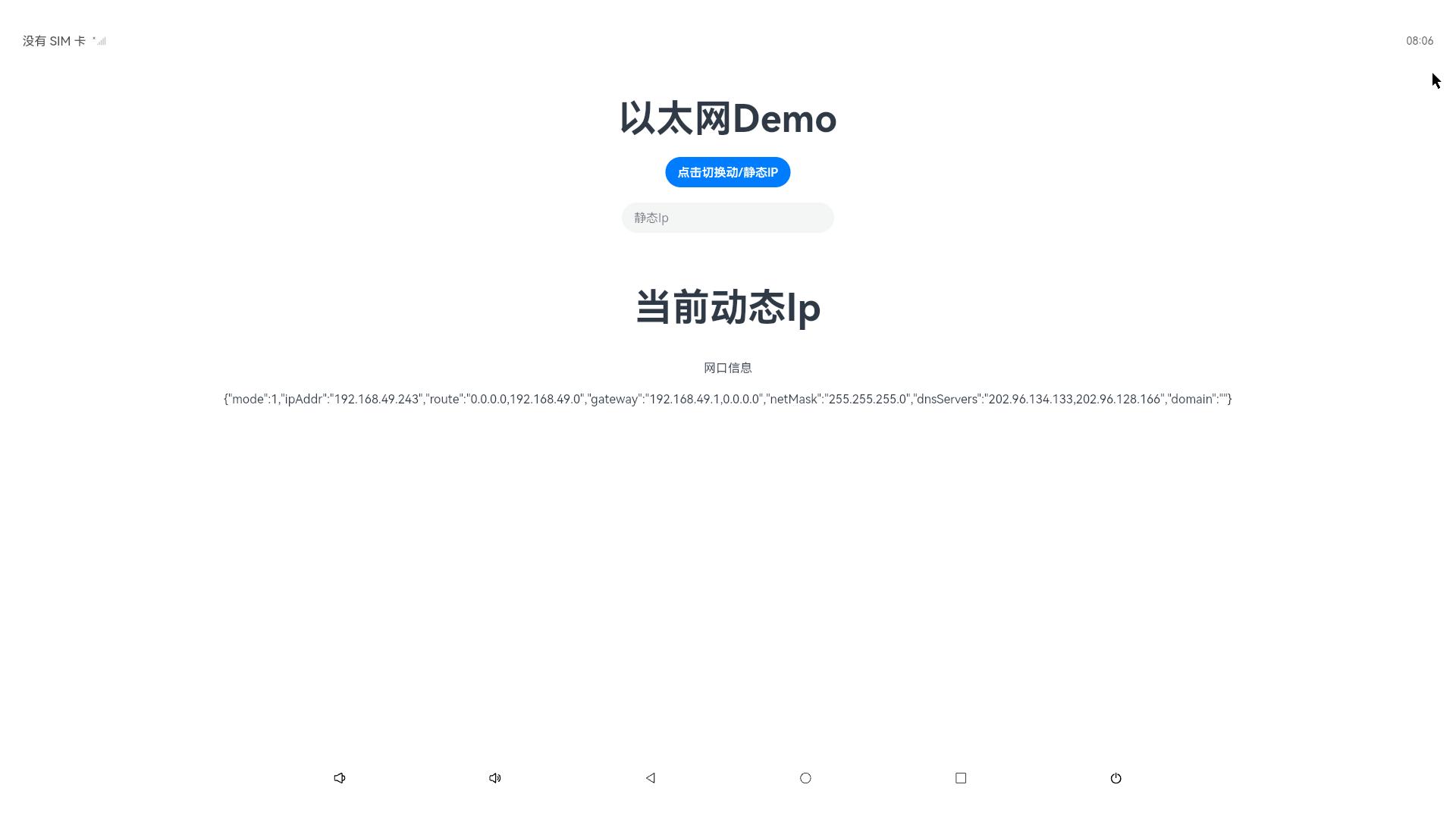
用以上标准API接口实现以太网Demo,如下图所示:
TOOL
Edit this page on GitHub
Last Updated:
Contributors: zwhuang
Prev
5.11 RTC
Next
5.13 M.2