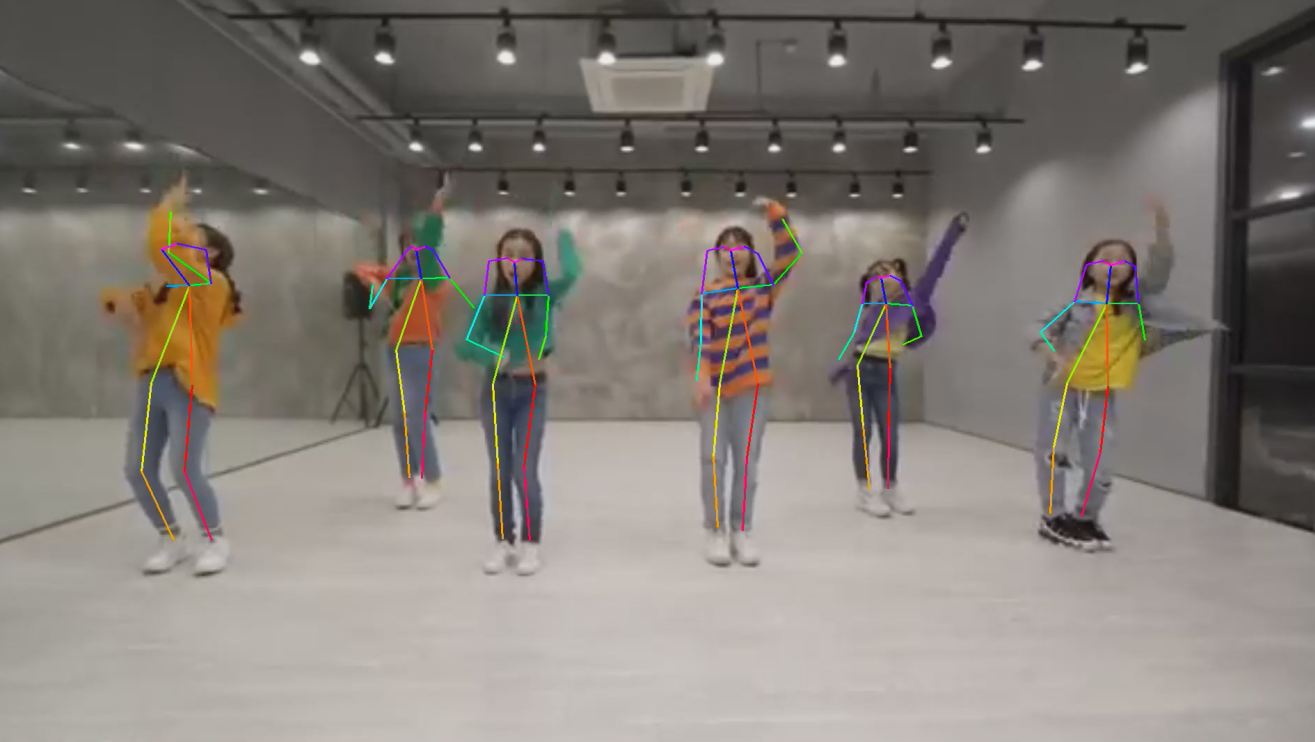
OpenPose (Human Keypoint Detection)
1. Introduction
OpenPose is a real-time multi-person pose estimation system developed by the team at the Carnegie Mellon University (CMU) Robotics Institute. It is an important breakthrough in human-pose recognition in the field of computer vision. It can simultaneously detect the key points of multiple human bodies (such as joints, facial feature points, hand key points, etc.) from a single image or video and construct the skeletal connection structure of the human body, providing strong technical support for fields such as action analysis, human-computer interaction, and virtual reality.
Project Directory
OPENPOSE
├─cpp
│  ├─dependencies	##C++例程依赖
│  │  ├─include
│  │  │      bmnn_utils.h
│  │  │      bm_wrapper.hpp
│  │  │      ff_decode.hpp
│  │  │      json.hpp
│  │  │      utils.hpp
│  │  │
│  │  └─src
│  │          ff_decode.cpp
│  │
│  └─openpose_bmcv	##bmcvC++例程
│          CMakeLists.txt
│          main.cpp
│          openpose.cpp
│          openpose.hpp
│          openpose_bmcv.soc
│          pose_postprocess.cpp
│          pose_postprocess.hpp
│
├─datasets	##数据集存放
│
├─docs		##帮助文档
|
├─models	##1684X模型
│  └─BM1684X
│          pose_body_25_fp32_1b.bmodel
│          pose_coco_fp16_1b.bmodel
│          pose_coco_fp32_1b.bmodel
│          pose_coco_int8_1b.bmodel
│          pose_coco_int8_4b.bmodel
│
├─python	##python例程
│      openpose_opencv.py
│      requirements.txt
│
├─tools		##测试和比较工具
│      compare_statis.py
│      eval_coco.py
│
└─tpu_kernel_module		##C++例程使用TPU加速用到的库
        libbm1684x_kernel_module.so
2. Running Steps
1. Python Example
1.1 Configure the Python Environment
opencv environment (for running openpose_opencv.py)
pip3 install -r python/requirements.txt -i https://pypi.tuna.tsinghua.edu.cn/simple1.2 Inference Test
File Parameter Description
The parameters of openpose_opencv.py are:
usage: openpose_opencv.py [--input INPUT] [--bmodel BMODEL] [--dev_id DEV_ID]
--input: 测试数据路径,可输入整个图片文件夹的路径或者视频路径;
--bmodel: 用于推理的bmodel路径,默认使用stage 0的网络进行推理;
--dev_id: 用于推理的tpu设备id。
Image Test
The following is an image test example; testing an entire image folder is supported.
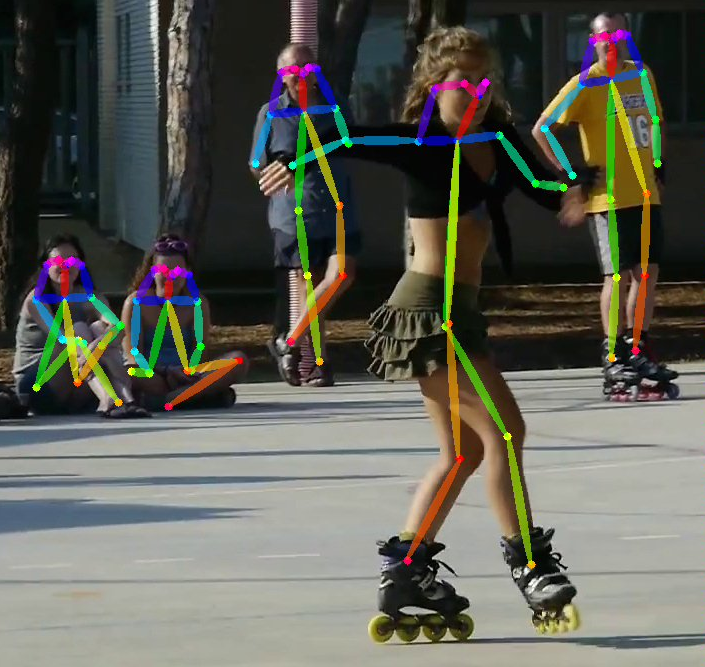
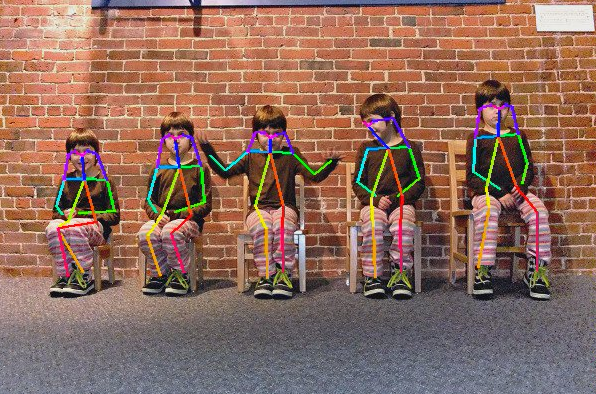
python3 python/openpose_opencv.py --input datasets/test --bmodel models/BM1684X/pose_coco_fp32_1b.bmodel --dev_id 0After the test, predicted images are saved under results/images, and the predicted keypoint coordinates are saved under results/pose_coco_fp32_1b.bmodel_test_opencv_python_result.json. The prediction results, inference time, and other information are also printed. The output is as follows:
Video Test
The following is a video test example; testing a video stream is supported.
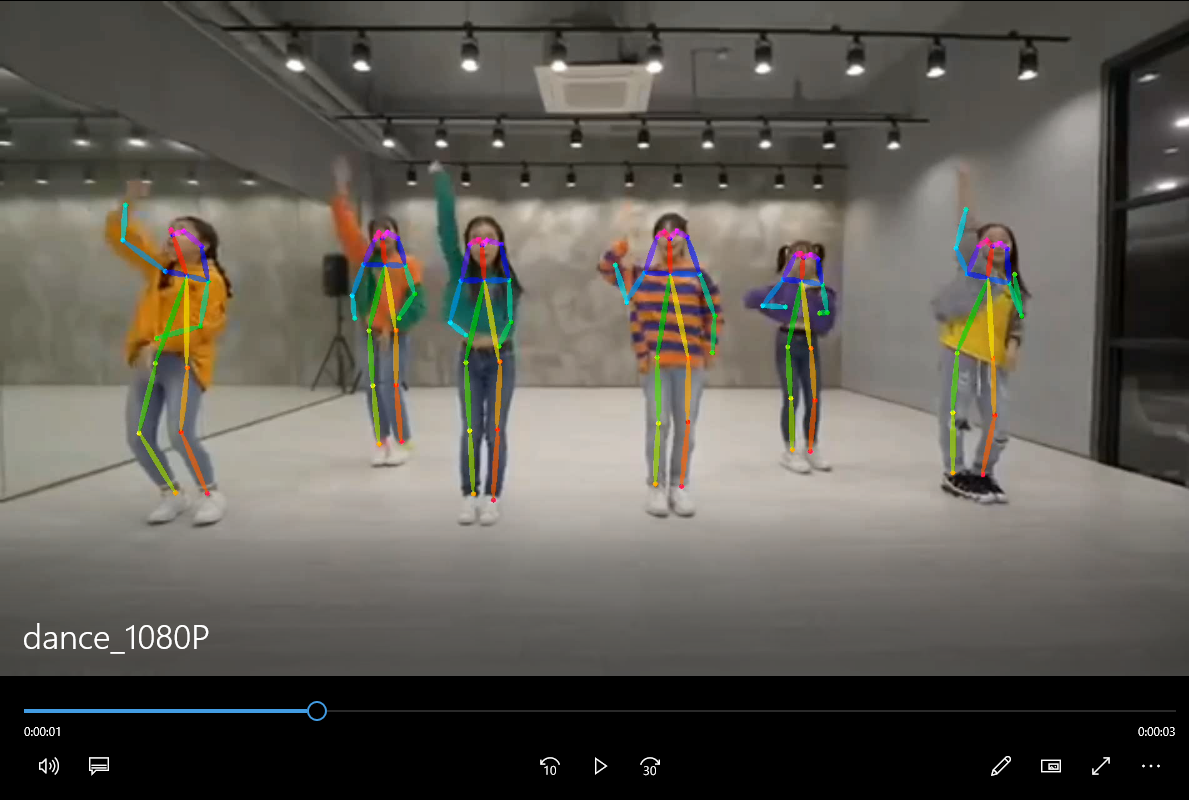
python3 python/openpose_opencv.py --input datasets/dance_1080P.mp4 --bmodel models/BM1684X/pose_coco_fp32_1b.bmodel --dev_id 0After the test, the predicted results are drawn into results/dance_1080P.avi; the prediction results, inference time, and other information are also printed. Video testing takes a long time to produce results; please be patient.
2. C++ Example
1. Cross-Compilation Environment Setup
1.1 Build Environment
C++ programs need their dependencies compiled to run on the board. To reduce load on the edge device, we use an x86 Linux environment for cross-compilation.
Two ways to set up the cross-compilation environment are provided:
(1) Install the cross-compilation toolchain via apt:
If your system's libc version matches the target SoC platform's libc version (check with ldd --version), you can install with:
sudo apt-get install gcc-aarch64-linux-gnu g++-aarch64-linux-gnuTo uninstall:
sudo apt remove cpp-*-aarch64-linux-gnuIf your environment does not meet the above requirements, method (2) is recommended.
(2) Set up the cross-compilation environment via Docker:
You can use the Docker image we provide — stream_dev.tar — as the cross-compilation environment.
If you are using Docker for the first time, run the following commands to install and configure it (only needed once):
sudo apt install docker.io
sudo systemctl start docker
sudo systemctl enable docker
sudo groupadd docker
sudo usermod -aG docker $USER
newgrp docker
Load the image from the downloaded image directory:
docker load -i stream_dev.tarYou can view the loaded image with docker images; it is named stream_dev:latest by default.
Create a container:
docker run --privileged --name stream_dev -v $PWD:/workspace  -it stream_dev:latest
# stream_dev只是举个名字的例子, 请指定成自己想要的容器的名字
The workspace directory inside the container is mounted to the host directory where you ran docker run; you can compile the project inside this container. The workspace directory is under the root directory, and changes in it are mapped to the corresponding files in the local directory.
Note: When creating the container, you must be in the parent directory of soc-sdk (the dependency build environment) or above.
1.2 Package Dependency Files
Package libsophon
For
libsophon_soc_x.y.z_aarch64.tar.gz(where x.y.z is the version number), decompress it.# 创建依赖文件的根目录 mkdir -p soc-sdk # 解压libsophon_soc_x.y.z_aarch64.tar.gz tar -zxf libsophon_soc_${x.y.z}_aarch64.tar.gz # 将相关的库目录和头文件目录拷贝到依赖文件根目录下 cp -rf libsophon_soc_${x.y.z}_aarch64/opt/sophon/libsophon-${x.y.z}/lib soc-sdk cp -rf libsophon_soc_${x.y.z}_aarch64/opt/sophon/libsophon-${x.y.z}/include soc-sdkPackage sophon-ffmpeg and sophon-opencv
For
sophon-mw-soc_x.y.z_aarch64.tar.gz(where x.y.z is the version number), decompress it.# 解压sophon-mw-soc_x.y.z_aarch64.tar.gz tar -zxf sophon-mw-soc_${x.y.z}_aarch64.tar.gz # 将ffmpeg和opencv的库目录和头文件目录拷贝到soc-sdk目录下 cp -rf sophon-mw-soc_${x.y.z}_aarch64/opt/sophon/sophon-ffmpeg_${x.y.z}/lib soc-sdk cp -rf sophon-mw-soc_${x.y.z}_aarch64/opt/sophon/sophon-ffmpeg_${x.y.z}/include soc-sdk cp -rf sophon-mw-soc_${x.y.z}_aarch64/opt/sophon/sophon-opencv_${x.y.z}/lib soc-sdk cp -rf sophon-mw-soc_${x.y.z}_aarch64/opt/sophon/sophon-opencv_${x.y.z}/include soc-sdk
1.3 Perform Cross Compilation
After the cross-compilation environment is set up, use the cross-compilation toolchain to build the executable. OpenPose_opencv and openpose_bmcv use the same build method; here we use openpose_opencv as an example:
cd cpp/openpose_opencv
mkdir build && cd build
#请根据实际情况修改-DSDK的路径,需使用绝对路径。
cmake -DTARGET_ARCH=soc -DSDK=/workspace/soc-sdk/ ..
make
After the build, a .soc file is generated in the corresponding directory, e.g. cpp/openpose_opencv/openpose_opencv.soc; this file is also provided and can be used directly.
2. Inference Test
Copy the cross-compiled executable and the required model and test data to the SoC platform (i.e. the BM1684X development board) for testing.
Parameter Description
The executable has a default set of parameters; pass parameters according to your actual situation. The parameters of openpose_bmcv.soc are:
Usage: openpose_bmcv.soc [params]

        --bmodel (value:../../models/BM1684/pose_coco_fp32_1b.bmodel)
                bmodel file path
        --dev_id (value:0)
                TPU device id
        --help (value:true)
                print help information.
        --input (value:../../datasets/test)
                input path, images direction or video file path
        --performance_opt (value:no_opt)
                performance optimization type, supporting [tpu_kernel_opt, tpu_kernel_half_img_size_opt, cpu_opt, no_opt]
Image Test
The following is an image test example; testing an entire image folder is supported.
##先对文件加上可执行权限
chmod +x openpose_bmcv.soc
./openpose_bmcv.soc --input=../../datasets/test --bmodel=../../models/BM1684X/pose_coco_fp32_1b.bmodel --dev_id=0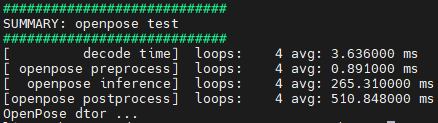
On BM1684X only, if you want to use tpu_kernel post-processing for acceleration, use the following command:
./openpose_bmcv.soc --input=../../datasets/test --bmodel=../../models/BM1684X/pose_coco_fp32_1b.bmodel --dev_id=0 --performance_opt=tpu_kernel_opt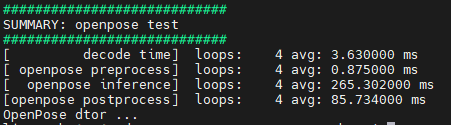
Furthermore, if the post-processing only enlarges the output feature map to half of the original image, accuracy drops slightly while performance improves greatly; use the following command:
./openpose_bmcv.soc --input=../../datasets/test --bmodel=../../models/BM1684X/pose_coco_fp32_1b.bmodel --dev_id=0 --performance_opt=tpu_kernel_half_img_size_opt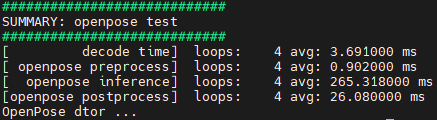
If you want to use the algorithm-specific post-processing performance optimization for acceleration (with a slight accuracy drop), use the following command:
./openpose_bmcv.soc --input=../../datasets/test --bmodel=../../models/BM1684X/pose_coco_fp32_1b.bmodel --dev_id=0 --performance_opt=cpu_opt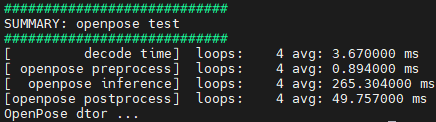
After the test, predicted images are saved under results/images, and the predicted keypoint coordinates are saved under results/pose_coco_fp32_1b.bmodel.bmodel_test_bmcv_cpp_result.json. The prediction results, inference time, and other information are also printed.
Video Test
The following is a video test example; testing a video stream is supported. On BM1684X, the post-processing acceleration commands are similar to those in the image test; if you use algorithm post-processing acceleration, it is also similar to the image test.
./openpose_bmcv.soc --input=../../datasets/dance_1080P.mp4 --bmodel=../../models/BM1684X/pose_coco_fp32_1b.bmodel --dev_id=0After the test, the predicted results are drawn on images and saved under results/images; the prediction results, inference time, and other information are also printed.