
Chapter 1 Getting Started Guide
1. OpenHarmony 5.0 Release Version Supporting Documentation
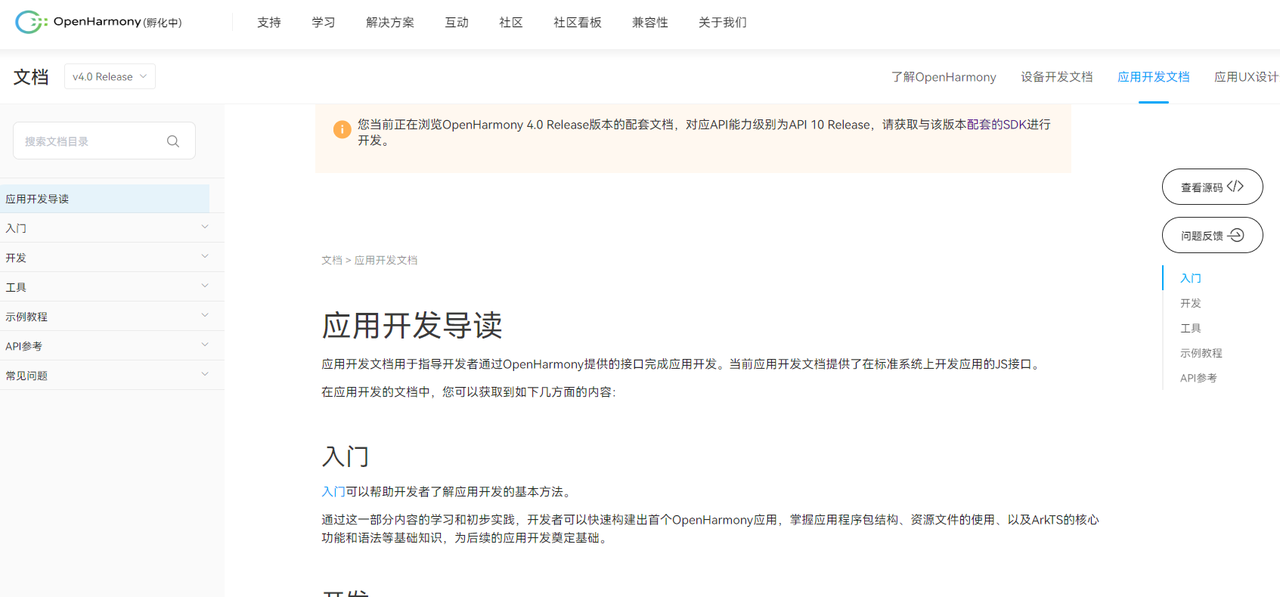
OpenHarmony Official Website APP Development Homepage (including complete API reference and Demo):
[https://docs.openharmony.cn/pages/v5.0/zh-cn/application-dev/application-dev-guide.md/]
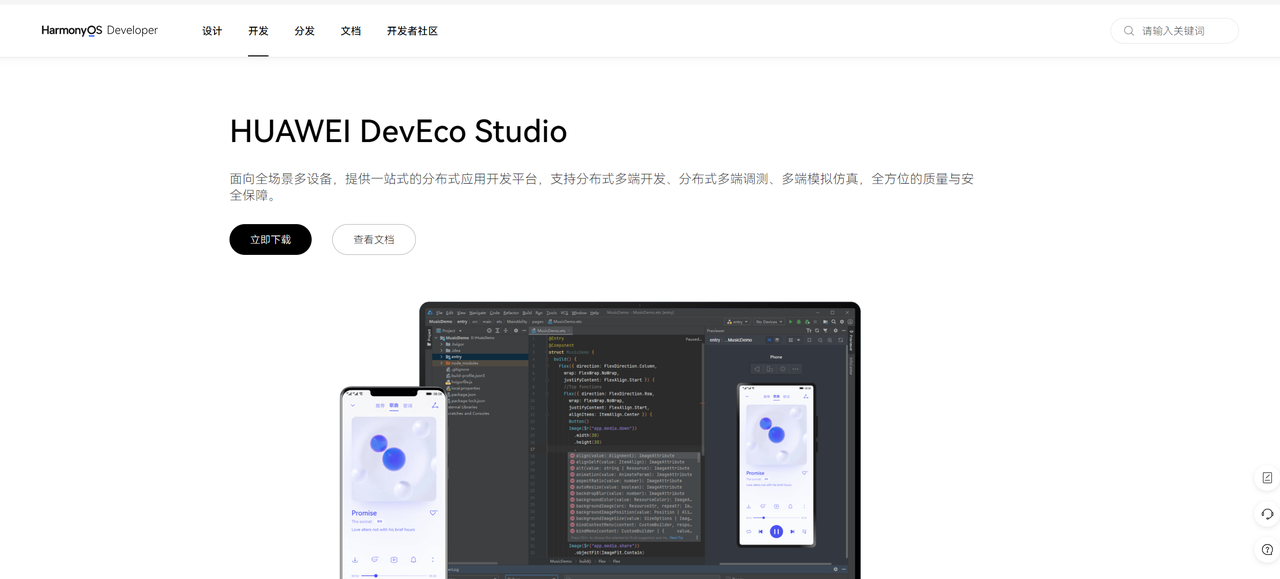
2. OpenHarmony APP Development Tool Download Address:
[https://developer.harmonyos.com/cn/develop/deveco-studio/]
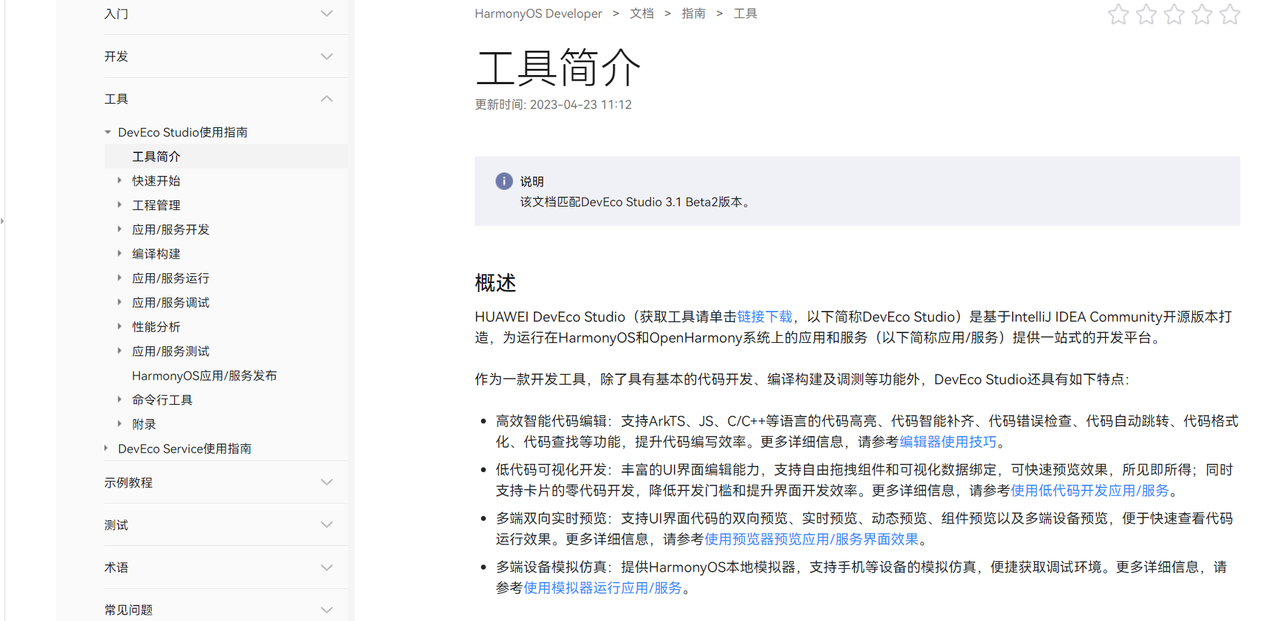
Installation and configuration can refer to official documentation:
3. OpenHarmony Application Sample
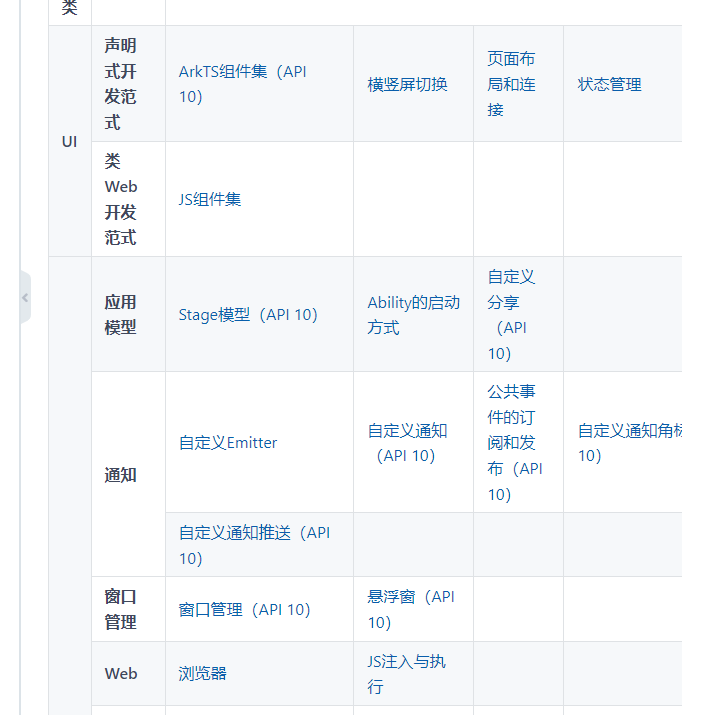
The following website provides official sample demos for common application scenarios. You can refer to them for learning based on your needs.
[OpenHarmony/applications_app_samples] https://gitee.com/openharmony/applications_app_samples?_from=gitee_search
4. OpenHarmony Standard SDK Download Address:
4.1 Standard Path SDK
Generally, you don't need to download it manually. The development tool in step 2 can automatically download the latest release version SDK.
5. OpenHarmony Full-SDK Replacement:
Full-SDK is an SDK that provides all OpenHarmony interfaces, including high-privilege APIs required by system applications, used for vendor application development.
Reference document for self-compiling and replacing Full-SDK:
https://docs.openharmony.cn/pages/v5.0/zh-cn/application-dev/faqs/full-sdk-switch-guide.md/
6. OS Firmware Burning Guide
Similar to burning tools and steps for various Android platforms.
7. USB Debugging and Debugging APP Guide
Connect the device to the computer using a USB cable via the OTG port.
Add the hdc tool to the environment variable on the computer. Path: your openharmonysdk/10/toolchains, For example: D:\SDK\OpenHarmony\sdk\10\toolchains
Turn on USB debugging on the device: Settings --> System --> Developer Options --> USB Debugging.
Open the command line tool on the computer.
hdc list targets. If connected successfully, it will print the device as follows:
	hdc list targets
    150100414a54443452069035fa308800
8. Common Questions & Solutions
8.1 Select Openharmony SDK as Development Environment
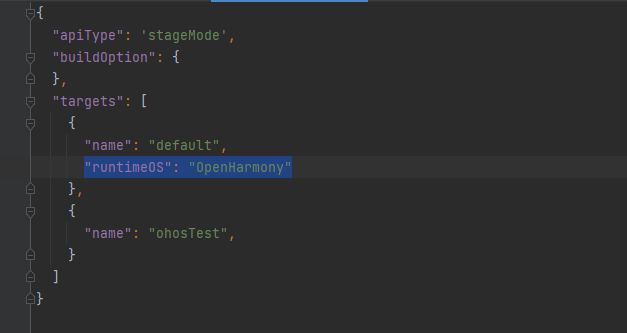
build-profile.json5 declares "runtimeOS": "OpenHarmony"
8.2 Upgrade App to System Permissions
Calling system-related APIs, such as power.reboot('reboot_test'), requires system permissions. The information is relatively scattered, and you may encounter some problems. Below are the steps to configure system permissions.
Upgrading APP to system permissions requires modifying two locations: one is adding requestPermissions in DevEco Studio, and the other is configuring as system in OpenHarmony SDK. Taking the reboot interface power.reboot('reboot_test'); as an example.
A. Use the interface in DevEco Studio related business code:
try {
  console.info('onPageShow reboot start.')
  // @ts-ignore
  power.reboot('reboot_test')
} catch (err) {
  console.error('reboot failed, err: ' + err)
}
B. Add permission ohos.permission.REBOOT in module.json5:
	"module": {
		-----
		"requestPermissions":[
		  {
			"name" : "ohos.permission.REBOOT"
		  }
		]
		----
	}
C. Modify UnsgnedReleasedProfileTemplate.json file in OpenHarmony SDK. The file address here is:
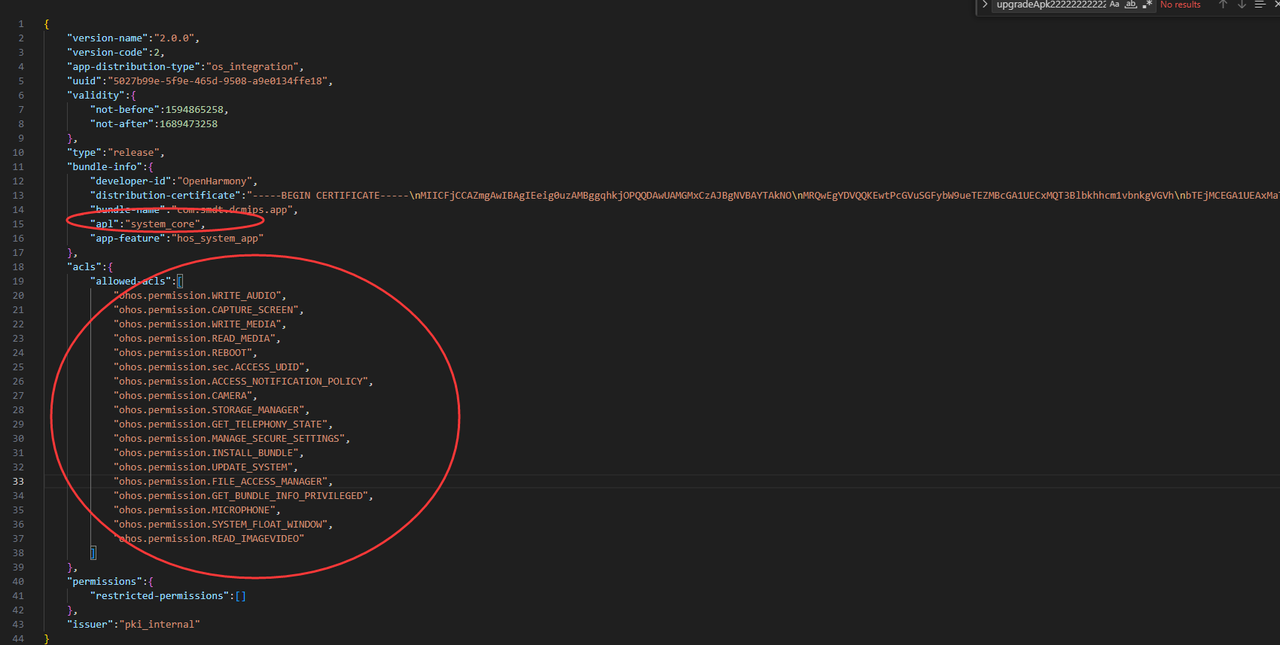
D:\SDKs\OpenHarmony\sdk\10\toolchains\libModify "bundle-name" to application package name, apl is "system_core"
	"bundle-name":"com.smdt.ostools.agingtest",
	"apl":"system_core",
	"app-feature":"hos_system_app"
D. Regenerate key: DevEco Studio --> Project Structure -> project -> Signing Configs. Note here: Uncheck Support HarmonyOS, go to the relevant folder and check the modification time of the newly generated key to confirm if it was regenerated. If not regenerated, delete the old key first, then regenerate.
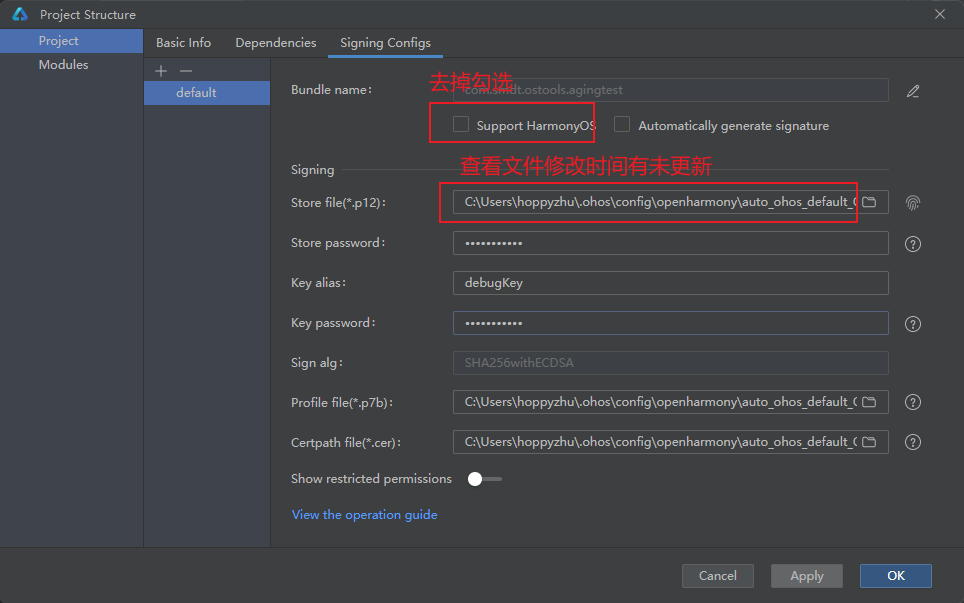
F. Run the APP. If the installation is successful and "reboot failed, err" is not printed, the restart is successful and System permission upgrade is complete.
G. System signature
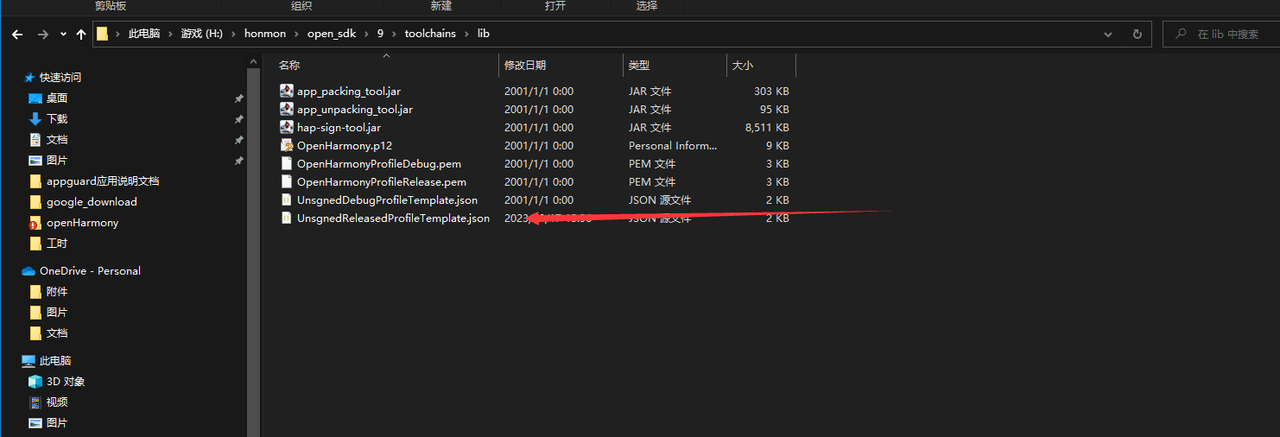
Find the file in the SDK directory as shown above and modify as follows:
9. Note
- Read more official documentation, search more on Baidu, and experiment more.