
Chapter 3 Application Compilation and Deployment
1. Build the First ArkTS Application (Stage Model)
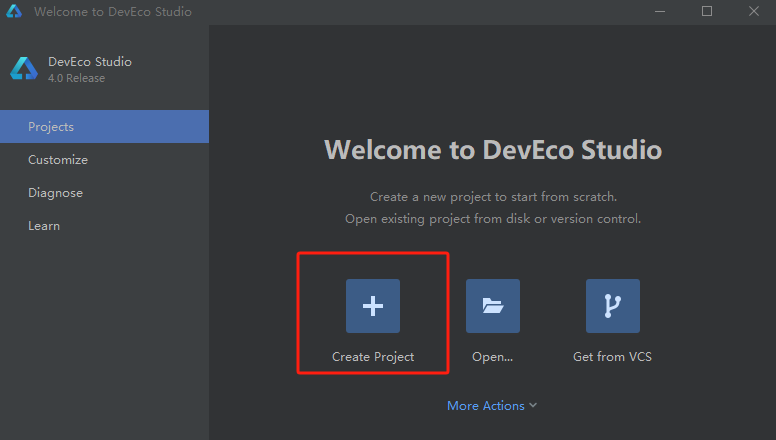
- If you open DevEco Studio for the first time, click Create Project to create a project. If you already have a project open, select File > New > Create Project from the menu bar to create a new project.
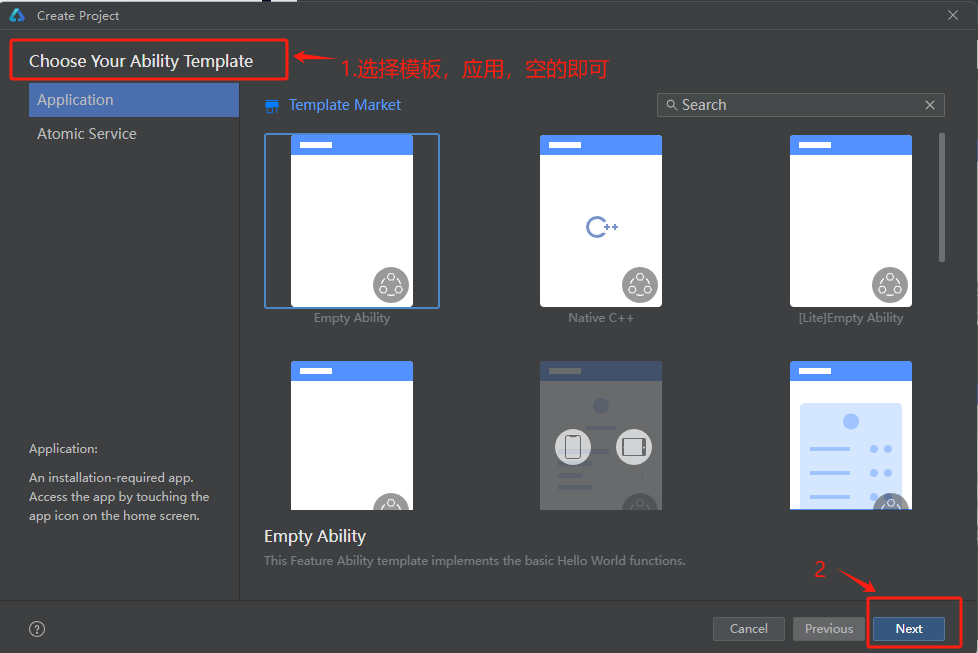
- Select Application app development (this article uses app development as an example; Atomic Service corresponds to atomic service development). Select the template "[OpenHarmony] Empty Ability" and click Next for further configuration.
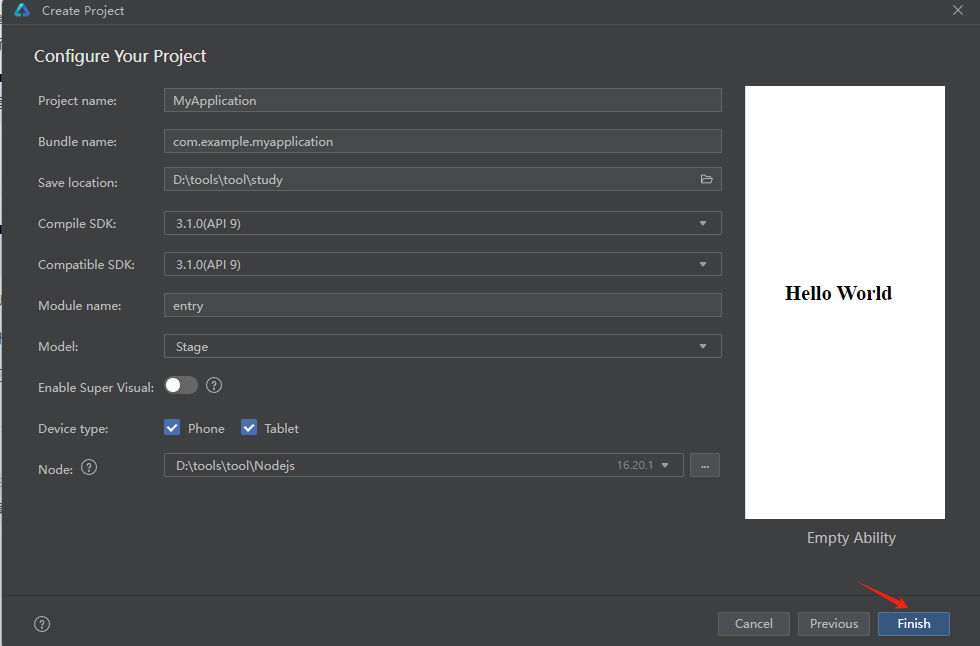
- Enter the project configuration interface, modify the project storage location, other parameters can keep default settings, click [finish]. Among them, Node is used to configure the Node.js version for the current project. You can choose to use an existing Node.js or download a new Node.js version.
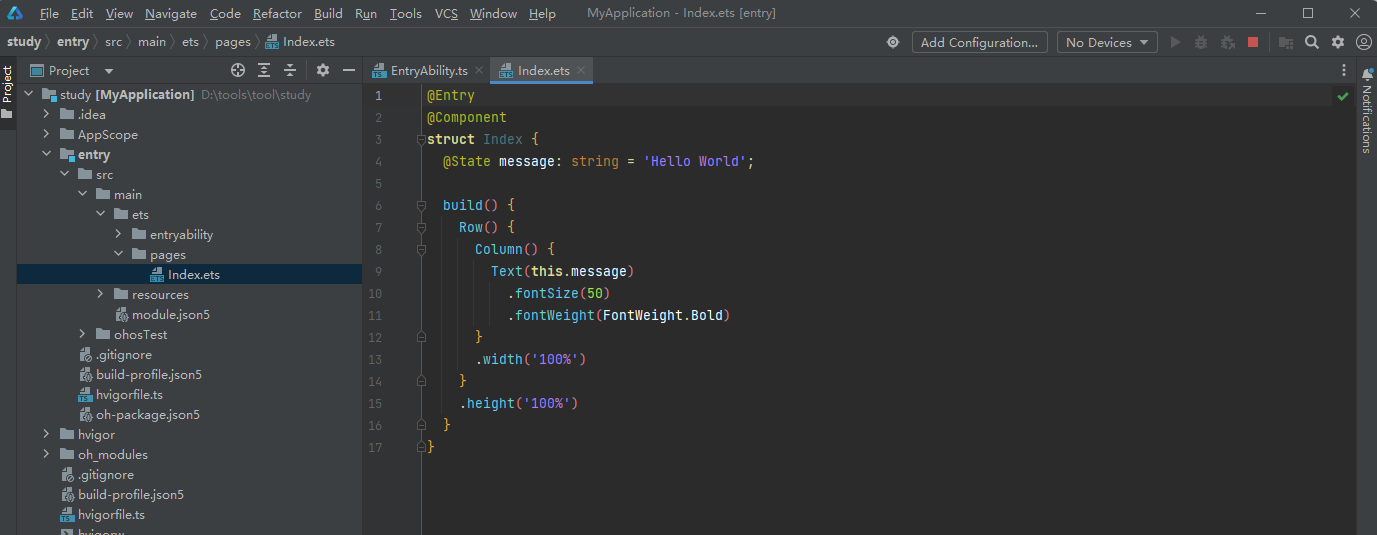
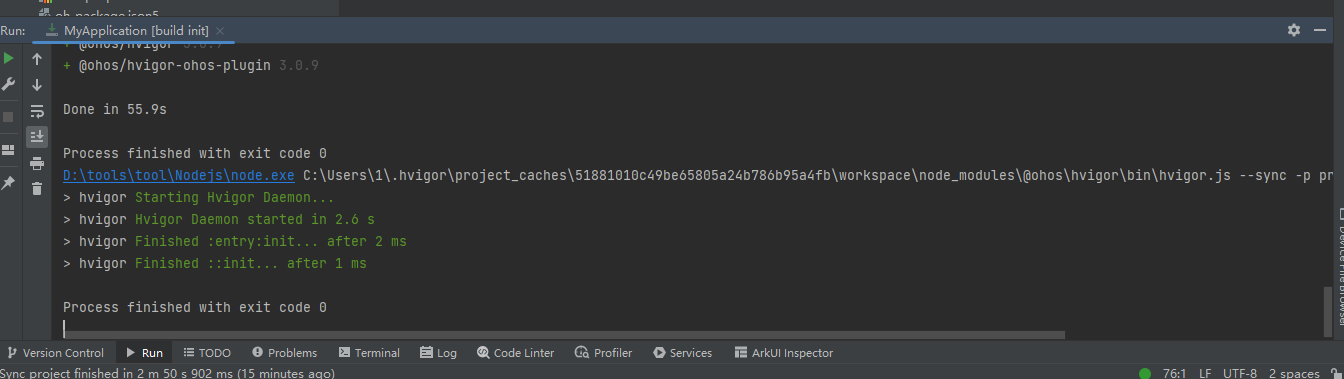
- The project initialization interface is as follows:
- Wait a moment. When the red running prompt ends, it is the final state.
2. Build the First Page
- Use the Text component
After the project synchronization is complete, in the "Project" window, click "entry > src > main > ets > pages", open the "Index.ets" file. You can see the page consists of Text components. The example of "Index.ets" file is as follows:
// Index.ets
@Entry
@Component
struct Index {
  @State message: string = 'Hello World';

  build() {
    Row() {
      Column() {
        Text(this.message)
          .fontSize(50)
          .fontWeight(FontWeight.Bold)
      }
      .width('100%')
    }
    .height('100%')
  }
}- Add a button
Based on the default page, we add a Button component as a button to respond to user clicks, thereby implementing jumping to another page. The example of "Index.ets" file is as follows:
// Index.ets
@Entry
@Component
struct Index {
  @State message: string = 'Hello World';

  build() {
    Row() {
      Column() {
        Text(this.message)
          .fontSize(50)
          .fontWeight(FontWeight.Bold)
        // Add button to respond to user click
        Button() {
          Text('Next')
            .fontSize(30)
            .fontWeight(FontWeight.Bold)
        }
        .type(ButtonType.Capsule)
        .margin({
          top: 20
        })
        .backgroundColor('#0D9FFB')
        .width('40%')
        .height('5%')
      }
      .width('100%')
    }
    .height('100%')
  }
}- Running HarmonyOS applications can use remote emulators and physical devices. The difference is that using remote emulators to run applications does not require signing the application. Next, using physical device as an example, we will introduce the running method of HarmonyOS applications:
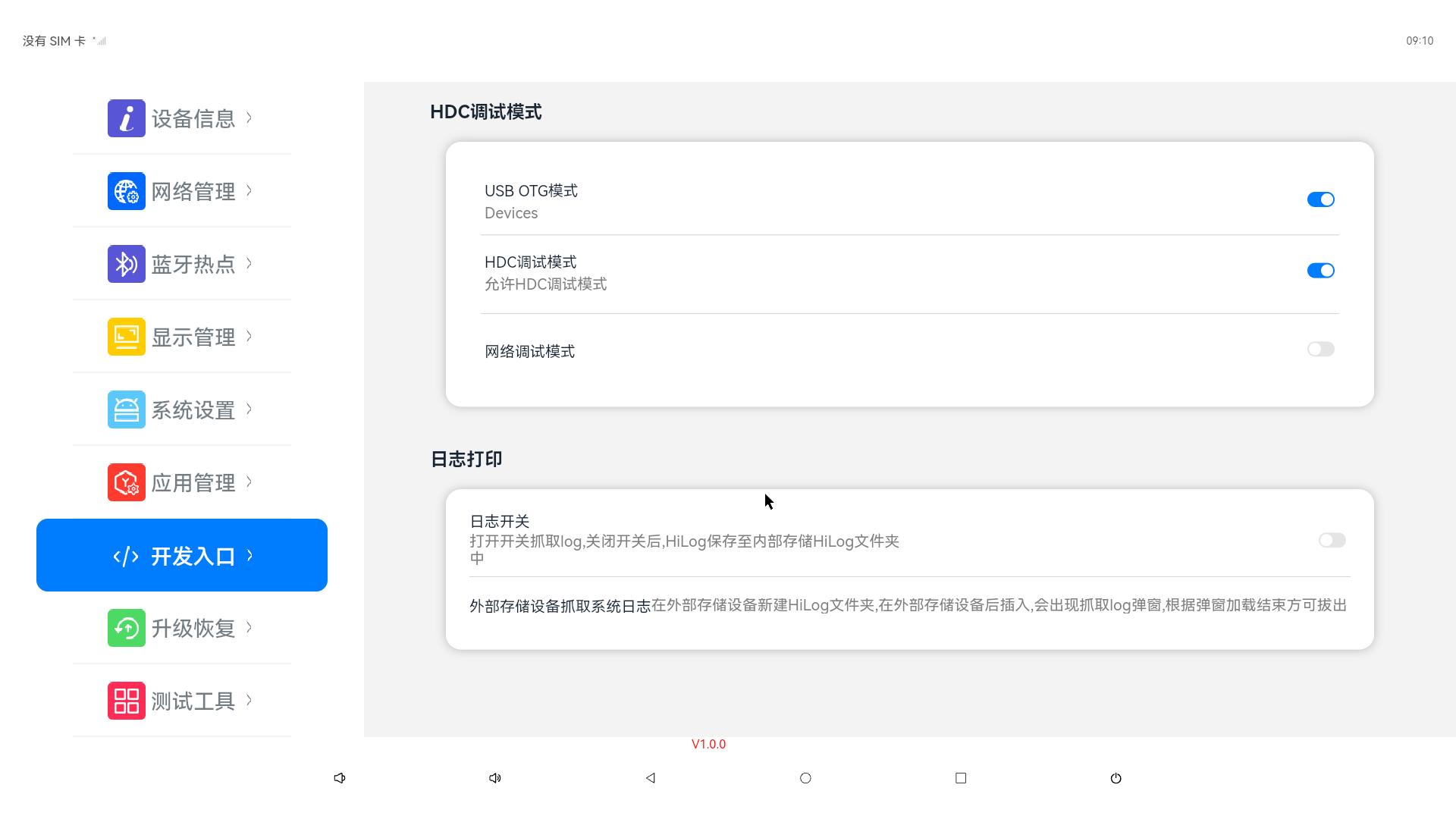
① Connect the device A running HarmonyOS to the computer using a dual-head USB cable via the OTG port. You need to confirm that after the system boots, OsTools -- Development Entry, USB OTG mode and HDC debugging mode are in open state:
② Check the tool interface. It will show the serial number of the connected device 3568A, as follows:

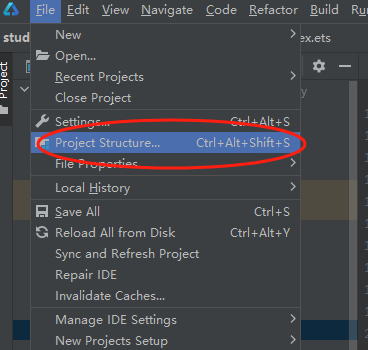
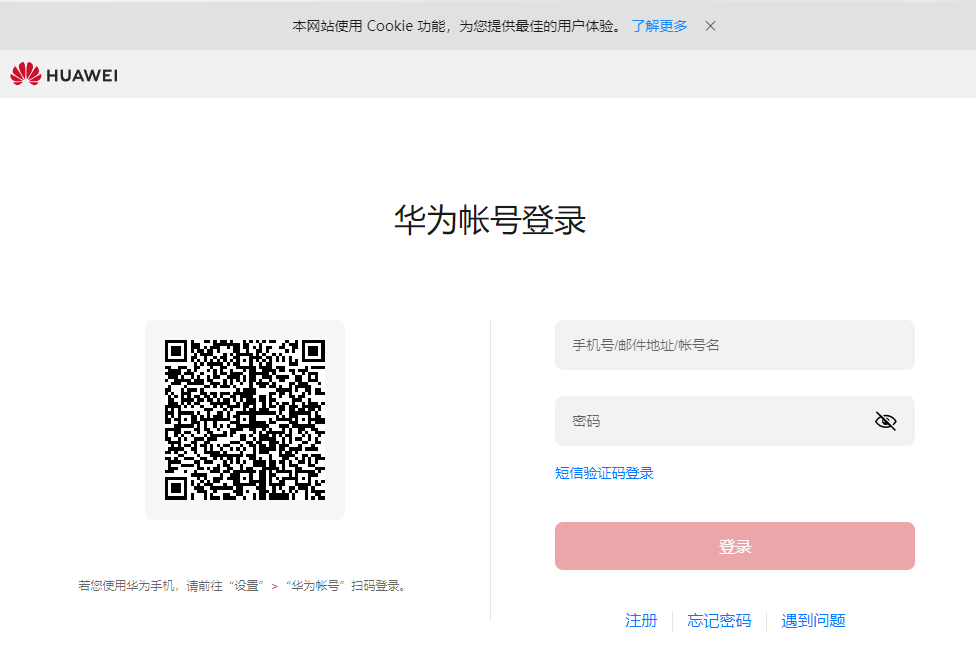
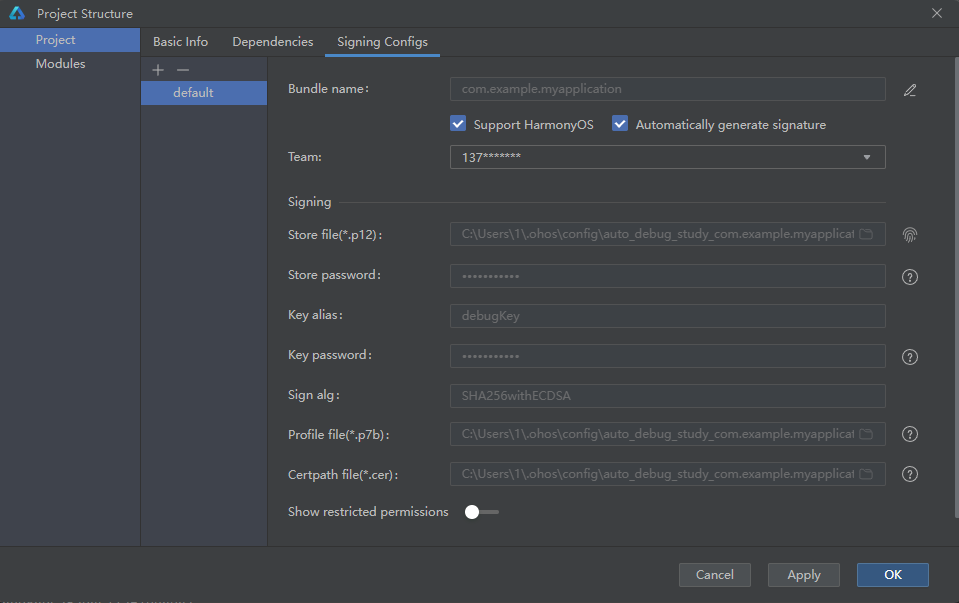
③ System signing: Click File > Project Structure… > Project > SigningConfigs interface, check "Support HarmonyOS" and "Automatically generate signature", click "Sign In" that appears on the interface, and log in with your Huawei account. Wait for automatic signing to complete, then click "OK". As shown in the following figures:

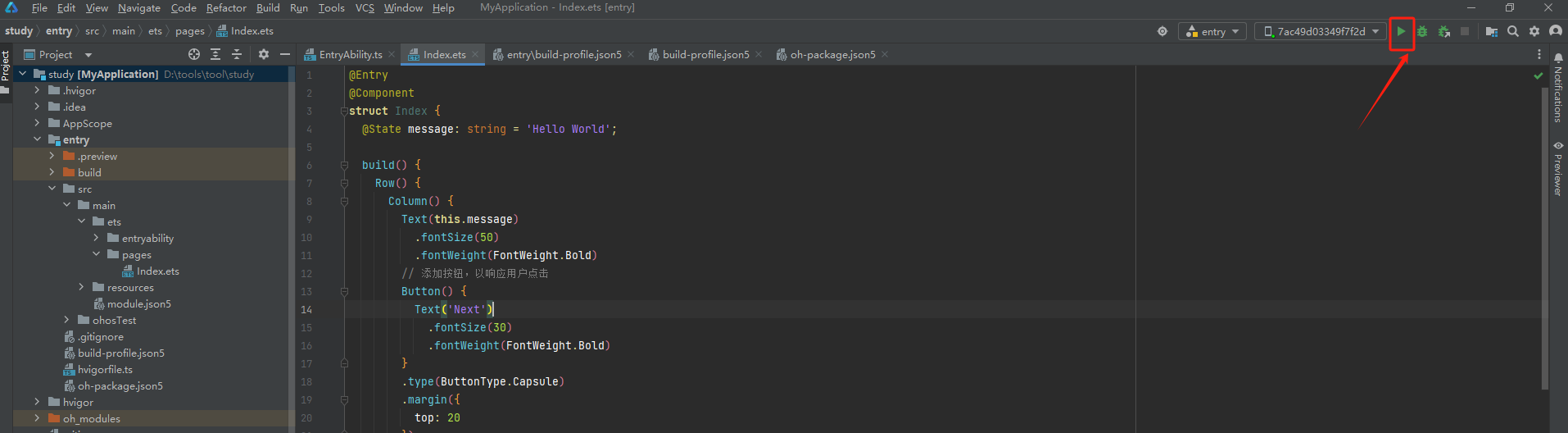
④ In the toolbar at the top right of the editing window, click the  button to run. The effect is as shown in the following figure:
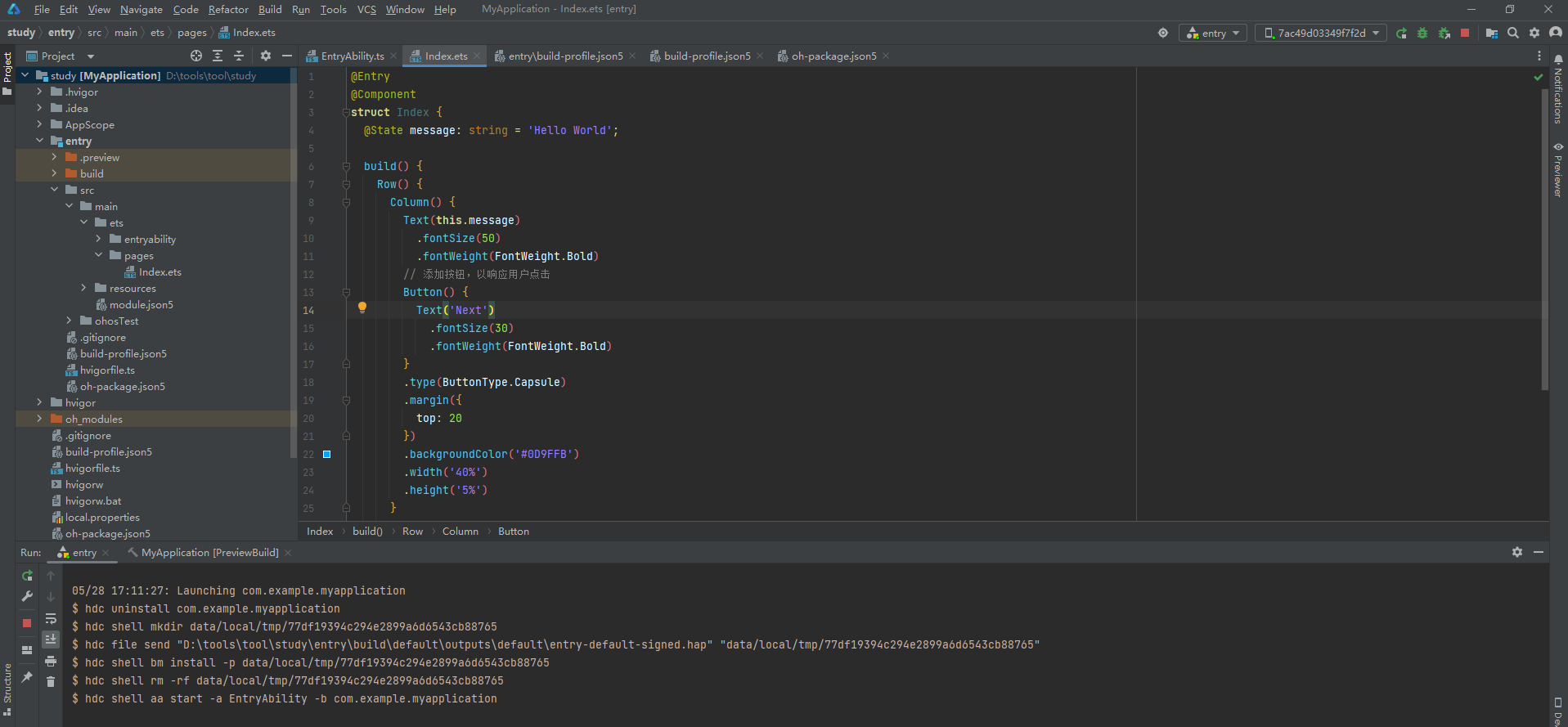
⑤ After waiting for the run to finish, the tool interface is as follows:
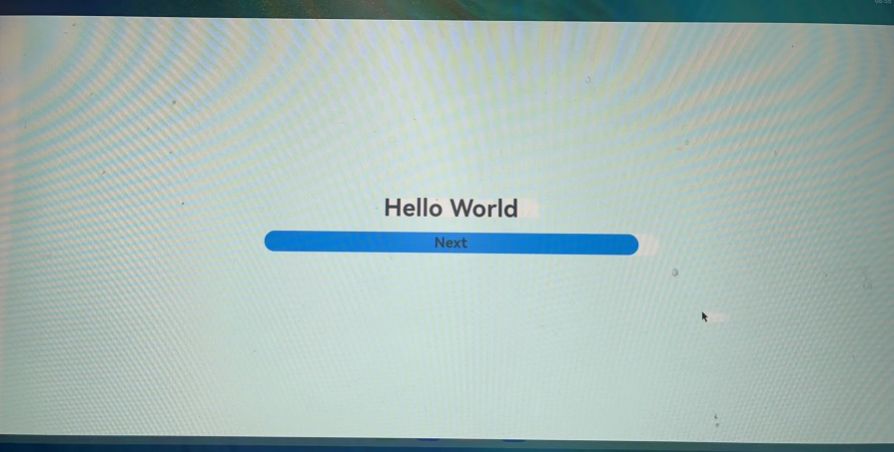
The physical device interface effect is as follows:
Note:
Congratulations! You have completed developing your first HarmonyOS application using ArkTS language (Stage model). Come explore more HarmonyOS features!