
ROS2 Basics
Experiment 01 - Set Up the Environment
I. One-click Configuration
Open a terminal, run the install command, and execute the fishros (Yu Xiang ROS) configuration script:
wget http://fishros.com/install -O fishros && . fishros
The following options appear. Enter number 5 and press Enter to switch the system source.
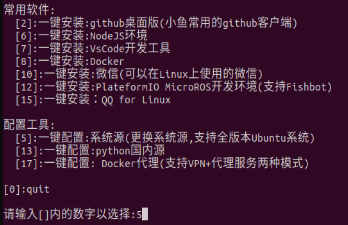
Then, enter number 2 and press Enter to configure the system source with one click.
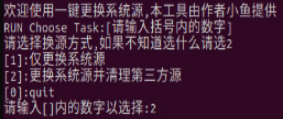
After configuring the system source, the screen below appears. Enter number 1 and press Enter to add the ROS/ROS2 source.
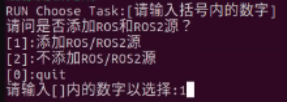
At this point, the system source settings are complete. The next step is to install ROS2.
II. One-click Installation
Open an Ubuntu terminal and enter the command:
wget http://fishros.com/install -O fishros && . fishros
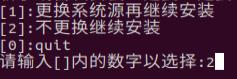
Then enter 1 for one-click install -> install without changing source -> select the ROS version that matches your Ubuntu version -> proceed with the installation.
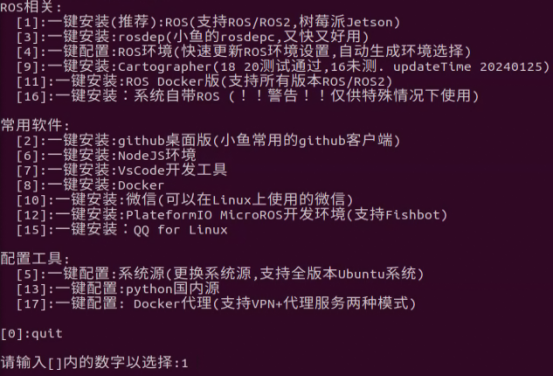
Enter number 2 (install without changing source)
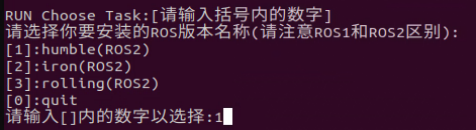
Enter number 1 to select humble (ROS2)
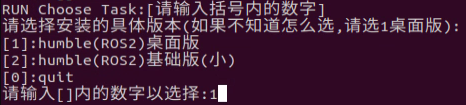
Enter number 1 to select humble (ROS2) Desktop
After installation completes, open a new terminal and enter:
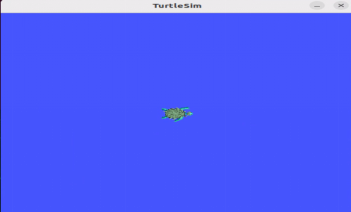
ros2 run turtlesim turtlesim_node
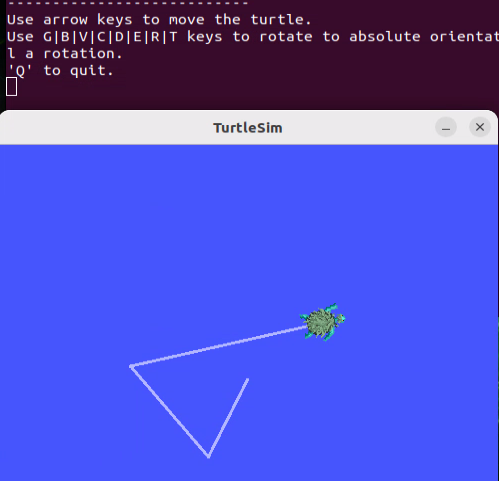
This launches the turtle simulation window; a default little turtle appears in the middle.
Open another terminal and run the following command:
ros2 run turtlesim turtle_teleop_key
After launch, the terminal will prompt: Use arrow keys to move the turtle. You can now use the keyboard arrow keys to move the little turtle.
III. Configure rosdep
Open an Ubuntu terminal and enter the command:
wget http://fishros.com/install -O fishros && . fishros
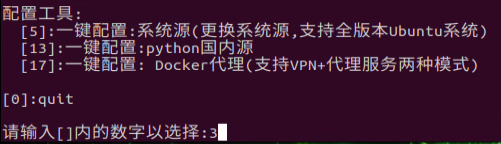
Enter 3 to configure with one click (note: if a "enter the following XXX command to complete the update" prompt appears, follow the command shown in the terminal to update).
IV. Update the System Environment
Open an Ubuntu terminal and enter the command:
wget http://fishros.com/install -O fishros && . fishros
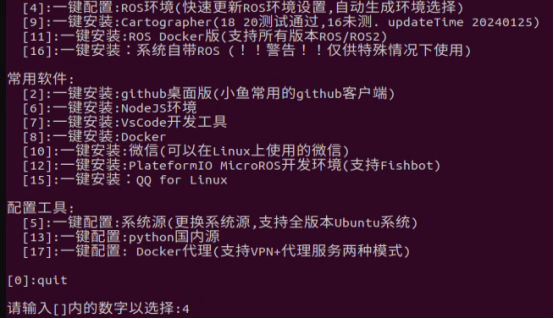
Enter 4 to configure with one click.
At this point, the ROS installation is complete.