
NAPI Development Hands-on Demo
1. Introduction
In this chapter, using GPIO read/write as an example, I will walk you through a complete analysis of how to create an NAPI project, and explain the project structure and source code in detail. In subsequent use, we will use this as a basis and will no longer introduce each peripheral and interface in detail — only necessary explanations!
Our application uses the "Native C++" template and implements controlling the RK3568's GPIO from ArkTS by calling the Linux kernel's command-line interface through NAPI (Node-API).
This chapter is somewhat difficult but very important!
Materials Path for This Chapter
hap package: \05-Development Materials\01-OpenHarmory Development Materials\Peripheral Test APP\HAP\GPIO_TEST.hap
Project source code: \05-Development Materials\01-OpenHarmory Development Materials\Peripheral Test APP\SRC\GPIO_TEST
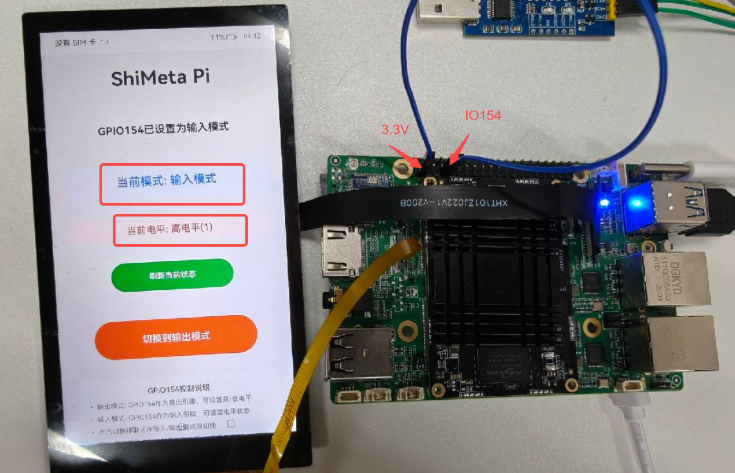
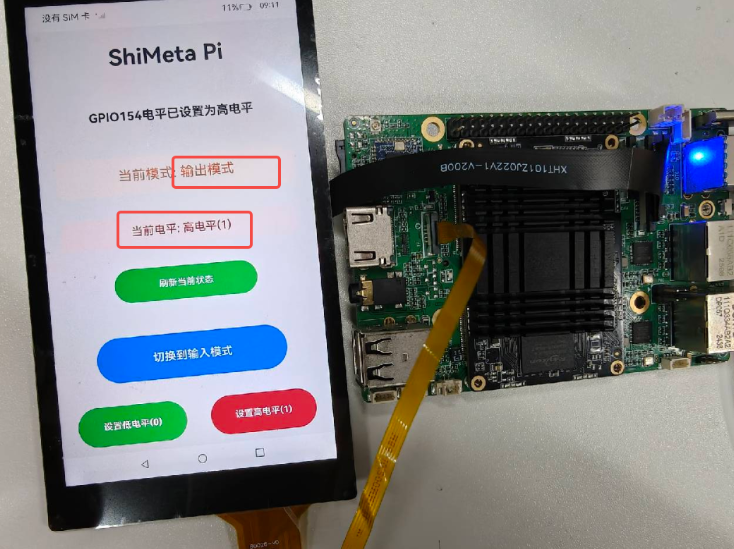
2. Target Effect Diagram
Input mode:
Output mode:
3. Code Structure Explanation
This article will explain the core code. The project code structure generated by the software using the Native C++ template is as follows:
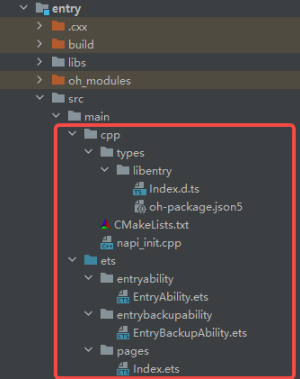
napi_init.cppThis is the core file of NAPI development. The main functional interface functions are defined here by the user; in addition, the initialization code for NAPI module registration is also generated in this file. It implements the bridge between JavaScript and C++ and provides hardware-control functions.CMakeLists.txtThe build configuration file, defining the compilation rules and dependencies of the C++ module.Index.etsThe main-interface page, implementing the user interface for code control, and calling the underlying C++ functions through NAPI.EntryAbility.etsDefines the application's lifecycle management and main-window creation.EntryBackupAbility.etsImplements the application-data backup and restore functions.module.json5Module configuration file.oh-package.json5NAPI module's type-declaration package configuration file.
4. Process for Index.ets to Call C/C++ Functions
4.1 Application Framework
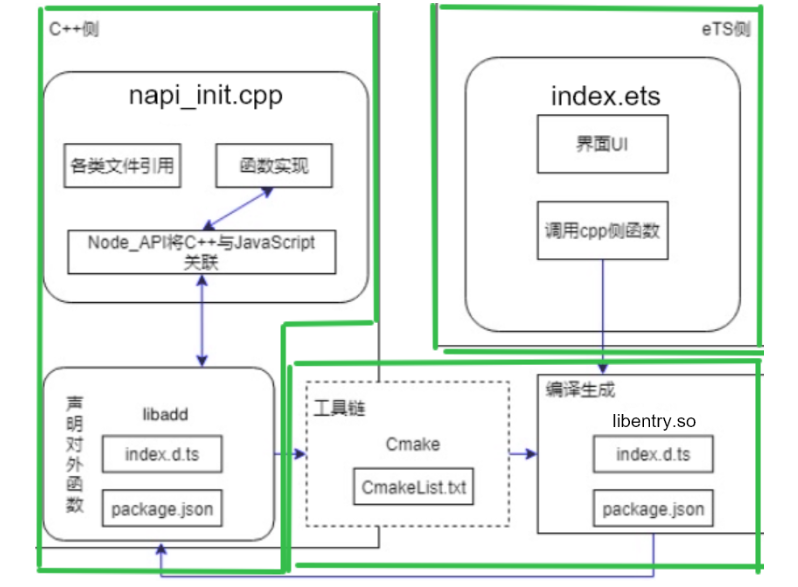
The entire application framework can be simply divided into three parts: the C++ side, the eTS side, and various toolchains.
- C++ side: contains various file references, C++ or C code, the information about how Node_API associates C++ functions with JavaScript, etc.
- eTS side: contains the UI, its own methods, and the methods of the imported packages it calls, etc.
- Toolchain: contains a series of tools including the Cmake packaging tool.
4.2 Call and Package Flow
During the process of eTS calling C++ methods, the call and package flow is as follows:
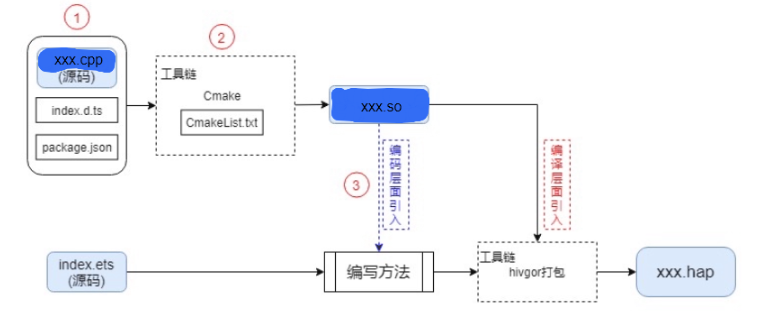
5. C++ Side Code Implementation
5.1 Functional Code Writing & Explanation
Below, several main functions in C++ are explained.
First, two functions are used to implement file-operation functions for GPIO (general-purpose input/output).
void write_gpio_file(const char *filename, const char *value) {
    char path[256];
    snprintf(path, sizeof(path), "%s/%s", GPIO_PATH, filename);
    OH_LOG_Print(LOG_APP, LOG_INFO, GLOBAL_RESMGR, GPIO_TAG,
                       " %{public}s,%{public}s", GPIO_PATH, filename);
    int fd = open(path, O_WRONLY);
    if (fd < 0) {
        OH_LOG_Print(LOG_APP, LOG_ERROR, GLOBAL_RESMGR, GPIO_TAG,
                       " open failed for path:%{public}s, errno:%{public}d, error:%{public}s",
                       path, errno, strerror(errno));
        exit(1);
    }

    if (write(fd, value, strlen(value)) < 0) {
        OH_LOG_Print(LOG_APP, LOG_ERROR, GLOBAL_RESMGR, GPIO_TAG,
                       " open failed for path:%{public}s, errno:%{public}d, error:%{public}s",
                       path, errno, strerror(errno));
        close(fd);
        exit(1);
    }
    close(fd);
}
First, let's explain the write_gpio_file function. It implements the function of writing a value to the specified GPIO file, used to control the GPIO pin state. Implementation details:
1- Uses snprintf to safely build the complete file path and saves the path under path.
2- Opens the GPIO file with open in write-only mode; after successfully opening the file, uses write to write the target value.
Tip
On errors, the log is printed out via OH_LOG_Print to facilitate troubleshooting.
char* read_gpio_file(const char *filename) {
    char path[256];
    snprintf(path, sizeof(path), "%s/%s", GPIO_PATH, filename);
    OH_LOG_Print(LOG_APP, LOG_INFO, GLOBAL_RESMGR, GPIO_TAG,
                       " reading %{public}s,%{public}s", GPIO_PATH, filename);
    int fd = open(path, O_RDONLY);
    if (fd < 0) {
        OH_LOG_Print(LOG_APP, LOG_ERROR, GLOBAL_RESMGR, GPIO_TAG,
                       " open failed for path:%{public}s, errno:%{public}d, error:%{public}s",
                       path, errno, strerror(errno));
        return nullptr;
    }

    char* buffer = (char*)malloc(32);
    ssize_t bytes_read = read(fd, buffer, 31);
    if (bytes_read < 0) {
        OH_LOG_Print(LOG_APP, LOG_ERROR, GLOBAL_RESMGR, GPIO_TAG,
                       " read failed for path:%{public}s, errno:%{public}d, error:%{public}s",
                       path, errno, strerror(errno));
        close(fd);
        free(buffer);
        return nullptr;
    }

    buffer[bytes_read] = '\0';
    // 移除换行符
    if (bytes_read > 0 && buffer[bytes_read - 1] == '\n') {
        buffer[bytes_read - 1] = '\0';
    }

    close(fd);
    return buffer;
}
Now let's explain the write_gpio_file function. It implements the function of reading a value from the specified GPIO file to get the GPIO pin state; on success it returns a dynamically-allocated memory pointer, and on failure returns nullptr.
Implementation details:
1- Uses snprintf to safely build the complete file path and saves the path under path.
2- Opens the GPIO file with open in write-only mode.
3- Uses the malloc function to dynamically allocate a 32-byte buffer, and uses read to read the string returned by the opened file and save it into the requested buffer.
4- Strips the trailing newline from the read return value and returns it.
After the above two parts are implemented, file reading/writing can be done to control the target peripheral. Now let's look at the specific control-function functions:
// 设置GPIO方向
static napi_value SetGpioDirection(napi_env env, napi_callback_info info)
{
    size_t argc = 1;
    napi_value args[1];
    napi_get_cb_info(env, info, &argc, args, nullptr, nullptr);

    if (argc < 1) {
        napi_throw_error(env, nullptr, "Expected 1 argument: direction value (in/out)");
        return nullptr;
    }

    size_t str_size;
    napi_get_value_string_utf8(env, args[0], nullptr, 0, &str_size);
    char* direction_value = (char*)malloc(str_size + 1);
    napi_get_value_string_utf8(env, args[0], direction_value, str_size + 1, &str_size);

    write_gpio_file("direction", direction_value);
    free(direction_value);

    napi_value result;
    napi_get_boolean(env, true, &result);
    return result;
}
First is the first NAPI function: SetGpioDirection. Its function is to set the GPIO pin's working direction (input mode "in" or output mode "out"). First, the parameters passed to the function are explained:
env NAPI environment context, used for all NAPI calls.
info Callback information, containing parameters passed in from JavaScript.
Now analyzing the function body:
1- argc indicates the number of parameters passed in, and the args array is used to save the passed-in parameter values. The function napi_get_cb_info can be used to obtain the parameter information passed in by the JavaScript call, such as the direction "in".
2- First, use the function napi_get_value_string_utf8 without providing a buffer to obtain only the length of the passed-in string via the function call, and save it to str_size. After obtaining the target string length, dynamically allocate memory. Then use the function napi_get_value_string_utf8 again to extract the target-length string value from the JavaScript parameter, convert it to a C string, and save it into the allocated buffer.
3- After calling the previously-defined write_gpio_file function to write the direction parameter to the target folder, release the memory.
4- After a successful write, create a JavaScript boolean value via napi_get_boolean, save it to result, and return.
The previous function implemented the function of sending commands. Let's analyze a function that reads the return value to get the IO direction, as follows:
// 读取GPIO方向
static napi_value GetGpioDirection(napi_env env, napi_callback_info info)
{
    char* direction_value = read_gpio_file("direction");
    if (direction_value == nullptr) {
        napi_throw_error(env, nullptr, "Failed to read GPIO direction");
        return nullptr;
    }

    napi_value result;
    napi_create_string_utf8(env, direction_value, NAPI_AUTO_LENGTH, &result);
    free(direction_value);

    return result;
}
The function GetGpioDirection implements the function of reading the GPIO pin's current working direction.
The parameters and return value are the same as other NAPI functions; we only need to focus on the function body:
1- First, call the previously-defined function read_gpio_file to read the direction value of the IO corresponding to the specified folder.
2- Then use the function napi_create_string_utf8 to convert the read C string into a JavaScript string, and save the result into result for return (using the parameter NAPI_AUTO_LENGTH lets the string length be auto-calculated).
In addition, we also defined functions for setting the GPIO level value and reading the GPIO level. They work in the same way as above and will not be elaborated. The code is attached here:
// 设置GPIO电平值
static napi_value SetGpioValue(napi_env env, napi_callback_info info)
{
    size_t argc = 1;
    napi_value args[1];
    napi_get_cb_info(env, info, &argc, args, nullptr, nullptr);

    if (argc < 1) {
        napi_throw_error(env, nullptr, "Expected 1 argument: value (0/1)");
        return nullptr;
    }

    size_t str_size;
    napi_get_value_string_utf8(env, args[0], nullptr, 0, &str_size);
    char* value = (char*)malloc(str_size + 1);
    napi_get_value_string_utf8(env, args[0], value, str_size + 1, &str_size);

    write_gpio_file("value", value);
    free(value);

    napi_value result;
    napi_get_boolean(env, true, &result);
    return result;
}

// 读取GPIO电平值
static napi_value GetGpioValue(napi_env env, napi_callback_info info)
{
    char* value = read_gpio_file("value");
    if (value == nullptr) {
        napi_throw_error(env, nullptr, "Failed to read GPIO value");
        return nullptr;
    }

    napi_value result;
    napi_create_string_utf8(env, value, NAPI_AUTO_LENGTH, &result);
    free(value);

    return result;
}
5-2 Register the module Let's go to the end of the napi_init.cpp function to register the functional module we wrote.
The way to register a module is fixed. In the Init function, in the part of napi_property_descriptor desc[] that we need to fill in, just associate the functional functions implemented in the project with the interfaces to be exposed.
EXTERN_C_START
static napi_value Init(napi_env env, napi_value exports)
{
    napi_property_descriptor desc[] = {
        { "setGpioDirection", nullptr, SetGpioDirection, nullptr, nullptr, nullptr, napi_default, nullptr },
        { "getGpioDirection", nullptr, GetGpioDirection, nullptr, nullptr, nullptr, napi_default, nullptr },
        { "setGpioValue", nullptr, SetGpioValue, nullptr, nullptr, nullptr, napi_default, nullptr },
        { "getGpioValue", nullptr, GetGpioValue, nullptr, nullptr, nullptr, napi_default, nullptr },
        { "exportGpio", nullptr, ExportGpio, nullptr, nullptr, nullptr, napi_default, nullptr },
        { "unexportGpio", nullptr, UnexportGpio, nullptr, nullptr, nullptr, napi_default, nullptr }
    };
    napi_define_properties(env, exports, sizeof(desc) / sizeof(desc[0]), desc);
    return exports;
}
EXTERN_C_END
napi_module is used to describe module information. The part that usually needs modification is just the module name nm_modname; then you can register it.
static napi_module demoModule = {
    .nm_version = 1,
    .nm_flags = 0,
    .nm_filename = nullptr,
    .nm_register_func = Init,
    .nm_modname = "entry",
    .nm_priv = ((void*)0),
    .reserved = { 0 },
};

extern "C" __attribute__((constructor)) void RegisterEntryModule(void)
{
    napi_module_register(&demoModule);
}
6. Interface Code Implementation
We need to provide the methods and brief descriptions of externally-provided interfaces in the Index.d.ts file:
export const setGpioDirection: (direction: string) => boolean
export const getGpioDirection: () => string
export const setGpioValue: (value: string) => boolean
export const getGpioValue: () => string
export const exportGpio: () => boolean
export const unexportGpio: () => boolean
The interface names here are consistent with the externally-provided interface names when registering the module.
What is inside the parentheses after ": " are the parameters that need to be passed in; "=>" is the return value, here returning the JavaScript boolean type.
Next is configuring the CMake packaging parameters in CMakeLists.txt:
# the minimum version of CMake.
cmake_minimum_required(VERSION 3.5.0)
project(GPIO)

set(NATIVERENDER_ROOT_PATH ${CMAKE_CURRENT_SOURCE_DIR})

if(DEFINED PACKAGE_FIND_FILE)
    include(${PACKAGE_FIND_FILE})
endif()

include_directories(${NATIVERENDER_ROOT_PATH}
                    ${NATIVERENDER_ROOT_PATH}/include)

add_library(entry SHARED napi_init.cpp)
target_link_libraries(entry PUBLIC
        libace_napi.z.so
        libhilog_ndk.z.so)
The CMakeLists file basically does not need modification either; generally, you just add an additional system library, for example, here I just added a libhilog_ndk.z.so library at the end.
7. ets Side Code Implementation
So much has been laid out above, all for being able to call the relevant functional functions here.
We first import our defined NAPI module at the beginning of the file, as follows:
import testNapi from 'libentry.so'Then define the struct component used by this example project. @State is a reactive state variable; when the data changes, the UI is automatically updated. It defines some IO direction, level value, title, and other content used in this project.
@Entry
@Component
struct Index {
  @State title: string = 'ShiMeta Pi';
  @State currentMode: string = 'out'; // 当前GPIO方向模式
  @State currentValue: string = '0'; // 当前GPIO电平值
  @State message: string = 'GPIO154(IO4_D2)控制';
  private intervalId: number = -1; // 定时器ID
Our Index.ets code is mainly divided into two parts: functional functions and UI modules. The purpose of doing a secondary encapsulation of the functional functions is to improve code readability and to facilitate later functional updates — it is a good programming habit. Below, we will first explain in detail the functional functions used in the UI.
7.1 Functional Function Explanation
We have selected the following functions for detailed explanation:
// 读取当前GPIO方向
private getCurrentGpioDirection() {
  try {
    const direction = testNapi.getGpioDirection();
    this.currentMode = direction;
    hilog.info(DOMAIN, 'GPIO', `当前GPIO154方向: ${direction}`);
  } catch (error) {
    hilog.error(DOMAIN, 'GPIO', `读取GPIO方向失败: ${error}`);
  }
}
The function getCurrentGpioDirection implements the function of reading the IO's direction. By calling the declared C++ function getGpioDirection, it reads the direction value and updates it into the reactive variable representing the current IO working mode.
// 设置GPIO电平值
private setGpioValue(value: string) {
  try {
    testNapi.setGpioValue(value);
    this.currentValue = value;
    this.message = `GPIO154电平已设置为${value === '1' ? '高电平' : '低电平'}`;
    hilog.info(DOMAIN, 'GPIO', `GPIO154电平设置为: ${value}`);
  } catch (error) {
    hilog.error(DOMAIN, 'GPIO', `设置GPIO电平值失败: ${error}`);
  }
}
The function setGpioValue implements the function of setting the IO's output level in output mode. By calling the declared C++ function setGpioValue, it writes the set value to the IO and updates the reactive variable representing the current IO output level state.
// 启动定时器(输入模式下每0.1秒读取电平状态)
private startValuePolling() {
  this.stopValuePolling(); // 先停止之前的定时器
  this.intervalId = setInterval(() => {
    if (this.currentMode === 'in') {
      this.getCurrentGpioValue();
    }
  }, 100);
}

// 停止定时器
private stopValuePolling() {
  if (this.intervalId !== -1) {
    clearInterval(this.intervalId);
    this.intervalId = -1;
  }
}
The functions startValuePolling and stopValuePolling are used to start and stop the timer respectively.
The function setInterval inside is a JavaScript built-in function. Its function is to execute a callback function periodically (here, 100ms). After successful creation, it returns a timer ID. An ID of -1 means no timer or timer-creation failure.
The corresponding function clearInterval is also a JavaScript built-in function; its function is to clear the timer of the specified ID.
// 组件初始化时读取当前状态
aboutToAppear() {
  this.getCurrentGpioDirection();
  this.getCurrentGpioValue();
  // 如果初始模式是输入模式,启动定时器
  if (this.currentMode === 'in') {
    this.startValuePolling();
  }
}

// 组件销毁时清理定时器
aboutToDisappear() {
  this.stopValuePolling();
}
The functions aboutToAppear and aboutToDisappear are the initialization process at APP startup and the de-initialization process at exit, respectively. The functions called are all those explained above.
For other functional functions, please see the source code. I believe that after understanding the above functions, the rest will be easy for everyone to understand, so they will not be elaborated here.
7.2 UI Interface Function Explanation
build() {
  Row() {
    Column({ space: 40 }) {

      Text(this.title)
        .fontSize(40)
        .fontWeight(FontWeight.Bold)
        .margin({ bottom: 30 })
        .textAlign(TextAlign.Center)

      Text(this.message)
        .fontSize(22)
        .fontWeight(FontWeight.Bold)
        .margin({ bottom: 20 })
        .textAlign(TextAlign.Center)

      // 当前模式显示标签
      Text(`当前模式: ${this.currentMode === 'out' ? '输出模式' : '输入模式'}`)
        .fontSize(24)
        .fontColor(this.currentMode === 'out' ? '#FF6B35' : '#007DFF')
        .fontWeight(FontWeight.Medium)
        .textAlign(TextAlign.Center)
        .padding(20)
        .backgroundColor(this.currentMode === 'out' ? '#FFF5F0' : '#F0F8FF')
        .borderRadius(10)
        .width('100%')

        // 当前电平值显示标签
        Text(`当前电平: ${this.currentValue === '1' ? '高电平(1)' : '低电平(0)'}`)
          .fontSize(20)
          .fontColor(this.currentValue === '1' ? '#DC3545' : '#28A745')
          .fontWeight(FontWeight.Medium)
          .textAlign(TextAlign.Center)
          .padding(15)
          .backgroundColor(this.currentValue === '1' ? '#FFF0F0' : '#F0FFF0')
          .borderRadius(8)
          .width('100%')

        // 刷新状态按键
        Button('刷新当前状态')
          .width('60%')
          .height(60)
          .fontSize(16)
          .fontWeight(FontWeight.Medium)
          .backgroundColor('#28A745')
          .borderRadius(10)
          .margin({ bottom: 20 })
          .onClick(() => {
            this.getCurrentGpioDirection();
            // 只在输入模式下读取电平值
            if (this.currentMode === 'in') {
              this.getCurrentGpioValue();
            }
            this.message = '状态已刷新';
          })

        // GPIO方向切换按键
        Button(`切换到${this.currentMode === 'out' ? '输入' : '输出'}模式`)
          .width('80%')
          .height(80)
          .fontSize(20)
          .fontWeight(FontWeight.Bold)
          .backgroundColor(this.currentMode === 'out' ? '#007DFF' : '#FF6B35')
          .borderRadius(15)
          .onClick(() => {
            this.toggleGpioDirection();
          })

        // GPIO电平值控制按钮组(仅在输出模式下显示)
        if (this.currentMode === 'out') {
          Row({ space: 20 }) {
            Button('设置低电平(0)')
              .width('45%')
              .height(70)
              .fontSize(16)
              .fontWeight(FontWeight.Bold)
              .backgroundColor('#28A745')
              .borderRadius(12)
              .onClick(() => {
                this.setGpioValue('0');
              })

            Button('设置高电平(1)')
              .width('45%')
              .height(70)
              .fontSize(16)
              .fontWeight(FontWeight.Bold)
              .backgroundColor('#DC3545')
              .borderRadius(12)
              .onClick(() => {
                this.setGpioValue('1');
              })
          }
          .width('100%')
          .justifyContent(FlexAlign.SpaceBetween)
        }

        // 说明文字
        Column({ space: 10 }) {
          Text('GPIO154控制说明:')
            .fontSize(16)
            .fontWeight(FontWeight.Medium)
            .fontColor('#333333')


          Text('• 输出模式: GPIO154作为输出引脚,可设置高/低电平')
            .fontSize(14)
            .fontColor('#666666')
            .textAlign(TextAlign.Start)
            .width('100%')

          Text('• 输入模式: GPIO154作为输入引脚,可读取电平状态')
            .fontSize(14)
            .fontColor('#666666')
            .textAlign(TextAlign.Start)
            .width('100%')

          Text('• 点击切换按键可在输入/输出模式间切换')
            .fontSize(14)
            .fontColor('#666666')
            .textAlign(TextAlign.Start)
            .width('100%')

          Text('• 输出模式下可点击按钮设置高电平(1)或低电平(0)')
            .fontSize(14)
            .fontColor('#666666')
            .textAlign(TextAlign.Start)
            .width('100%')

          Text('• 点击刷新按键可读取当前实际状态')
            .fontSize(14)
            .fontColor('#666666')
            .textAlign(TextAlign.Start)
            .width('100%')
        }
        .width('100%')
        .padding(20)
        .backgroundColor('#FAFAFA')
        .borderRadius(10)
      }
      .width('100%')
      .padding(30)
      .justifyContent(FlexAlign.Center)
    }
    .height('100%')
    .backgroundColor('#F5F5F5')
  }
}
After everyone studied "ArkTS Introduction" in the previous chapter, the above code is clear at a glance: in horizontal and vertical linear layouts, some buttons and text-label components are placed, and below the components some properties such as size, background color, and click events are added.
The functional functions we use in click events are implemented via NAPI.
8. Code Compile, Burn & Program Run
After completing the above code writing, once the device is successfully connected, you can use one-click compile, download, and run in DevEco Studio for our program:
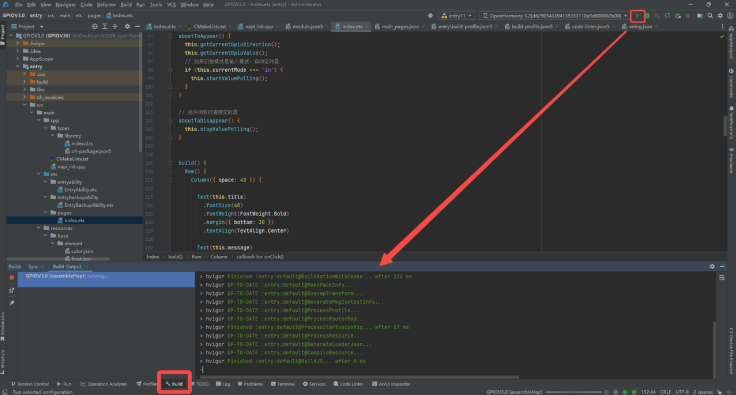
After compilation is complete, you can find that the program is automatically entered through the development board's screen:
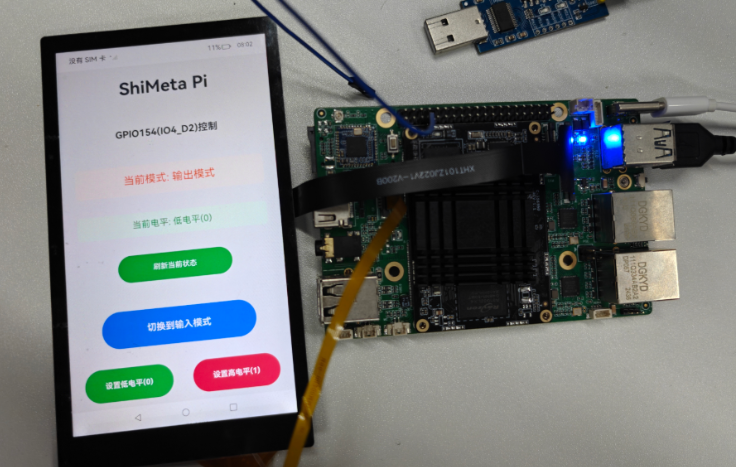
Next, we click the "Switch to input mode" button.
If all goes as expected, it should crash back to the desktop because we have not yet exported the directory on the board's terminal and granted executable permission to the exported directory. First, enter the development board's terminal via HDC and enter the following commands in sequence:
echo 154 > /sys/class/gpio/export
chmod 777 /sys/class/gpio/gpio154/*
At this point we can use the program normally.
Below is an explanation of the reason for everyone:
The command echo 154 > /sys/class/gpio/export means exporting the corresponding IO154 in the gpio directory. At this point the kernel creates a folder belonging to IO154, and we operate on this folder subsequently.
The command chmod 777 /sys/class/gpio/gpio154/* is to grant permission to the exported file gpio154. chmod means permission setting. According to the file-permission representation under the Linux kernel, where 7 = 4+2+1: read (4) + write (2) + execute (1) = full permission, and where 777: owner (7) + group users (7) + other users (7) = full permission for all users, and the trailing * is a wildcard indicating all files under this directory.
However, the Linux system's default GPIO file permission is 644, and applications are not executed as the root user, so there is no write permission, resulting in the inability to execute the corresponding commands. The OpenHarmony terminal, on the other hand, runs as root by default, so it can modify the file's default permission in the terminal.
Tip
Setting the permission to 777 here is for debugging convenience; in a general production environment it may be set to 664 to prevent the program from being tampered with by other users.
Some friends must be asking, why not use the command chmod 777 /sys/class/gpio/*, so that we can do the export operation in the NAPI program. That is indeed the case, but the gpio154 file exported via the command is not set to 777 permission, because the chmod command only modifies the permissions of existing directories. After we export in the software, we still need to go back to the terminal and add 777 permission to the exported gpio154 for the program to execute properly. For convenience we did not do that. We also provide export-IO and unexport-IO interfaces in the napi_init.cpp and Index.d.ts programs for everyone. You can try adding these interfaces in the Index.ets program on your own.
You can use tools such as a multimeter and Dupont wires to test the program. The author has already tested it, but due to length limitations and considering that there will be a dedicated chapter on GPIO later, I will not demonstrate it here.
9. Summary
This chapter is rather long, introducing how C++ code is associated with JavaScript through the toolchain, and how eTS files call the interfaces provided by the so package. At the same time, by reading the code, it taught everyone the specific writing and packaging flow of C++ code. This is a very important part of our tutorial's NAPI development. Everyone can review against our source code, and those who have a ShiMetaPi M4-R1 board can also replicate it according to the tutorial.
Through the GPIO read/write example, the creation and development flow of an NAPI project is fully demonstrated, covering key aspects such as C++ side code implementation, interface definition, CMake configuration, and ArkTS interface development, laying a solid foundation for subsequent peripheral-interface development.
10: Common NAPI Development Issues
Common Issue 1: System Commands Cannot Modify Permissions
When developing a peripheral, you may encounter the problem that a system command cannot modify permissions, resulting in the inability to use it normally.

Solution:
# 1. 重新挂载根文件系统为可读写
mount -o remount,rw /

# 2. 更改 ifconfig 权限
chmod 777 /bin/ifconfig
Common Issue 2: ArkTS Does Not Support Implicit Declarations

ArkTS requires explicit type declarations; it does not support any or unknown types (implicit types).
Common Issue 3: Modify Application Name
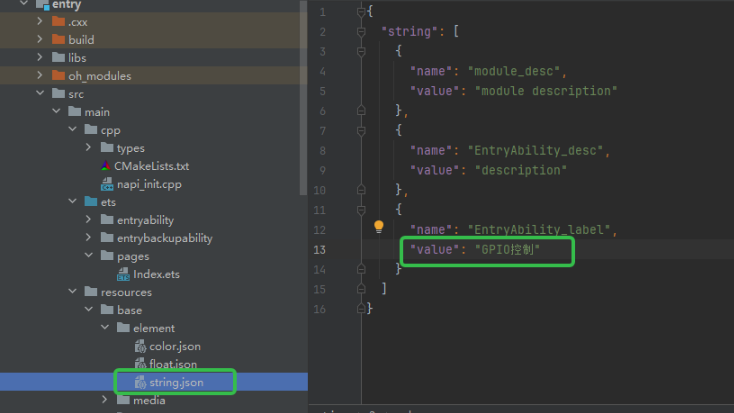
Common Issue 4: Do I Need to Open the Terminal and Set Permissions Before Each Development?
In actual projects, we modify system-file permissions by adding system-startup scripts and udev rules to manage permissions in the system image.
Common Issue 5: Application's NAPI Interface Crashes When Called (Important!)
A common situation is: a button is clicked, its click event calls an NAPI interface, but the application crashes.
Because the software is compiled by default as a 64-bit system while the development board is 32-bit, to run on the development board you need to add a 32-bit compiler, as shown in the figure:
First find the file build-profile.json5 in the entry directory:
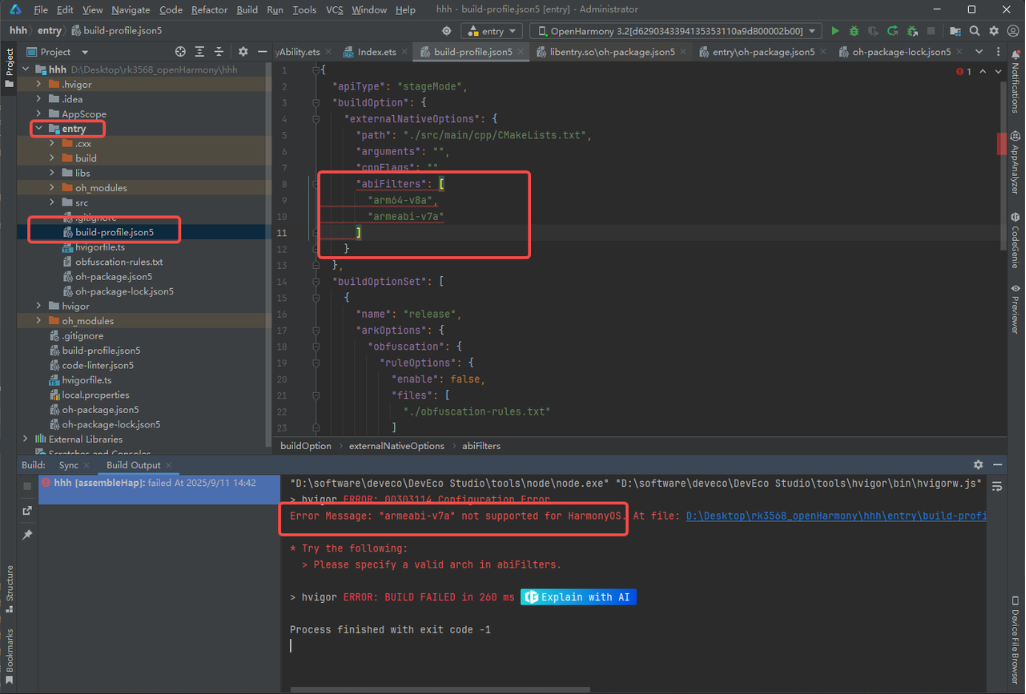
"buildOption": {
    "externalNativeOptions": {
      "path": "./src/main/cpp/CMakeLists.txt",
      "arguments": "",
      "cppFlags": "",
      "abiFilters": [
        "arm64-v8a",
        "armeabi-v7a"
      ]
    }
}
But HarmonyOS does not support 32-bit; only OpenHarmony supports the board's 32-bit processor, so it will report an error.
Find the file with the same name build-profile.json5 in the project root directory:
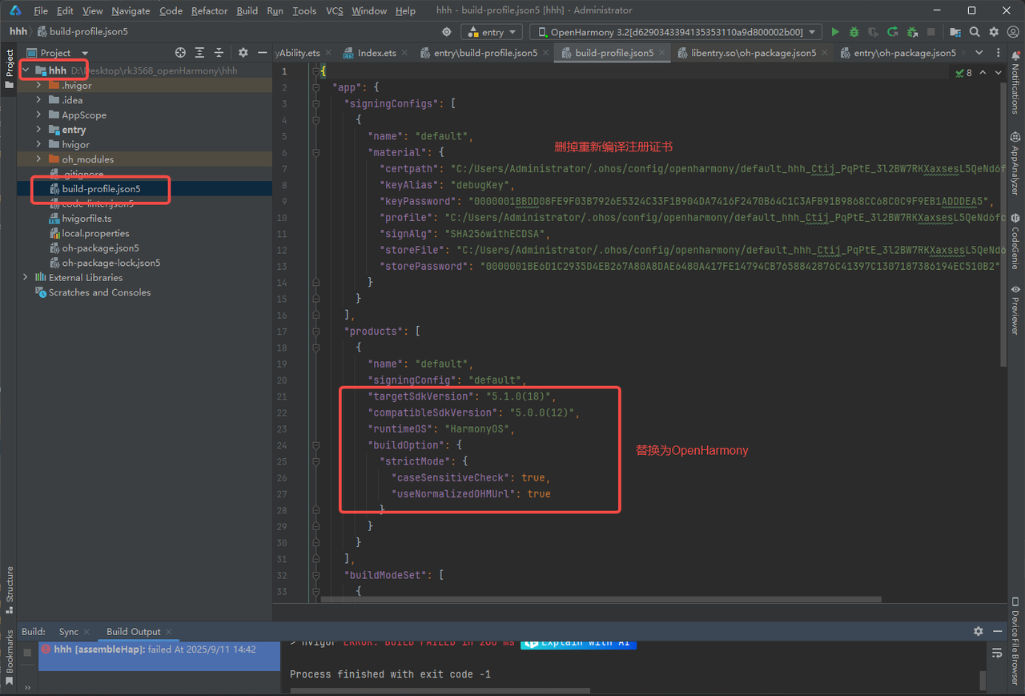
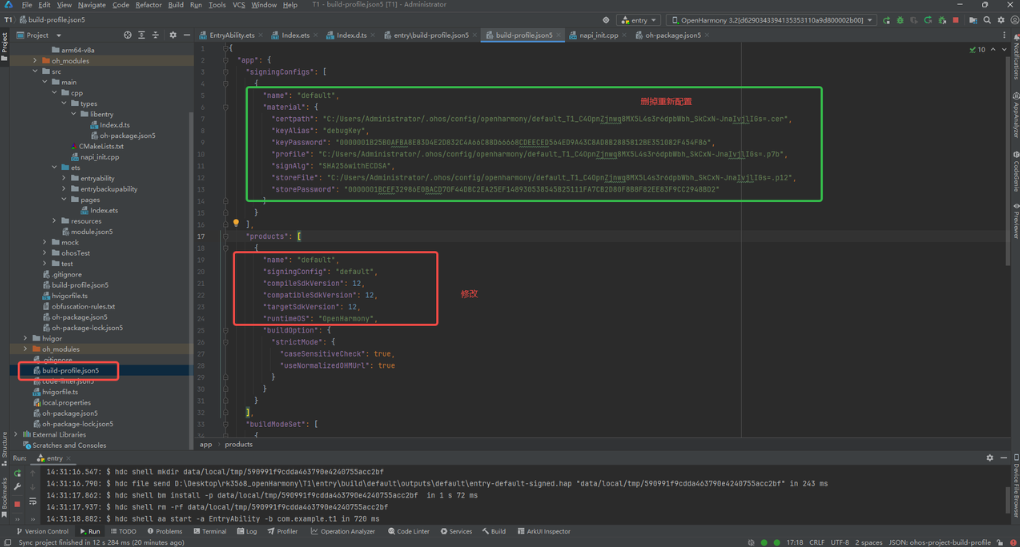
Modify the above content to:
"products": [
  {
    "name": "default",
    "signingConfig": "default",
    "compileSdkVersion": 12,
    "compatibleSdkVersion": 12,
    "targetSdkVersion": 12,
    "runtimeOS": "OpenHarmony",
    "buildOption": {
      "strictMode": {
        "caseSensitiveCheck": true,
        "useNormalizedOHMUrl": true
      }
    }
  }
]
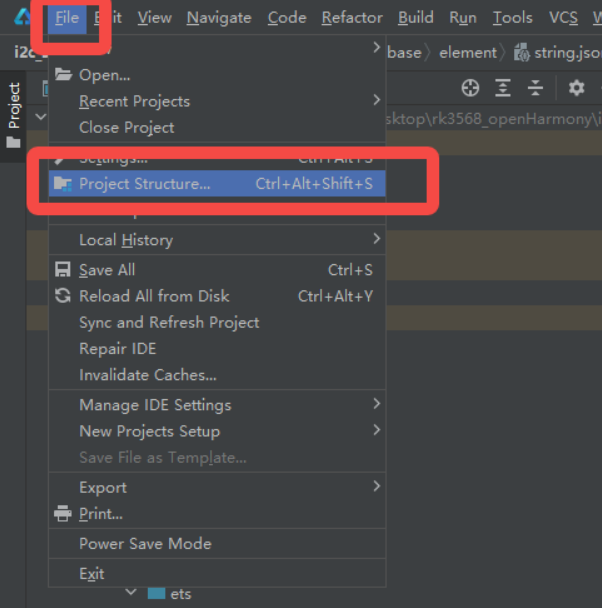
After modification, reconfigure the project structure once:
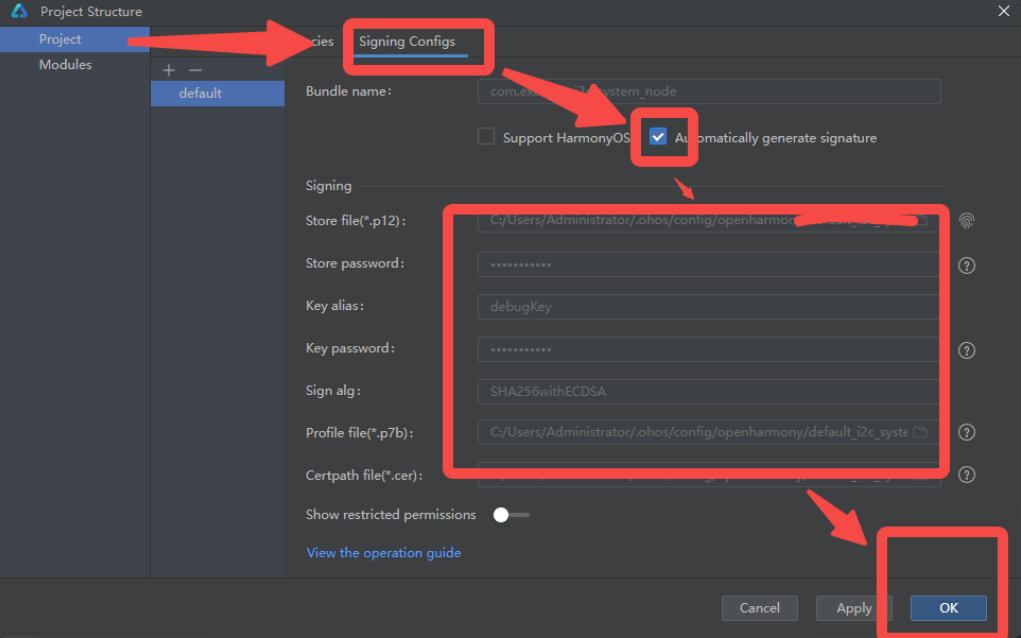
Finally, if there are still problems: when in doubt — restart!