Touch
1 Touch Introduction
1.1 Touch Screen Introduction
Touch screens have been around for a long time. Early on, they were resistive touch screens, which only supported single-point touch and were widely used in the era of learning machines and feature phones. On January 9, 2007, Apple released the groundbreaking first-generation iPhone, the iPhone 2G, which used a multi-point capacitive touch screen, while most phones at the time still used resistive touch screens. The excellent touch quality and feel of capacitive touch screens instantly won over consumers and brought about a major transformation in phone touch screens. New phones released afterwards all adopted multi-point capacitive touch screens.
Comparison of capacitive and resistive touch screens:
- Multi-point touch support: the biggest advantage of capacitive touch screens is multi-point touch support (later resistive screens also supported multi-point touch, but it was too late)
- Touch sensitivity: a capacitive screen only needs a light touch with a finger, while a resistive screen requires a certain amount of pressure from a finger to respond
- Calibration requirement: capacitive screens do not need calibration and are more convenient to use
Nowadays, multi-point capacitive touch screens are widely used in phones, tablets, computers, advertising machines, and more. If you want to develop human-machine interaction devices, multi-point capacitive touch screens are basically unavoidable. Therefore, in this chapter we will learn how to use a multi-point touch screen and how to obtain multi-point touch values. We will not study the physical principles of capacitive screens — after all, we are not developing capacitive screens but using them. We only need to focus on how to use capacitive screens and how to obtain their multi-point touch coordinate values.
Composition of a touch screen:
A screen is actually a combination of a display panel and a touch screen. The display panel is on the bottom, and the touch panel is on top. Packaging the two together creates a screen with a touch screen. A capacitive touch screen also needs a driver IC. The driver IC generally provides an I2C interface to the main controller, and the main controller can read the touch coordinate data inside the driver IC through the I2C interface.
Note: The M4-R1 development board is equipped with one group of I2C touch interfaces. The currently adapted drivers include gt911, FT5X06, FT5406, etc. Unlike the drivers from the Linux kernel mentioned earlier, this driver is a driver under the HDF framework. Users can see the supported touch ICs at the path
/drivers/hdf_core/framework/model/input/driver/touchscreen/.
1.2 Introduction to the Linux input Subsystem
"input" means input, so the input subsystem is the subsystem that manages input. It is a framework created by the Linux kernel for a certain class of devices. For example, button input, keyboards, mice, touch screens, etc. all belong to input devices. Different input devices have different meanings — buttons and keyboards represent key information, while mice and touch screens represent coordinate information, so the handling at the application layer is different.
input subsystem architecture:
- input driver layer: responsible for the driver implementation of specific hardware devices
- input core layer: provides unified interfaces and management mechanisms
- input event handling layer: handles and distributes input events
Ultimately, it provides accessible device nodes to user space. The input subsystem framework is shown in the following figure:
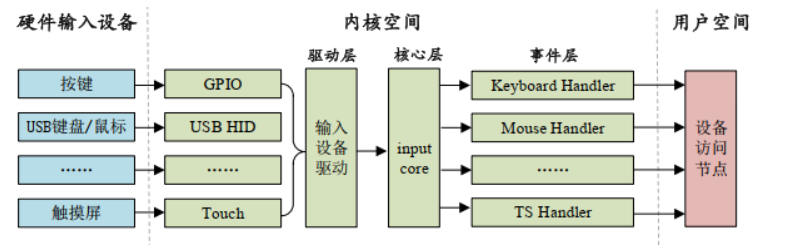
For application development, we only need to care about the data the kernel space sends to user space.
2 I2C Touch Board Interface
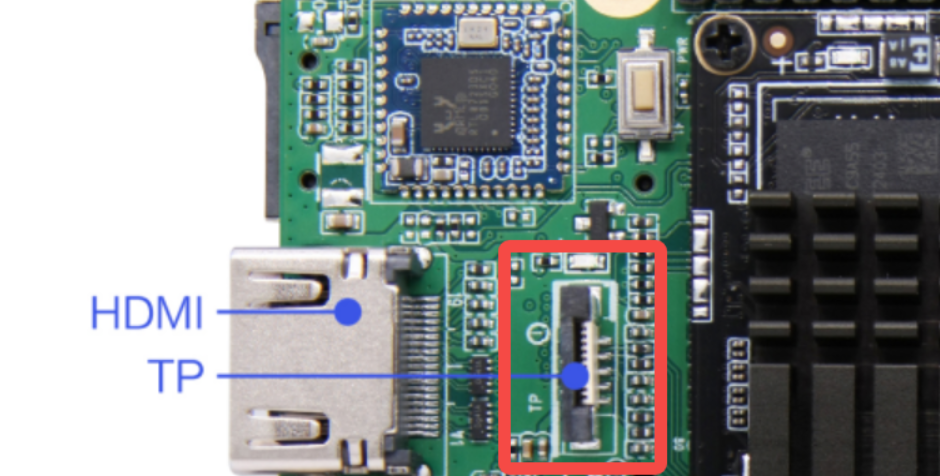
3 Touch Screen Usage — Command-Line Method
3.1 Device Tree Analysis
Tips
The file path below: out/kernel/src_tmp/linux-5.10/arch/arm64/boot/dts/rockchip/ requires the kernel source to be compiled first.
Below is a brief analysis of the description of the touch screen controller node mounted on the I2C1 bus.
Warning
There are two touch screen controllers both mounted on the SoC's I2C1 bus. Below we use the GT911 touch IC node from Goodix, which is equipped on the test screen, as an example for introduction.
First, the base definition layer (rk3568.dtsi):
i2c1: i2c@fe5a0000 {
    compatible = "rockchip,rk3399-i2c";
    reg = <0x0 0xfe5a0000 0x0 0x1000>;
    clocks = <&cru CLK_I2C1>, <&cru PCLK_I2C1>;
    clock-names = "i2c", "pclk";
    interrupts = <GIC_SPI 47 IRQ_TYPE_LEVEL_HIGH>;
    pinctrl-names = "default";
    pinctrl-0 = <&i2c1_xfer>;
    #address-cells = <1>;
    #size-cells = <0>;
    status = "disabled";
};
The base definition device tree source file provided by Rockchip does not provide a direct I2C touch controller node description; instead it provides a generic I2C controller node description on the I2C bus. The reason is simple: to prevent the device tree from being verbose and long-winded, which is exactly the original intention of using a device tree. Below is a brief analysis of the i2c1 node.
compatible: specifies compatibility, supports the RK3399 I2C controllerreg: register address range (0xfe5a0000-0xfe5a0fff)interrupts: interrupt number 47, triggered on high levelclocks: I2C function clock (CLK_I2C1) and APB clock (PCLK_I2C1)pinctrl-0: defaults to the i2c1_xfer pin groupstatus: disabled by default
Below is the pin configuration layer (rk3568-pinctrl.dtsi)
i2c1_xfer: i2c1-xfer {
    rockchip,pins =
        /* i2c1_scl */
        <0 RK_PB3 1 &pcfg_pull_none_smt>,
        /* i2c1_sda */
        <0 RK_PB4 1 &pcfg_pull_none_smt>;
};
..............

touch_gpio: touch-gpio {
    rockchip,pins =
        /* 中断引脚 */
        <0 RK_PB5 RK_FUNC_GPIO &pcfg_pull_up>,
        /* 复位引脚 */
        <0 RK_PB6 RK_FUNC_GPIO &pcfg_pull_none>;
};
The above two nodes are the pin configuration nodes for the I2C1 bus and the touch chip, respectively corresponding to the SCL and SDA pins of I2C1, as well as the interrupt pin and reset pin of the touch chip.
i2c1_xfer: I2C1 bus pins, uses GPIO0_B3 as SCL and GPIO0_B4 as SDAtouch_gpio: touch chip control pins, GPIO0_B5 as interrupt pin (pull-up), GPIO0_B6 as reset pin
Finally, the board-level configuration layer (rk3568-toybrick.dtsi):
&i2c1 {
    status = "okay";

    gt9xx: gt9xx@5d {
        compatible = "goodix,gt9xx";
        status = "okay";
        reg = <0x5d>;
        reset-gpio = <&gpio0 RK_PB6 GPIO_ACTIVE_HIGH>;
        touch-gpio = <&gpio0 RK_PB5 IRQ_TYPE_LEVEL_LOW>;
        max-x = <7200>;
        max-y = <1280>;
        tp-size = <911>;
        pinctrl-names = "default";
        pinctrl-0 = <&touch_gpio>;
        power-supply = <&vcc3v3_lcd0_n>;
    };
};
This node is used to set the parameters of the touch screen, such as maximum coordinates and number of touch points. The details are as follows:
&i2c1: references the i2c1 node in the base definitionstatus = "okay": enables the I2C1 controller and the gt9xx touch chipreg = <0x5d>: the I2C slave device address of the gt911 chip is 0x5dreset-gpio: reset pin uses GPIO0_B6, active hightouch-gpio: interrupt pin uses GPIO0_B5, triggered on low levelmax-x/max-y: touch screen resolution 7200x1280tp-size = <911>: specifies the touch chip model as gt911power-supply: power supply comes from vcc3v3_lcd0_n
3.2 Application-Layer Method for Testing Touch-Related Devices
A touch screen belongs to input subsystem devices. The input subsystem is a unified driver framework provided by Linux for input devices. Input devices such as buttons, keyboards, touch screens, and mice are driven in a similar way. Input devices driven by the input subsystem can be submitted to the kernel through a unified data structure, which includes the time, type, code, and specific key value or coordinates of the input. The kernel passes it to user space through the file interface under the /dev/input directory.
getevent debug tool:
input sub-devices can use the getevent command to obtain the events reported by the device to the system:
geteventis a debug tool under Android/Linux systems- It is used to listen to and display the raw input events generated by the kernel input subsystem
- You can see the lowest-level, unprocessed hardware input signals
The getevent command is built into the board, and you can use it to debug whether the touch screen is working properly.
In the /dev/input directory, use the command:
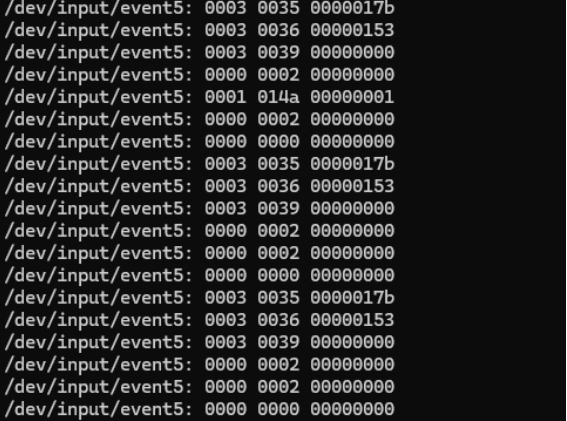
geteventYou can obtain all input sub-devices and listen to the events reported by all devices. Event format parsing:
The returned event format: device: type code value
Event type table:
| Type Code | Event Type | Description |
|---|---|---|
| 0000 | EV_SYN | Synchronization event |
| 0001 | EV_KEY | Key event |
| 0003 | EV_ABS | Absolute coordinate event (touch screen) |
Event code table:
| Code | Name | Description |
|---|---|---|
| 0035 | ABS_MT_POSITION_X | X coordinate |
| 0036 | ABS_MT_POSITION_Y | Y coordinate |
| 0039 | ABS_MT_TRACKING_ID | Touch point ID |
| 0000 | SYN_REPORT | Report synchronization |
| 0002 | SYN_MT_REPORT | Multi-touch report |
Event value description:
| Value Type | Meaning |
|---|---|
| Coordinate | Hex coordinate |
| 00000000 | New touch point start |
| ffffffff | Touch point end |
| 00000001 | Key press |
| 00000000 | Key release |
Listening to a specific device:
If you want to listen to a specific sub-device and the event types it reports, use the command:
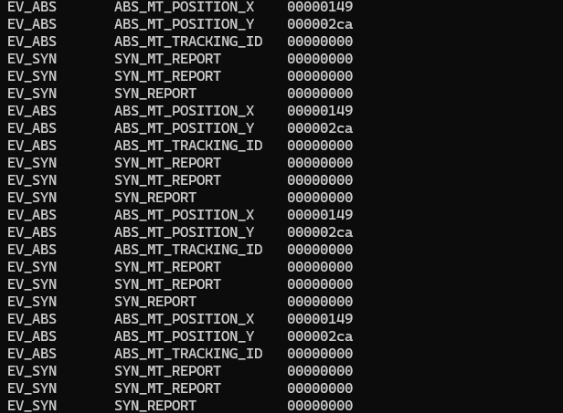
getevent -l /dev/input/event*It will provide real-time feedback of hex coordinate information (x, y), touch point ID, and synchronization events. Below we explain the event types and event codes.
Linux input event types:
| Event Type | Function | Typical Application |
|---|---|---|
| EV_KEY | Key event | Power key, volume key |
| EV_ABS | Absolute coord event | Touch screen, game joystick |
| EV_REL | Relative coord event | Mouse movement, scroll wheel |
| EV_SYN | Synchronization event | End-of-frame marker |
| EV_MSC | Miscellaneous event | Other types of events |
| EV_SW | Switch event | Lid open/close, headphone plug/unplug |
Common touch screen event codes:
| Code Name | Function | Description |
|---|---|---|
| ABS_MT_TRACKING_ID | Touch point ID | Positive = new touch, ffffffff = touch end |
| ABS_MT_POSITION_X | X coordinate | Horizontal coordinate of the touch point |
| ABS_MT_POSITION_Y | Y coordinate | Vertical coordinate of the touch point |
| ABS_MT_PRESSURE | Pressure | Magnitude of touch pressure |
| ABS_MT_TOUCH_MAJOR | Touch area | Size of the contact area |
3.3 Functional Demonstration
3.3.1 View Input Devices
First, enter the directory /dev/input/. You can see several input events:

3.3.2 Identify the Touch Screen Device
Use the command getevent to view the input device corresponding to the input events:
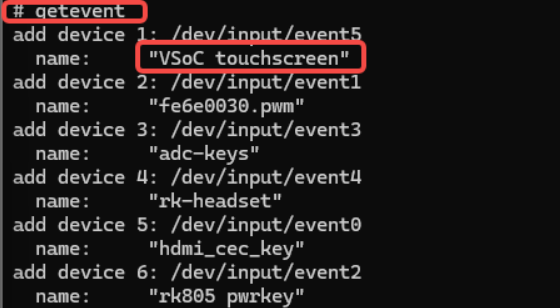
Obviously, the device whose name is "touchscreen" is our touch screen.
3.3.3 Listen to Touch Events
With the screen lit, click on the screen to view the corresponding touch events in the terminal:
3.3.4 More Readable Event Display
We use the more readable command getevent -l /dev/input/event* to test again. After clicking the screen, the screen returns the following information: