
Ethernet
1 Ethernet Introduction
1.1 RK3568 Network Card Introduction
When it comes to networking, many friends have surely heard the term "network card" (NIC), because in the past, if a computer needed to access the internet, it had to have a network card installed — just like today's desktop computers with discrete graphics cards. The reason is that with continuous technological development, a single chip can now implement the wired network card function, so the network card chip is placed directly on the motherboard (generally right behind the network cable interface).
Embedded network hardware is divided into two parts: MAC and PHY. When some SoCs claim to support networking, they mean that they integrate a network MAC peripheral internally. Common general-purpose SoCs generally integrate a network MAC peripheral, such as the RK series, I.MX series, and STM32MP1 series. The benefit of integrating it is that network speed can be significantly improved (for example, by using a dedicated DMA for networking), and speeds of 10/100/1000M can be supported. You only need to attach an external PHY chip (if no MAC peripheral is integrated, most use a MAC+PHY integrated network chip). The MAC connects to the external PHY chip via the MII/RMII interface or the GMII/RGMII interface to complete network data transmission.
The RK3568 core integrates two 10M/100M/1000M network MACs that comply with the IEEE 802.3-2002 standard. The MAC layer supports operation in full-duplex or half-duplex mode. The MAC is programmable and has a dedicated DMA with a direct memory interface. It formats data into packets that comply with the IEEE 802.3-2002 standard and transmits these data to the Ethernet physical interface (PHY). It can also move packets from the RXFIFO to the microprocessor's memory. The main features of the RK3568 internal ENET peripheral are as follows:
- 1. Supports full-duplex and half-duplex operation.
- 2. Full-duplex flow control operation (IEEE 802.3X pause packets and priority flow control)
- 3. Header and start-of-frame data (SFD) are automatically inserted in transmit mode and automatically removed in reception.
- 4. Per-frame controllable CRC and pad automatic generation
- 5. Programmable packet length; supports standard Ethernet packets or jumbo Ethernet packets up to 16 KB
- 6. Programmable inter-packet gap
- 7. Two sets of FIFOs: a 4096-byte transmit FIFO with programmable threshold and a 4096-byte receive FIFO with configurable threshold
1.2 Basic Introduction to IP Address, Subnet Mask, Default Gateway, and DNS Server
For a computer to implement network communication, it must have a network address used for fast location. An IP is 32-bit binary data, usually represented in decimal and separated by ".". An IP address is the computer's unique identity ID in the network — just as express delivery in the real world requires a specific residential address. An IP address = network address + host address (also known as: composed of a host number and a network number).
So how do you distinguish the network address and host address of an IP address? This is where the subnet mask comes in. When the value of the subnet mask is 255, the corresponding bit of the IP address is a network address bit. For example, IP address 192.168.22.88 with subnet mask 255.255.255.0 means that 192.168.22 is the network address. The network address is used to locate the LAN you are in, such as the network of your home or company. The host address is used to determine your position in the LAN — for example, 192.168.22.88 is the network IP of the TV in your living room, and 192.168.22.66 is the network IP of your home computer. When the internet is disconnected, devices in the LAN can still communicate — for example, after a phone connects to a router's network, you can enter the IP to access its backend for management.
The gateway can be understood as the tool that sends data from the LAN to the outside; the specific parsing process is not introduced here.
Because IP addresses are hard to remember, we usually enter a URL when accessing the internet, such as "baidu.com". The function of DNS is to map this URL name to an IP address, so that you only need to enter the URL to access the server with the corresponding IP.
2 Ethernet Board Interface
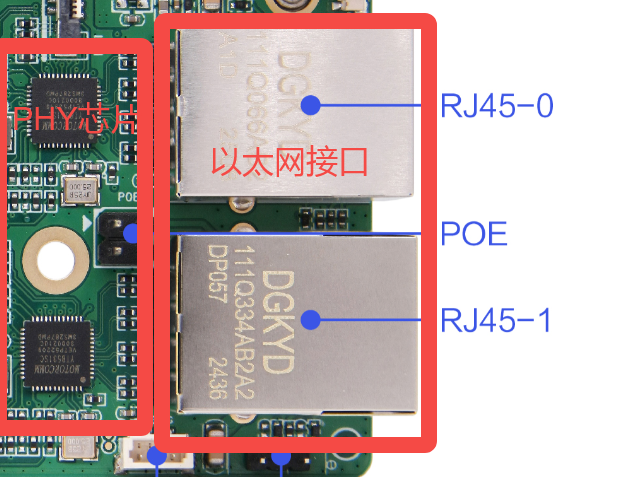
3 Ethernet Usage — Command-Line Method
3.1 Device Tree Analysis
Tips
The file path below: out/kernel/src_tmp/linux-5.10/arch/arm64/boot/dts/rockchip requires the kernel source to be compiled first.
The Ethernet node configuration in this project follows the three-layer structure of the device tree as follows:
Base definition layer, taking gmac0 as an example (rk3568.dtsi):
gmac0: ethernet@fe2a0000 {
    compatible = "rockchip,rk3568-gmac", "snps,dwmac-4.20a";
    reg = <0x0 0xfe2a0000 0x0 0x10000>;
    interrupts = <GIC_SPI 27 IRQ_TYPE_LEVEL_HIGH>,
                 <GIC_SPI 24 IRQ_TYPE_LEVEL_HIGH>;
    interrupt-names = "macirq", "eth_wake_irq";
    rockchip,grf = <&grf>;
    clocks = <&cru SCLK_GMAC0>, <&cru SCLK_GMAC0_RX_TX>,
             <&cru SCLK_GMAC0_RX_TX>, <&cru CLK_MAC0_REFOUT>,
             <&cru ACLK_GMAC0>, <&cru PCLK_GMAC0>,
             <&cru SCLK_GMAC0_RX_TX>, <&cru CLK_GMAC0_PTP_REF>,
             <&cru PCLK_XPCS>;
    clock-names = "stmmaceth", "mac_clk_rx",
                  "mac_clk_tx", "clk_mac_refout",
                  "aclk_mac", "pclk_mac",
                  "clk_mac_speed", "ptp_ref",
                  "pclk_xpcs";
    resets = <&cru SRST_A_GMAC0>;
    reset-names = "stmmaceth";
    snps,mixed-burst;
    snps,tso;
    status = "disabled";

    mdio0: mdio {
        compatible = "snps,dwmac-mdio";
        #address-cells = <0x1>;
        #size-cells = <0x0>;
    };
};compatible: specifies compatibility, supports RK3568 GMAC and standard DWC Ethernet MAC 4.20areg: register address range (0xfe2a0000-0xfe2affff)interrupts: MAC interrupt number 27 and wake-up interrupt number 24, both triggered on high levelclocks: contains 9 clock sources, covering MAC core clock, RX/TX clocks, reference clocks, etc.snps,mixed-burst: enables mixed-burst transfer modesnps,tso: enables TCP segmentation offloadmdio0: embedded MDIO bus controller for PHY managementstatus: disabled by default
Pin configuration layer (rk3568-pinctrl.dtsi):
//GMAC0 RGMII模式引脚配置:

gmac0_miim: gmac0-miim {
    rockchip,pins =
        /* gmac0_mdc */
        <2 RK_PC3 2 &pcfg_pull_none>,
        /* gmac0_mdio */
        <2 RK_PC4 2 &pcfg_pull_none>;
};

gmac0_rgmii_clk: gmac0-rgmii-clk {
    rockchip,pins =
        /* gmac0_rxclk */
        <2 RK_PA5 2 &pcfg_pull_none>,
        /* gmac0_txclk */
        <2 RK_PB0 2 &pcfg_pull_none_drv_level_1>;
};

gmac0_rgmii_bus: gmac0-rgmii-bus {
    rockchip,pins =
        /* gmac0_rxd2 */
        <2 RK_PA3 2 &pcfg_pull_none>,
        /* gmac0_rxd3 */
        <2 RK_PA4 2 &pcfg_pull_none>,
        /* gmac0_txd2 */
        <2 RK_PA6 2 &pcfg_pull_none_drv_level_2>,
        /* gmac0_txd3 */
        <2 RK_PA7 2 &pcfg_pull_none_drv_level_2>;
};

gmac0_tx_bus2: gmac0-tx-bus2 {
    rockchip,pins =
        /* gmac0_txd0 */
        <2 RK_PB3 1 &pcfg_pull_none_drv_level_2>,
        /* gmac0_txd1 */
        <2 RK_PB4 1 &pcfg_pull_none_drv_level_2>,
        /* gmac0_txen */
        <2 RK_PB5 1 &pcfg_pull_none>;
};
...........

//GMAC1提供两种引脚配置模式:

/* M0模式 - 使用GPIO3组 */
gmac1m0_rgmii_clk: gmac1m0-rgmii-clk {
    rockchip,pins =
        /* gmac1_rxclkm0 */
        <3 RK_PA7 3 &pcfg_pull_none>,
        /* gmac1_txclkm0 */
        <3 RK_PA6 3 &pcfg_pull_none_drv_level_1>;
};

/* M1模式 - 使用GPIO4组 */
gmac1m1_miim: gmac1m1-miim {
    rockchip,pins =
        /* gmac1_mdcm1 */
        <4 RK_PB6 3 &pcfg_pull_none>,
        /* gmac1_mdiom1 */
        <4 RK_PB7 3 &pcfg_pull_none>;
};gmac0: uses GPIO2 group pins, supports RGMII gigabit Ethernetgmac1m0: uses GPIO3 group pins, suitable for single-port designgmac1m1: uses GPIO4 group pins, suitable for dual-port design
Finally, the board-level configuration layer (rk3568-toybrick-x0.dtsi):
&gmac0 {
    phy-mode = "rgmii";
    clock_in_out = "output";

    snps,reset-gpio = <&gpio2 RK_PD3 GPIO_ACTIVE_LOW>;
    snps,reset-active-low;
    snps,reset-delays-us = <0 20000 100000>;

    assigned-clocks = <&cru SCLK_GMAC0_RX_TX>, <&cru SCLK_GMAC0>;
    assigned-clock-parents = <&cru SCLK_GMAC0_RGMII_SPEED>, <&cru CLK_MAC0_2TOP>;
    assigned-clock-rates = <0>, <125000000>;

    pinctrl-names = "default";
    pinctrl-0 = <&gmac0_miim
                 &gmac0_tx_bus2
                 &gmac0_rx_bus2
                 &gmac0_rgmii_clk
                 &gmac0_rgmii_bus>;

    tx_delay = <0x2d>;
    rx_delay = <0x13>;

    phy-handle = <&rgmii_phy0>;
    status = "okay";
};

&mdio0 {
    rgmii_phy0: phy@0 {
        compatible = "ethernet-phy-ieee802.3-c22";
        reg = <0x0>;
    };
};&gmac0: references the gmac0 node in the base definitionphy-mode = "rgmii": configured as RGMII gigabit Ethernet modeclock_in_out = "output": clock output modesnps,reset-gpio: PHY reset pin uses GPIO2_D3, active lowsnps,reset-delays-us: reset timing: 0 ms pre-delay, 20 ms reset duration, 100 ms post-reset delayassigned-clock-rates: sets GMAC clock frequency to 125 MHz- tx_delay/rx_delay: transmit/receive delay compensation for the RGMII interface
- phy-handle: associates the rgmii_phy0 PHY device
- rgmii_phy0: IEEE 802.3 standard-compatible PHY chip, MDIO address 0
3.2 Application-Layer Method for Testing the Network
On the development board, you can use the following common commands to test the network (note: x.x.x.x is the NIC address):
ifconfig        # 查看设备中的网络接口
ping x.x.x.x   # 通过与特定网络交换数据包,测试网络是否正常
ifconfig eth0 X.X.X.X up      # 打开网络
ifconfig eth0 X.X.X.X down    # 关闭网络
3.3 Functional Demonstration of Network Testing
We take Ethernet interface 1 as an example and connect the network cable for testing:
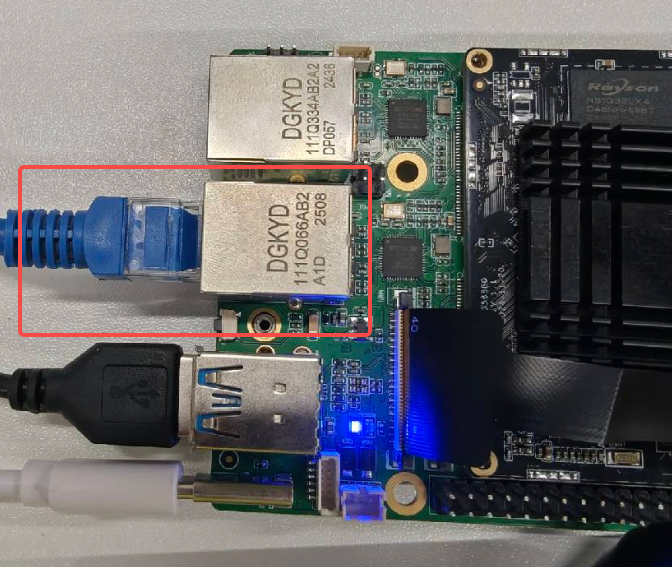
After plugging it in, enter the command ifconfig in the terminal to view the network port information:
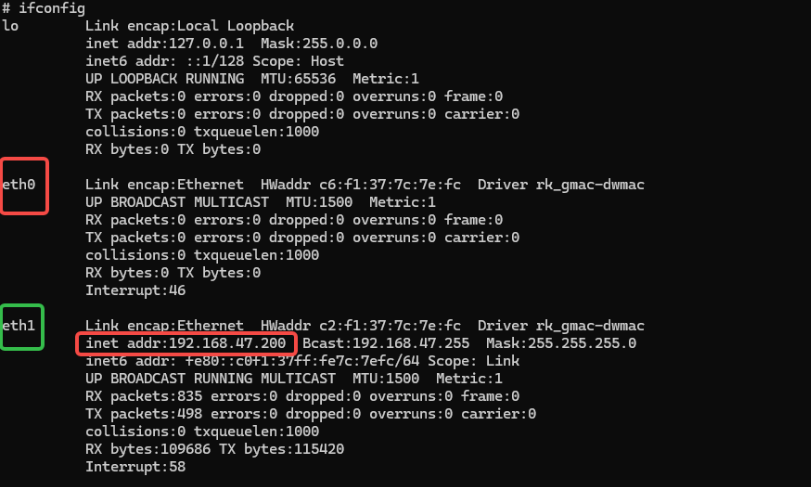
The system successfully identified two Ethernet interfaces. You can see that the interface where the network cable is inserted has been assigned a network IP, and information such as the broadcast address and subnet mask is displayed.
Next, enter the command ping baidu.com to test the network connection:
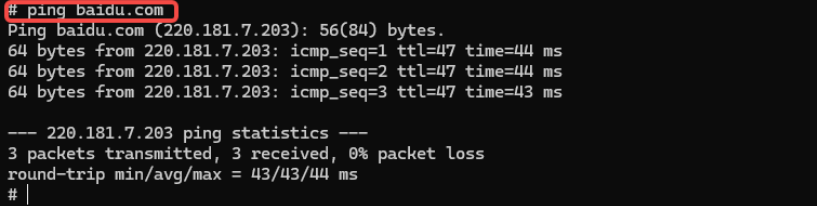
Three sets of data were sent with no packet loss, so the system has successfully connected to Ethernet.
4. Ethernet Usage — Official Library Method
Material Path
HAP package: \05-开发资料\01-OpenHarmory 开发资料\外设测试APP\HAP\NET_TEST.hap
Source: \05-开发资料\01-OpenHarmory 开发资料\外设测试APP\SRC\NATEWORK_TEST
We have also written a network testing program for you, but using the official network library @kit.NetworkKit. It is essentially NAPI, but OpenHarmony official has already packaged it for us, so we only need to call it.
Since the OpenHarmony official ArkTS network library already meets our network development needs. This time we use the built-in network library to write the code, which can greatly improve our development speed while also expanding a development method for everyone!
4-1 Effects Implemented by the Test APP
Let's take a look at the effects implemented by the test APP:
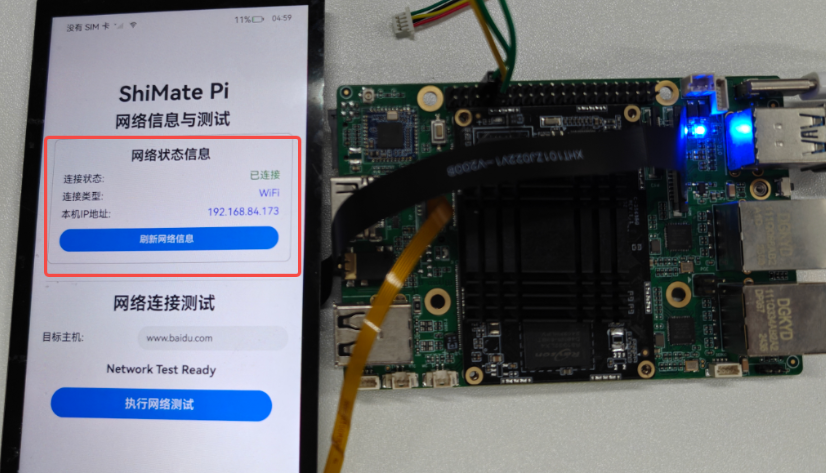
The first column displays the network connection status, connection type, and the local IP address.
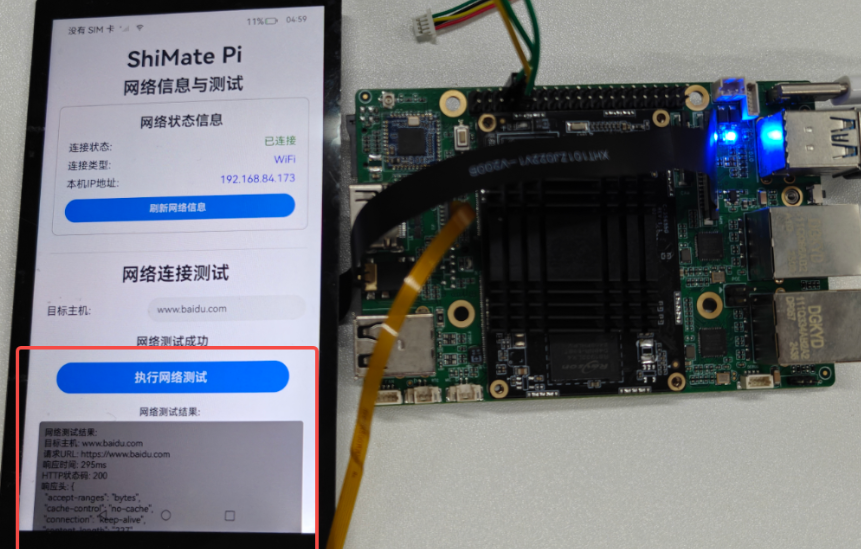
Click Network Test, and it will send an HTTP request to test the network.
Below we introduce the relevant functions involved:
4.2 Network-Related API Function Introduction
1. connection.getDefaultNet()
- Function: obtains the default network connection handle of the current device
- Return value:
NetHandleobject (represents an active network connection)
2. connection.getNetCapabilities(netHandle)
- Function: obtains network capability information
- Return value:
bearerTypes: an array of network bearer types
3. connection.getConnectionProperties(netHandle)
- Function: obtains network connection properties
4. http.createHttp()
- Function: creates an HTTP request object
5. httpRequest.request(url, options)
- Function: sends an HTTP request
6. httpRequest.destroy()
- Function: destroys the HTTP request object
4.3 Code Implementation of the Network Test APP
Here we still paste the ets code for friends who need it to learn:
import { hilog } from '@kit.PerformanceAnalysisKit';
import { connection } from '@kit.NetworkKit';
import { socket } from '@kit.NetworkKit';
import { http } from '@kit.NetworkKit';

const DOMAIN = 0x0000;

@Entry
@Component
struct Index {
  @State currentIpAddress: string = '获取中...';
  @State networkMessage: string = 'Network Test Ready';
  @State networkResult: string = '';
  @State isNetworkLoading: boolean = false;
  @State targetHost: string = 'www.baidu.com';
  @State connectionType: string = '未知';
  @State isConnected: boolean = false;

  build() {
    Row() {
      Column() {
        Text('ShiMate Pi')
          .fontSize(40)
          .fontWeight(FontWeight.Bold)
          .margin({ bottom: 10 })
        Text('网络信息与测试')
          .fontSize(30)
          .fontWeight(FontWeight.Bold)
          .margin({ bottom: 10 })

        // 网络状态信息卡片
        Column() {
          Text('网络状态信息')
            .fontSize(24)
            .fontWeight(FontWeight.Bold)
            .margin({ bottom: 15 })

          Row() {
            Text('连接状态: ')
              .fontSize(18)
              .fontWeight(FontWeight.Medium)
            Text(this.isConnected ? '已连接' : '未连接')
              .fontSize(18)
              .fontColor(this.isConnected ? Color.Green : Color.Red)
          }
          .width('100%')
          .justifyContent(FlexAlign.SpaceBetween)
          .margin({ bottom: 10 })

          Row() {
            Text('连接类型: ')
              .fontSize(18)
              .fontWeight(FontWeight.Medium)
            Text(this.connectionType)
              .fontSize(18)
              .fontColor(Color.Blue)
          }
          .width('100%')
          .justifyContent(FlexAlign.SpaceBetween)
          .margin({ bottom: 10 })

          Row() {
            Text('本机IP地址: ')
              .fontSize(18)
              .fontWeight(FontWeight.Medium)
            Text(this.currentIpAddress)
              .fontSize(18)
              .fontColor(Color.Blue)
          }
          .width('100%')
          .justifyContent(FlexAlign.SpaceBetween)
          .margin({ bottom: 15 })

          Button('刷新网络信息')
            .fontSize(16)
            .width('100%')
            .height(40)
            .onClick(() => {
              this.getNetworkInfo();
            })
        }
        .width('90%')
        .padding(20)
        .backgroundColor(Color.White)
        .borderRadius(10)
        .border({ width: 1, color: Color.Gray })
        .margin({ bottom: 30 })

        // 网络测试部分
        Divider()
          .width('90%')
          .margin({ bottom: 20 })

        Text('网络连接测试')
          .fontSize(30)
          .fontWeight(FontWeight.Bold)
          .margin({ bottom: 20 })

        // 目标主机输入框
        Row() {
          Text('目标主机: ')
            .fontSize(18)
            .fontWeight(FontWeight.Medium)

          TextInput({ placeholder: '请输入主机地址', text: this.targetHost })
            .fontSize(16)
            .width('60%')
            .onChange((value: string) => {
              this.targetHost = value;
            })
        }
        .width('90%')
        .justifyContent(FlexAlign.SpaceBetween)
        .margin({ bottom: 20 })

        Text(this.networkMessage)
          .fontSize(20)
          .fontWeight(FontWeight.Bold)
          .margin({ bottom: 20 })

        Button('执行网络测试')
          .fontSize(20)
          .width('80%')
          .height(50)
          .enabled(!this.isNetworkLoading)
          .onClick(() => {
            this.runNetworkTest();
          })
          .margin({ bottom: 20 })

        if (this.isNetworkLoading) {
          Text('正在执行网络测试...')
            .fontSize(16)
            .fontColor(Color.Blue)
            .margin({ bottom: 10 })
        }

        if (this.networkResult) {
          Column() {
            Text('网络测试结果:')
              .fontSize(16)
              .fontWeight(FontWeight.Bold)
              .margin({ bottom: 5 })

            Scroll() {
              Text(this.networkResult)
                .fontSize(14)
                .fontColor(Color.Black)
                .backgroundColor(Color.Gray)
                .padding(10)
                .borderRadius(5)
                .width('100%')
                .textAlign(TextAlign.Start)
            }
            .width('100%')
            .height(200)
            .scrollable(ScrollDirection.Vertical)
            .scrollBar(BarState.Auto)
          }
          .width('90%')
        }
      }
      .width('100%')
      .justifyContent(FlexAlign.Start)
      .alignItems(HorizontalAlign.Center)
      .padding({ top: 10 })
    }
    .height('100%')
  }

  aboutToAppear() {
    // 页面加载时获取网络信息
    this.getNetworkInfo();
  }

  private async getNetworkInfo() {
    try {
      // 获取网络连接状态
      const netHandle = await connection.getDefaultNet();
      if (netHandle) {
        this.isConnected = true;

        // 获取网络能力信息
        const netCapabilities = await connection.getNetCapabilities(netHandle);
        if (netCapabilities) {
          // 判断连接类型
          if (netCapabilities.bearerTypes.includes(connection.NetBearType.BEARER_WIFI)) {
            this.connectionType = 'WiFi';
          } else if (netCapabilities.bearerTypes.includes(connection.NetBearType.BEARER_CELLULAR)) {
            this.connectionType = '移动网络';
          } else if (netCapabilities.bearerTypes.includes(connection.NetBearType.BEARER_ETHERNET)) {
            this.connectionType = '以太网';
          } else {
            this.connectionType = '其他';
          }
        }

        // 获取IP地址 - 使用JSON序列化方法
        const linkProperties = await connection.getConnectionProperties(netHandle);
        if (linkProperties) {
          // 通过序列化信息提取第一个 IPv4 地址
          const serialized: string = JSON.stringify(linkProperties);
          const match: RegExpMatchArray | null = serialized.match(/\b(?:\d{1,3}\.){3}\d{1,3}\b/);
          const ip: string = match ? match[0] : '';
          this.currentIpAddress = ip && ip !== '127.0.0.1' ? ip : '无';
        } else {
          this.currentIpAddress = '无';
        }
      } else {
        this.isConnected = false;
        this.connectionType = '未连接';
        this.currentIpAddress = '无';
      }
    } catch (error) {
      hilog.error(DOMAIN, 'NetworkInfo', 'Failed to get network info: %{public}s', String(error));
      this.isConnected = false;
      this.connectionType = '获取失败';
      this.currentIpAddress = '获取失败';
    }
  }

  private async runNetworkTest() {
    this.isNetworkLoading = true;
    this.networkMessage = '网络测试进行中...';
    this.networkResult = '';

    if (!this.targetHost || this.targetHost.trim() === '') {
      this.networkResult = '错误: 请输入有效的目标主机地址';
      this.networkMessage = '网络测试失败';
      this.isNetworkLoading = false;
      return;
    }

    try {
      const startTime = Date.now();

      // 使用HTTP请求测试网络连接
      const httpRequest = http.createHttp();

      const url = this.targetHost.startsWith('http') ? this.targetHost : `https://${this.targetHost}`;

      const response = await httpRequest.request(url, {
        method: http.RequestMethod.GET,
        connectTimeout: 10000,
        readTimeout: 10000,
        header: {
          'User-Agent': 'OpenHarmony-NetworkTest/1.0'
        }
      });

      const endTime = Date.now();
      const responseTime = endTime - startTime;

      let resultText = `网络测试结果:\n`;
      resultText += `目标主机: ${this.targetHost}\n`;
      resultText += `请求URL: ${url}\n`;
      resultText += `响应时间: ${responseTime}ms\n`;
      resultText += `HTTP状态码: ${response.responseCode}\n`;
      resultText += `响应头: ${JSON.stringify(response.header, null, 2)}\n`;

      if (response.responseCode >= 200 && response.responseCode < 400) {
        resultText += `连接状态: 成功\n`;
        this.networkMessage = '网络测试成功';
      } else {
        resultText += `连接状态: 失败 (HTTP ${response.responseCode})\n`;
        this.networkMessage = '网络测试失败';
      }

      // 如果响应体不太大,显示部分内容
      if (response.result && typeof response.result === 'string' && response.result.length < 500) {
        resultText += `响应内容预览: ${response.result.substring(0, 200)}...\n`;
      }

      this.networkResult = resultText;

      httpRequest.destroy();

      hilog.info(DOMAIN, 'Network_Test', 'Network test completed for %{public}s: %{public}d ms', this.targetHost, responseTime);
    } catch (error) {
      const errorMessage = String(error);
      this.networkResult = `网络测试失败:\n目标主机: ${this.targetHost}\n错误信息: ${errorMessage}\n\n可能的原因:\n1. 网络连接不可用\n2. 目标主机无法访问\n3. DNS解析失败\n4. 防火墙阻止连接`;
      this.networkMessage = '网络测试出错';
      hilog.error(DOMAIN, 'Network_Test', 'Network test error for %{public}s: %{public}s', this.targetHost, errorMessage);
    } finally {
      this.isNetworkLoading = false;
    }
  }
}