HOME
Shop
  • English
  • 简体中文
HOME
Shop
  • English
  • 简体中文
  • Product Series

    • FPGA+ARM

      • GM-3568JHF

        • 1. Introduction

          • About GM-3568JHF
        • 2. Quick Start

          • 00 Introduction
          • 01 Environment Setup
          • 02 Compilation Instructions
          • 03 Flashing Guide
          • 04 Debug Tools
          • 05 Software Update
          • 06 View Information
          • 07 Test Commands
          • 08 App Compilation
          • 09 Source Code Acquisition
        • 3. Peripherals and Interfaces

          • 01 USB
          • 02 Display and Touch
          • 03 Ethernet
          • 04 WIFI
          • 05 Bluetooth
          • 06 TF-Card
          • 07 Audio
          • 08 Serial Port
          • 09 CAN
          • 10 RTC
        • 4. Application Development

          • 01 UART read and write case
          • 02 Key detection case
          • 03 LED light flashing case
          • 04 MIPI screen detection case
          • 05 Read USB device information example
          • 06 FAN Detection Case
          • 07 FPGA FSPI Communication Case
          • 08 FPGA DMA read and write case
          • 09 GPS debugging case
          • 10 Ethernet Test Cases
          • 11 RS485 reading and writing examples
          • 12 FPGA IIC read and write examples
          • 13 PN532 NFC card reader case
          • 14 TF card reading and writing case
        • 5. QT Development

          • 01 ARM64 cross compiler environment construction
          • 02 QT program added automatic startup service
        • 6. RKNN_NPU Development

          • 01 RK3568 NPU Overview
          • 02 Development Environment Setup
          • Run Official YOLOv5 Example
          • Model Conversion Detailed Explanation
          • Run Custom Model on Board
        • 7. FPGA Development

          • ARM and FPGA Communication
          • /fpga-arm/GM-3568JHF/FPGA/ch02-FPGA-Development-Manual.html
        • 8. Others

          • 01 Modification of the root directory file system
          • 02 System auto-start service
        • 9. Download

          • Download Resources
    • ShimetaPi

      • M4-R1

        • 1. Introduction

          • 1.1 About M4-R1
        • 2. Quick Start

          • 2.1 OpenHarmony Overview
          • 2.2 Image Burning
          • 2.3 Development Environment Preparation
          • 2.4 Hello World Application
        • 3. Application Development

          • 3.1 Getting Started

            • 3.1.1 ArkTS Language Overview
            • 3.1.2 UI Components (Part 1)
            • 3.1.3 UI Components (Part 2)
            • 3.1.4 UI Components (Part 3)
          • 3.2 Advanced

            • 3.2.1 Getting Started Guide
            • 3.2.2 Usage of Third Party Libraries
            • 3.2.3 Deployment of the Application
            • 3.2.4 Factory Reset
            • 3.2.5 System Debug
            • 3.2.6 APP Stability Testing
            • 3.2.7 Application Testing
          • 3.3 Getting Docs

            • 3.3.1 Official Website Information
          • 3.4 Development Instructions

            • 3.4.1 Full SDK
            • 3.4.2 Introduction of Third Party Libraries
            • 3.4.3 Introduction of HDC Tool
            • 3.4.4 Restore Factory Mode
            • 3.4.5 Update System API
          • 3.5 First Application

            • 3.5.1 First ArkTS App
          • 3.6 Application Demo

            • 3.6.1 UART Tool
            • 3.6.2 Graphics Tablet
            • 3.6.3 Digital Clock
            • 3.6.4 WIFI Tool
        • 4. Device Development

          • 4.1 Ubuntu Environment Development

            • 4.1.1 Environment Setup
            • 4.1.2 Download Source Code
            • 4.1.3 Compile Source Code
          • 4.2 Using DevEco Device Tool

            • 4.2.1 Tool Introduction
            • 4.2.2 Environment Construction
            • 4.2.3 Import SDK
            • 4.2.4 Function Introduction
        • 5. Peripherals and Interfaces

          • 5.1 Raspberry Pi Interfaces
          • 5.2 GPIO Interface
          • 5.3 I2C Interface
          • 5.4 SPI Communication
          • 5.5 PWM Control
          • 5.6 Serial Port Communication
          • 5.7 TF Card Slot
          • 5.8 Display Screen
          • 5.9 Touch Screen
          • 5.10 Audio
          • 5.11 RTC
          • 5.12 Ethernet
          • 5.13 M.2
          • 5.14 MINI PCIE
          • 5.15 Camera
          • 5.16 WIFI BT
          • 5.17 HAT
        • 6. FAQ

          • 6.1 Download Link
      • M5-R1

        • 1. Introduction

          • M5-R1 Development Documentation
        • 2. Quick Start

          • OpenHarmony Overview
          • Image Burning
          • Development Environment Preparation
          • Hello World Application and Deployment
        • 3. Peripherals and Interfaces

          • 3.1 Raspberry Pi Interfaces
          • 3.2 GPIO Interface
          • 3.3 I2C Interface
          • 3.4 SPI Communication
          • 3.5 PWM Control
          • 3.6 Serial Port Communication
          • 3.7 TF Card Slot
          • 3.8 Display Screen
          • 3.9 Touch Screen
          • 3.10 Audio
          • 3.11 RTC
          • 3.12 Ethernet
          • 3.13 M.2
          • 3.14 MINI PCIE
          • 3.15 Camera
          • 3.16 WIFI BT
          • 3.17 HAT
        • 4. Application Development

          • 4.1 Getting Started

            • 4.1.1 ArkTS Language Overview
            • 4.1.2 UI Components (Part 1)
            • 4.1.3 UI Components (Part 2)
            • 4.1.4 UI Components (Part 3)
          • 4.2 Advanced

            • 4.2.1 Getting Started Guide
            • 4.2.2 Usage of Third Party Libraries
            • 4.2.3 Deployment of the Application
            • 4.2.4 Factory Reset
            • 4.2.5 System Debug
            • 4.2.6 APP Stability Testing
            • 4.2.7 Application Testing
        • 5. Device Development

          • 5.1 Environment Setup
          • 5.2 Download Source Code
          • 5.3 Compile Source Code
        • 6. Download

          • Data Download
    • OpenHarmony

      • SC-3568HA

        • 1. Introduction

          • 1.1 About SC-3568HA
        • 2. Quick Start

          • 2.1 OpenHarmony Overview
          • 2.2 Image Burning
          • 2.3 Development Environment Preparation
          • 2.4 Hello World Application
        • 3. Application Development

          • 3.1 ArkUI

            • 3.1.1 ArkTS Language Overview
            • 3.1.2 UI Components (Part 1)
            • 3.1.3 UI Components (Part 2)
            • 3.1.4 UI Components (Part 3)
          • 3.2 Advanced

            • 3.2.1 Getting Started Guide
            • 3.2.2 Usage of Third Party Libraries
            • 3.2.3 Deployment of the Application
            • 3.2.4 Factory Reset
            • 3.2.5 System Debug
            • 3.2.6 APP Stability Testing
            • 3.2.7 Application Testing
        • 4. Device Development

          • 4.1 Environment Setup
          • 4.2 Download Source Code
          • 4.3 Compile Source Code
        • 5. Peripherals and Interfaces

          • 5.1 Raspberry Pi Interfaces
          • 5.2 GPIO Interface
          • 5.3 I2C Interface
          • 5.4 SPI Communication
          • 5.5 PWM Control
          • 5.6 Serial Port Communication
          • 5.7 TF Card Slot
          • 5.8 Display Screen
          • 5.9 Touch Screen
          • 5.10 Audio
          • 5.11 RTC
          • 5.12 Ethernet
          • 5.13 M.2
          • 5.14 MINI PCIE
          • 5.15 Camera
          • 5.16 WIFI BT
          • 5.17 HAT
        • 6. FAQ

          • 6.1 Download Link
      • M-K1HSE

        • 1. Introduction

          • 1.1 Product Introduction
        • 2. Quick Start

          • 2.1 Debug Tool Installation
          • 2.2 Development Environment Setup
          • 2.3 Source Code Download
          • 2.4 Build Instructions
          • 2.5 Flashing Guide
          • 2.6 APT Update Sources
          • 2.7 View Board Info
          • 2.8 CLI LED and Key Test
          • 2.9 GCC Build Programs
        • 3. Application Development

          • 3.1 Basic Application Development

            • 3.1.1 Development Environment Preparation
            • 3.1.2 First Application HelloWorld
            • 3.1.3 Develop HAR Package
          • 3.2 Peripheral Application Cases

            • 3.2.1 UART Read/Write
            • 3.2.2 Key Demo
            • 3.2.3 LED Flash
        • 4. Peripherals and Interfaces

          • 4.1 Standard Peripherals

            • 4.1.1 USB
            • 4.1.2 Display and Touch
            • 4.1.3 Ethernet
            • 4.1.4 WIFI
            • 4.1.5 Bluetooth
            • 4.1.6 TF Card
            • 4.1.7 Audio
            • 4.1.8 Serial Port
            • 4.1.9 CAN
            • 4.1.10 RTC
          • 4.2 Interfaces

            • 4.2.1 Audio
            • 4.2.2 RS485
            • 4.2.3 Display
            • 4.2.4 Touch
        • 5. System Customization Development

          • 5.1 System Porting
          • 5.2 System Customization
          • 5.3 Driver Development
          • 5.4 System Debugging
          • 5.5 OTA Upgrade
        • 6. Download

          • 6.1 Download
    • EVS-Camera

      • CF-NRS1

        • 1. Introduction

          • 1.1 About CF-NRS1
          • 1.2 Event-Based Concepts
          • 1.3 Quick Start
          • 1.4 Resources
        • 2. Development

          • 2.1 Development Overview

            • 2.1.1 Shimetapi Hybrid Camera SDK Introduction
          • 2.2 Environment & API

            • 2.2.1 Environment Overview
            • 2.2.2 Development API Overview
          • 2.3 Linux Development

            • 2.3.1 Linux SDK Introduction
            • 2.3.2 Linux SDK API
            • 2.3.3 Linux Algorithm
            • 2.3.4 Linux Algorithm API
          • 2.4 Service & Web

            • 2.4.1 EVS Server
            • 2.4.2 Time Server
            • 2.4.3 EVS Web
        • 3. Download

          • 3.1 Download
        • 4. Common Problems

          • 4.1 Common Problems
      • CF-CRA2

        • 1. Introduction

          • 1.1 About CF-CRA2
        • 2. Download

          • 2.1 Download
      • EVS Module

        • 1. Related Concepts
        • 2. Hardware Preparation and Environment Configuration
        • 3. Example Program User Guide
        • Resources Download
    • AI-model

      • 1684XB-32T

        • 1. Introduction

          • AIBOX-1684XB-32 Introduction
        • 2. Quick Start

          • First time use
          • Network Configuration
          • Disk usage
          • Memory allocation
          • Fan Strategy
          • Firmware Upgrade
          • Cross-Compilation
          • Model Quantization
        • 3. Application Development

          • 3.1 Development Introduction

            • Sophgo SDK Development
            • SOPHON-DEMO Introduction
          • 3.2 Large Language Models

            • Deploying Llama3 Example
            • /ai-model/AIBOX-1684XB-32/application-development/LLM/Sophon_LLM_api_server-Development-AIBOX-1684XB-32.html
            • /ai-model/AIBOX-1684XB-32/application-development/LLM/MiniCPM-V-2_6-AIBOX-1684XB-32.html
            • /ai-model/AIBOX-1684XB-32/application-development/LLM/Qwen-2-5-VL-demo-Development-AIBOX-1684XB-32.html
            • /ai-model/AIBOX-1684XB-32/application-development/LLM/Qwen-3-chat-demo-Development-AIBOX-1684XB-32.html
            • /ai-model/AIBOX-1684XB-32/application-development/LLM/Qwen3-Qwen Agent-MCP.html
            • /ai-model/AIBOX-1684XB-32/application-development/LLM/Qwen3-langchain-AI Agent.html
          • 3.3 Deep Learning

            • ResNet (Image Classification)
            • LPRNet (License Plate Recognition)
            • SAM (Universal Image Segmentation Foundation Model)
            • YOLOv5 (Object Detection)
            • OpenPose (Human Keypoint Detection)
            • PP-OCR (Optical Character Recognition)
        • 4. Download

          • Resource Download
      • 1684X-416T

        • 1. Introduction

          • AIBOX-1684X-416 Introduction
        • 2. Demo Simple Operation Guide

          • Simple instructions for using shimeta smart monitoring demo
      • RDK-X5

        • 1. Introduction

          • RDK-X5 Hardware Introduction
        • 2. Quick Start

          • RDK-X5 Quick Start
        • 3. Application Development

          • 3.1 AI Online Model Development

            • AI Online Development - Experiment01
            • AI Online Development - Experiment02
            • AI Online Development - Experiment03
            • AI Online Development - Experiment04
            • AI Online Development - Experiment05
            • AI Online Development - Experiment06
          • 3.2 Large Language Models (Voice)

            • Voice LLM Application - Experiment01
            • Voice LLM Application - Experiment02
            • Voice LLM Application - Experiment03
            • Voice LLM Application - Experiment04
            • Voice LLM Application - Experiment05
            • Voice LLM Application - Experiment06
          • 3.3 40pin-IO Development

            • 40pin IO Development - Experiment01
            • 40pin IO Development - Experiment02
            • 40pin IO Development - Experiment03
            • 40pin IO Development - Experiment04
            • 40pin IO Development - Experiment05
            • 40pin IO Development - Experiment06
            • 40pin IO Development - Experiment07
          • 3.4 USB Module Development

            • USB Module Usage - Experiment01
            • USB Module Usage - Experiment02
          • 3.5 Machine Vision

            • Machine Vision Technology Development - Experiment01
            • Machine Vision Technology Development - Experiment02
            • Machine Vision Technology Development - Experiment03
            • Machine Vision Technology Development - Experiment04
          • 3.6 ROS2 Base Development

            • ROS2 Basic Development - Experiment01
            • ROS2 Basic Development - Experiment02
            • ROS2 Basic Development - Experiment03
            • ROS2 Basic Development - Experiment04
      • RDK-S100

        • 1. Introduction

          • 1.1 About RDK-S100
        • 2. Quick Start

          • 2.1 First Use
        • 3. Application Development

          • 3.1 AI Online Model Development

            • 3.1.1 Volcano Engine Doubao AI
            • 3.1.2 Image Analysis
            • 3.1.3 Multimodal Visual Analysis
            • 3.1.4 Multimodal Image Comparison
            • 3.1.5 Multimodal Document Analysis
            • 3.1.6 Camera AI Vision Analysis
          • 3.2 Large Language Models

            • 3.2.1 Speech Recognition
            • 3.2.2 Voice Conversation
            • 3.2.3 Multimodal Image Analysis
            • 3.2.4 Multimodal Image Comparison
            • 3.2.5 Multimodal Document Analysis
            • 3.2.6 Multimodal Vision Application
          • 3.3 40pin-IO Development

            • 3.3.1 GPIO Output LED Blink
            • 3.3.2 GPIO Input
            • 3.3.3 Key Control LED
            • 3.3.4 PWM Output
            • 3.3.5 Serial Output
            • 3.3.6 I2C Experiment
          • 3.4 USB Module Development

            • 3.4.1 USB Voice Module
            • 3.4.2 Sound Source Localization
          • 3.5 Machine Vision

            • 3.5.1 USB Camera
            • 3.5.2 Image Processing Basics
            • 3.5.3 Object Detection
            • 3.5.4 Image Segmentation
          • 3.6 ROS2 Base Development

            • 3.6.1 Environment Setup
            • 3.6.2 Create and Build Workspace
            • 3.6.3 ROS2 Topic Communication
            • 3.6.4 ROS2 Camera Application
    • Core-Board

      • C-3568BQ

        • 1. Introduction

          • C-3568BQ Introduction
      • C-3588LQ

        • 1. Introduction

          • C-3588LQ Introduction
      • GC-3568JBAF

        • 1. Introduction

          • GC-3568JBAF Introduction
      • C-K1BA

        • 1. Introduction

          • C-K1BA Introduction

18 Camera

1 Camera Introduction

In modern society, with the improvement of chip computing power and AI empowerment, cameras, as almost essential sensors for mid-to-high-end embedded devices, are undergoing continuous innovation and performance optimization.

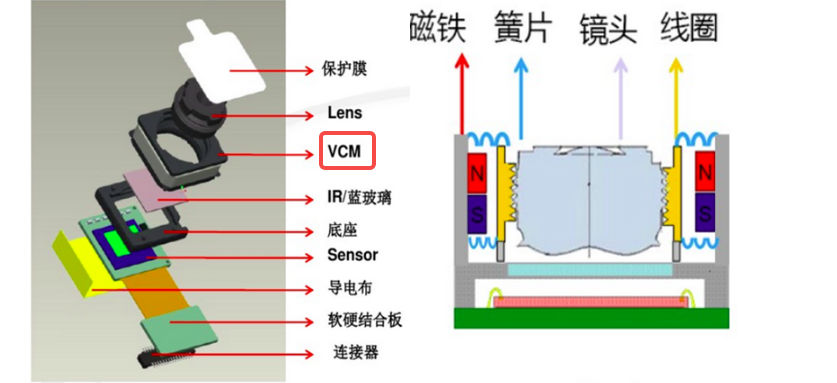
Below is the composition structure diagram of a COMS sensor camera, roughly divided into lens, image sensor, and image processing unit. The following will explain based on the author's understanding.
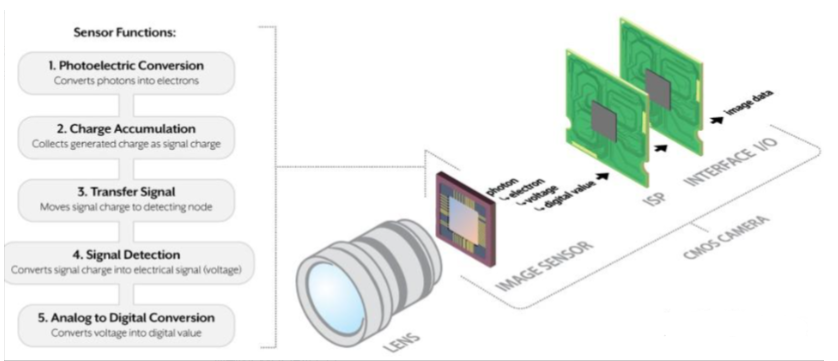
CMOS Sensor Camera Composition Structure Diagram

1.1 Introduction to Lens

Let's first introduce the lens, as shown in the figure above, it is composed of multiple lenses. In theory, only one lens is needed for imaging, but there are problems like chromatic aberration and astigmatism. Using multiple lens combinations can effectively correct aberrations. In addition, by changing the position of multiple lenses, zoom can be achieved. Of course, the most important point is that focusing for most cameras is also achieved by changing the position of the lens group.
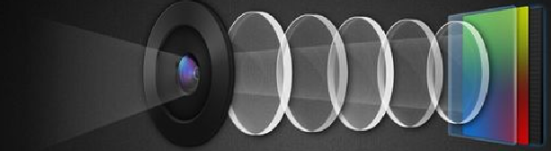
Lens Structure Diagram

Cameras that support zoom and auto-focus generally have a micro motor to change the position of the lens. The common camera motor type is VCM (Voice Coil Motor). The structure diagram is as follows:

VCM Voice Coil Motor Structure Diagram

When the coil is energized, a magnetic field is generated. By adjusting the current flowing through the magnetic field, the forward and backward movement of the lens can be achieved. This structure is called VCM (Voice Coil Motor).

1.2 Introduction to CMOS Sensor

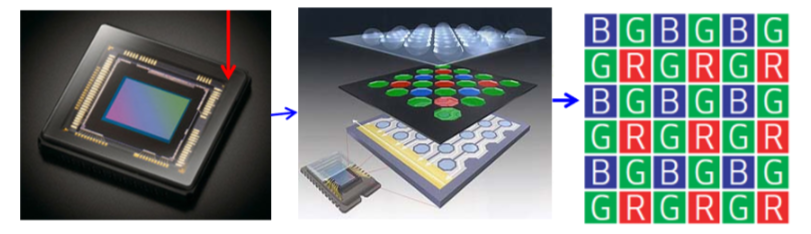
Let's briefly talk about the most important part of the camera - the image sensor, which is what everyone calls CMOS. The function of CMOS is to absorb photoelectrons, so that each pixel can accumulate different amounts of charge. These collected charges are converted into corresponding intensity voltage signals by the amplifier under each pixel. The voltage signal, as an analog quantity, is converted to digital signal through ADC. Taking 12-bit ADC as an example, each pixel is divided into 4096 levels according to brightness. At this point, a raw file of a black and white image can be obtained.

CMOS Sensor Working Principle Diagram

Add a color filter in front of each pixel. For example, a green filter only allows green light to pass. Then the light intensity value of this point is the brightness level of green light. The entire digital grid described by the brightness levels of RGB three primary colors is the camera's raw file.

At this point, friends understand why when we use our phones to take photos at night, we need to wait a few seconds after clicking the shutter to complete, while during the day it's fast. This is because we need to wait for the CMOS unit to collect more photoelectrons, otherwise we get an all-black image. For friends with photography basics, you also know the origin of the three elements of photography (aperture, shutter, ISO), all of which control the amount of light in different ways!

1.3 Introduction to Image Processing Unit

The image processing unit ISP processes the raw file. It estimates the true color of each pixel based on the value of each pixel through algorithms (for example, if it finds the red pixel (R) value on the left is 50, and the red pixel value on the right is 55. Then it will reasonably infer: "Hmm, the red value at this position is probably around 52"). After algorithm processing, a color image is born. If you need to output images in formats like JPG, the processor performs white balance correction, sharpening, noise reduction, and compression on the raw file to finally generate the image we need.

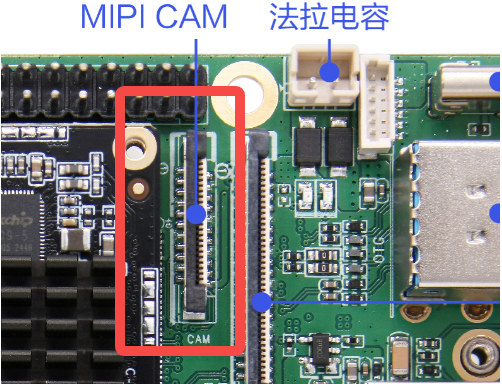
2 Camera Interface Location in Board Card

Camera Interface Location

The board reserves one MIPI camera interface. Currently, it has adapted to two cameras: GC8034 from GalaxyCore and OV5695 from OmniVision.

The specific parameters can be found in the table below:

ParameterGC8034OV5695
ManufacturerChina GalaxyCore (GalaxyCore)USA OmniVision (OmniVision)
Resolution3264H x 2448V (~8 megapixels)2592H x 1944V (~5 megapixels)
Optical Size1/4 inch1/4 inch
Output FormatRAW10 / RAW810-bit RGB RAW
InterfaceMIPI (supports 2 lane or 4 lane)MIPI (supports 1 lane or 2 lane)
Frame Rate30fps at full size (MIPI 4 lane)30fps at full size (5MP)

3 Camera Testing

3.1 Device Tree Details

Tips

The file path below: out/kernel/src_tmp/linux-5.10/arch/arm64/boot/dts/rockchip

Need to compile the source code first.

Since the camera device tree configuration is complex, according to the SDK's camera configuration, the data transmission process is roughly divided into the following stages:

Camera Data Transmission Process:

StepComponent/StageFunction DescriptionData Flow
1Camera ModuleImage sensor captures light signalLight signal → electrical signal
2I2C Control ConfigurationConfigure camera parametersControl signal transmission
3Image Data AcquisitionConvert electrical signal to digital signalAnalog signal → digital signal
4MIPI CSI-2/DVP Interface TransmissionHigh-speed data interface transmissionDigital image data transmission
5CSI2 D-PHY Physical Layer ProcessingPhysical layer signal processing and synchronizationSignal conditioning and clock recovery
6ISP Image Signal ProcessingImage quality optimization processingRaw data → processed data
7Noise Reduction, Color Correction, etc.Image enhancement and correctionImage quality improvement
8Data OutputProcessed image dataFinal image data
9Storage to MemoryData caching and storageMemory write
10DisplayImage display outputScreen display

Since the camera device tree configuration is complex, it is not detailed here.

In the i2c4 node of the board-level matching file rk3568-toybrick-x10.dtsi, excerpts of gc8034 and ov5695 are given as examples:

&i2c4 {
    status = "okay";                              // Enable I2C4 bus

    gc8034: gc8034@37 {                           // GC8034 camera module, I2C address 0x37
        compatible = "galaxycore,gc8034";         // Compatibility string, for driver matching
        reg = <0x37>;                             // I2C device address
        clocks = <&cru CLK_CIF_OUT>;              // Clock source: CRU's CIF output clock
        clock-names = "xvclk";                    // Clock name: external clock
        power-domains = <&power RK3568_PD_VI>;    // Power domain: video input power domain
        pinctrl-names = "default";                // Pin control state name
        pinctrl-0 = <&cif_clk>;                   // Default pin configuration: CIF clock pin
        reset-gpios = <&gpio0 RK_PD6 GPIO_ACTIVE_LOW>;    // Reset GPIO, low level active
        pwdn-gpios = <&gpio4 RK_PB4 GPIO_ACTIVE_LOW>;     // Power control GPIO, low level active
        rockchip,grf = <&grf>;                    // General register file reference
        rockchip,camera-module-index = <0>;       // Camera module index number
        rockchip,camera-module-facing = "back";   // Camera facing: rear
        rockchip,camera-module-name = "RK-CMK-8M-2-v1";   // Camera module name
        rockchip,camera-module-lens-name = "CK8401";      // Lens name
        port {                                    // Port definition, for connecting other devices
            gc8034_out: endpoint {                // Output endpoint
                remote-endpoint = <&mipi_in_ucam1>;       // Connect to MIPI CSI's ucam1 input
                data-lanes = <1 2 3 4>;           // Use 4 data lanes
            };
        };
    };
}
.....

    ov5695: ov5695@36 {                           // OV5695 camera module, I2C address 0x36
        status = "okay";                          // Enable this device
        compatible = "ovti,ov5695";               // Compatibility string, OmniVision driver
        reg = <0x36>;                             // I2C device address
        clocks = <&cru CLK_CIF_OUT>;              // Clock source: CRU's CIF output clock
        clock-names = "xvclk";                    // External clock name
        power-domains = <&power RK3568_PD_VI>;    // Power domain: video input power domain
        pinctrl-names = "default";                // Pin control state name
        pinctrl-0 = <&cif_clk>;                   // Default pin configuration: CIF clock pin
        reset-gpios = <&gpio0 RK_PD6 GPIO_ACTIVE_LOW>;    // Reset control GPIO, low level active
        pwdn-gpios = <&gpio4 RK_PB4 GPIO_ACTIVE_LOW>;     // Power control GPIO, low level active
        rockchip,camera-module-index = <0>;       // Camera module index number
        rockchip,camera-module-facing = "back";   // Camera facing: rear
        rockchip,camera-module-name = "TongJu";   // Module manufacturer name
        rockchip,camera-module-lens-name = "CHT842-MD";   // Lens model
        port {                                    // Port configuration
            ov5695_out: endpoint {                // Output endpoint
                remote-endpoint = <&mipi_in_ucam2>;       // Connect to MIPI CSI's ucam2 input
                data-lanes = <1 2>;               // Use 2 data lanes
            };
        };
    };
};

3.2 Camera Effect File Description

For cameras that output raw images, the image effect needs to be adjusted through ISP to meet normal requirements. Currently, the M4-R1 effect files are adapted to GC8034 by default. If you need to adapt other raw cameras, you also need to modify the effect files on the board!

Below is an example of adapting ov5695.

After installing the HDC tool, enter in terminal:

# Grant permission to modify system folder
hdc shell mount -o remount,rw /vendor
# Push effect file
hdc file send "C:\Users\Administrator\Documents\ov5695_TongJu_CHT842-MD.json" /vendor/etc/iqfil.json
# Reboot the board
hdc shell reboot

After rebooting, the ISP module on the board will read this json file to make ov5695 output images normally.

Note

The effect file for ov5695 is located at the following path: "M4-R1/05-Development-Materials/01-OpenHarmony-Development-Materials/iqfile"

3.3 Specific Demonstration of Camera Testing

Taking the adapted OV5695 as an example, connect the camera to the MIPI CAM interface while the power is off. Do not hot-plug!!! (The author burned one board and camera this way)

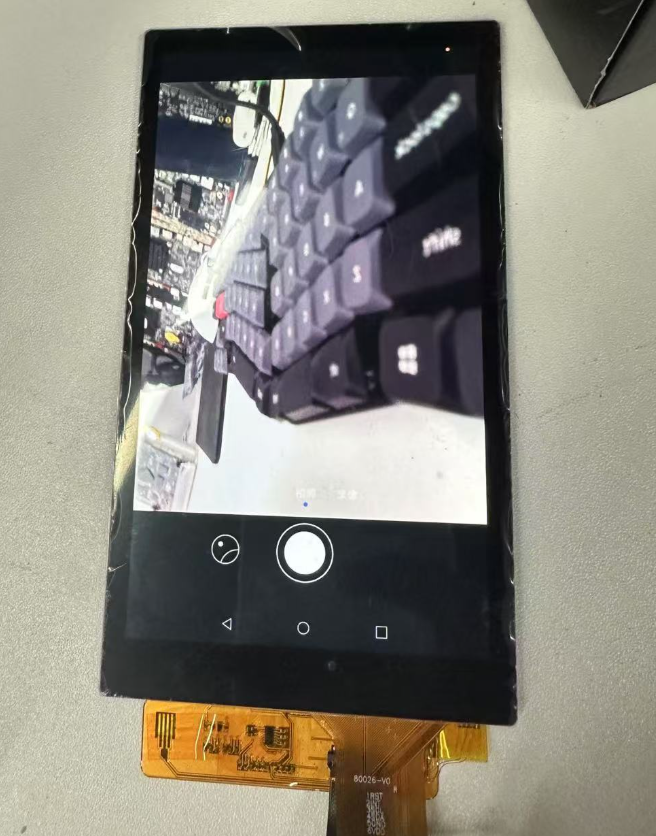
Open the built-in camera application of HarmonyOS:

Camera Application Test

Successfully captured image, testing normal.

Edit this page on GitHub
Last Updated:
Contributors: ZSL