
SPI Communication
1 SPI Introduction
For the basic concepts of SPI (serial peripheral interface), refer to the blog: CSDN Blog Article
Compared with I2C communication, SPI communication is straightforward and brute-force: whatever signal is needed, a wire is added for it; even the chip-select signal has its own dedicated signal line, and the benefits are obvious. Because signals are driven directly rather than pulling up the signal line to output a high level to prevent device damage as in I2C, the communication rate can be much higher than I2C. The RK3568 used on this board can reach a maximum theoretical rate of 50MHz in master mode and 33MHz in slave mode.
2 SPI Board Interface
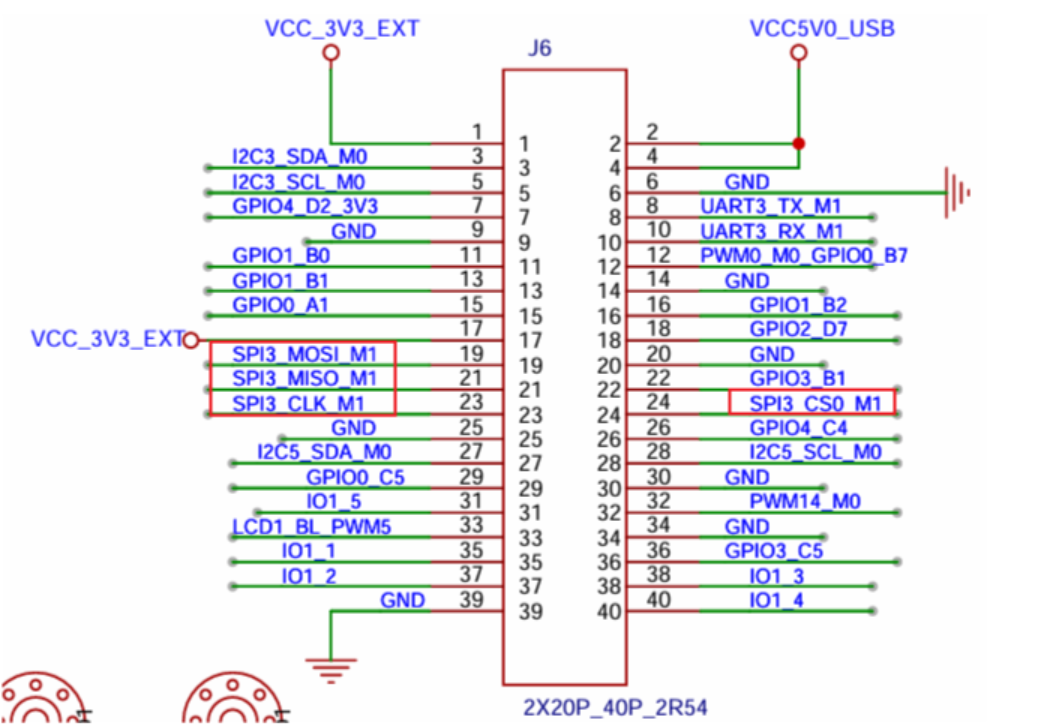
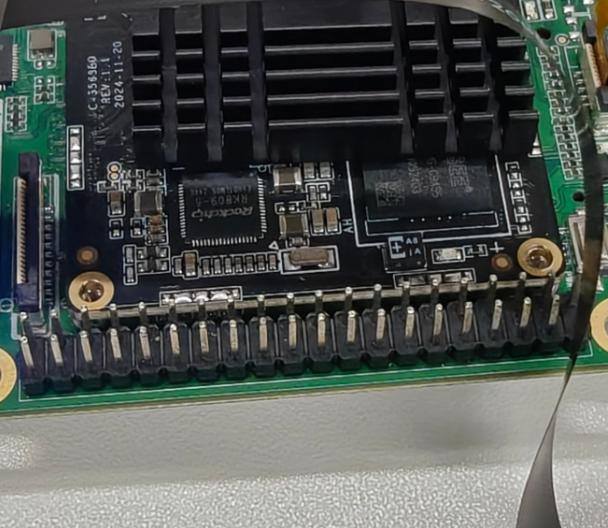
The SPI pin exposed on the board is SPI3.
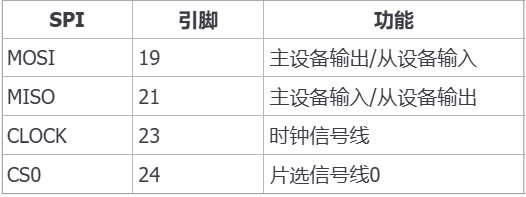
3 SPI Usage — Command-Line Method
3-1 Device-Tree Analysis
Tips
For the file paths below: out/kernel/src_tmp/linux-5.10/arch/arm64/boot/dts/rockchip/ requires compiling the source code first.
As in the previous section, we first look in the rk3568.dtsi file; the basic definition of the SPI3 controller is as follows:
spi3: spi@fe640000 {
    compatible = "rockchip,rk3066-spi";
    reg = <0x0 0xfe640000 0x0 0x1000>;
    interrupts = <GIC_SPI 106 IRQ_TYPE_LEVEL_HIGH>;
    #address-cells = <1>;
    #size-cells = <0>;
    clocks = <&cru CLK_SPI3>, <&cru PCLK_SPI3>;
    clock-names = "spiclk", "apb_pclk";
    dmas = <&dmac0 26>, <&dmac0 27>;
    dma-names = "tx", "rx";
    pinctrl-names = "default", "high_speed";
    pinctrl-0 = <&spi3m0_cs0 &spi3m0_cs1 &spi3m0_pins>;
    pinctrl-1 = <&spi3m0_cs0 &spi3m0_cs1 &spi3m0_pins_hs>;
    status = "disabled";
};
Key-property analysis:
compatible: specifies the SPI controller compatibility as "rockchip,rk3066-spi"reg: the SPI3 controller register base address is 0xfe640000, with a size of 4KBinterrupts: interrupt number is 106, triggered on high levelclocks: configures the SPI clock and APB clockdmas: DMA channel configuration, supporting transmit and receivepinctrl-0: default pin-multiplexing configuration (using m0 mode)status: default state is "disabled" (disabled)
Then check the pin-multiplexing configuration of SPI3 in the pinctrl subsystem, in the rk3568-pinctrl.dtsi file:
SPI3 M1模式引脚配置(SDK代码中使用的模式):

spi3m1_pins: spi3m1-pins {
    rockchip,pins =
        /* spi3_clkm1 */
        <4 RK_PC2 2 &pcfg_pull_none>,
        /* spi3_misom1 */
        <4 RK_PC5 2 &pcfg_pull_none>,
        /* spi3_mosim1 */
        <4 RK_PC3 2 &pcfg_pull_none>;
};

spi3m1_cs0: spi3m1-cs0 {
    rockchip,pins =
        /* spi3_cs0m1 */
        <4 RK_PC6 2 &pcfg_pull_none>;
};

spi3m1_pins_hs: spi3m1-pins {
    rockchip,pins =
        /* spi3_clkm1 */
        <4 RK_PC2 2 &pcfg_pull_up_drv_level_1>,
        /* spi3_misom1 */
        <4 RK_PC5 2 &pcfg_pull_up_drv_level_1>,
        /* spi3_mosim1 */
        <4 RK_PC3 2 &pcfg_pull_up_drv_level_1>;
};
Pin allocation:
CLK(clock line): GPIO4_PC2, function-multiplex mode 2MISO(Master In Slave Out): GPIO4_PC5, function-multiplex mode 2MOSI(Master Out Slave In): GPIO4_PC3, function-multiplex mode 2CS0(chip select 0): GPIO4_PC6, function-multiplex mode 2
Finally, look at the specific configuration of SPI3 in the board-level file:
&spi3 {
    status = "okay";
    pinctrl-0 = <&spi3m1_cs0  &spi3m1_pins>;
    pinctrl-1 = <&spi3m1_cs0  &spi3m1_pins_hs>;
    spidev:spidev@0 {
        compatible = "rockchip,spidev";
        reg = <0>;
        spi-max-frequency = <10000000>;
        status = "okay";
    };
};
A brief introduction to the above device tree:
Pin-multiplexing configuration
pinctrl-0: pin configuration for the default speed mode (using m1 mode)pinctrl-1: pin configuration for high-speed mode (enhanced drive capability)
spidev device configuration
compatible= "rockchip,spidev": use Rockchip's generic SPI device driverreg= <0>: device address is 0 (corresponding to CS0 chip select)spi-max-frequency= <10000000>: maximum SPI clock frequency is 10MHz
3-2 Application-Layer Method for Operating SPI
In the provided SDK, an SPI test program spi_selftest has been written on the rk3568 platform. The master sends "hello the world !", and with MOSI and MISO shorted, the receiving end checks whether the data is normal. It helps developers verify whether the SPI controller's driver is working properly and whether the hardware connection is correct. You only need to enter the target spi device and run the following command:
spi_selftest /dev/spidevxx3-3 Specific Function Demo
Now use the above command to test the SPI3 mounted on the board:
First short the MOSI and MISO interfaces on the board:
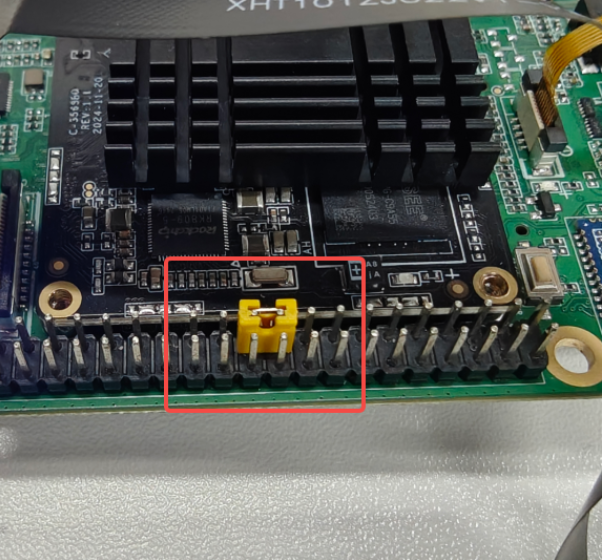
Enter spi_selftest /dev/spidev3.0 in the terminal to test whether data transmit/receive is normal:
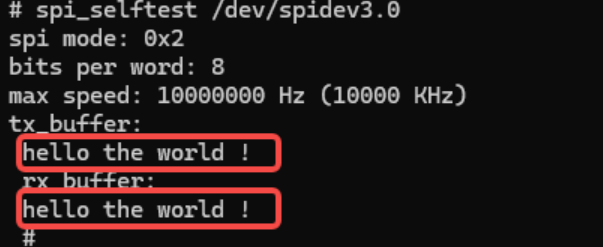
Successfully received the sent bytes:
Remove the shorting jumper, then enter the spi_selftest /dev/spidev3.0 command to test:
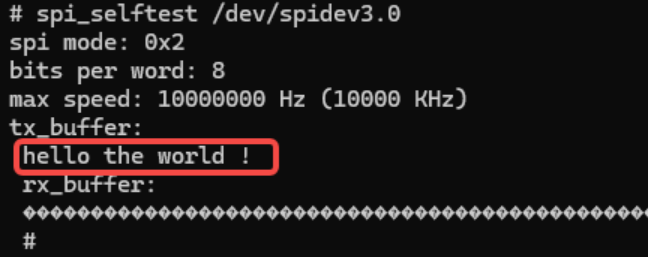
At this point, the received value is garbled, as expected.
4 SPI Usage — NAPI Method
Materials Path
hap package: \05-Development Materials\01-OpenHarmory Development Materials\Peripheral Test APP\HAP\SPI_TEST.hap
Project source code: \05-Development Materials\01-OpenHarmory Development Materials\Peripheral Test APP\SRC\SPI_TEST
Same as the command line in the previous section, the test command we use is spi_selftest /dev/spidev3.0.
4-1 Test Environment Preparation
First we need to connect to the development board via the hdc tool and grant read/write permission to the system nodes to be operated:
mount -o remount,rw /
chmod 777 /system/bin/spi_selftest
chmod 777 /dev/spidev3.0
Because system is a system file and is generally read-only, you need to first change the root directory / permission to read/write before you can change the permissions of the test-command directory /system/bin/spi_selftest and the SPI device directory /dev/spidev3.0 to 777.
4-2 SPI Device Test APP Usage Introduction
Below is an introduction to the SPI device test APP created using NAPI:
After entering the program, there is a drop-down box for selecting the SPI device.
(The board only exposes spidev3.0, so here we select /dev/spidev3.0 for testing):
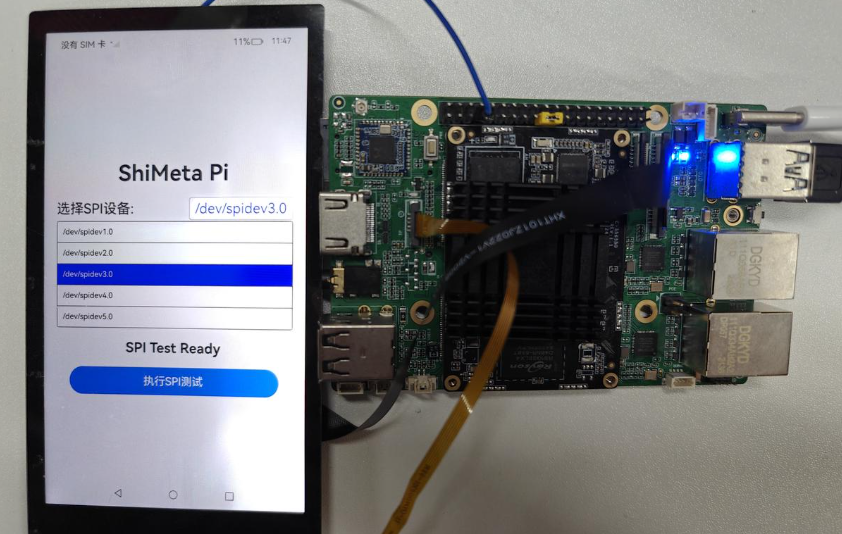
Click the SPI test button:
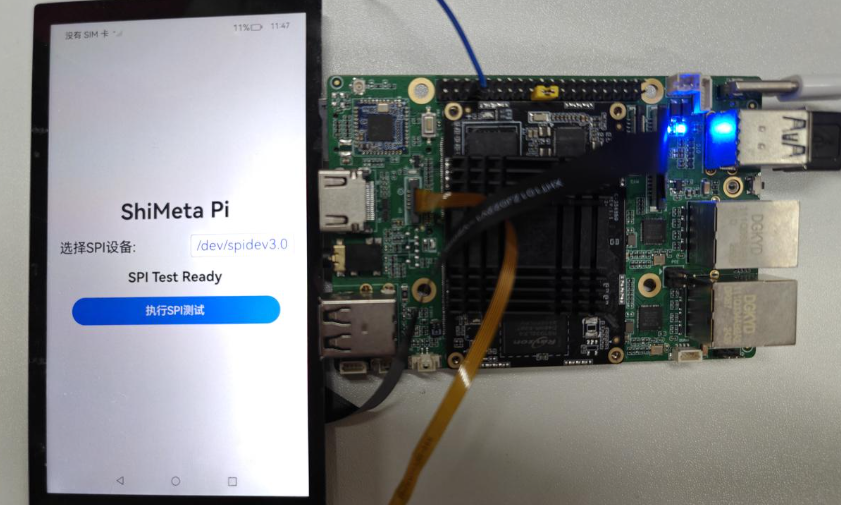
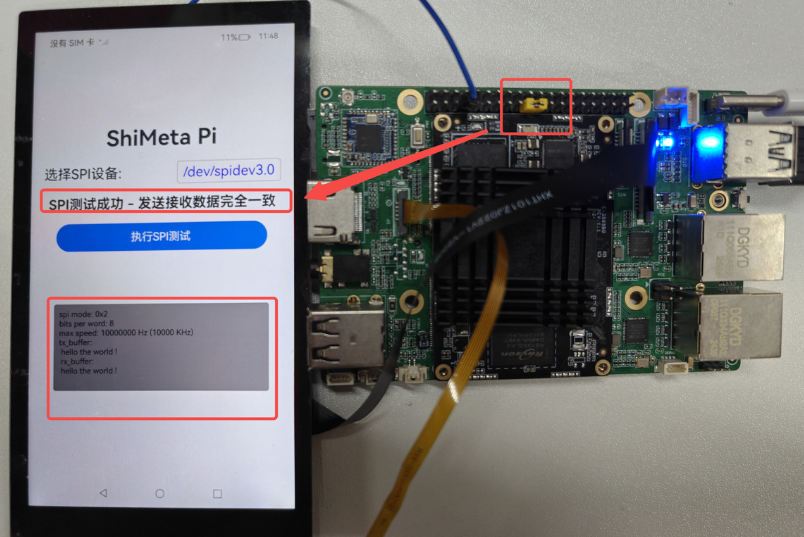
If you short the SPI's MOSI and MISO, the received terminal data will be printed below. If the sent and received data are consistent, it prints SPI device test success:
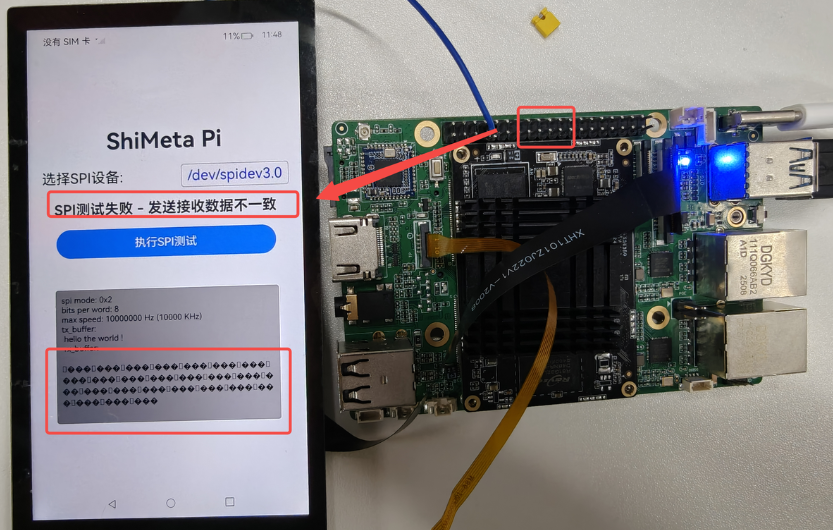
Correspondingly, when you remove the jumper cap from the SPI's MOSI and MISO, the received terminal data will be printed below, and the received display will be garbled, indicating that the SPI device test failed:
4-3 NAPI Underlying C Function Introduction
Considering that most friends may not have a good foundation in Linux system programming, here is a brief explanation of the underlying C function that implements NAPI. First, the source code:
// 执行SPI自测试命令
static napi_value SPI_Test(napi_env env, napi_callback_info info)
{
    size_t argc = 1;
    napi_value args[1];
    napi_get_cb_info(env, info, &argc, args, nullptr, nullptr);

    if (argc < 1) {
        napi_throw_error(env, nullptr, "Expected 1 argument: SPI device path (e.g., /dev/spidev3.0)");
        return nullptr;
    }

    // 获取SPI设备路径参数
    size_t str_size;
    napi_get_value_string_utf8(env, args[0], nullptr, 0, &str_size);
    char* spi_device = (char*)malloc(str_size + 1);
    napi_get_value_string_utf8(env, args[0], spi_device, str_size + 1, &str_size);

    OH_LOG_Print(LOG_APP, LOG_INFO, GLOBAL_RESMGR, SPI_TAG,
                       "Starting SPI test for device: %{public}s", spi_device);

    // 创建管道用于读取命令输出
    int pipefd[2];
    if (pipe(pipefd) == -1) {
        OH_LOG_Print(LOG_APP, LOG_ERROR, GLOBAL_RESMGR, SPI_TAG,
                           "Failed to create pipe: %{public}s", strerror(errno));
        free(spi_device);
        napi_throw_error(env, nullptr, "Failed to create pipe");
        return nullptr;
    }

    pid_t pid = fork();
    if (pid == -1) {
        OH_LOG_Print(LOG_APP, LOG_ERROR, GLOBAL_RESMGR, SPI_TAG,
                           "Failed to fork process: %{public}s", strerror(errno));
        close(pipefd[0]);
        close(pipefd[1]);
        free(spi_device);
        napi_throw_error(env, nullptr, "Failed to fork process");
        return nullptr;
    }

    if (pid == 0) {
        // 子进程:执行spi_selftest命令
        close(pipefd[0]); // 关闭读端
        dup2(pipefd[1], STDOUT_FILENO); // 重定向stdout到管道(写入的数据传入标准输出(fd=1))
        dup2(pipefd[1], STDERR_FILENO); // 重定向stderr到管道(写入的数据传入标准错误(fd=2))
        close(pipefd[1]);

        // 执行spi_selftest命令.如果成功不会返回,失败了才会执行后续的操作
        execl("/system/bin/spi_selftest", "spi_selftest", spi_device, (char*)NULL);

        // 如果execl失败,输出错误信息
        fprintf(stderr, "Failed to execute spi_selftest: %s\n", strerror(errno));
        exit(1);
    } else {
        // 父进程:读取命令输出
        close(pipefd[1]); // 关闭写端

        // 读取输出
        char buffer[4096] = {0};
        ssize_t total_read = 0;
        ssize_t bytes_read;

        while ((bytes_read = read(pipefd[0], buffer + total_read, sizeof(buffer) - total_read - 1)) > 0) {
            total_read += bytes_read;
            if (total_read >= sizeof(buffer) - 1) {
                break;
            }
        }

        close(pipefd[0]);

        // 等待子进程结束
        int status;
        waitpid(pid, &status, 0);

        buffer[total_read] = '\0';

        OH_LOG_Print(LOG_APP, LOG_INFO, GLOBAL_RESMGR, SPI_TAG,
                           "SPI test output: %{public}s", buffer);

        free(spi_device);

        // 返回命令输出结果
        napi_value result;
        napi_create_string_utf8(env, buffer, NAPI_AUTO_LENGTH, &result);
        return result;
    }
}
To successfully capture the complete output, we designed a child process here to execute the test command, and the other process (the parent process) only needs to read the child process's output, improving the system's real-time performance and preventing one process from "sending and receiving itself", which would cause data loss or program exceptions.
Program Explanation
Below is a detailed explanation of the program:
- First, call the function
napi_get_cb_infoto obtain the parameter passed in from the JavaScript side, that is, the device path. - Use the function
napi_get_value_string_utf8twice to get the length of the received string and then convert it to a C string. int pipefd[2];creates a pipe for communication between the parent and child processes;pipefd[0]is for reading, andpipefd[1]is for writing.- Use
fork()to create a child process; the child process haspid==0, and the parent process haspid>0. - The child-process function is responsible for writing commands. Through
dup2, the data to be written is redirected to the standard outputSTDOUT_FILENO(fd==1) and the standard errorSTDERR_FILENO(fd==2) respectively; then use the functionexecl("/system/bin/spi_selftest", "spi_selftest", spi_device, (char*)NULL);to execute the SPI test command at the specified path. Note that this function, when executed, opens another process specifically for this task, and does not return after success! - The parent process reads data in a loop and saves the content to the buffer.
read()returns the number of bytes read; if it is greater than 0, it indicates successful reading of data. When the child process closes the write end,read()returns 0, and the loop ends. - After waiting for the child program to end, convert the read data into a JavaScript string and return it.
For the rest of the code, you can refer to the provided source code!