
Read USB Device Information Demo
1 Demo Introduction
This demo tests the read functionality of the USB interface by reading information from devices connected to the external USB port.
2 Preparation Before Testing
Before starting the test, complete the following preparation steps:
2.1 Install Dependency Libraries
On the development board, update the package index and install the libusb-1.0 library. This operation requires the development board to be connected to a network.
# 更新软件包索引
sudo apt update

# 安装libusb-1.0 库
sudo apt install libusb-1.0-0 libusb-1.0-0-dev
3 Procedure
Open a terminal and copy the executable smdt_usb_r_demo from the bin directory of this demo (05-开发资料\软件开发资料\linux_demo\smdt_usb_r_demo\bin) to the development board's filesystem (the source code can be found in the src directory).
Optional operation: Because the development board is equipped with a wireless network card, if the terminal keeps displaying log messages generated by the wireless network card driver, you can modify the display level of Linux kernel logs with the following command.
#修改 Linux 内核日志的显示级别,内核的日志级别被设置为只显示紧急或更高级别的消息
echo 1 4 1 7 > /proc/sys/kernel/printk
In the terminal, run the following commands to switch to the directory containing the smdt_usb_r_demo executable.
#切换到 smdt_usb_r_demo 可执行程序所在目录
cd ‘可执行文件所在目录’

#查看 smdt_usb_r_demo 是否在该目录下
ls
If the executable smdt_usb_r_demo is in the current directory, modify the executable's permissions.
#修改文件权限
chmod 777 smdt_usb_r_demo

#查询是否修改成功
ls -ld smdt_usb_r_demo
After confirming that the file permissions have been successfully modified, run ./smdt_usb_r_demo -h to view the program's help information.
#查看帮助信息
./smdt_usb_r_demo -h
The execution result is shown in the figure below:

Run ./smdt_usb_r_demo -l to read USB external device information and continuously detect device connect and disconnect events. Press "Ctrl+C" to exit the test.
#检查外部 USB 连接设备信息
./smdt_usb_r_demo -l
4 Test Result
Run ./smdt_usb_r_demo -l to list the information of the currently connected external USB devices on the development board (Linux kernel virtual USB devices are not displayed). The execution result is shown in the figure below:
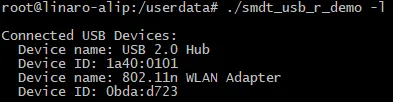
It continuously detects whether USB devices are connected or disconnected, with a detection interval of 5s.
When a device is connected, the terminal prints the following information:

When a device is disconnected, the terminal prints the following information:

Press "Ctrl+C" to exit the test:
