Ethernet Test Demo
1 Demo Introduction
This demo describes how to implement Ethernet communication between the development board and a PC.
2 Preparation Before Testing
Connect the network ports of the PC and the development board to the same switch via Ethernet cables.
On the development board terminal, enter the following command to query the IP address of the network interface. The execution result is shown in the figure below.
ifconfig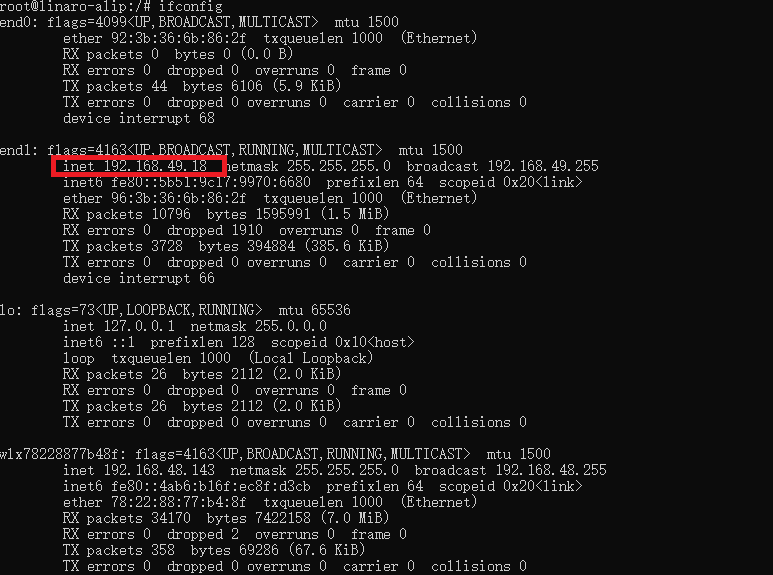
On the PC terminal, enter the following command to query the IP address of the PC network interface. The execution result is shown in the figure below.
ipconfig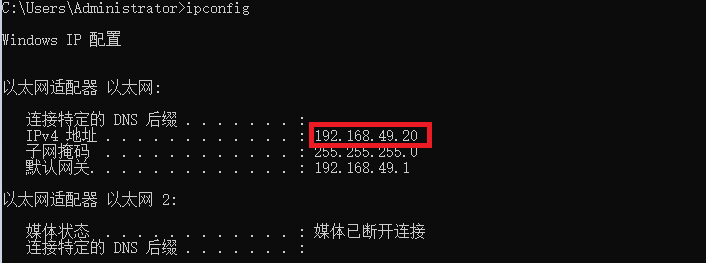
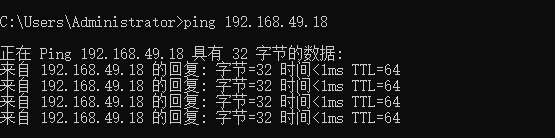
Run the ping command on both the development board terminal and the PC terminal.
#在开发板终端
ping <PC端IP地址>

#PC终端
ping <开发板IP地址>

#e.g:ping 192.168.49.20
If the execution result is as shown in the figure below, the network connection is working.
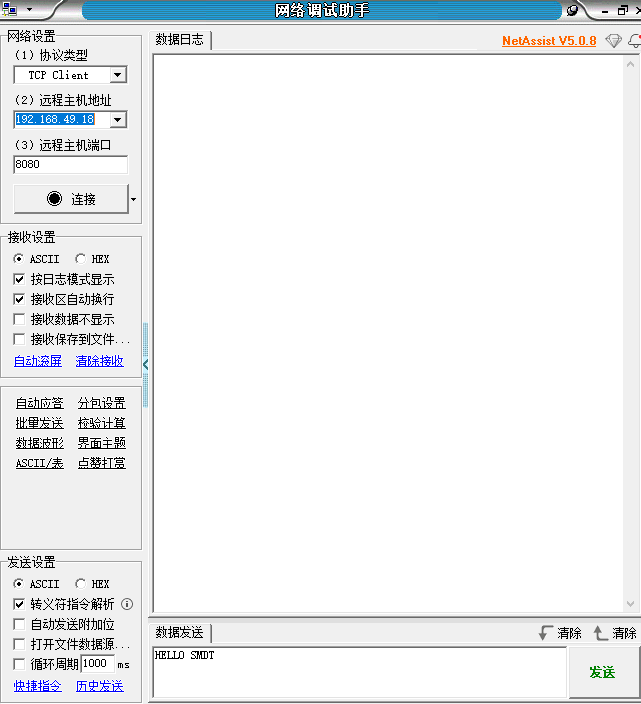
Open the software NetAssit under the directory 04-软件资料\Tools\Windows. Select TCP Client as the protocol type, enter the queried IP address as the remote host address, and select 8080 as the remote host port. The configuration interface is shown in the figure below.
3 Procedure
Open a terminal and copy the executable smdt_eth_demo from the bin directory of this demo (05-开发资料\软件开发资料\linux_demo\smdt_eth_demo\bin) to the development board's filesystem (the source code can be found in the src directory).
In the terminal, run the following commands to switch to the directory containing the smdt_eth_demo executable.
#切换到 smdt_eth_demo 可执行程序所在目录
cd ‘可执行文件所在目录’

#查看 smdt_eth_demo 是否在该目录下
ls
If the executable smdt_eth_demo is in the current directory, modify the executable's permissions.
#添加可执行权限
chmod +x smdt_eth_demo
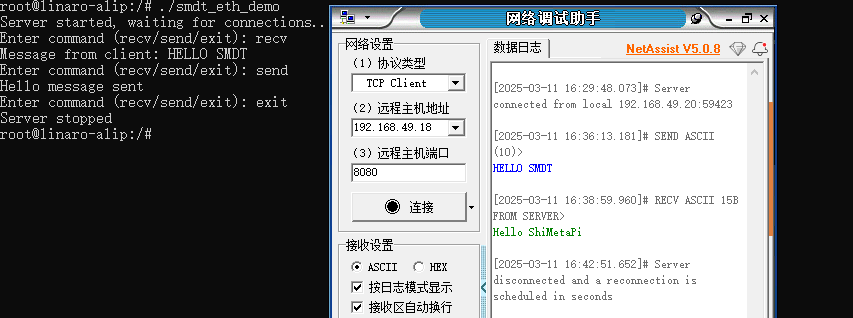
Run the following command. The development board waits for the PC to connect. Click Connect in the NetAssit software. The execution result is shown in the figure below: the two devices have successfully established an Ethernet connection and are waiting for the user to enter commands.
./smdt_eth_demo
Three commands can be entered at the input prompt. recv: receive data sent from the PC; send: send data to the PC; exit: disconnect the Ethernet connection between the devices.
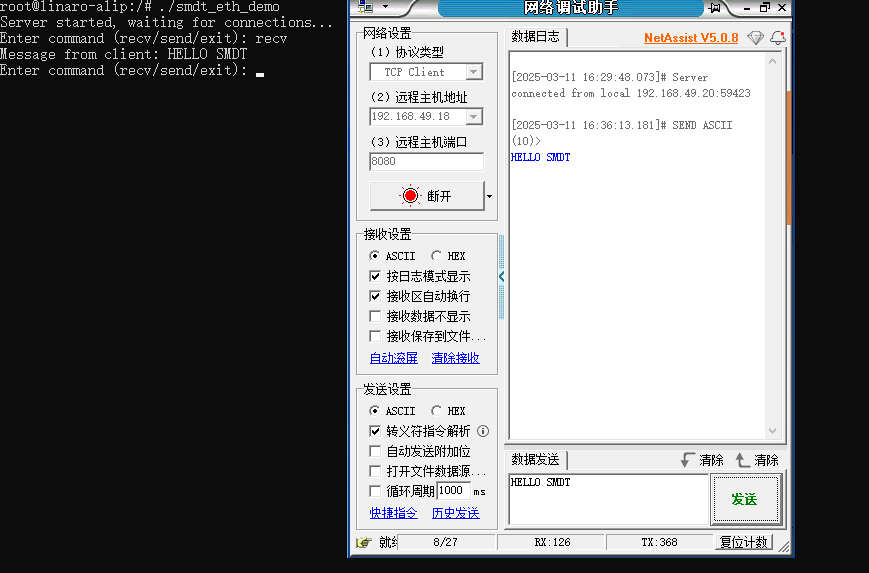
Enter recv in the command line and press Enter, then wait for the PC to send data. Enter "Hello SMDT" in the debug assistant and click send. The development board receives the corresponding string. The result is shown in the figure below.
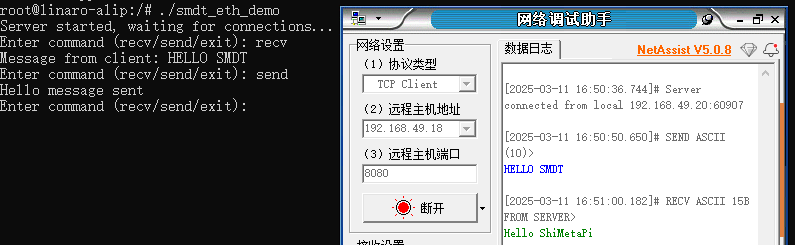
Enter send in the command line and press Enter. The development board sends the data "Hello ShiMetaPi" to the PC. You can see the string sent from the development board to the PC in the debug assistant window, as shown in the figure below.
Enter exit in the command line to disconnect the Ethernet connection between the two devices.