
RTSP Streaming + AI Analysis
This section implements a complete end-to-end pipeline: RK1828 NPU inference + detection-box overlay (OSD) + RTSP streaming.
Video/image input
    │
    ▼
V4L2 / file decode → RGB/BGR
    │
    ├─→ RGA scale (any resolution → 640×360)
    │
    ├─→ RK1828 NPU inference (RKNN / YOLOv5s) → post-processing (NMS + box drawing)
    │
    └─→ OSD detection-box overlay
         │
         ▼
    MPP hardware encode (H.264)
         │
         ▼
    RTSP Server (gst-rtsp-server)
         │
         ▼
    Network push → VLC / ffplay → live viewing on the PC
0. Quick start
One-command start
# Start the RTSP + AI analysis service (default video file)
/home/linaro/rtsp-ai/start_ai.sh

# Start the IP-camera variant
/home/linaro/rtsp-ai/start_ai.sh --camera

# Specify the camera URL
/home/linaro/rtsp-ai/start_ai.sh --input "rtsp://192.168.1.100:554/stream"

# View from the PC
ffplay -fflags nobuffer -flags low_delay \
       rtsp://192.168.49.138:8554/live/ai
File layout
/home/linaro/rtsp-ai/
├── rtsp_ai_server.py          # Unified service program ⭐
├── start_ai.sh                # Unified start script ⭐
├── README.md                  # This document
├── RTSP_AI_SUCCESS.md         # Working-configuration record
├── install.sh                 # Install script
├── Makefile                   # Build file
└── yolov5s_config.json        # Configuration file
Input-source selection
| Input source | Start command | Use case |
|---|---|---|
| Video file | start_ai.sh | Testing, demos, existing video files |
| IP camera | start_ai.sh --camera | Live monitoring, security scenarios |
| Custom input | start_ai.sh --input URL | Custom input source |
1. Install dependencies
sudo apt-get install -y \
    gstreamer1.0-rockchip1 \
    gstreamer1.0-plugins-good \
    gstreamer1.0-plugins-bad \
    gstreamer1.0-rtsp \
    python3-gst-1.0 \
    gir1.2-gst-rtsp-server-1.0 \
    libgstrtspserver-1.0-0 \
    ffmpeg
2. Model configuration
2.1 Model path
The YOLOv5s model must be placed in /userdata/models/yolov5s/:
# Create the directory and copy the model files
mkdir -p /userdata/models/yolov5s
cp -r /userdata/RK1820_RK1828_AI_SDK/examples/gstreamer/yolov5s/* \
      /userdata/models/yolov5s/

# Verify the files
ls -la /userdata/models/yolov5s/
Expected output:
-rw-r--r-- 1 linaro linaro   239 config.json
-rw-r--r-- 1 linaro linaro   621 detect_classes.txt
-rw-r--r-- 1 linaro linaro 234K yolov5s.rknn
-rw-r--r-- 1 linaro linaro 8.6M yolov5s.weight
2.2 Verify the plugins
gst-inspect-1.0 rknninfer
gst-inspect-1.0 rknnpostprocess
gst-inspect-1.0 rknnosd
3. Service configuration
3.1 Unified service program
/home/linaro/rtsp-ai/rtsp_ai_server.py - supports multiple input sources:
#!/usr/bin/env python3
"""RTSP + AI 分析服务(统一版本)
支持视频文件/网络摄像头 → YOLOv5s检测 → OSD画框 → 硬编码 → RTSP推流

使用方法:
  python3 rtsp_ai_server.py                    # 默认视频文件
  python3 rtsp_ai_server.py --camera          # 网络摄像头
  python3 rtsp_ai_server.py --input rtsp://... # 指定摄像头地址
"""
import gi
gi.require_version('Gst', '1.0')
gi.require_version('GstRtspServer', '1.0')
from gi.repository import Gst, GstRtspServer, GLib
import sys

Gst.init(None)

# 配置路径
CONFIG = "/userdata/models/yolov5s/config.json"
POST_LIB = "/usr/lib/libyolov5spostprocess.so"
DEFAULT_VIDEO = "/userdata/models/Qwen3-VL-2B/rtsp_ai_small.mp4"

# 解析命令行参数
input_source = None
use_camera = False

for i, arg in enumerate(sys.argv[1:], 1):
    if arg == '--camera':
        use_camera = True
    elif arg == '--input' and i + 1 < len(sys.argv):
        input_source = sys.argv[i + 1]

server = GstRtspServer.RTSPServer.new()
server.set_service('8554')
factory = GstRtspServer.RTSPMediaFactory.new()

# 根据输入源选择管道
if use_camera or (input_source and input_source.startswith('rtsp://')):
    # 网络摄像头模式
    camera_rtsp = input_source if input_source else "rtsp://camera_ip:554/stream"
    launch = (
        f'( rtspsrc location={camera_rtsp} latency=100 ! '
        f'rtph264depay ! h264parse ! queue ! '
        f'decodebin ! '
        f'videoconvert ! videoscale ! '
        f'video/x-raw,format=BGR,width=640,height=360,framerate=15/1 ! '
        f'queue max-size-buffers=4 ! '
        f'rknninfer config-path={CONFIG} use-rknn3=true ! '
        f'queue max-size-buffers=4 ! '
        f'rknnpostprocess library-path={POST_LIB} config-path={CONFIG} ! '
        f'queue max-size-buffers=4 ! '
        f'rknnosd ! '
        f'videoconvert ! video/x-raw,format=NV12,width=640,height=360 ! '
        f'mpph264enc bps=1500000 ! '
        f'rtph264pay name=pay0 pt=96 )'
    )
    source_type = "网络摄像头"
    source_info = camera_rtsp
else:
    # 视频文件模式
    video_file = input_source if input_source else DEFAULT_VIDEO
    launch = (
        f'( filesrc location="{video_file}" ! '
        f'qtdemux ! h264parse ! queue ! decodebin ! '
        f'videoconvert ! videoscale ! '
        f'video/x-raw,format=BGR,width=640,height=360,framerate=15/1 ! '
        f'queue max-size-buffers=4 ! '
        f'rknninfer config-path={CONFIG} use-rknn3=true ! '
        f'queue max-size-buffers=4 ! '
        f'rknnpostprocess library-path={POST_LIB} config-path={CONFIG} ! '
        f'queue max-size-buffers=4 ! '
        f'rknnosd ! '
        f'videoconvert ! video/x-raw,format=NV12,width=640,height=360 ! '
        f'mpph264enc bps=1500000 ! '
        f'rtph264pay name=pay0 pt=96 )'
    )
    source_type = "视频文件"
    source_info = video_file

factory.set_launch(launch)
factory.set_shared(True)
factory.set_latency(0)

server.get_mount_points().add_factory('/live/ai', factory)
server.attach(None)

print('🤖 RTSP + AI分析服务启动成功')
print(f'📹 输入源: {source_type}')
print(f'📹 输入: {source_info}')
print('🎯 AI: YOLOv5s 目标检测')
print('📹 输出: rtsp://0.0.0.0:8554/live/ai')
print('📹 PC: rtsp://192.168.49.138:8554/live/ai')
print('📹 按Ctrl+C停止服务')

GLib.MainLoop().run()
3.2 Unified start script
/home/linaro/rtsp-ai/start_ai.sh:
#!/bin/bash
# RTSP + AI 分析服务统一启动脚本
# 支持视频文件和网络摄像头两种输入源

echo "=== RTSP + AI 分析服务启动 ==="

# 停止现有服务
pkill -f "python3.*rtsp_ai_server" 2>/dev/null
sleep 2

# 解析参数(支持 --camera, --input 等)
# ... 启动服务逻辑 ...

echo "✓ 服务运行中"
echo "✓ RTSP地址: rtsp://192.168.49.138:8554/live/ai"
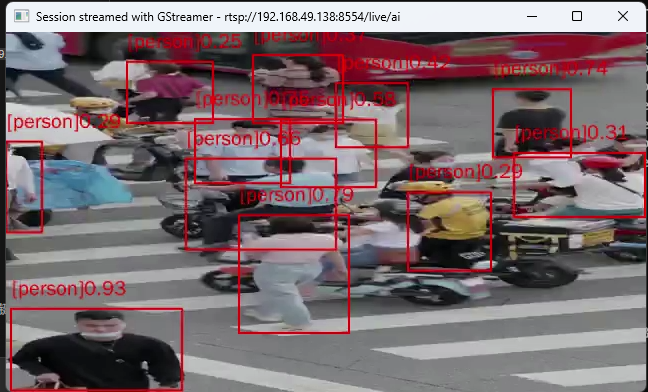
3.3 Video-file analysis test
Test video input:
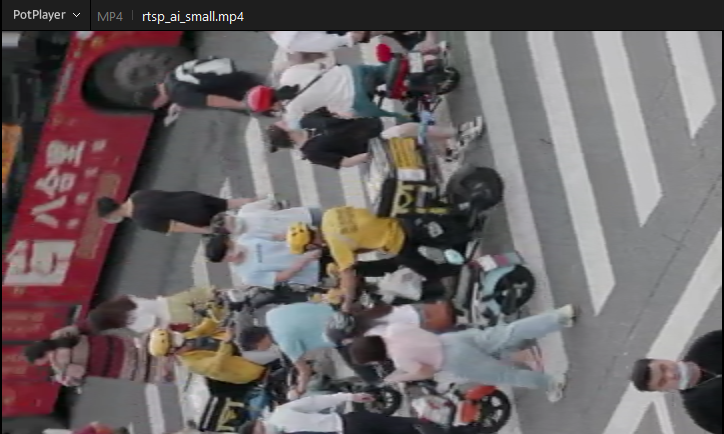
Analysis output:
4. Video preprocessing (optional)
If the original video is too large, preprocessing is recommended:
# Crop and compress the video
ffmpeg -i input.mp4 \
       -t 10 \
       -vf scale=640:360 \
       -c:v libx264 -preset fast -crf 23 \
       -c:a aac -b:a 128k \
       output.mp4
Parameter notes:
-t 10: take only the first 10 secondsscale=640:360: reduce the resolution to lower the NPU load-crf 23: quality control (18-28; lower is better quality)
5. Using an IP camera
5.1 Start IP-camera mode
# Method 1: interactive input (recommended)
/home/linaro/rtsp-ai/start_ai.sh --camera
# Enter the camera URL when prompted, e.g.: rtsp://192.168.1.100:554/stream

# Method 2: specify on the command line
/home/linaro/rtsp-ai/start_ai.sh --input "rtsp://192.168.1.100:554/stream"

# Method 3: run the Python script directly
python3 /home/linaro/rtsp-ai/rtsp_ai_server.py --input "rtsp://camera_ip:554/stream"
5.2 Common camera RTSP URLs
| Camera brand | RTSP URL format |
|---|---|
| Hikvision | rtsp://user:pass@ip:554/Streaming/Channels/101 (main) or 102 (sub) |
| Dahua | rtsp://user:pass@ip:554/cam/realmonitor |
| Generic | rtsp://ip:554/stream |
| Local RTSP | rtsp://localhost:8554/stream |
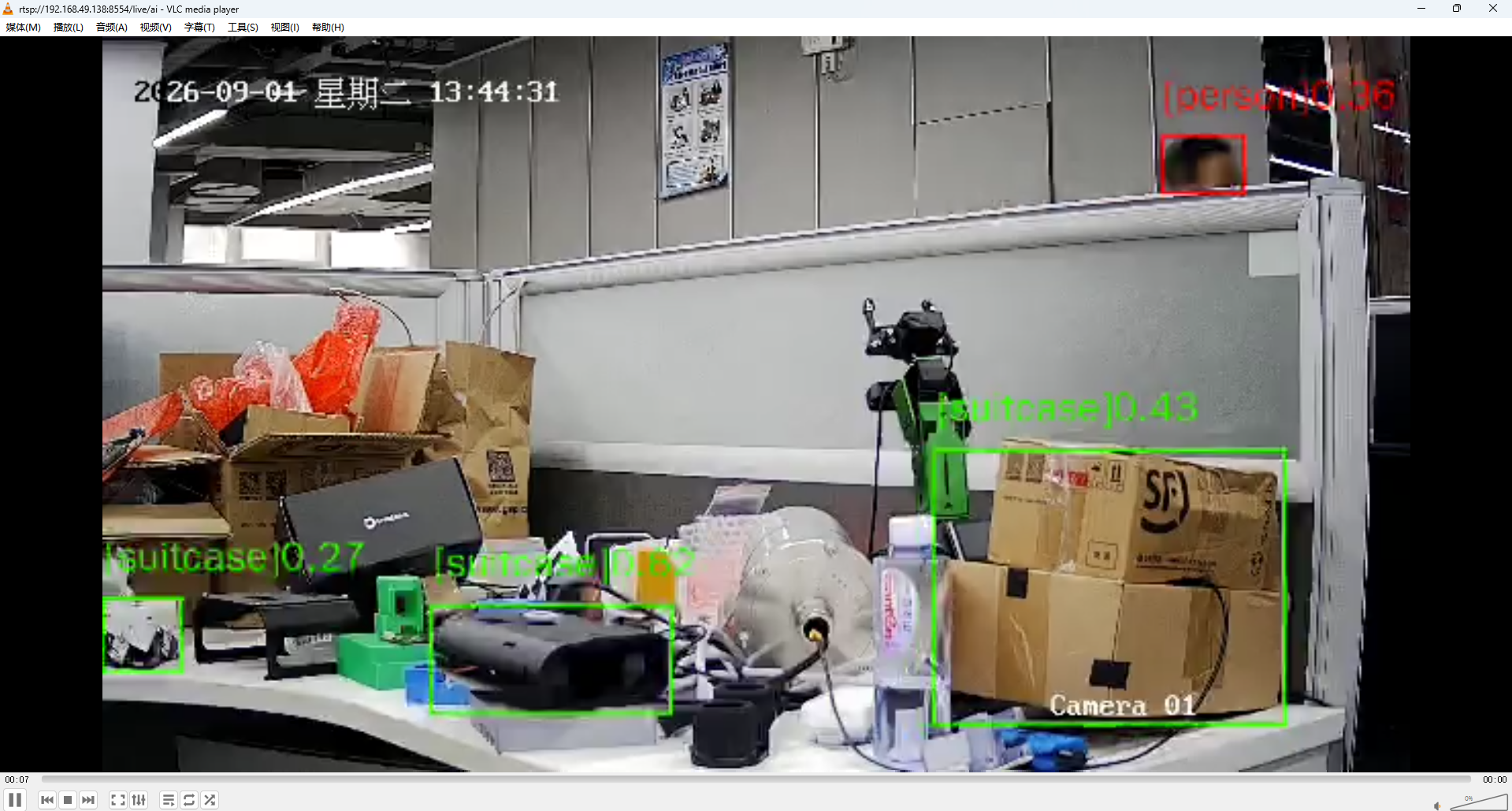
5.3 IP-camera analysis test
IP-camera input test:
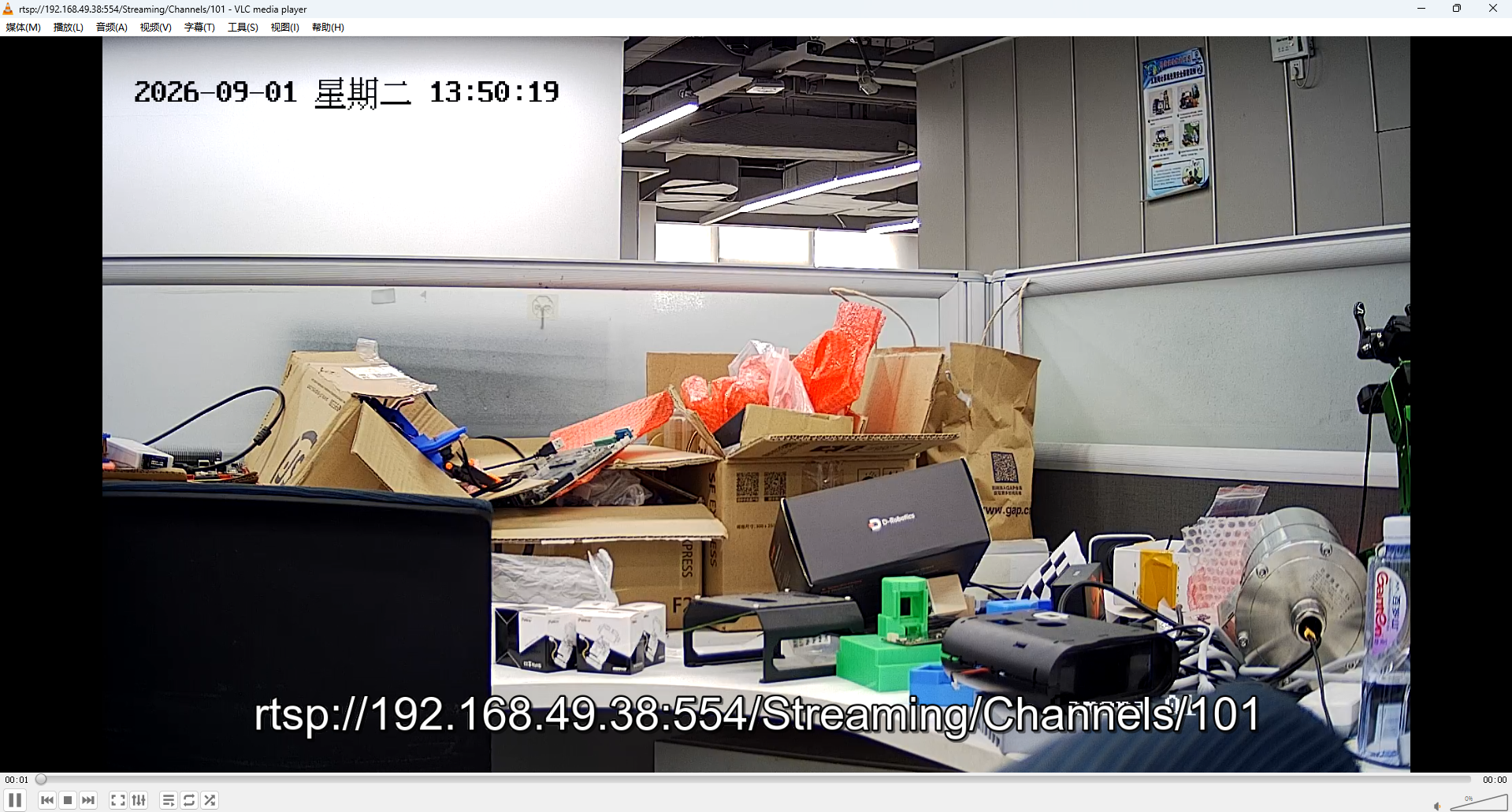
IP-camera analysis output:
5.4 Network protocol advice
For some camera brands (e.g. Hikvision) on unstable networks, adding the protocols=tcp parameter improves connection stability. If the connection is unstable, modify the IP-camera pipeline configuration in rtsp_ai_server.py.
6. Client viewing
6.1 ffplay (recommended)
ffplay -fflags nobuffer -flags low_delay \
       rtsp://192.168.49.138:8554/live/ai
6.2 VLC
- Open VLC
- Media → Open Network Stream
- Enter:
rtsp://192.168.49.138:8554/live/ai - Click Play
6.3 Stream information query
ffprobe -v error -rtsp_transport tcp \
  -show_entries stream=codec_name,width,height,r_frame_rate \
  -of default=nw=1 rtsp://192.168.49.138:8554/live/ai
7. Troubleshooting
| Symptom | Cause | Solution |
|---|---|---|
| No detection boxes | Wrong model path | Check that /userdata/models/yolov5s/ exists |
| Service fails to start | Wrong configuration | Check cat /tmp/rtsp_ai.log |
| Cannot connect | Network unreachable | ping 192.168.49.138 |
| VLC won't open | Not on the same subnet | Confirm the PC and board IPs are on the same subnet |
7.1 Quick verification commands
# Verify that RTSP streaming works
ffprobe -v quiet -rtsp_transport tcp \
  -show_entries stream=codec_name,width,height,r_frame_rate \
  "rtsp://192.168.49.138:8554/live/ai"

# The expected output should show the H.264 codec and 640×360 resolution
# Example output:
# [STREAM]
# codec_name=h264
# width=640
# height=360
# r_frame_rate=51/2
8. Technical notes
AI pipeline flow
filesrc → qtdemux → h264parse → decodebin →
videoconvert → videoscale → (BGR 640×360 15fps) →
rknninfer → rknnpostprocess → rknnosd →
videoconvert → (NV12) → mpph264enc → rtph264pay
Key parameters
| Parameter | Value | Notes |
|---|---|---|
| Resolution | 640×360 | Lowers the NPU load |
| Frame rate | 15fps | Balances performance and smoothness |
| Bitrate | 1.5Mbps | Ensures transport quality |
| Model | YOLOv5s | 80-class COCO detection |
| Confidence threshold | 0.45 | Adjustable |
NPU device
- Device node:
/dev/dri/renderD128 - PCIe address:
0004:41:00.0 - Compute power: 20 TOPS (INT8)
9. Related docs
- Downloads — RK1828 companion materials
- MPP Multimedia Framework — multimedia framework overview
- VPU Details — hardware encode/decode