
Agent Debug Assistant
The Agent tab is Workbench's Claude Code-powered board debugging assistant. Describe what you need in natural language, and the Agent parses it, plans the steps, and executes them on the Pico-G1 board over SSH.
What it does
The Agent tab embeds Claude Code into the IDE so you can control the board in natural language:
- Type "check the board's CPU usage" → it automatically runs
topover SSH and replies with the result - Type "write an SVP head-count script" → it generates the code in the workspace, ready to run
- Type "deploy yolov8n and start it" → it automatically chains the ch04 One-Click Deploy + ch05 Vision - SVP flows
- Supports multi-turn conversation, new/switched sessions, and resetting the context at any time
Best for quick debugging / exploratory tasks; leave complex scripts to the shimeta-py IDE.
Where to find it
Top tab → "Agent"
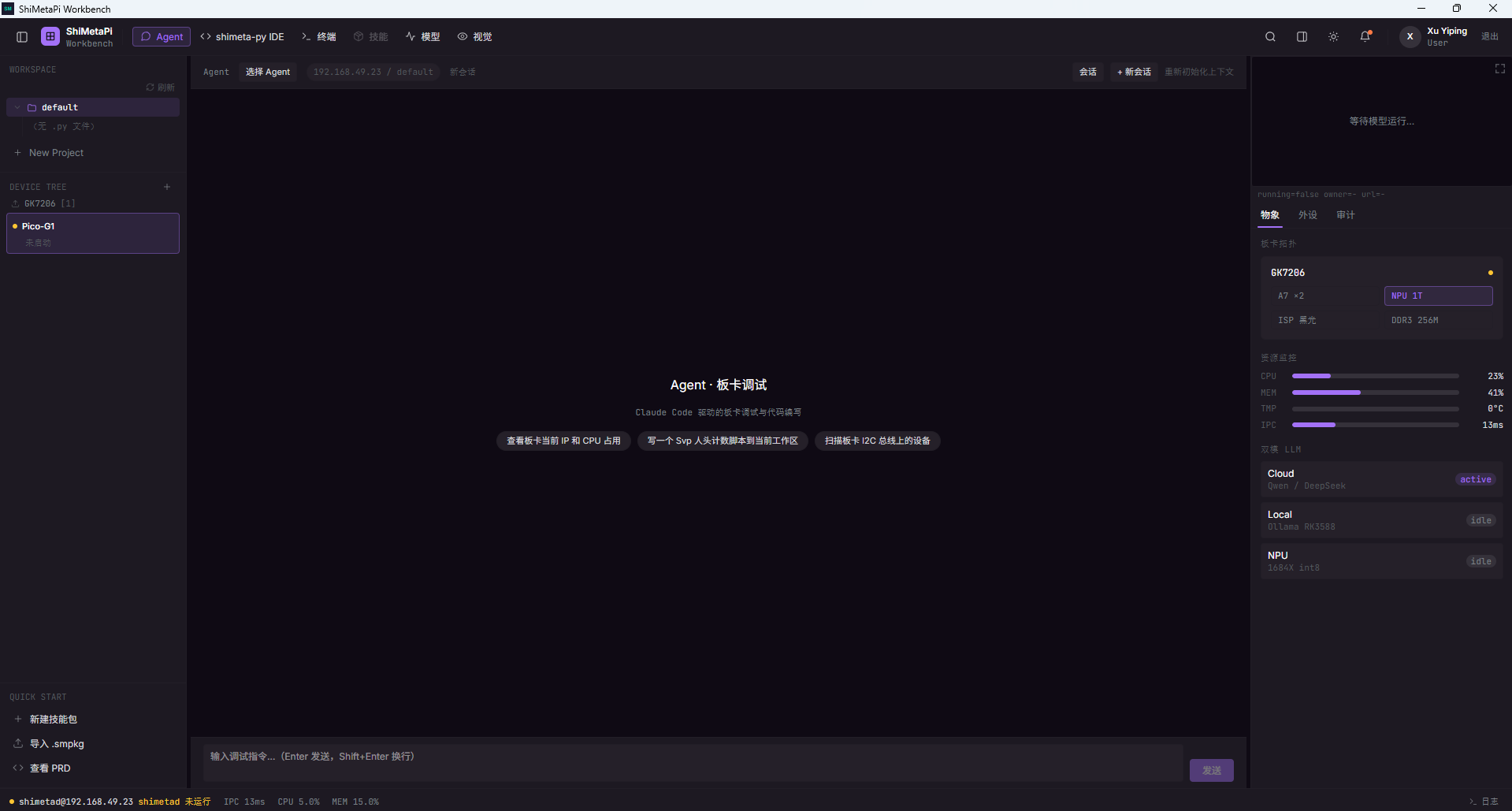
Interface layout
Top status bar
| Element | Purpose |
|---|---|
| Agent | Current Agent mode |
| Select Agent dropdown | Switch between agents (e.g. Debug Agent / Code Generation Agent) |
| Board IP | Currently connected board (e.g. 192.168.49.23) |
| default | Current workspace |
| New session | Start a new conversation |
| Sessions dropdown | Switch between past sessions |
| + New session | Quick create |
| Re-initialize context | Clear the Agent's current conversation context and start over |
Center area
Welcome page (first visit)
Agent · 板卡调试
Claude Code 驱动的板卡调试与代码编写

[查看板卡当前 IP 和 CPU 占用]   [写一个 Svp 人头计数脚本到当前工作区]   [扫描板卡 I2C 总线上的设备]
3 quick-command buttons
| Quick command | Purpose |
|---|---|
| 查看板卡当前 IP 和 CPU 占用 | Quickly check the board status |
| 写一个 Svp 人头计数脚本到当前工作区 | Auto-generate an SVP script |
| 扫描板卡 I2C 总线上的设备 | Scan hardware peripherals |
Clicking a button runs that task automatically.
Bottom input box
输入调试指令...(Enter 发送,Shift+Enter 换行)- Enter: send
- Shift+Enter: newline (multi-line input)
How it works
User enters a natural-language instruction in the Agent
       │
       ▼  Claude Code parses it
       │
       ▼  Plans the execution steps
       │
       ▼  Runs them on the board automatically over SSH
       │       (connects as the shimetad user)
       │
       ▼  Collects the results
       │
       ▼  Replies to the user in natural language
Typical use cases
1. Quick board status check
查看板卡当前 IP 和 CPU 占用The Agent runs ifconfig / top over SSH automatically and replies with the result.
2. Code generation
写一个 Svp 人头计数脚本到当前工作区The Agent generates head_count.py in the current workspace, ready to run in the shimeta-py IDE.
3. Hardware debugging
扫描板卡 I2C 总线上的设备The Agent runs i2cdetect to list all I2C devices.
4. Complex tasks
帮我把模型 yolov8n 部署到板卡,然后在视觉 Tab 启动它The Agent automatically chains the ch04 One-Click Deploy + ch05 Vision - SVP flows.
Agent vs. shimeta-py IDE
| Item | Agent | shimeta-py IDE |
|---|---|---|
| Interaction | Natural language | Writing code |
| Best for | Quick debug / exploration | Complex script development |
| Output | Natural-language replies | Code execution results |
| Learning curve | Low | Requires Python knowledge |
Session management
Creating a session
Every new conversation resets the context. To start one:
- Click "New session" or "+ New session" at the top
- The context is fully cleared
- Other past sessions are not affected
Switching sessions
Click the "Sessions" dropdown at the top:
- Shows all past sessions
- Click to switch
- Past session content is preserved
Re-initializing the context
Click "Re-initialize context" at the top:
- The current session stays open
- The Agent's context is cleared (board state, conversation history, etc.)
- The next conversation starts from a clean state
Useful when the board state has changed, or the Agent's context has become muddled.
Board context
The Agent needs board context to operate. On first use:
- The Agent automatically SSHes to the board to initialize
- It collects the board state (NPU / memory / storage / network)
- Later conversations can reference it
If you see "请先连接板卡(Agent 需要板卡上下文初始化)":
- Go back to ch02 and check the connection
- Once connected, return to the Agent tab and enter your instruction again
Troubleshooting
| Symptom | Fix |
|---|---|
| Agent says "please connect the board first" | Check the connection in the DEVICE TREE |
| Natural-language instruction gets no response | Restart the IDE; or start a new session |
| Agent replies "I don't know" | Instruction too vague; be specific ("check CPU usage" beats "how's the board") |
| Agent fails to run SSH | shimetad user permissions; verify in the Terminal tab |
Next
- ch07 shimeta-py IDE: edit Python scripts
- ch08 Terminal: run commands over SSH manually
- ch10 Settings and Resources: AI Agent configuration