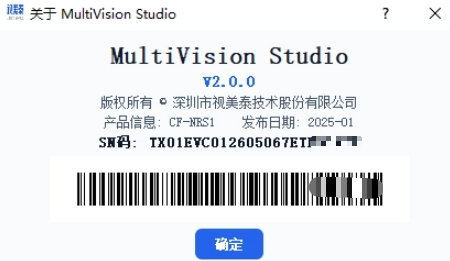
MultiVision Studio
1. Introduction
MultiVision Studio is a graphical tool developed by ShiMetaPi for hybrid vision cameras (RGB + EVS). It is a multi-function software that supports visualizing, configuring, and analyzing image- and event-based vision data.
No camera?
Go to Downloads — Sample recordings, download a .raw file, and play it back in this tool to experience preview, EVT2→CSV export, and all other features.
2. Driver installation
[Install preparation]
- Make sure the event camera is connected to the computer via a USB3.0 interface.
- Power on the device and wait for the system to recognize the hardware.
[Install driver]
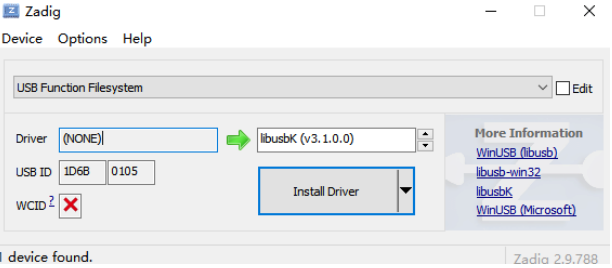
- Run the
USB Function Filesysteminstaller to deploy the driver automatically. - If the driver does not install automatically, restart the computer and enter disable driver signature enforcement mode:
Settings → Update & Security → Recovery → Restart now → Troubleshoot → Advanced options → Startup Settings → Disable driver signature enforcement
[Verify installation]
- Open Device Manager and confirm that
USB Function Filesystemshows as enabled.
3. MultiVision Studio features
3-1 Usage notes
The main features of this software are real-time preview of camera raw data, recording & replay, filtering effects, OTA upgrade, SN-code retrieval, plus an EVT2-to-CSV visual-text tool.
3-2 Basic usage
1. Get the MultiVision Studio program
Close antivirus software before extracting.

rktools: system upgrade tool
ffmpeg: audio/video processing tool
MultiVision Studio: graphical tool
2. Application interface
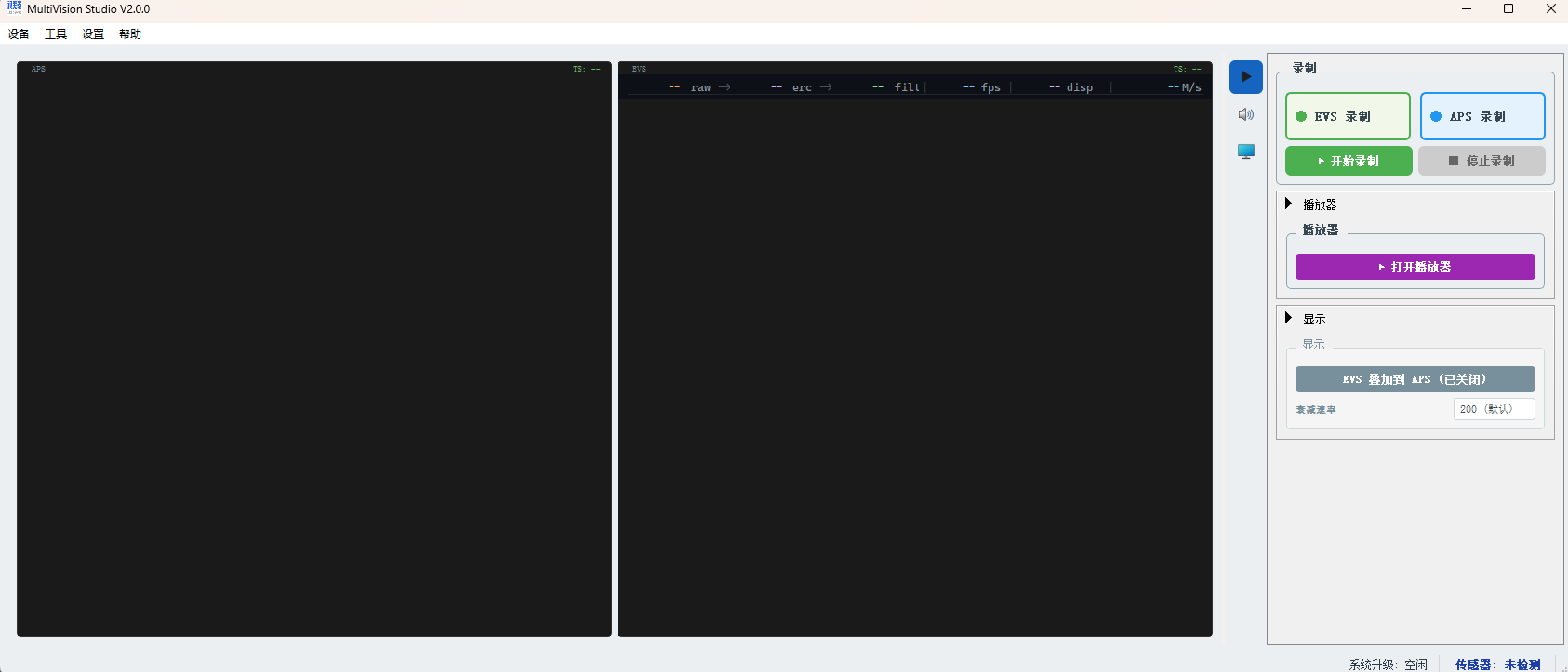
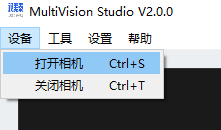
Click the device in the upper-left corner to open the real-time preview, or use the shortcut Ctrl + S.
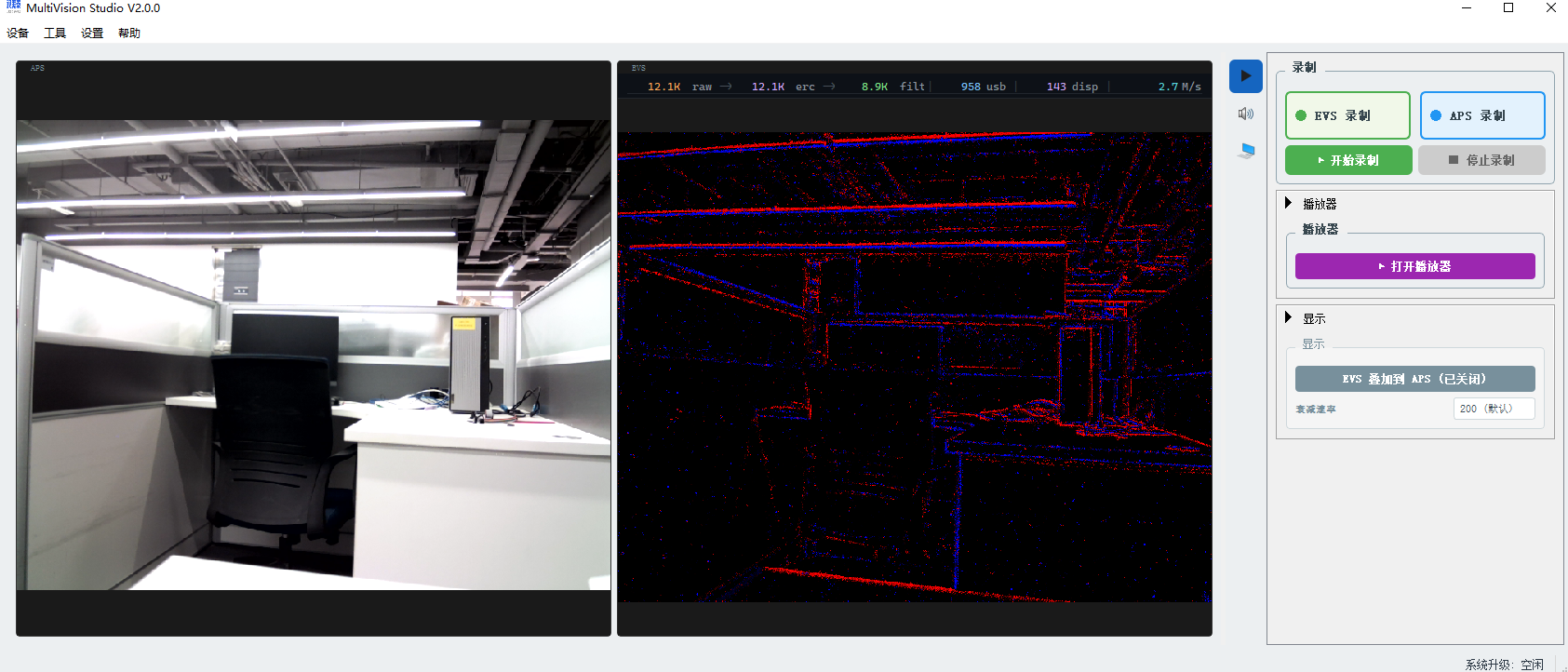
3. EVS event parameters

raw: raw event count
erc: event count after ERC (event-rate control) limiting filt: event count after filtering
fps: EVS event frame rate
disp: EVS event render frame rate M/S: USB transfer bandwidth
3-3 Recording area
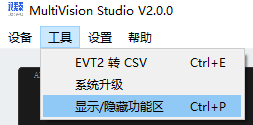
Click "Settings" in the upper-left corner to open recording settings.
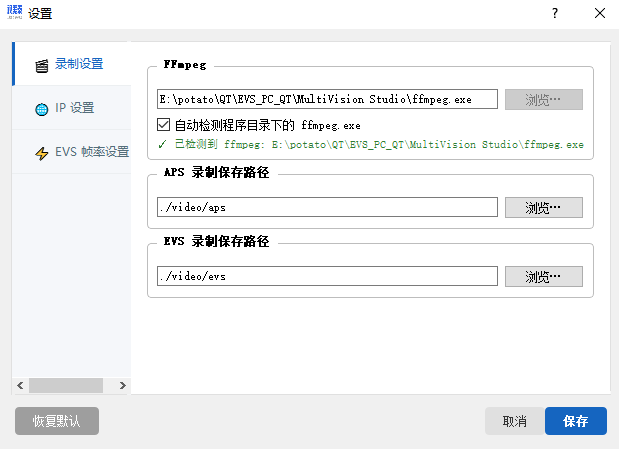
Click "Tools — Show/Hide function area" in the upper-left corner to open the function area.
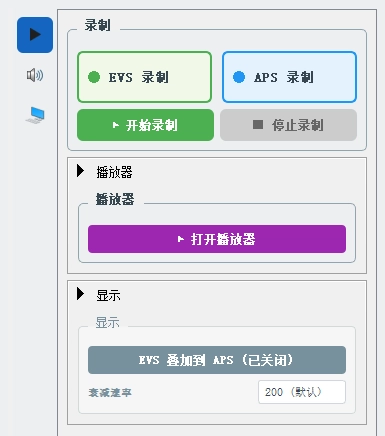
3-3-1 Recording & replay
You can record EVS and APS separately or simultaneously.
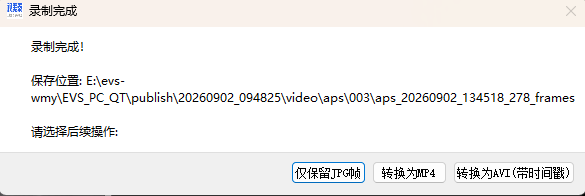
APS recording: optionally convert to MP4 or AVI format (requires ffmpeg.exe).
MP4 has no timestamps; AVI carries timestamps — choose according to your needs.

EVS recording: raw data, viewable via the player or after conversion to CSV.

3-3-2 Player replay
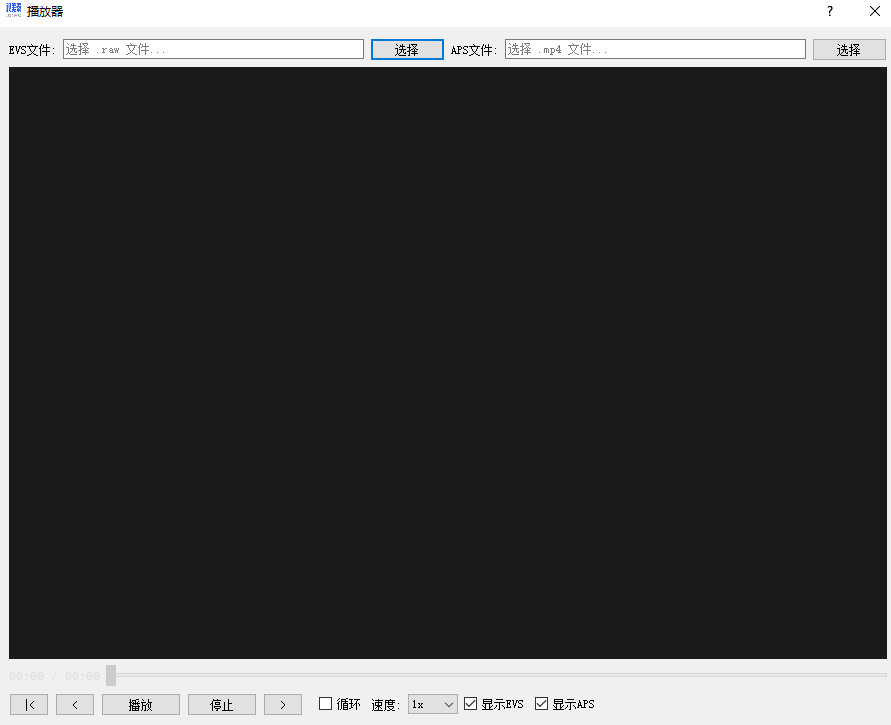
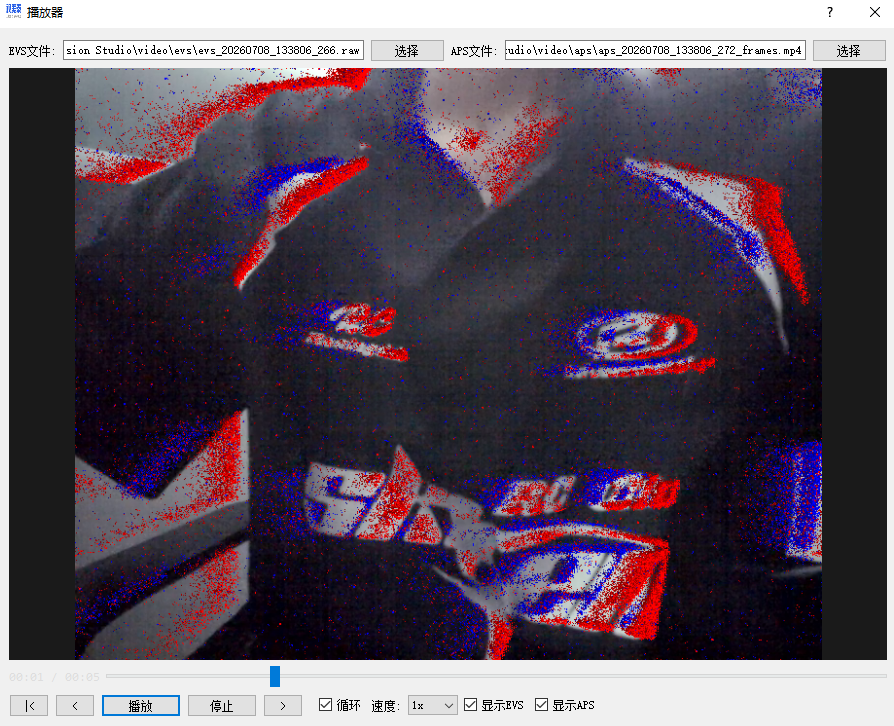
Select an EVS (raw) / APS (mp4/avi) file.
3-3-3 Display area
- Overlay EVS onto APS:
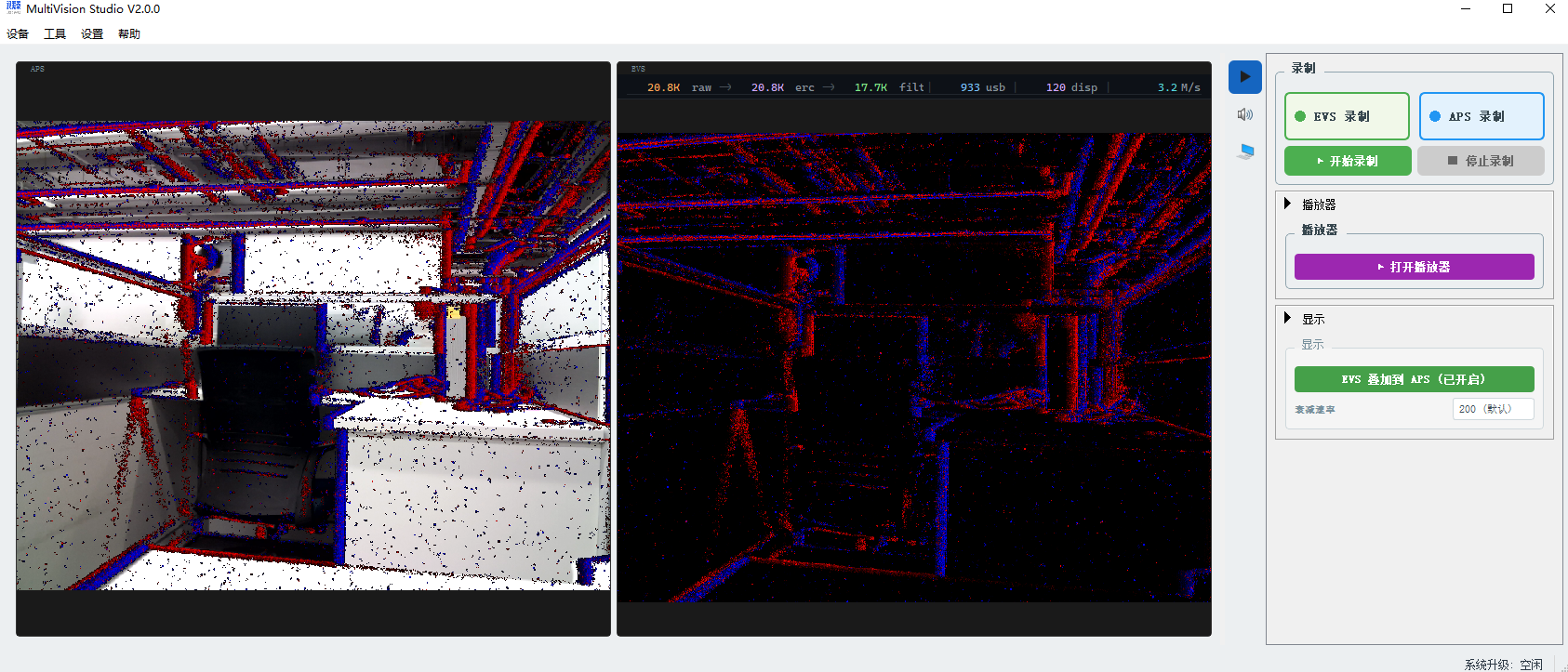
- Decay rate
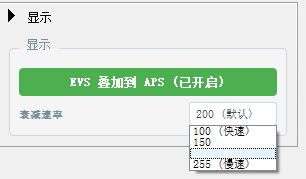
Larger value → slower decay → longer afterglow/trail: triggered events stay on the picture longer, suited to observing motion trajectories and motion patterns.
Smaller value → faster decay → shorter afterglow/trail: the picture updates more "cleanly", showing only the most recent events, suited to observing instantaneous changes.
3-4 Event control area
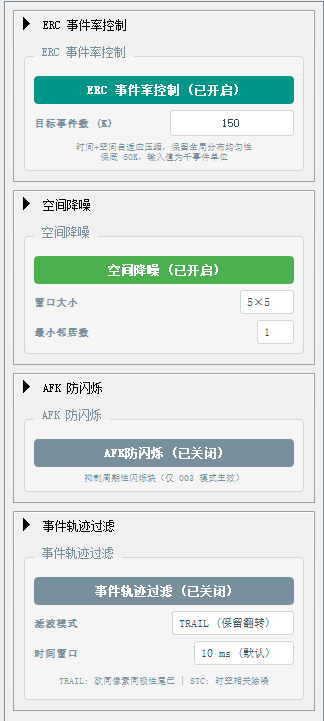
3-4-1 ERC (Event-Rate Control)
Purpose: limits the upper bound of events rendered per frame, preventing the render from freezing when the event volume is too large.
3-4-2 Spatial denoise
Purpose: filters out isolated noise events. Real object motion produces event clusters on neighboring pixels, while sensor noise shows up as isolated single-pixel events.
Parameters:
| Parameter | Options | Meaning |
|---|---|---|
| Window size | 3×3 / 5×5 (default) / 7×7 | The neighbor search range; larger is more permissive |
| Min neighbors | 1 / 2 (default) / 3 | How many neighbors inside the window count as valid signal |
3-4-3 AFK Anti-Flicker
Purpose: suppresses fixed-frequency noise produced by periodic flickering light sources (e.g. PWM-dimmed LEDs). Such sources repeatedly trigger events in the same region at a fixed period; they are invisible to the eye but appear as persistent flicker blocks on EVS.
Off by default, because it is only effective for specific light-source scenarios.
3-4-4 Event trail filter
Purpose: pixel-level temporal filter that removes "trail-redundant events" at high-contrast edges and isolated temporal noise. Runs before AFK and spatial denoise.
Three modes:
| Mode | Strategy | Effect |
|---|---|---|
| TRAIL (keep flip) | For same-pixel same-polarity events, keep only the first within the time window (a polarity flip is kept immediately) | Cuts the trail, keeps edge changes |
| STC-keep trail | Check the 3×3 neighborhood for same-polarity events; if present, keep all | Keeps the full motion trail |
| STC-cut trail | Check the 3×3 neighborhood; if present, keep only one event per polarity per pixel | Keeps only the first contour event |
3-5 Exposure / gain control area
Exposure and gain settings for APS.
3-5-1 Exposure mode
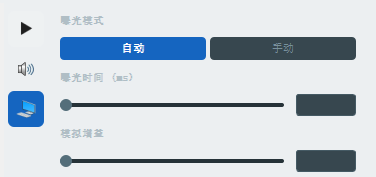
Can be set to auto or manual exposure.
Manual exposure: supports adjusting exposure time and analog gain.
3-6 Settings
The settings window can be opened from the upper-left corner.
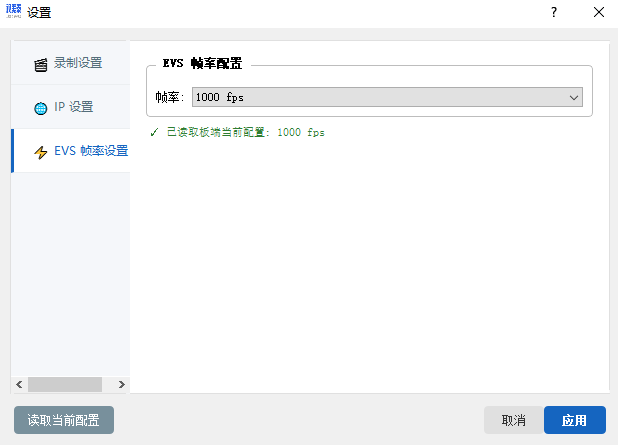
Includes: recording settings (ffmpeg path, APS/EVS recording save paths), IP settings, EVS frame-rate settings.
3-6-1 Recording settings
3-6-2 IP settings
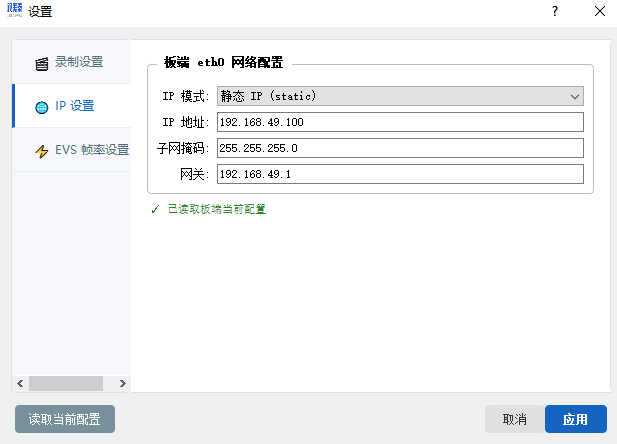
3-6-2 EVS frame-rate settings
3-7 Tools
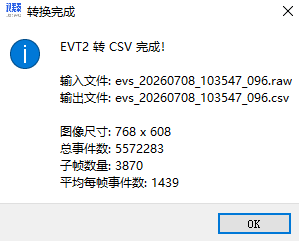
3-7-1 EVT2-to-CSV tool
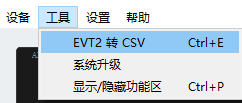
Converts a recorded EVS raw file to CSV to view events.
3-7-2 System upgrade
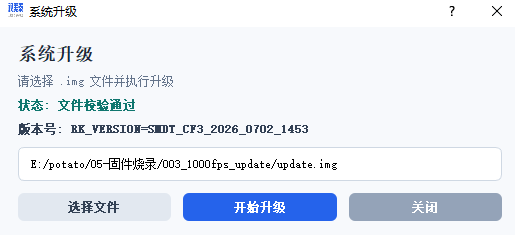
Select an image; after verification, the upgrade can begin.
3-8 SN code retrieval
From the upper-left "Help — About MultiVision Studio" you can view the machine code.