
Ethernet
1 Ethernet Interface Overview
The MB-E30P development board is equipped with 1 Gigabit Ethernet interface, implemented based on the RK3568J processor's integrated Ethernet controller, supporting high-speed network communication and multi-network environment applications.
| Interface | Type | Device Name | Interface Standard | Maximum Rate | Function Description |
|---|---|---|---|---|---|
| ETH0 | RGMII | end0 | IEEE 802.3 | 1000Mbps | Main Ethernet interface, default network card |
2 Network Connectivity Test
- ETH0 RGMII: end0, the default network card, typically used for the primary network connection
- Connection Method: Use network cables to connect the development board's corresponding Ethernet port and the PC to the same router or switch
Enter the file system and execute the following command to obtain the IP and view the Ethernet port configuration information.
root@linaro-alip:/# ifconfig
end0: flags=4163<UP,BROADCAST,RUNNING,MULTICAST>  mtu 1500
        inet 192.168.49.176  netmask 255.255.255.0  broadcast 192.168.49.255
        inet6 fe80::561a:9e84:b5bd:20d7  prefixlen 64  scopeid 0x20<link>
        ether 32:b0:e6:11:eb:7e  txqueuelen 1000  (Ethernet)
        RX packets 3236  bytes 236287 (230.7 KiB)
        RX errors 0  dropped 569  overruns 0  frame 0
        TX packets 745  bytes 63449 (61.9 KiB)
        TX errors 0  dropped 0 overruns 0  carrier 0  collisions 0
        device interrupt 69
Execute the following command to test whether the Ethernet port can connect to the external network, using "www.baidu.com" as an example. "-I" specifies the network port; without "-I", the default network card is used. You can terminate the ping command with "Ctrl + C".
root@linaro-alip:/# ping www.baidu.com -I end0
PING www.a.shifen.com (183.2.172.42) 56(84) bytes of data.
64 bytes from 183.2.172.42 (183.2.172.42): icmp_seq=1 ttl=50 time=9.28 ms
64 bytes from 183.2.172.42 (183.2.172.42): icmp_seq=2 ttl=50 time=8.77 ms
64 bytes from 183.2.172.42 (183.2.172.42): icmp_seq=3 ttl=50 time=8.65 ms
64 bytes from 183.2.172.42 (183.2.172.42): icmp_seq=4 ttl=50 time=8.83 ms
64 bytes from 183.2.172.42 (183.2.172.42): icmp_seq=5 ttl=50 time=8.63 ms
64 bytes from 183.2.172.42 (183.2.172.42): icmp_seq=6 ttl=50 time=8.73 ms

--- www.a.shifen.com ping statistics ---
6 packets transmitted, 6 received, 0% packet loss, time 5007ms
rtt min/avg/max/mdev = 8.630/8.813/9.275/0.216 ms
3 TCP Bandwidth Test
1) Server Side
Install the iperf3 tool on the development board with internet access, executing the following command:
root@linaro-alip:/# sudo apt update
root@linaro-alip:/# sudo apt install iperf3
The development board acts as the server; execute the following command:
root@linaro-alip:/# iperf3 -s
-----------------------------------------------------------
Server listening on 5201 (test #1)
-----------------------------------------------------------
2) Client Side
The iperf3 tool for Windows can be obtained from the test tool package.
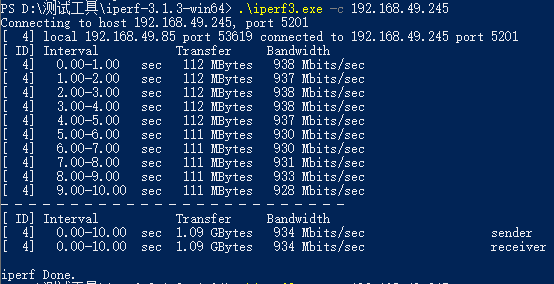
Open PowerShell on Windows, navigate to the directory where the iperf3 tool is located, and have Windows act as the client to send data by executing the following command:
.\iperf3.exe -c 192.168.137.149 // 192.168.137.149 为服务端 IP 地址3) Test Results
- Server side
root@linaro-alip:/# iperf3 -s
-----------------------------------------------------------
Server listening on 5201 (test #1)
-----------------------------------------------------------
Accepted connection from 192.168.49.85, port 53618
[  5] local 192.168.49.245 port 5201 connected to 192.168.49.85 port 53619
[ ID] Interval           Transfer     Bitrate
[  5]   0.00-1.00   sec   112 MBytes   936 Mbits/sec
[  5]   1.00-2.00   sec   112 MBytes   937 Mbits/sec
[  5]   2.00-3.00   sec   112 MBytes   939 Mbits/sec
[  5]   3.00-4.00   sec   112 MBytes   938 Mbits/sec
[  5]   4.00-5.00   sec   112 MBytes   937 Mbits/sec
[  5]   5.00-6.00   sec   111 MBytes   931 Mbits/sec
[  5]   6.00-7.00   sec   111 MBytes   929 Mbits/sec
[  5]   7.00-8.00   sec   111 MBytes   930 Mbits/sec
[  5]   8.00-9.00   sec   111 MBytes   933 Mbits/sec
[  5]   9.00-10.00  sec   111 MBytes   929 Mbits/sec
[  5]  10.00-10.00  sec   265 KBytes   885 Mbits/sec
- - - - - - - - - - - - - - - - - - - - - - - - -
[ ID] Interval           Transfer     Bitrate
[  5]   0.00-10.00  sec  1.09 GBytes   934 Mbits/sec                  receiver
------------------------------------------------------------ Client side
4 Advanced Network Configuration
4.1 Static IP Configuration
1) Temporary Configuration (invalid after reboot)
# 配置 ETH0 静态 IP
sudo ifconfig end0 192.168.1.100 netmask 255.255.255.0 up

# 添加默认网关
sudo route add default gw 192.168.1.1 end0

# 配置 DNS
echo "nameserver 8.8.8.8" | sudo tee /etc/resolv.conf
2) Permanent Configuration
Edit the network configuration file:
# 编辑网络接口配置
sudo nano /etc/network/interfaces

# 添加以下内容
auto end0
iface end0 inet static
    address 192.168.1.100
    netmask 255.255.255.0
    gateway 192.168.1.1
    dns-nameservers 8.8.8.8 8.8.4.4
4.2 Network Bridge Configuration
Create a network bridge to bridge two network ports:
# 安装桥接工具
sudo apt-get install bridge-utils

# 创建网桥
sudo brctl addbr br0

# 添加网口到网桥
sudo brctl addif br0 end0

# 启用网桥
sudo ifconfig br0 up

# 配置网桥 IP
sudo ifconfig br0 192.168.1.100 netmask 255.255.255.0
4.3 VLAN Configuration
Configure VLANs for network isolation:
# 安装 VLAN 工具
sudo apt-get install vlan

# 加载 8021q 模块
sudo modprobe 8021q

# 创建 VLAN 接口
sudo vconfig add end0 100
sudo vconfig add end0 200

# 配置 VLAN 接口 IP
sudo ifconfig end0.100 192.168.100.1 netmask 255.255.255.0 up
sudo ifconfig end0.200 192.168.200.1 netmask 255.255.255.0 up
5 Network Monitoring and Diagnostics
5.1 Network Status Monitoring
# 查看网络接口统计信息
cat /proc/net/dev

# 查看网络连接状态
netstat -tuln

# 查看路由表
route -n

# 查看 ARP 表
arp -a

# 实时监控网络流量
sudo iftop -i end0
5.2 Network Performance Testing
1) Bandwidth Test
# 服务器端(开发板)
iperf3 -s -p 5201

# 客户端(PC)
iperf3 -c 192.168.1.100 -p 5201 -t 30 -i 1

# UDP 测试
iperf3 -c 192.168.1.100 -u -b 1000M -t 10
2) Latency Test
# ping 测试
ping -c 100 -i 0.01 192.168.1.1

# 使用 hping3 进行高精度测试
sudo hping3 -c 1000 -i u100 192.168.1.1
5.3 Network Packet Capture Analysis
# 安装 tcpdump
sudo apt-get install tcpdump

# 抓取指定网口的数据包
sudo tcpdump -i end0 -w capture.pcap

# 实时查看数据包
sudo tcpdump -i end0 -n

# 过滤特定协议
sudo tcpdump -i end0 tcp port 80
6 Troubleshooting
1) Ethernet Port Cannot Connect
Inspection Steps:
# 检查网口状态
sudo ethtool end0

# 检查网线连接
sudo ethtool end0 | grep "Link detected"

# 检查驱动加载
lsmod | grep stmmac

# 重启网络服务
sudo systemctl restart networking
2) Slow Network Speed
Possible Causes and Solutions:
# 检查网口协商速度
sudo ethtool end0 | grep Speed

# 强制设置千兆速度
sudo ethtool -s end0 speed 1000 duplex full autoneg off

# 检查网络拥塞
sudo netstat -i

# 优化网络参数
echo 1 > /proc/sys/net/ipv4/tcp_window_scaling
3) Packet Loss Issues
Diagnosis and Resolution:
# 查看丢包统计
cat /proc/net/dev | grep end0

# 检查网络缓冲区
cat /proc/sys/net/core/netdev_max_backlog

# 增加缓冲区大小
echo 5000 > /proc/sys/net/core/netdev_max_backlog
4) IP Conflict Issues
Solutions:
# 检查 IP 冲突
sudo arping -D -I end0 192.168.1.100

# 释放和重新获取 IP
sudo dhclient -r end0
sudo dhclient end0