
Install & Login
This chapter walks through downloading and installing ShiMetaPi Workbench, and the complete flow of logging into the AIHub training platform after the first launch.
System Requirements
| Item | Minimum | Recommended |
|---|---|---|
| OS | Windows 10 (1809+) | Windows 11 |
| Architecture | x86_64 | x86_64 |
| Memory | 4 GB | 8 GB or more |
| Disk | 500 MB free space | 1 GB |
| Network | Reachable from Pico-G1 LAN | — |
| Other | None | — |
Workbench supports Windows only; macOS / Linux versions are not available yet.
Step 1: Download the Installer
Download URL
https://mirrors.shimetapi.cn/repos/GK7206/workbenchFile name:
ShiMetaPi Workbench Setup 1.0.0.exeYou can also check for new versions automatically in the IDE via "Settings → App & Update".
Step 2: Install
- Double-click
ShiMetaPi Workbench Setup 1.0.0.exe - Choose the installation path (default
C:\Program Files\ShiMetaPi Workbench) - Wait for the installation to finish (about 30 seconds)
- Tick "Launch ShiMetaPi Workbench" and click Finish
Step 3: Register an AIHub Account (First Use)
If you don't have an AIHub training platform account yet, register first:
- Visit aihub.shimetapi.cn in your browser
- Click "Register" in the upper-right corner
- Fill in email, password, and name
- Complete the email verification
- You'll be automatically logged in after successful registration
For the detailed registration process, see AIHub Docs → Register & Login.
Step 4: Log in to Workbench
The login page pops up after Workbench starts:
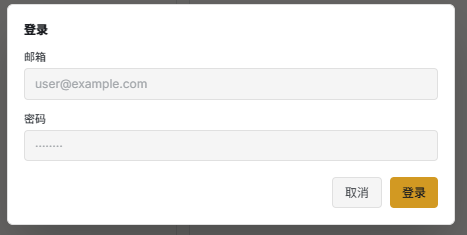
| Field | Description |
|---|---|
| The email you registered with on AIHub | |
| Password | Your AIHub password |
Click Login. After success you enter the workspace and land on the Agent Tab main interface.
Common Login Failures
| Symptom | Cause | Solution |
|---|---|---|
| "Incorrect account or password" | Typo, or the account is not registered | Double-check email and password; or register on AIHub |
| "Network error" | The PC cannot reach aihub.shimetapi.cn | Check network and proxy settings |
| Login button spins forever | Slow server response | Wait, or refresh and retry |
Step 5: First-Launch Overview
After login you land on the Agent Tab:
Main Interface Areas
| Area | Content |
|---|---|
| Top bar | Title + 6 tabs (Agent highlighted) + search/panel/theme/notification/avatar/logout |
| Left navigation | WORKSPACE / DEVICE TREE / QUICK START |
| Central workspace | Content of the current tab (the Agent welcome page on first entry) |
| Bottom status bar | Board connection status + IPC + CPU/MEM + logs |
Must-Read: New-User Onboarding
The Agent Tab shows quick commands on first login. Recommended order:
- Click "Check the board's current IP and CPU usage" — verify the Agent works
- Switch to the Model Tab — browse the model market
- Switch to the Vision Tab — see the 9 shimeta-svp scenario buttons
Log Out
Click the avatar in the upper-right corner → "Log Out".
After logging out, all features that require an AIHub account (Model Tab, one-click deploy) become unavailable.
Next
- ch02 Connect the Device: add the Pico-G1 to Workbench
- User Guide → Settings & Resources: login state, auto-login configuration