HOME
Shop
  • English
  • 简体中文
HOME
Shop
  • English
  • 简体中文
  • Product Series

    • FPGA+ARM

      • GM-3568JHF

        • Introduction

          • GM-3568JHF Introduction
        • Quick Start

          • Preface
          • Environment Setup
          • Compilation Notes
          • Flashing Guide
          • Debugging Tools
          • Software Update
          • Viewing System Information
          • Test Commands
          • Application Compilation
          • Source Code Access
        • Peripherals & Interfaces

          • USB
          • Display and Touch
          • Ethernet
          • WIFI
          • Bluetooth
          • TF-Card
          • Audio
          • Serial Port
          • CAN
          • RTC
        • Application Development

          • UART Read/Write Demo
          • Key Detection Demo
          • LED Blink Demo
          • MIPI Screen Detection Demo
          • Read USB Device Information Demo
          • FAN Detection Demo
          • FPGA FSPI Communication Demo
          • FPGA DMA Read/Write Demo
          • GPS Debugging Demo
          • Ethernet Test Demo
          • RS485 Read/Write Demo
          • FPGA I2C Read/Write Demo
          • PN532 NFC Card-Reading Demo
          • TF Card Read/Write Demo
        • QT Development

          • ARM64 Cross-Compiler Environment Setup
          • Adding a QT Program to Boot Auto-Start
        • RKNN_NPU Development

          • RK3568 NPU Overview
          • Development Environment Setup
          • Run the Official YOLOv5 Example
        • FPGA Development

          • ARM and FPGA Communication
          • FPGA Development Manual
        • Others

          • Modifying the Root Filesystem
          • System Auto-Start Services
        • Downloads

          • Downloads
      • MB-E30P

        • Introduction

          • MB-E30P Introduction
        • Quick Start

          • Preface
          • Environment Setup
          • Compilation Instructions
          • Flashing Guide
          • Debugging Tools
          • Software Update
          • Viewing Information
          • Test Commands
          • Application Compilation
          • Source Code Acquisition
        • Peripherals & Interfaces

          • USB
          • Display and Touch
          • Ethernet
          • WIFI
          • Bluetooth
          • TF-Card
          • Audio
          • RTC
        • Application Development

          • Key Detection Demo
          • LED Blink Demo
          • MIPI Screen Detection Demo
          • Read USB Device Information Demo
          • FAN Detection Demo
          • FPGA FSPI Communication Demo
          • FPGA DMA Read/Write Demo
          • Ethernet Test Demo
          • FPGA IIC Read/Write Demo
          • PN532 NFC Card Reading Demo
          • TF Card Read/Write Demo
        • QT Development

          • ARM64 Cross-Compiler Environment Setup
          • Adding a QT Program to the Boot Auto-Start Service
        • RKNN_NPU Development

          • RK3568 NPU Overview
          • Development Environment Setup
          • Run the Official YOLOv5 Example
          • Model Conversion In Detail
          • Run Custom Models on the Board
        • FPGA Development

          • ARM and FPGA Communication
          • FPGA Development Manual
        • Others

          • Modifying the Root Filesystem
          • System Auto-Start Service
        • Downloads

          • Downloads
    • ShimetaPi

      • M4-R1

        • Introduction

          • M4-R1 Introduction
        • Quick Start

          • OpenHarmony Overview
          • Image Burning
          • Application Development Quick Start
          • Device Development Quick Start
        • Application Development

          • ArkUI

            • ArkTS Language Overview
            • UI Components - Row Container Introduction
            • UI Components - Column Container Introduction
            • UI Components - Text Component
            • UI Components - Toggle Component
            • UI Components - Slider Component
            • UI Components - Animation Component & Transition Component
          • Documentation

            • OpenHarmony Official Materials
          • Development Notes

            • Full-SDK Replacement Tutorial
            • Introducing and Using Third-Party Libraries
            • HDC Debugging
            • Restore Factory Mode via Command Line
            • Upgrade App to System Permission
          • First App

            • Build Your First ArkTS Application - HelloWorld
          • Demos

            • Serial-Debug-Assistant Application Demo
            • Writing-Board Application Demo
            • Digital Clock Application Demo
            • Wi-Fi Information Acquisition Application Demo
        • Device Development

          • Ubuntu Development

            • Environment Setup
            • Download Source Code
            • Compile Source Code
          • DevEco Device Tool

            • Tool Introduction
            • Development Environment Construction
            • Import the SDK
            • HUAWEI DevEco Tool Function Introduction
        • Kernel Peripherals & Interfaces

          • Guide
          • Device Tree Introduction
          • NAPI Introduction
          • ArkTS Introduction
          • NAPI Development Hands-on Demo
          • GPIO Introduction
          • I2C Communication
          • SPI Communication
          • PWM Control
          • UART Communication
          • TF Card (MicroSD)
          • Screen (Display)
          • Touch
          • Ethernet
          • M.2 SSD
          • Audio
          • WIFI & BT
          • Camera
        • Downloads

          • Downloads
      • M5-R1

        • Introduction

          • M5-R1 Development Docs
        • Quick Start

          • Image Burning
          • Environment Setup
          • Download Source Code
        • Peripherals & Interfaces

          • Raspberry Pi Interfaces
          • GPIO Interface
          • I2C Interface
          • SPI Communication
          • PWM Control
          • Serial Port Communication
          • TF Card
          • Display
          • Touch
          • Audio
          • RTC
          • Ethernet
          • M.2
          • MINI-PCIE
          • Camera
          • WIFI & BT
        • Downloads

          • Downloads
      • Pico-G1

        • Product Overview

          • Product Introduction
          • SDK Version Information
        • Quick Start

          • Development Environment Setup
          • Image Build
          • Image Flashing
          • System Login
          • Network Configuration
          • File Transfer
          • SDK Directory Structure
          • Deploying Your First Application
          • Deploying Your First Driver
          • Mounting an SD Card
        • Peripherals & Interfaces

          • GPIO Control
          • UART Serial Communication
          • I2C Communication
          • SPI Communication
        • MPP Media Development

          • MPP Media Processing Software
          • Image Processing Chain
          • Video Input
          • Image Encoding
        • NPU & AI

          • NPU Driver and Runtime Library Architecture
          • .xmm Model Loading
          • SVP Video Processing
          • AI Noise Reduction (AI_NR)
        • Application Samples

          • Encryption/Decryption Application
          • ADC Acquisition Application
          • Low-Power Application
          • Audio Processing Application
          • Video Encoding Application
          • Video Input Application
          • Video Graphics Subsystem (VGS) Application
          • 08 Region Overlay Application
          • 09 Intelligent Video Engine Application
          • 10 UVC Webcam Application
          • 11 All-in-One Quickstart Application
          • 12 FPN Correction Application
          • 13 Regional Motion Detection Application
          • 14 MTCNN Face Detection Application
        • Expansion Board Peripheral Examples

          • 00 - Pico Expansion Board Peripheral Examples Overview
          • 01 - OLED Display Application
          • 02 - TFT Display Application
          • 03 - MPU6050 Gyroscope Application
          • 04 - ADC Acquisition Application
          • 05 - Passive Buzzer Application
          • 06 - MQ Gas Sensor Application
          • 07 - GPS Positioning Application
          • 08 - SHT20 Temperature & Humidity Application
          • 09 - Ultrasonic Ranging Application
          • 10 - SpO2 Sensor Application
          • 11 - DC Motor Control Application
          • 12 - Servo Control Application
    • OpenHarmony

      • SC-3568HA

        • Introduction

          • SC-3568HA Overview
        • Quick Start Guide

          • OpenHarmony Overview
          • Image Flashing
          • Setting Up the Development Environment
          • Hello World Application and Deployment
        • Application Development

          • ArkUI

            • Introduction to ArkTS Language
            • Introduction to UI Components and Practical Applications (Part 1)
            • Introduction to UI Components and Practical Applications (Part 2)
            • Introduction to UI Components and Practical Applications (Part 3)
          • Expand

            • Getting Started Guide
            • Referencing and Using Third-Party Libraries
            • Application Compilation and Deployment
            • Command-Line Factory Reset
            • System Debugging -- HDC Debugging
            • APP Stability Testing
            • Chapter 7 Application Testing
        • Device Development

          • Environment Setup
          • Download Source Code
          • Compiling Source Code
        • Peripheral And Interface

          • Raspberry Pi interface
          • GPIO Interface
          • I2C Interface
          • SPI communication
          • PWM (Pulse Width Modulation) control
          • Serial port communication
          • TF Card
          • Display Screen
          • Touch
          • Audio
          • RTC
          • Ethernet
          • M.2
          • MINI-PCIE
          • Camera
          • WIFI&BT
          • Raspberry Pi expansion board
        • Downloads

          • Downloads
      • M-K1HSE

        • Introduction

          • M-K1HSE Introduction
        • Quick Start

          • Development environment construction
          • Source code acquisition
          • Compilation Notes
          • Burning Guide
        • Application Development

          • Application Development Environment Setup
          • First Application - Hello World
        • Peripherals and interfaces

          • 01 Audio
          • 02 RS485
          • 03 Display
        • System customization development

          • System transplant
          • System customization
          • Driver Development
          • System Debugging
          • OTA Update
        • Downloads

          • Downloads
    • HVS Camera

      • Quick Start

        • SDK Overview
        • Downloads
        • Your First C++ Program
        • Python Data Analysis
        • MultiVision Studio
      • Development

        • Programming Guides

          • Open Camera
          • Read Events
          • Recording & Replay
          • Event Processing (Denoising)
          • Display & Visualization
          • Tuning
          • Capture APS Image
        • Toolkit SDK

          • Hybrid Vision Toolkit
          • Quick Start
          • C++ API
          • Python API
        • Algorithm

          • Hybrid Vision Algo
          • Hybrid Vision Algo API
          • Windows Algo SDK
        • Samples Overview
        • Applications
      • Fundamentals

        • Event Camera Fundamentals
        • HVS Hybrid Vision
        • Event Visualization
        • Data Formats Reference
        • Glossary
        • Bias & Tuning
        • Video Tutorials
      • USB Cameras

        • HVS Camera Quick Start
        • Networking Capabilities

          • HVS Camera System Architecture
          • EVS Network Server
          • EVS Time Sync
          • Web Window
        • HVS Camera Compatibility Matrix
        • FAQ & Troubleshooting Guide
        • Products

          • CF-NRS1 (Lingguang No.1 Hybrid Vision Camera)
      • MIPI Modules

        • MIPI Module Quick Start
        • Carrier Boards

          • RDK X5 Carrier Board Adaptation
          • Raspberry Pi Carrier Board Adaptation
          • Digua Pi Carrier Board Adaptation
          • ShimeTai Board Carrier Board Adaptation
        • MIPI Module Compatibility Matrix
        • Products

          • EVS_003 Sensor Module
    • AI-model

      • 1684XB-32T

        • Introduction

          • AIBOX-1684XB-32 Introduction
        • Quick Start

          • First Use
          • Network Configuration
          • Disk Usage
          • Memory Allocation
          • Fan Control Strategy
          • Firmware Upgrade
          • Cross Compilation
          • Model Quantization
        • Application Development

          • Development Overview

            • Sophgo SDK Development
            • Sophgo Demo Introduction
          • Large Language Models

            • Deploying Llama3 Example
            • Sophon LLM_api_server Development
            • Deploying MiniCPM-V-2_6
            • Qwen-2-5-VL Image and Video Recognition Demo
            • Qwen3-chat Demo
            • Qwen3-Qwen Agent-MCP Development
            • Qwen3-langchain-AI Agent
          • Deep Learning

            • ResNet (Image Classification)
            • LPRNet (License Plate Recognition)
            • SAM (General Image Segmentation Foundation Model)
            • YOLOv5 (Object Detection)
            • OpenPose (Human Keypoint Detection)
            • PP-OCR (Optical Character Recognition)
        • Downloads

          • Downloads
      • 1684X-416T

        • Introduction

          • AIBOX-1684X-416 Introduction
        • Demo Quick Guide

          • ShimeTai Intelligent Monitoring Demo Quick Usage Guide
      • RDK-X5

        • Introduction

          • RDK-X5 Hardware Introduction
        • Quick Start

          • RDK-X5 Quick Start
        • Application Development

          • AI Online Model Development

            • Experiment 01 - Access Volcengine Doubao AI
            • Experiment 02 - Image Analysis
            • Experiment 03 - Multimodal Visual Analysis & Localization
            • Experiment 04 - Multimodal Image-Text Comparison
            • Experiment 05 - Multimodal Document/Table Analysis
            • Experiment 06 - Camera-based AI Visual Analysis
          • Large Language Models

            • Experiment 01 - Speech Recognition
            • Experiment 02 - Voice Conversation
            • Experiment 03 - Multimodal Image Analysis - Voice
            • Experiment 04 - Multimodal Image Comparison - Voice
            • Experiment 05 - Multimodal Document Analysis - Voice
            • Experiment 06 - Multimodal Vision Application - Voice
          • ROS2 Basics

            • Experiment 01 - Environment Setup
            • Experiment 02 - Create & Build a Workspace Package
            • Experiment 03 - Run ROS2 Topic Communication Node
            • Experiment 04 - ROS2 Camera Application
          • 40-pin IO Development

            • Experiment 01 - GPIO Output (LED Blink)
            • Experiment 02 - GPIO Input
            • Experiment 03 - Button-controlled LED
            • Experiment 04 - PWM Output
            • Experiment 05 - Serial Output
            • Experiment 06 - I2C Experiment
            • Experiment 07 - SPI Experiment
          • USB Module Usage

            • Experiment 01 - USB Voice Module Usage
            • Experiment 02 - Sound Source Localization Module
          • Machine Vision Practice

            • Experiment 01 - Open USB Camera
            • Experiment 02 - Color Recognition
            • Experiment 03 - Gesture Recognition
            • Experiment 04 - YOLOv5 Object Detection
      • RDK-S100

        • Introduction

          • RDK-S100 Hardware Introduction
        • Quick Start

          • RDK-S100 Quick Start
        • Application Development

          • AI Online Model Development

            • Experiment 01 - Access Volcengine Doubao AI
            • Experiment 02 - Image Analysis
            • Experiment 03 - Multimodal Visual Analysis & Localization
            • Experiment 04 - Multimodal Image-Text Comparison
            • Experiment 05 - Multimodal Document/Table Analysis
            • Experiment 06 - Camera-based AI Visual Analysis
          • Large Language Models

            • Experiment 01 - Speech Recognition
            • Experiment 02 - Voice Conversation
            • Experiment 03 - Multimodal Image Analysis - Voice
            • Experiment 04 - Multimodal Image Comparison - Voice
            • Experiment 05 - Multimodal Document Analysis - Voice
            • Experiment 06 - Multimodal Vision Application - Voice
          • ROS2 Basics

            • Experiment 01 - Environment Setup
            • Experiment 02 - Create & Build a Workspace Package
            • Experiment 03 - Run ROS2 Topic Communication Node
            • Experiment 04 - ROS2 Camera Application
          • 40-pin IO Development

            • Experiment 01 - GPIO Output (LED Blink)
            • Experiment 02 - GPIO Input
            • Experiment 03 - Button-controlled LED
            • Experiment 04 - PWM Output
            • Experiment 05 - Serial Output
            • Experiment 06 - I2C Experiment
            • Experiment 07 - SPI Experiment
          • USB Module Usage

            • Experiment 01 - USB Voice Module Usage
            • Experiment 02 - Sound Source Localization Module
          • Machine Vision Practice

            • Experiment 01 - Open USB Camera
            • Experiment 02 - Image Processing Basics
            • Experiment 03 - Object Detection
            • Experiment 04 - Image Segmentation
      • RK1828

        • Introduction

          • M5-182X-A1 AI Edge Box - Product Introduction
          • M5-182X-A1 Hardware Specifications
          • M5-182X-A1 Usage & Safety
        • Quick Start

          • M5-182X-A1 Image Flashing
          • RK182X Hardware Installation & Verification
          • RK182X Development Environment Quick Setup
          • RK182X SDK Overview
          • RK182X Environment Setup in Detail
          • RK182X Quick Start
          • Vendor SDK Data Extraction Record
        • Development Guide

          • ClawChips Architecture and Principles
          • SKILL User Manual
          • RK182X Series LLM Inference (RK1828 Model)
          • RK182X Series CNN Inference (RK1828 Model)
          • Model Conversion
          • RK182X AI Agent Application Development Guide
          • RK182X Industrial Anomaly Detection Application
        • SDK Reference

          • RKNN3-SDK Overview

            • RKNN3 SDK Overview
          • RKNN3-Toolkit

            • RKNN3 Toolkit Installation and Usage
          • RKLLM

            • RKLLM On-Device LLM Inference
          • RK182X Series NPU Overview and Architecture (RK1828 Model)
          • RK182X INT8 Quantized Inference Deployment
          • RK182X MPP Multimedia Framework
          • MPP Details

            • RK182X Video Decoding
            • RK182X Video Encoding
          • NPU Details

            • RKNN Model Conversion
            • RK182X NPU INT8 Quantized Inference
            • RK182X Multi-Model Parallel Inference
          • RGA Details

            • RK182X RGA 2D Graphics Acceleration
          • VPU Details

            • RK182X VPU Codec
        • Hardware Reference

          • RK182X Series Hardware Architecture Overview (RK1828 Model)
          • RK182X Pin Definitions and Multiplexing Configuration
          • RK182X Pin Definitions
          • RK182X Power Management
          • RK182X Clock and PLL Configuration
          • RK182X Clock and Frequency Configuration
        • Tutorials

          • Hello World
          • Hello RK1828 - The First Program
          • RTSP Streaming
          • RTSP Streaming + AI Analysis
          • ShiMetaPi AI Lobster One-Click Deployment
          • PaddleOCR-VL Text Recognition
          • Qwen3-1.7B LLM Text Chat
          • AI Multi-View Inspection (Qwen3-VL Wrapper)
          • YOLOv5 Object Detection
        • Downloads

          • Downloads
        • FAQ

          • FAQ
    • Core-Board

      • C-3568BQ

        • Introduction

          • C-3568BQ Overview
      • C-3588LQ

        • Introduction

          • C-3588LQ Overview
      • GC-3568JBAF

        • Introduction

          • GC-3568JBAF Overview
      • C-K1BA

        • Introduction

          • C-K1BA Overview
    • Software Platform

      • ShiMetaPi Workbench

        • Introduction

          • Product Overview
          • Core Architecture
          • Feature Entries
          • Supported Hardware
          • Release Notes
        • Quick Start

          • Install & Login
          • Connect the Device
          • Set Up the Environment
          • Connect to AIHub
          • First Inference
        • User Guide

          • Workspace Overview
          • Device Manager
          • Model Market
          • One-Click Deploy
          • Vision — SVP
          • Vision - Custom Models
          • shimeta-py IDE
          • Terminal
          • Agent Debug Assistant
          • Settings and Resources
        • FAQ

          • Installation & Login
          • Device Connection
          • Models & Deployment
          • Vision & Runtime
          • Settings & Other
      • ShimetaPi Repository

        • Introduction

          • ShimetaPi Software Repository
        • Pico G1 (GK7206)

          • Quick Start

            • Installation & First Inference
            • shimeta_infer — Image Inference
            • shimeta_camera — Real-time Camera Inference
            • SVP Scene Detection
            • File Transfer & Built-in Model Reference
            • FAQ
          • HTTP API & Python SDK

            • HTTP API Reference
      • Model Fine-tuning Platform

        • Introduction

          • Model Training Platform
        • Quick Start

          • Register & Login
          • Create Your First Model (30-Minute Quick Experience)
        • Training Guide

          • Data Preparation & Annotation
          • Training Parameter Configuration
          • Start & Monitor Training
          • Model Evaluation & Testing
        • Model Deployment

          • Export Model
          • Deploy to Edge Device

RTSP Streaming

Hardware-encode the camera feed on the RK3588 and push it out over RTSP. Supports local USB/MIPI cameras and test sources.

Overall block diagram

Camera (V4L2) → MPP hardware encode (H.264) → RTSP server → network → VLC/ffplay/client

1. Install dependencies

sudo apt update
sudo apt install -y \
  gstreamer1.0-rockchip1 \
  gstreamer1.0-plugins-good \
  gstreamer1.0-plugins-bad \
  gstreamer1.0-rtsp \
  python3-gst-1.0 \
  gir1.2-gst-rtsp-server-1.0 \
  libgstrtspserver-1.0-0 \
  ffmpeg

Verify after installation:

gst-inspect-1.0 mpph264enc 2>&1 | grep -E "Long-name|Version"
# Expected: Rockchip Mpp H264 Encoder / Version 1.14.4

python3 -c "import gi; gi.require_version('GstRtspServer','1.0'); \
  from gi.repository import GstRtspServer; print('OK')"
# Expected: OK

2. Quick test (test source)

2.1 Use the bundled example

The system ships with a complete RTSP streaming example:

cd /home/linaro/rtsp-push
python3 src_camera.py 8554 /live/src

Once the service starts it prints:

[src_camera] ready at rtsp://127.0.0.1:8554/live/src

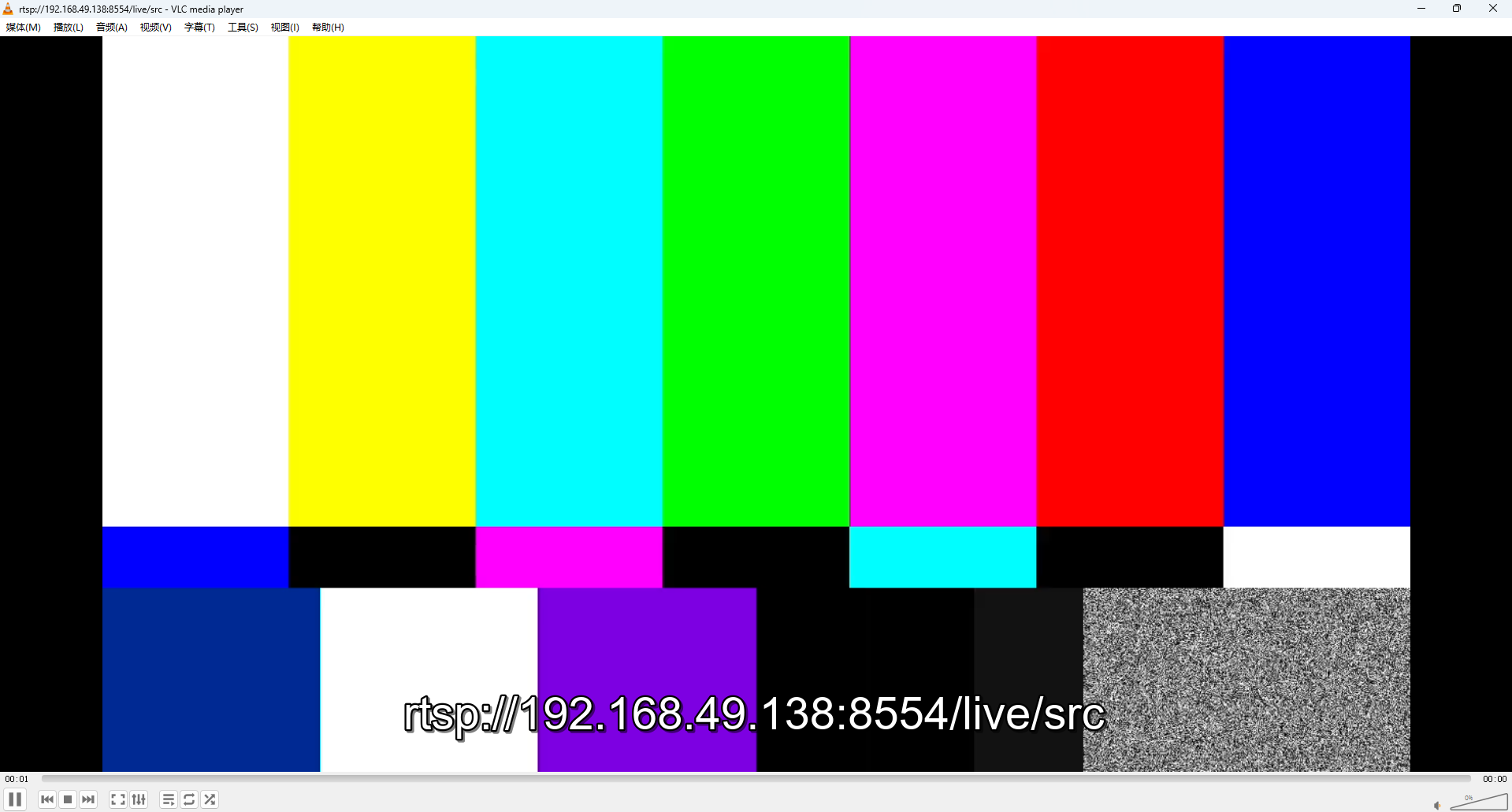
Quick test output:

rtsp push output 1

rtsp push output 2

2.2 Client connection test

Connect from a PC:

# Get the board IP
hostname -I | awk '{print $1}'

# Run on the PC (assuming the board IP is 192.168.49.138)
ffplay -rtsp_transport tcp rtsp://192.168.49.138:8554/live/src

# Or use VLC media player
# Ctrl+N → Network Stream → rtsp://192.168.49.138:8554/live/src

On-board local test:

ffplay -rtsp_transport tcp rtsp://127.0.0.1:8554/live/src

3. Camera configuration

3.1 Local camera (USB)

List available cameras:

ls -la /dev/video*

Modify src_camera.py to use a local camera:

# Change videotestsrc to v4l2src
factory.set_launch(
    '( v4l2src device=/dev/video11 io-mode=mmap ! '
    '  video/x-raw,format=NV12,width=1280,height=720,framerate=30/1 ! '
    '  mpph264enc bps=2000000 gop=30 profile=high ! '
    '  h264parse ! rtph264pay name=pay0 pt=96 )'
)

3.2 IP camera

RTSP streams from IP cameras can be ingested directly:

# Start IP-camera RTSP streaming
cd /home/linaro/rtsp-push
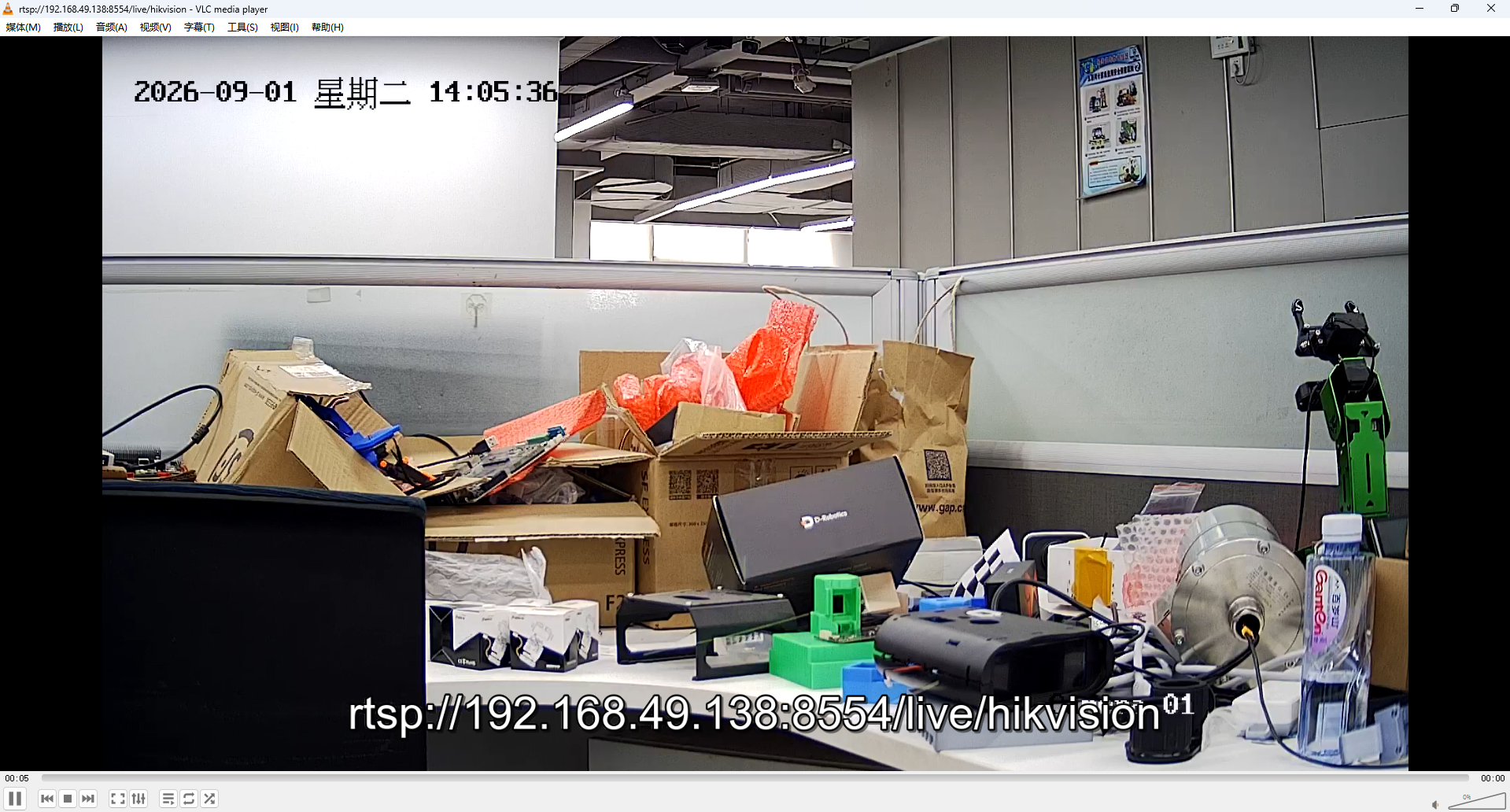
python3 src_camera.py 8554 /live/camera "rtsp://admin:password@192.168.49.38:554/Streaming/Channels/101"

View from the PC:

ffplay -rtsp_transport tcp rtsp://192.168.49.138:8554/live/camera

IP-camera streaming output:

rtsp IP camera streaming output

Common IP-camera RTSP URL formats:

# Hikvision
rtsp://admin:password@192.168.1.100:554/Streaming/Channels/101  # main stream
rtsp://admin:password@192.168.1.100:554/Streaming/Channels/102  # sub stream

# Dahua
rtsp://admin:password@192.168.1.100:554/cam/realmonitor?channel=1&subtype=0

# Generic formats
rtsp://192.168.1.100:554/live/main
rtsp://192.168.1.100:554/stream1

4. Choosing a test pattern

Change the test pattern:

factory.set_launch(
    '( videotestsrc is-live=true pattern=smpte ! '  # changed to smpte
    '  video/x-raw,format=NV12,width=1280,height=720,framerate=30/1 ! '
    '  mpph264enc bps=2000000 gop=30 profile=high ! '
    '  h264parse ! rtph264pay name=pay0 pt=96 )'
)

5. Encoder parameter tuning

5.1 Common mpph264enc parameters

ParameterMeaningRecommendedNotes
bpsBitrate (bps)2000000~40000002-4 Mbps, balances quality and bandwidth
gopI-frame interval30/60Smaller values mean lower latency
profileH264 profilehigh/main/baselinehigh = best quality, baseline = lowest latency
bps-max/bps-minBitrate bounds00 means auto-adjust

5.2 Low-latency configuration

factory.set_launch(
    '( videotestsrc is-live=true pattern=smpte ! '
    '  video/x-raw,format=NV12,width=1280,height=720,framerate=30/1 ! '
    '  mpph264enc bps=2000000 gop=15 profile=baseline ! '  # lower latency
    '  h264parse ! rtph264pay config-interval=1 pt=96 )'
)
factory.set_latency(0)  # minimum latency

6. Complete RTSP service script

Recommended full script, based on real testing:

#!/usr/bin/env python3
"""RTSP 服务:支持测试源、本地摄像头

使用方法:
python3 src_camera.py [端口] [路径] [输入源]

示例:
python3 src_camera.py                    # 默认测试图案(SMPTE彩条)
python3 src_camera.py 8554 /live/src    # 指定端口和路径
python3 src_camera.py 8554 /cam1 /dev/video11  # 本地摄像头

发布地址:rtsp://0.0.0.0:8554/live/src
"""
import sys
import gi
gi.require_version('Gst', '1.0')
gi.require_version('GstRtspServer', '1.0')
from gi.repository import Gst, GstRtspServer, GLib

Gst.init(None)

# 参数配置
port = int(sys.argv[1]) if len(sys.argv) > 1 else 8554
path = sys.argv[2] if len(sys.argv) > 2 else '/live/src'
input_source = sys.argv[3] if len(sys.argv) > 3 else None

server = GstRtspServer.RTSPServer.new()
server.set_service(str(port))

factory = GstRtspServer.RTSPMediaFactory.new()

if input_source and input_source.startswith('/dev/video'):
    # 本地摄像头模式
    factory.set_launch(
        f'( v4l2src device={input_source} io-mode=mmap ! '
        f'  video/x-raw,format=NV12,width=1280,height=720,framerate=30/1 ! '
        f'  mpph264enc bps=2000000 gop=30 profile=high ! '
        f'  h264parse ! rtph264pay name=pay0 pt=96 )'
    )
    print(f'[本地摄像头模式] 设备: {input_source}')
else:
    # 测试图案模式
    pattern = input_source if input_source else 'smpte'
    factory.set_launch(
        f'( videotestsrc is-live=true pattern={pattern} ! '
        f'  video/x-raw,format=NV12,width=1280,height=720,framerate=30/1 ! '
        f'  mpph264enc bps=2000000 gop=30 profile=high ! '
        f'  h264parse ! rtph264pay name=pay0 pt=96 )'
    )
    print(f'[测试图案模式] 图案: {pattern}')

factory.set_shared(True)
factory.set_latency(0)

server.get_mount_points().add_factory(path, factory)
server.attach(None)

print(f'📹 RTSP 服务启动中...')
print(f'📹 地址: rtsp://0.0.0.0:{port}{path}')
print(f'📹 按Ctrl+C停止服务')
GLib.MainLoop().run()

7. Client connection methods

7.1 ffplay (recommended)

# Play in real time
ffplay -rtsp_transport tcp -fflags nobuffer -flags low_delay \
       rtsp://<board_ip>:8554/live/src

# Inspect stream info
ffprobe -v error -show_streams rtsp://<board_ip>:8554/live/src

7.2 VLC media player

  1. Open VLC media player
  2. Media → Open Network Stream (Ctrl+N)
  3. Enter: rtsp://<board_ip>:8554/live/src
  4. Click play

7.3 GStreamer

gst-launch-1.0 rtspsrc location=rtsp://<board_ip>:8554/live/src \
                latency=0 protocols=tcp ! \
             rtph264depay ! h264parse ! decodebin ! fakesink

7.4 Mobile apps

  • VLC mobile: supports RTSP playback
  • iVMS: professional surveillance software
  • ffplay mobile: mobile version of ffplay

8. Performance parameters

8.1 Resolution and frame-rate configurations

ScenarioResolutionFPSBitrateUse case
HD surveillance1920×108025/304-6MbpsMain surveillance areas
SD surveillance1280×72025/302-3MbpsGeneral surveillance
Low latency640×48030/601-2MbpsReal-time-critical
Network-limited720×57615/25512K-1MbpsLow-bandwidth environment

8.2 Latency optimization

ItemDefaultLow-latencyEffect
GOP3015/10Latency reduced by 30-50%
ProfilehighbaselineBetter compatibility
Latencydefault0Eliminates buffering latency
ProtocolTCPUDPLower transport latency

9. Troubleshooting

9.1 Connection problems

Symptom: the PC cannot connect to the RTSP stream

Checks:

# 1. Check service status
ps aux | grep src_camera
netstat -tuln | grep 8554

# 2. Check the board IP
hostname -I

# 3. Test local connectivity
ffprobe rtsp://127.0.0.1:8554/live/src

# 4. Test network connectivity
ping <board_ip>
telnet <board_ip> 8554

9.2 Picture-quality problems

Symptom: stuttering, blurring, or corruption in the picture

Solutions:

  • Adjust the bitrate: bps=3000000
  • Adjust the GOP: gop=15
  • Adjust the profile: profile=main
  • Check network bandwidth

9.3 Encoding problems

Symptom: streaming fails to start

Check dependencies:

gst-inspect-1.0 mpph264enc
gst-inspect-1.0 rtph264pay
gst-inspect-1.0 h264parse

10. Advanced usage

10.1 Multiple streams

Streaming from multiple cameras simultaneously is supported:

# Start multiple service instances
python3 src_camera.py 8554 /cam1 /dev/video11 &
python3 src_camera.py 8555 /cam2 /dev/video12 &

10.2 Recording to storage

Stream and record at the same time:

ffmpeg -rtsp_transport tcp -i rtsp://127.0.0.1:8554/live/src \
  -c copy -f segment -segment_time 60 -segment_format mp4 \
  -strftime 1 /tmp/recording_%Y%m%d_%H%M%S.mp4

11. Deployment recommendations

11.1 Production configuration

# 生产环境推荐参数
factory.set_launch(
    '( videotestsrc is-live=true ! '
    '  video/x-raw,format=NV12,width=1920,height=1080,framerate=25/1 ! '
    '  mpph264enc bps=4000000 gop=25 profile=high ! '
    '  h264parse ! rtph264pay config-interval=1 pt=96 )'
)

11.2 System service configuration

Create a systemd service:

# /etc/systemd/system/rtsp-push.service
[Unit]
Description=RTSP Push Service
After=network.target

[Service]
Type=simple
User=linaro
WorkingDirectory=/home/linaro/rtsp-push
ExecStart=/usr/bin/python3 src_camera.py 8554 /live/src
Restart=on-failure
RestartSec=10

[Install]
WantedBy=multi-user.target

Enable start on boot:

sudo systemctl enable rtsp-push
sudo systemctl start rtsp-push

12. Performance benchmarks

Tested on the RK3588 + RK1828 platform:

ResolutionFPSEncodingCPU usageMemoryBandwidth
1920×108030fpsH.264 hardware encode15-20%150MB4-6Mbps
1280×72030fpsH.264 hardware encode8-12%100MB2-3Mbps
640×48030fpsH.264 hardware encode5-8%80MB1-2Mbps

Related docs

  • RTSP + AI Analysis — RTSP + RKNN inference + detection-box overlay
  • YOLOv5 Object Detection — YOLOv5s detection example
  • MPP Overview — multimedia framework
  • VPU Codec — hardware encode/decode
Edit this page on GitHub
Prev
Hello RK1828 - The First Program
Next
RTSP Streaming + AI Analysis