
Connect to AIHub
This chapter introduces the two sub-tabs of the Workbench Model Tab (Model Market + User Models), and how to pick a model in preparation for deploying it to the board.
Prerequisites
| Item | Status |
|---|---|
| Workbench logged in to AIHub | ✅ See ch01 |
| Pico-G1 connected | ✅ See ch02, ch03 |
| AIHub training platform account | Registered (aihub.shimetapi.cn) |
Step 1: Open the Model Tab
Click the 5th tab at the top, "Model":
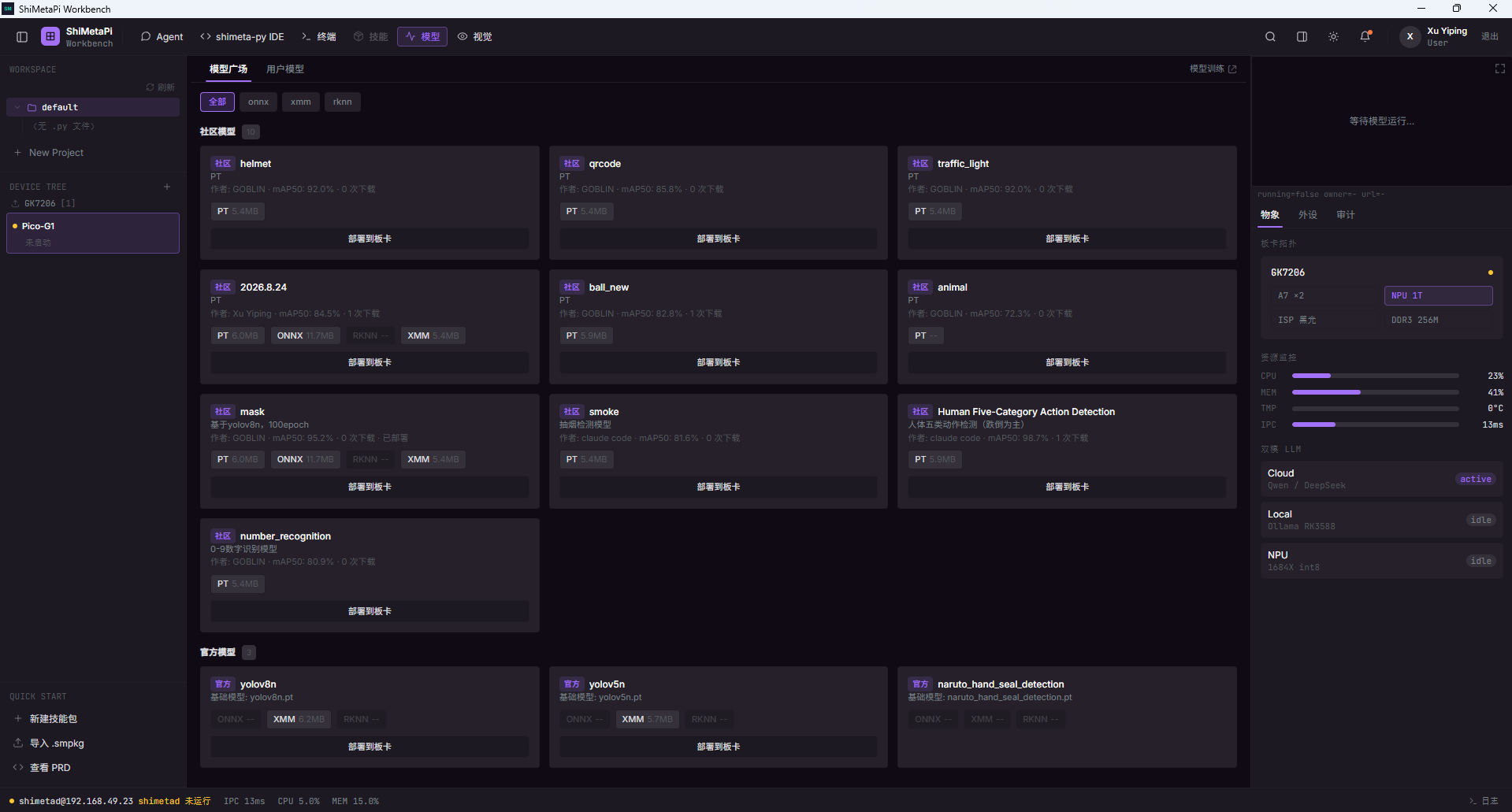
You'll see two sub-tabs:
| Sub-Tab | Data Source | Visible To | Who Can Download |
|---|---|---|---|
| Model Market | Company official + community user publications | All logged-in users | All logged-in users |
| User Models | Models you trained yourself on AIHub | Current user only | Yourself (can also publish to the community) |
Step 2: Browse the Model Market
Top Filters
| Filter | Options |
|---|---|
| Format | All / pt / onnx / xmm / rknn |
Model Card Fields
Each model card shows:
| Field | Description |
|---|---|
| Model name | Short identifier (e.g. mask / yolov8n) |
| Author (community models) | Publisher's username |
| Type badge (official models) | Official / Community |
| Format | PT / ONNX / RKNN / XMM |
| Size | Actual file size for each format |
| Input size | Model inference input (e.g. 640×640) |
| Publish date | e.g. 2026/8/24 |
| mAP50 (some community models) | Mean average precision |
| Deployed/Downloads | Deployment status and download count |
Community Model Examples
| Model | Author | mAP50 | Deployed |
|---|---|---|---|
| mask (based on yolov8n, 100 epochs) | GOBLIN | 95.2% | Deployed |
| ball_new | GOBLIN | — | — |
| Human Five-Category Action Detection | claude code | 98.7% | — |
| number_recognition (digits 0-9) | GOBLIN | 80.9% | — |
Official Model Examples
| Model | Base Model |
|---|---|
| yolov8n | yolov8n.pt |
| yolov5n | yolov5n.pt |
| naruto_hand_seal_detection | naruto_hand_seal_detection.pt |
Step 3: Browse User Models
Switch to the User Models sub-tab:
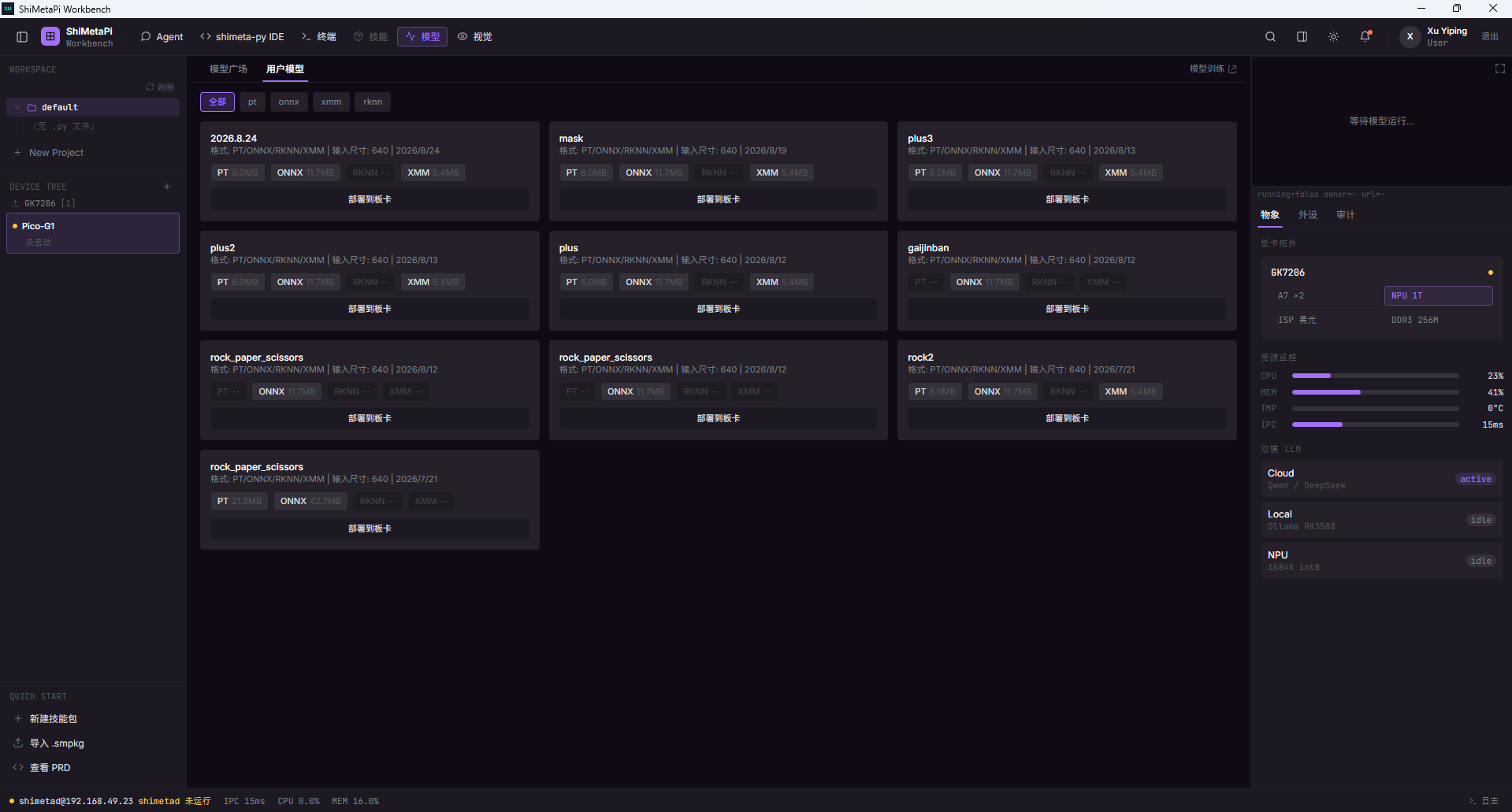
| Field | Description |
|---|---|
Model name (e.g. 2026.8.24, plus, gaijinban) | Your training versions |
| Format | PT / ONNX / RKNN / XMM |
| Input size | 640×640 |
| Publish date | Training date |
Every model card has a "Deploy to Board" button (see ch05).
Step 4: Choosing a Model (First-Time Recommendation)
For first use, we recommend a lightweight demo from the official models:
| Recommendation | Model | Best For |
|---|---|---|
| ⭐ First | yolov8n | General object detection, 80 classes (COCO) |
| Second | yolov5n | Faster, slightly lower accuracy |
Step 5: Model Training (Optional)
If you already have a model, go straight to ch05 to deploy it.
To train your own model:
- Click the "Model Training" link in the upper-right corner
- The browser opens the training page at aihub.shimetapi.cn
- Finish training and export the model
After export, the model automatically appears in the Workbench User Models sub-tab.
See AIHub Docs → Training Guide for details.
Step 6: Model Formats
| Format | Applicable Board | Purpose |
|---|---|---|
| pt | — | Raw PyTorch weights, for continued training |
| onnx | — | Generic intermediate format, convertible |
| xmm | Pico-G1 (GK7206) | Model package runnable on the board |
| rknn | RK3588 (coming) | Rockchip NPU acceleration |
Pico-G1 currently only supports deploying the
.xmmformat.
Step 7: Model Deployment Permissions
Deploying a model requires no special permissions. However:
- Community models belong to their publishers and follow the licenses set by the publisher (see the model detail page)
- Official models follow the company's commercial license
FAQ
| Symptom | What to Check |
|---|---|
| Model Tab loads slowly | Check the PC network; the first load fetches the model list |
| Can't find a model you trained | The AIHub training task wasn't exported, or the format isn't .xmm |
| Model card shows only PT/ONNX, no XMM | XMM format wasn't selected when exporting after training |
Next
- ch05 First Inference: deploy the chosen model to the board + view the feed in the Vision Tab
- User Guide → Model Market: advanced filters, batch operations, model details
- AIHub Docs → Training & Export: train your own model