
Modifying the Root Filesystem
The method described in this document modifies the root filesystem by mounting the img image. The detailed procedure is as follows.
Take modifying linaro-rootfs.img as an example.
1 Mount the Root Filesystem Image
# 创建挂载文件夹
mkdir /mnt/GM_3568JHF_root

# 挂载
sudo mount -o loop /home/ubuntu/SDK/debain/linaro-rootfs.img /mnt/GM_3568JHF_root
# /home/ubuntu/SDK/debain/linaro-rootfs.img:是 linaro-rootfs.img 所在路径

# 进入挂载目录
sudo chroot /mnt/GM_3568JHF_root /bin/bash
After running the above commands, you will enter the mounted root directory interface, as shown in the figure.
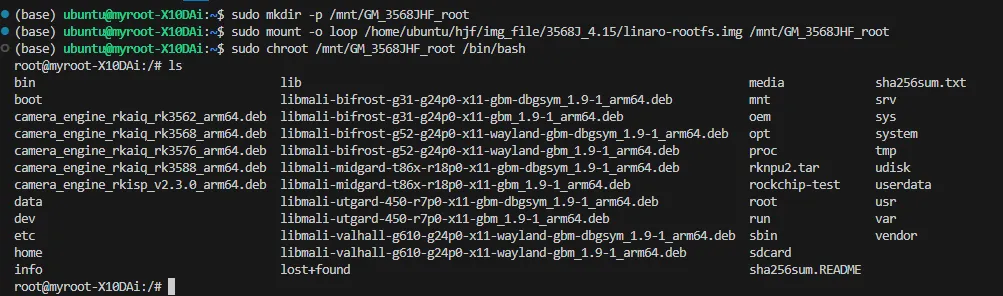
You can then download the installation packages you need inside it.
2 Add Files
2.1 Add Files in the Root Directory
To add files in the root directory, first mount the root filesystem image, then copy the files into the mounted directory. Then enter the mounted directory to see the added files. Users can modify files in the mounted directory, such as changing file permissions.
# 在根目录下添加文件
sudo mv /home/ubuntu/test.txt /mnt/GM_3568JHF_root

# 进入挂载目录
sudo chroot /mnt/GM_3568JHF_root /bin/bash

# 在挂载目录下对文件进行修改
chmod 777 ./test.txt
2.2 Add Files in a Non-Root Directory
The method for adding files in a non-root directory (such as the Desktop directory) is as follows:
# 创建需要添加文件的目录
sudo mkdir -p /mnt/GM_3568JHF_root/home
sudo mkdir -p /mnt/GM_3568JHF_root/home/linaro
sudo mkdir -p /mnt/GM_3568JHF_root/home/linaro/Desktop

# 移动文件到挂载的指定目录
sudo mv /home/ubuntu/test.txt /mnt/GM_3568JHF_root/home/linaro/Desktop

# 进入挂载目录
sudo chroot /mnt/GM_3568JHF_root /bin/bash

# 在挂载目录下对文件进行修改
cd /home/linaro/Desktop
chmod 777 ./test.txt
3 Unmount After Modification
After modification is complete, run the following command to unmount.
# 取消挂载
sudo umount -l /mnt/GM_3568JHF_root