Debugging Tools
1 USB-to-Serial Driver Installation
This section covers installing the USB-to-serial driver for the development board's serial port. The driver is suitable for USB-to-serial chips such as CH340 and CH341.
Applicable installation environments: Windows 7 64bit, Windows 10 64bit.
- Extract the product material
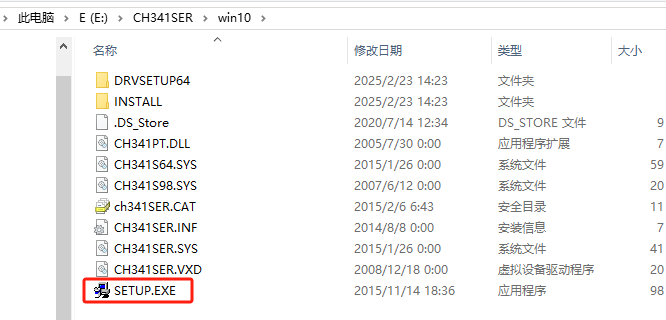
软件资料\Tools\Windows\CH341SER.zip, navigate to the directory corresponding to your computer system, and click SETUP.EXE.
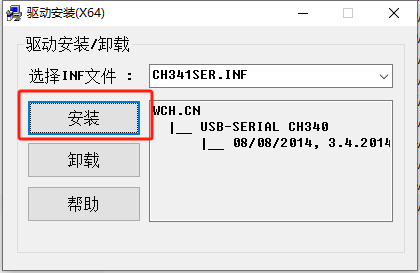
- Click Install.
- After the installation success prompt, you can view the USB-to-serial driver in the PC Device Manager, as shown in the figure below.

If installation still fails, you can use third-party software such as DriverGenius or DriverPack to install the USB-to-serial driver over the internet. If the driver is normal but the connection still fails, please check whether the USB cable is functioning properly.
2 System Debugging Tool SecureCRT Installation
SecureCRT is a terminal emulation software that supports the SSH protocol. It can be used to view development board system information and debug the development board system via the serial port or Ethernet port.
2.1 Installation Process
Applicable installation environments: Windows 7 64bit, Windows 10 64bit.
- Extract the
软件资料\Tools\Windows\VanDyke SecureCRT and SecureFX 9.4.0.3072 x64+x32.rararchive from the product materials.
For 64-bit computers, double-click to install scrt-sfx-x64-bsafe.9.4.0.3072.exe in the extracted directory.
For 32-bit computers, double-click to install scrt-sfx-x86-bsafe.9.4.0.3072.exe in the extracted directory.
- After installation according to the process, you need to enter a License serial number to use it. Please purchase the License yourself.
2.2 Serial Connection Settings
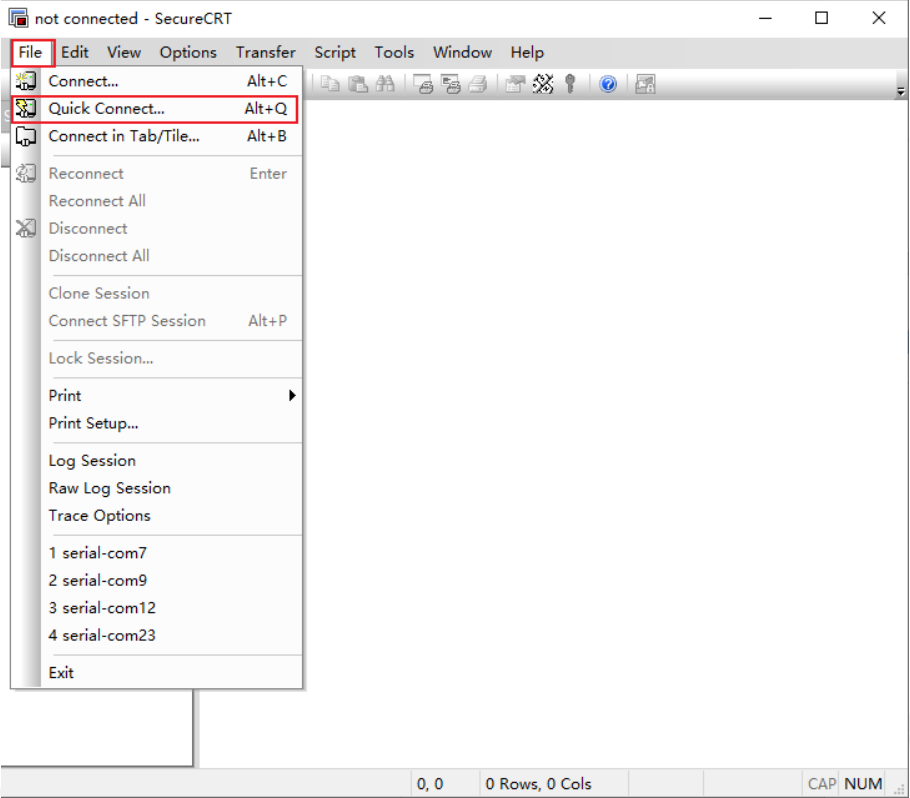
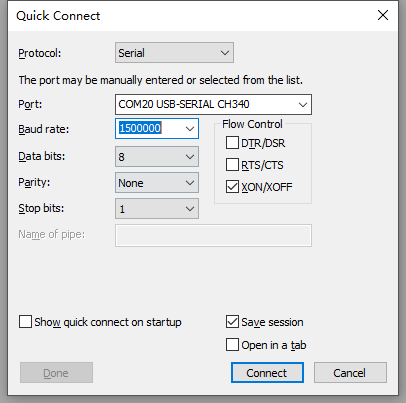
- Open SecureCRT, click "File -> Quick Connect..." to enter the connection configuration interface. Or directly click the "Quick Connect" shortcut button, as shown in the figure below.
- In the pop-up dialog box, configure the serial connection method. Select Serial for Protocol, select the corresponding COM port for Port, manually enter the baud rate as 1500000, leave other parameters at their defaults, and finally click Connect, as shown in the figure below.
2.3 Character Encoding Settings
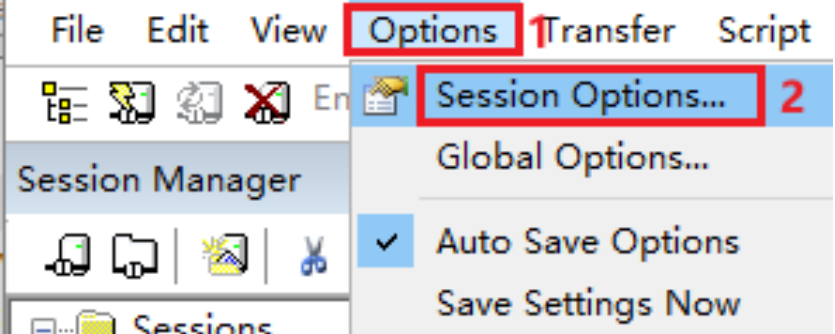
To ensure that the system debugging tool supports Chinese display and avoid garbled Chinese characters, please make the following character encoding settings. Click "Options -> Session Options… -> Appearance" in turn, select UTF-8 for Character encoding, and click OK to save.

2.4 Saving System Boot Information (Log)
During debugging, it is often necessary to save the system boot information (Log).
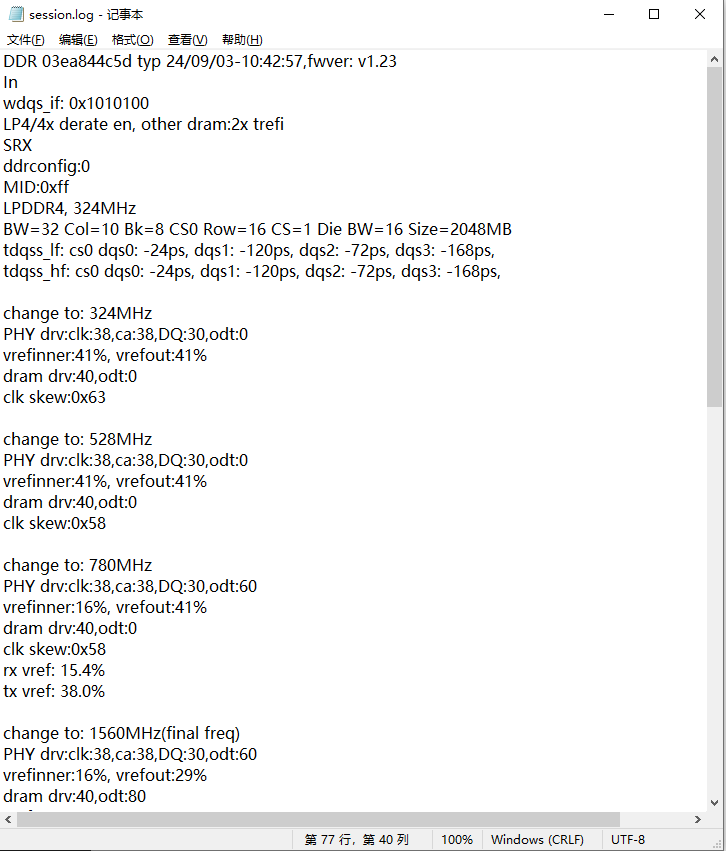
- After the system debugging tool connection settings are complete, click "File -> Log Session" to enter the Log save configuration interface, select the Log save path, and click "Save", as shown in the figure below.

- After the system finishes booting, the Log will be automatically saved in the corresponding log file, with content similar to the figure below.

3 Network SSH Login
Tips
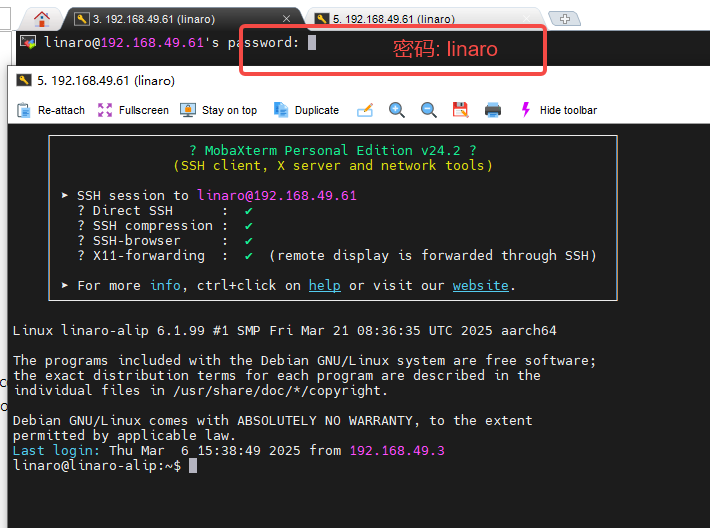
Default account: linaro, password: linaro
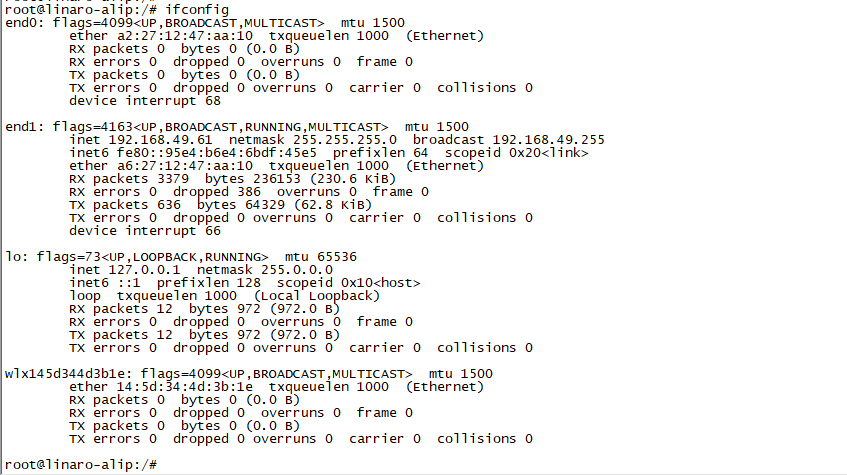
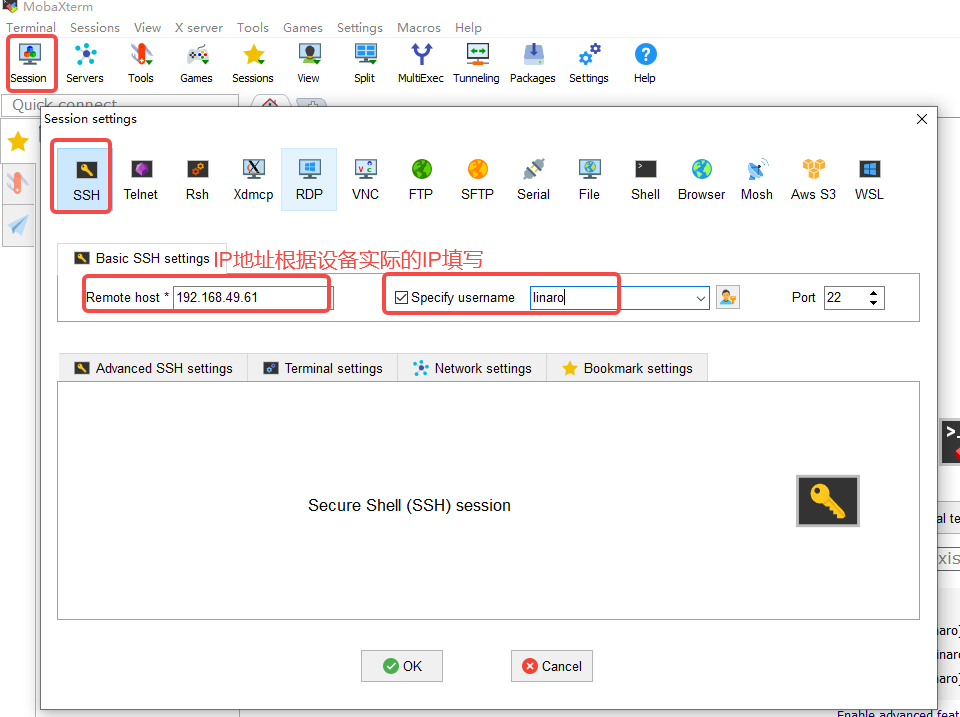
First, ensure that your computer and the device are on a networked (i.e., in the same local area network); plug the network cable into Ethernet port 1 or port 2 of the device, and use the ifconfig command to view the device's IP address — type the command via the command line on a connected display, or enter the command after a serial connection to view it.
Using MobaXterm as an example:
Enter the password to log in:
Note
If you need root privileges, you can use sudo + command or sudo -i to switch to the root user to execute commands.
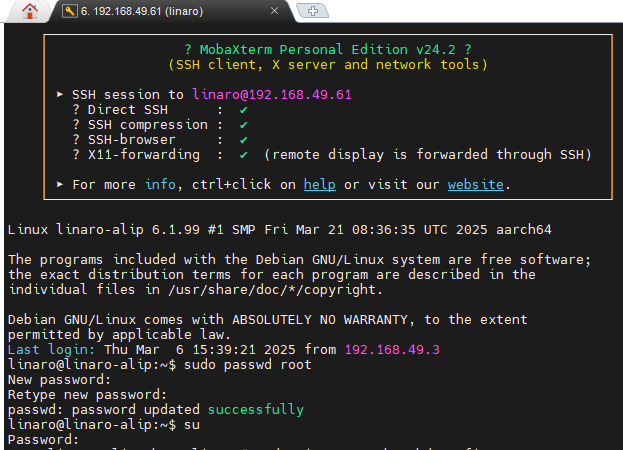
Alternatively, use the linaro account to set a root password: enter sudo passwd root in the terminal to customize the password;